
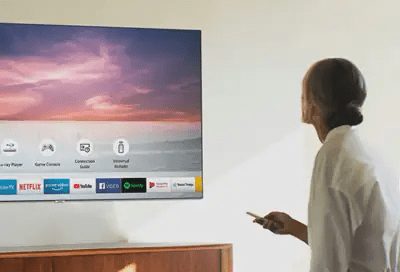
Do you have a Samsung TV connected to the internet, but are having trouble accessing Wi-Fi? You're not alone. Many users complain about not being able to fully enjoy their Smart TV due to Wi-Fi connection problems. Fortunately, there are solutions to fix this issue and restore a stable and smooth connection. In this article, we'll explain the possible causes of Wi-Fi connection on your Samsung TV and give you tips to easily resolve them.
What are the causes of the wifi connection problem on your Samsung TV?

There can be several reasons why your Samsung TV isn't connecting properly to Wi-Fi. Here are the most common:
- A network configuration problem
- A software update problem
- A problem of distance or interference
- A network overload problem
How to solve the wifi connection problem on your Samsung TV?
Wi-Fi connection problem on your Samsung TV , you can try the following solutions:
Change the DNS
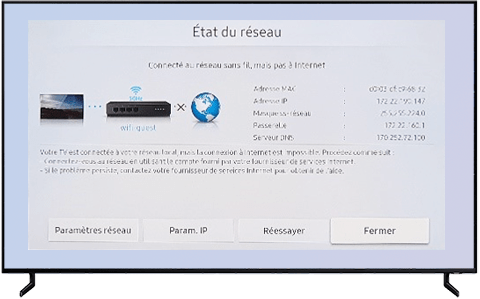
DNS is the service that translates domain names into IP addresses. Sometimes, the DNS provided by your internet service provider can be faulty or slow, which can cause the error "DNS address not found" . You can then change the DNS on your Samsung TV to use a more efficient server, such as Google DNS. To do this, follow these steps:
Menu > Network > Network status > IP settings > DNS settings > Manually enter a DNS server obtained for example from Google DNS > Confirm with OK.
Connect the TV via Ethernet
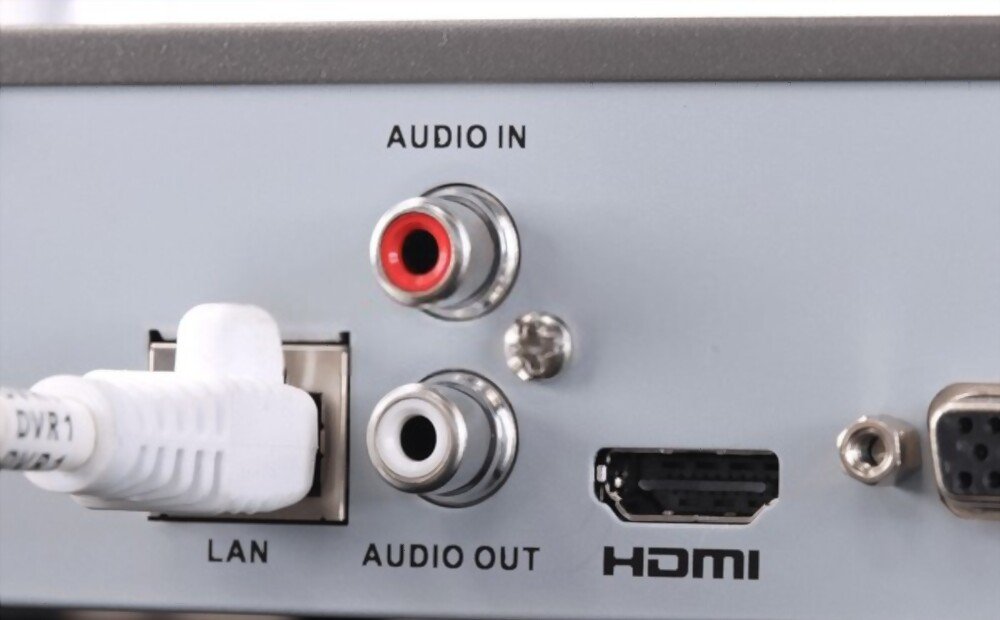
If you can connect your Samsung TV directly to your router or internet box with an Ethernet cable, you can avoid Wi-Fi-related issues. This will give you a more stable and faster connection. To do this, connect an Ethernet cable between the LAN port on your Samsung TV and the LAN port on your router or internet box, then select wired mode in your Samsung TV's network settings.
Restart the TV
Sometimes, a simple restart can be enough to resolve the Wi-Fi connection problem on your Samsung TV. This resets the network settings and corrects any bugs. To do this, turn off your Samsung TV using the remote control, then unplug it from the power outlet for a few minutes. Next, plug it back in and turn it back on, then check if the Wi-Fi is working.
Reset the TV to default settings
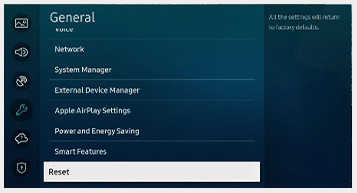
If the problem persists, you can try resetting your Samsung TV to factory settings. This will remove any modifications or errors that may have affected the Wi-Fi functionality. Be aware that this operation will erase all data and personalized settings on your Samsung TV, so be sure to back up your data first. To do this, follow these steps: Menu > Support > Self-Diagnosis > Reset > Enter your PIN (default 0000) > Confirm with OK.
Reconnect your TV to the Internet
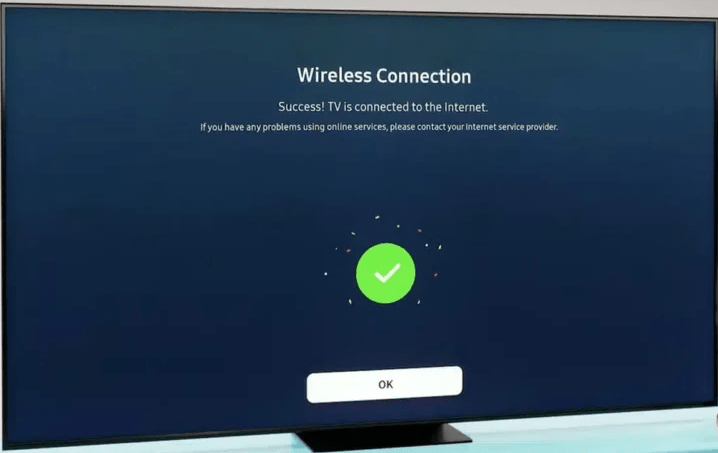
If you have reset your Samsung TV, you need to reconnect it to the internet. To do this, follow these steps: Menu > Network > Open network settings > Wireless > Select your network from the list > Enter your password > Confirm with OK.
Limit the number of devices connected to the network
If you have many devices connected to the same Wi-Fi network, you can try limiting their number or activity to free up bandwidth and improve your Samsung TV's connection. For example, you can disconnect devices you're not using, stop any downloads or updates in progress, or reduce the quality of streaming videos.
Check the electrical connections of the connected devices
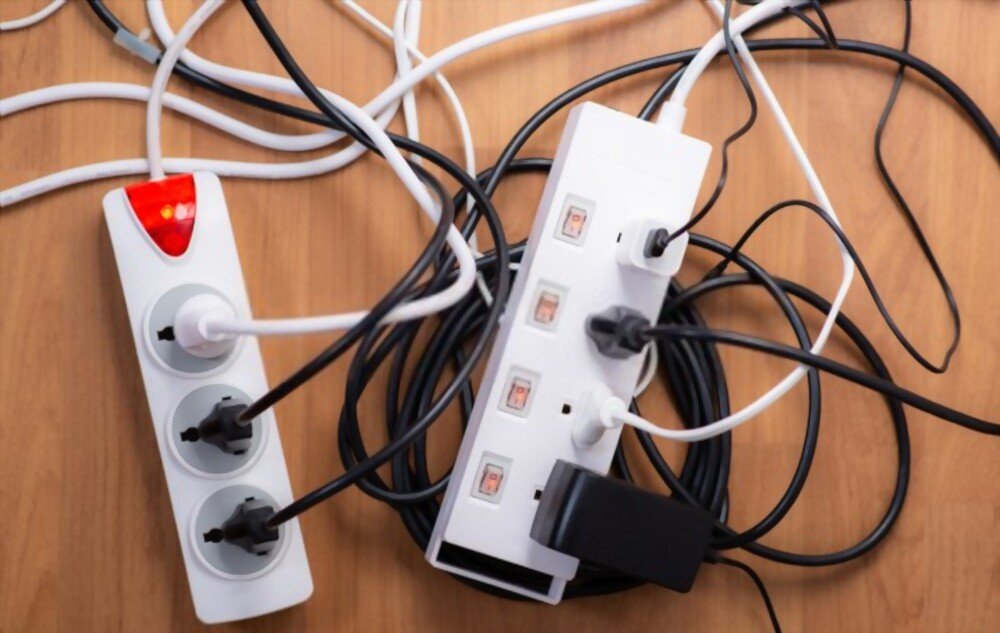
The Wi-Fi connection problem on your Samsung TV may be due to an incorrect power connection to your router or internet box. For example, if you're using a power strip or extension cord, you might experience a voltage drop or overheating that affects the Wi-Fi signal. You should check that your devices are plugged directly into a wall outlet and that they are not exposed to heat or humidity.
Test the connection via a hotspot
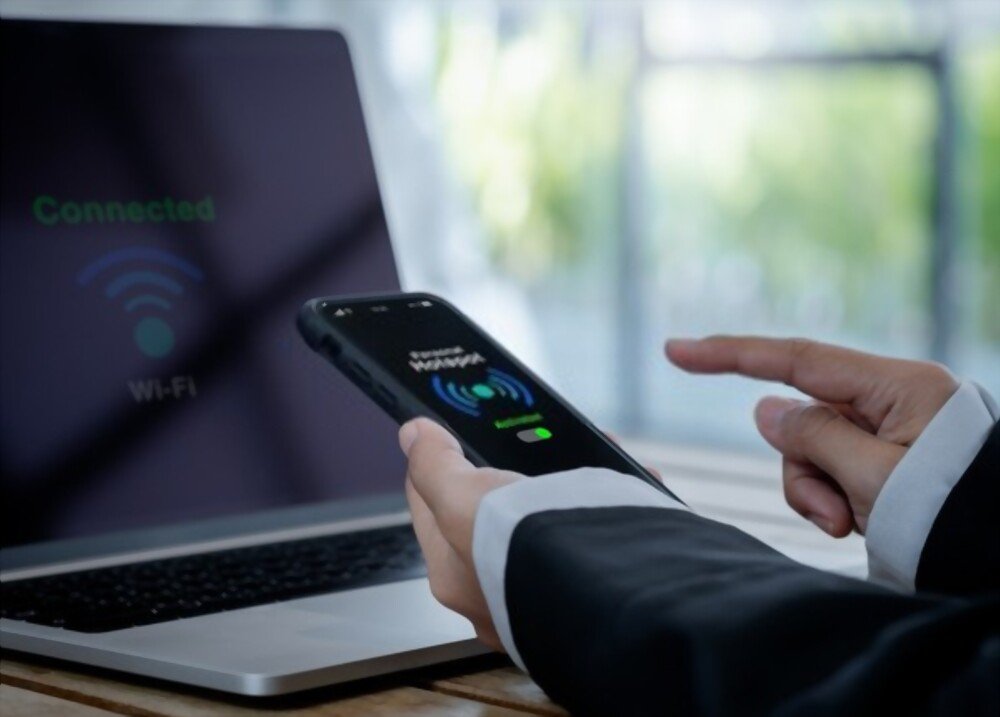
If you have a smartphone or tablet with a mobile data plan, you can try creating a Wi-Fi hotspot with your device and connecting your Samsung TV to that network. This will allow you to determine if the problem is with your home Wi-Fi network or your Samsung TV. If the Wi-Fi works with the hotspot, the problem is with your home Wi-Fi network. You can then contact your internet service provider for assistance. If the Wi-Fi doesn't work with the hotspot, the problem is with your Samsung TV. You can then contact Samsung customer support for assistance.
.
FAQ
Here are some frequently asked questions from users experiencing Wi-Fi connection on their Samsung TV :
How can I tell if my Samsung TV is connected to Wi-Fi?
To check if your Samsung TV is connected to Wi-Fi, you can follow this path: Menu > Network > Network Status. You will then see if your Samsung TV is connected to a wireless or wired network, and if it has internet access.
How do I update the software on my Samsung TV?
To update your Samsung TV , follow these steps: Menu > Support > Software Update > Update Now. Your Samsung TV will then search for available updates and install them automatically. You can also enable the Automatic Update option so that your Samsung TV updates automatically as soon as a new version is available.
How do I change the DHCP mode on my Samsung TV?
DHCP mode allows your Samsung TV to automatically obtain an IP address and other network settings. To change this mode, follow this path: Menu > Network > Network Status > IP Settings > IP Mode. You can then choose between DHCP and Static mode. If you choose Static mode, you will need to manually enter the IP settings, such as the IP address, subnet mask, gateway, and DNS.
How do I reset the Wi-Fi on my Samsung TV?
To reset the Wi-Fi on your Samsung TV , follow this path: Menu > Network > Reset network settings. Your Samsung TV will then clear the Wi-Fi connection information and restart. Afterward, you will need to reconnect your Samsung TV to Wi-Fi by following the steps described above.
How can I boost the Wi-Fi signal on my Samsung TV?
To boost the wifi signal on your Samsung TV , you can try the following tips: place your router or internet box near your Samsung TV , or in an open and elevated location; point the antennas of your router or internet box towards your Samsung TV ; change the wifi channel of your router or internet box to avoid interference with other networks; use a wifi repeater or amplifier to extend the signal range.
Conclusion
You now have all the tools you need to resolve the Wi-Fi connection issue on your Samsung TV. However, you might encounter another problem: a black screen on Netflix on your Samsung TV . This issue could be due to incorrect video resolution settings, a bug in the Netflix app, or a conflict with other applications. To resolve it, you can try the following solutions: restart your TV, update the Netflix app, uninstall and reinstall the Netflix app, or contact Netflix customer support. We hope this article has been helpful and that you can fully enjoy the features of your Smart TV. If you still have questions or difficulties, please don't hesitate to contact Samsung customer support or your internet service provider. Happy viewing!


