Instagram is one of the most popular apps for sharing photos and videos with friends, family, or fans. But sometimes, you might encounter difficulties uploading or displaying images on Instagram .
What should you do in this case? What are the possible causes of this problem? And how can you easily solve it? Here are some tips and tricks to help you fully enjoy your Instagram experience.
1. Check your internet connection
The first thing to do if you're having trouble loading images on Instagram is to check your internet connection . Your network might be too weak, unstable, or congested, preventing the app from working properly.
To check your internet connection, you can:
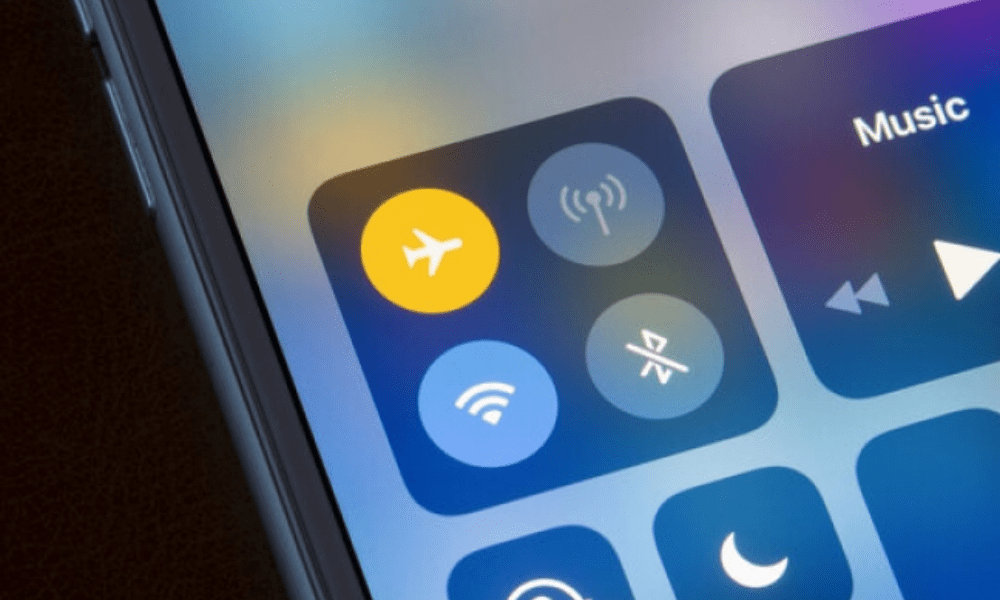
- Toggle airplane mode on your device to refresh the connection.
- Switching from Wi-Fi to mobile network , or vice versa, depending on signal quality.
- You move closer to the Wi-Fi router if you are too far away or if there are obstacles between you and the router.
- Restarting your device may resolve some temporary bugs.
- Contact your operator or internet service provider if the problem persists.
If your internet connection is good, but you still can't upload images to Instagram, proceed to the next step.
2. Update the Instagram app
Another possible cause of image loading problems on Instagram is that your app is not up to date. The version you are using may be outdated or incompatible with your operating system, leading to malfunctions.
To update the Instagram app , you can:
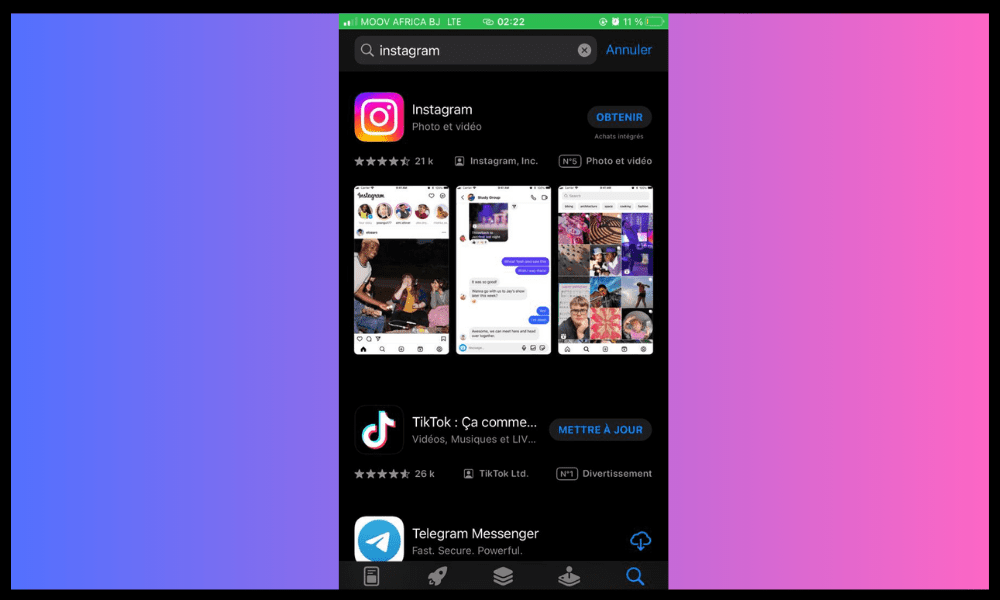
- Access the Play Store (for Android) or the App Store (for iOS) and search for the Instagram app.
- Check if there is an update available and download it if so.
- Open the Instagram and check if the problem is resolved.
If your Instagram app is up to date, but you still can't upload images to Instagram, proceed to the next step.
3. Clear the cache and data of the Instagram application

Another possible solution to resolve the image loading problem on Instagram is to clear the application's cache and data.
The cache is a temporary storage space that speeds up the loading of web pages and applications. Data refers to the personal information you have saved on the application, such as your username, password, or preferences.
Sometimes the cache or data can become corrupted or saturated, causing errors or slowdowns.
To clear the cache and data of the Instagram app, you can:
- Access your device settings and select the “ Applications ” or “ Application Manager ” option.
- Find the Instagram app and tap on it.
- Storage ” or “ Memory ” option
- Press the “ Clear cache ” and “ Clear data ” buttons.
- Open the Instagram app and log back in with your credentials.
- Check if the problem is resolved.
Warning : Clearing the cache and data of the Instagram app will erase all the information you've saved on the app, such as your direct messages, saved posts , and recent searches. You will need to restore them manually if necessary.
If you have cleared the cache and data of the Instagram app, but you still cannot load images on Instagram, proceed to the next step.
4. Free up memory on your device
If clearing your Instagram app's cache isn't enough, your device may not have enough memory to run the app properly. To free up memory on your device, you can follow these tips:
Close any unnecessary applications running in the background
To do this, double-press the Home button if you have an iPhone or the square button if you have an Android. Then swipe up or to the right on the apps you want to close.
Delete unnecessary files that are taking up space on your device
To do this, go to your device settings, then to Storage .
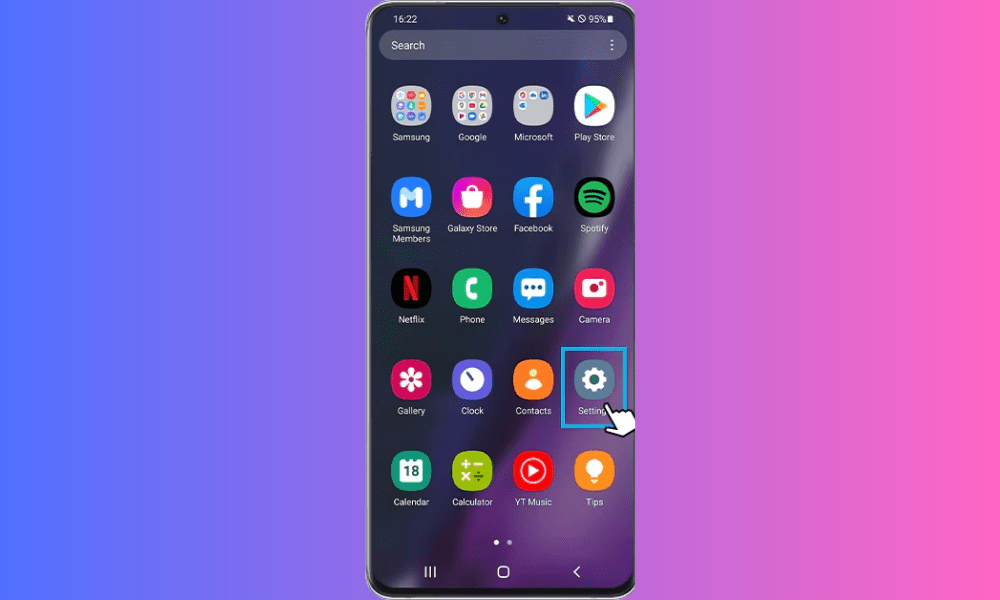
You'll then see the space occupied by different file categories (photos, videos, music, apps, etc.). Tap on the ones taking up the most space and delete the files you don't need. You can also use an app like CCleaner or Clean Master to clean your device more easily.
Use an online storage service to back up your important files
Instead of storing all your files on your device, you can use an online storage service like Google Photos, Dropbox, or iCloud to back them up online and access them from any device. This will free up space on your device and prevent you from losing your files in case of a problem.
5. Uninstall and reinstall the Instagram app
One last possible solution to resolve the image loading issue on Instagram is to uninstall and reinstall the application. This removes all files and settings related to the application and replaces them with a clean, working version. To uninstall and reinstall the Instagram application, you can:
- Access your device settings and select the “ Applications ” or “ Application Manager ” option.
- Find the Instagram app and tap on it.
- Press the “ Uninstall ” button and confirm your choice.

- Access the Play Store (for Android) or the App Store (for iOS) and search for the Instagram app.
- Press the “ Install ” button and wait for the download to complete.
- Open the Instagram app and log back in with your credentials.

- Check if the problem is resolved.
Warning : Uninstalling and reinstalling the Instagram app will erase all your saved information, such as direct messages, saved posts, and recent searches. You will need to restore this information manually if necessary.
See other articles on Instagram: How to fix the "user not found" problem on Instagram
What to do if Instagram isn't loading images in stories?
Stories are ephemeral posts that disappear after 24 hours. They allow you to share moments from your life with your followers or the public. Sometimes, Instagram may not load the images in stories, which can be frustrating.
Here are some possible solutions to solve this problem:
- Check that you have allowed Instagram to access your camera and gallery . To do this, go to your device's settings, then to apps, then Instagram , then to permissions. Enable the " Camera " and " Storage " options.
- Make sure you have the latest version of Instagram. To do this, go to the Play Store (for Android) or the App Store (for iOS) and search for Instagram. If an update is available, install it.
- Check that you have enough storage space on your device . To do this, go to your device's settings, then to storage, and then check the available space. If it is less than 500 MB, free up space by deleting unnecessary apps or files.
- Check that you haven't enabled data saving mode on your Android device . This mode reduces mobile data usage, but it can also affect image quality on Instagram . To disable it, go to your device's settings, then to Connections, then Data usage, and then turn off Data saving mode.
- Check that you haven't turned on airplane mode . This mode cuts off all wireless connections on your device , which prevents images from uploading to Instagram. To turn it off, swipe down from the top of the screen and tap the airplane mode icon.
If none of these solutions work, you can try clearing Instagram's cache and data, or uninstalling and reinstalling the application, as explained in the previous text.
What to do if Instagram doesn't load images on the PC?
Instagram is primarily designed for use on mobile devices, but it can also be accessed from a PC via a web browser. However, you may encounter problems loading or viewing images on Instagram from your PC.
Here are some possible solutions:
- Check that your web browser is up to date. To do this, go to the browser menu, then to Help, then to “ About ”. If an update is available, install it.
- Check that you have allowed Instagram to display images . To do this, go to your browser's menu, then settings, then privacy and security , then site settings , then images . Make sure the " Show all " option is enabled.

- Check that you haven't enabled an ad blocker or VPN . These tools can interfere with image loading on Instagram. To disable them, go to your browser's menu , then to extensions , and disable any that might be causing a problem.
- Check that you haven't activated private or incognito browsing mode . This mode allows you to browse the web without leaving traces, but it can also prevent images from loading on Instagram. To deactivate it, close the browser window that is in private or incognito mode.
If none of these solutions work, you can try clearing your browser's cache and cookies, or using a different browser.
See also : how to use Instagram on a Mac
What to do if Instagram is not loading live images?
Live streams are live broadcasts that allow you to communicate with your subscribers or the public. They can be accessed from the “Reels” tab or from the stories bar.
Sometimes Instagram may not load live images, which can be frustrating. Here's what you can do:
- Check that you have a good internet connection . To do this, run a speed test on a site like Speedtest or Fast . If your speed is less than 5 Mbps, try moving closer to your Wi-Fi router or switching networks.
- Do Not Disturb mode Do Not Disturb icon to turn it off.
- Low Brightness" mode . This mode reduces screen brightness, but it can also affect the loading of live images on Instagram. To disable it, swipe down from the top of the screen and tap the " Low Brightness " icon to turn it off.
- Low Power Mode ." This mode extends battery life, but it can also affect the loading of live images on Instagram. To disable it, go to your device's settings, then to Battery, and then turn off " Low Power ."

If none of these solutions work, you can try clearing Instagram's cache and data, or uninstalling and reinstalling the application, as explained in the previous text.
What to do if Instagram doesn't load images in DMs?
DMs are direct messages that allow you to chat with your contacts or other users on Instagram. They can be accessed from the " Messaging " tab or from the Stories bar. Sometimes, Instagram may not load images in DMs , which can be annoying. Here are some possible solutions to resolve this issue:
- Check that you have allowed Instagram to access your gallery. To do this, go to your device's settings, then to apps, then to Instagram, then to permissions. Enable the " Storage " option.
- Make sure you have the latest version of Instagram. To do this, go to the Play Store (for Android) or the App Store (for iOS) and search for Instagram. If an update is available , install it.
- Check that you haven't blocked or restricted the contact you want to share an image with. To do this, go to the contact's DMs, then tap on their name or username, and check if there's an " Unblock " or " Remove restriction " option. If so, tap it to restore normal communication.
- Reduce Data Usage mode . This mode limits mobile data consumption, but it can also reduce the image quality in Instagram DMs. To disable it, go to Instagram settings, then to Messaging, and then turn off " Reduce Data Usage .
If you ever need to, this short video will be very useful:
If none of these solutions work, you can try clearing Instagram's cache and data, or uninstalling and reinstalling the application, as explained in the previous text.
Conclusion
You might occasionally encounter Instagram bugs that prevent images from loading or displaying on the app, which can be frustrating. Fortunately, there are simple and effective solutions to this problem, such as checking your internet connection, updating the app, clearing the cache and data, or uninstalling and reinstalling the app. By following these tips, you should be able to fully enjoy your Instagram experience.