Unboxing a new computer is always a pleasant experience. Whether for work, studies, or leisure, the promise of a fast and responsive machine is always welcome. However, before you dive headfirst into downloading your favorite applications or games, one essential step is necessary.
Factory settings aren't always optimized to protect your privacy, ensure data security, or provide the best possible battery life. Spending half an hour on the initial system setup will save you a lot of trouble later on.
Perform updates and configure basic security
The first thing to do once the computer is powered on and connected to the Wi-Fi network is to update the operating system. Even if your machine is brand new, several weeks or months have passed since it was manufactured.
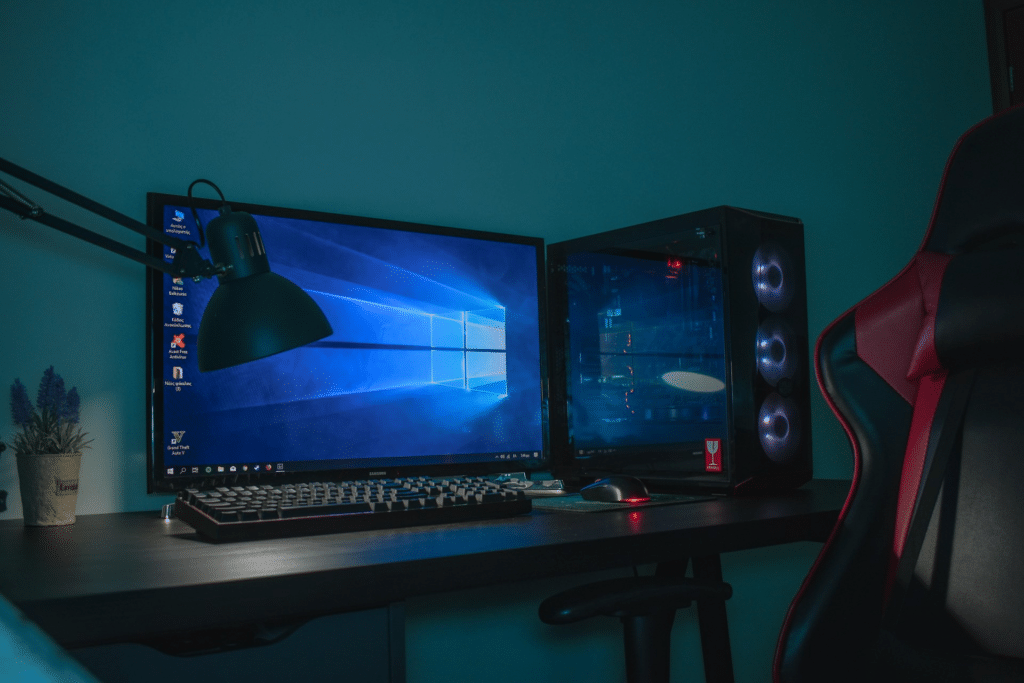
Go to your system settings to check for updates. This will install the latest security patches and update drivers for internal components such as your graphics card and processor. While you're there, review your privacy settings. By default, many options for tracking and sending diagnostic data are enabled. Take the time to disable anything that isn't strictly necessary. To protect your primary accounts from the start, also consider linking your logins to a email address that you can use to recover your passwords if you forget them or if your system crashes.
Clean up pre-installed software and organize your storage space

Computer manufacturers frequently pre-install partner applications on new machines. These programs, often called utilities or bloatware, take up unnecessary disk space and can slow down your computer's startup.
Take the time to methodically sort through the list of installed applications:
- Uninstall trial versions of paid antivirus software or games that you do not need.
- Keep only the manufacturer's tools necessary for managing the battery or hardware components.
- Activate the built-in protection solution of your operating system, which is often quite sufficient for everyday use.
- Create a clear folder structure in your documents folder so you don't leave your files cluttering up your desktop.
Optimize battery life, display, and install your essential tools
Once the system is clean and up-to-date, you can focus on everyday usability. These simple adjustments greatly improve the viewing experience and preserve the components in the long run.
Adjust your screen's resolution and refresh rate for a sharp image. Enabling night mode or blue light filtering at the end of the day reduces eye strain during long screen sessions. If you're using a laptop, check the power supply modes. Choosing a balanced profile helps conserve battery life when working plugged into a power outlet.
Finally, download your essential software from their official websites, being careful not to select any additional toolbars that may be offered during installation. Your new computer is now perfectly configured to efficiently support you in your daily tasks.