

How many times have you wanted to send an email at a specific time, but you weren't available? No more stress about missing the deadline! Thanks to Gmail's built-in scheduling , you can now schedule your messages to arrive in your recipients' inboxes at the date and time of your choosing.
Step 1: Access the programming function
Scheduling emails to be sent in Gmail is a simple and intuitive process:
On a computer:
- Write your email as usual.
- Click the down arrow next to the " Send " button.
- Select " Schedule sending ".
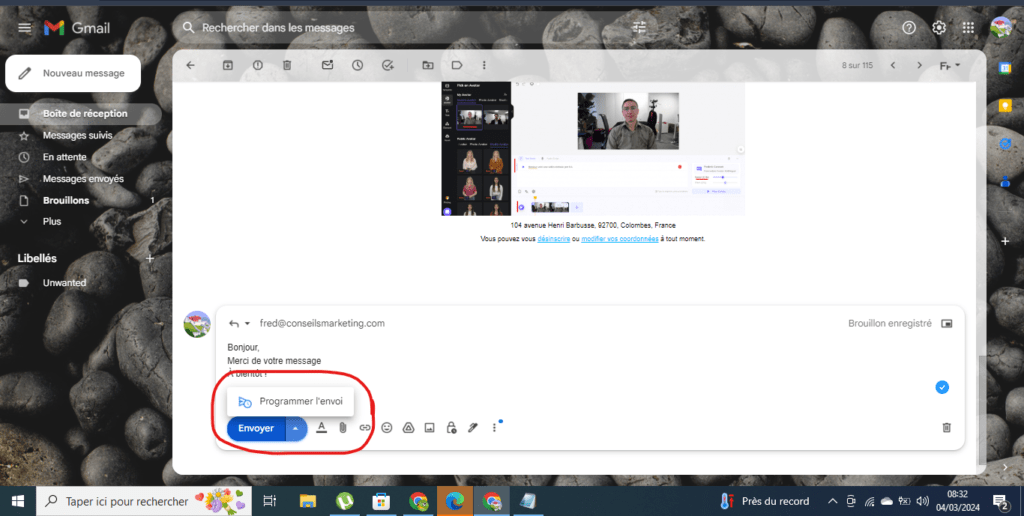
On mobile (Android and iOS):
- Tap the three vertical dots in the top right corner of the screen.
- Select " Schedule sending ".
Step 2: Choose the date and time for sending
Predefined options:
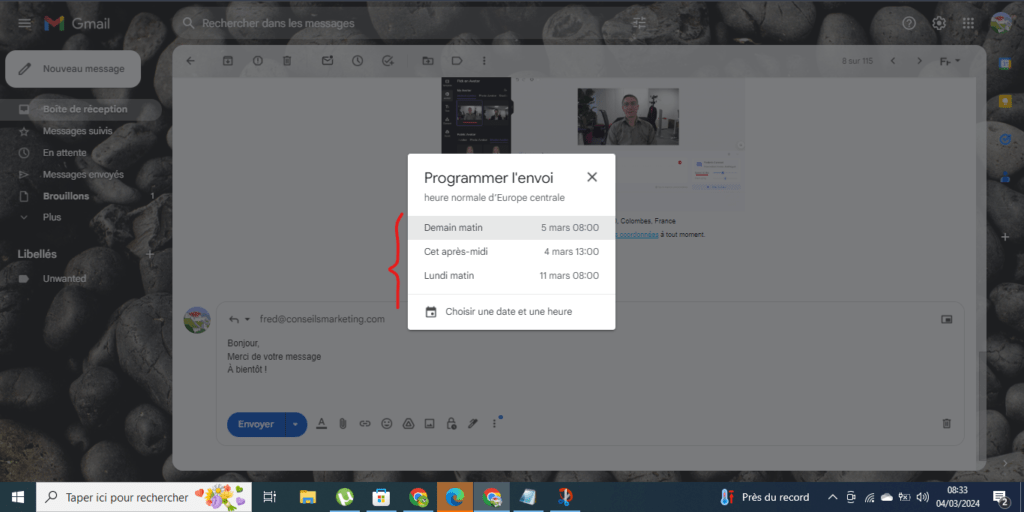
- Later today
- Tomorrow morning
- This weekend
- Next week
- Next month
Personalized choice:
- Click on " Choose a date and time" .
- Choose the date and time from the calendar to send your message.
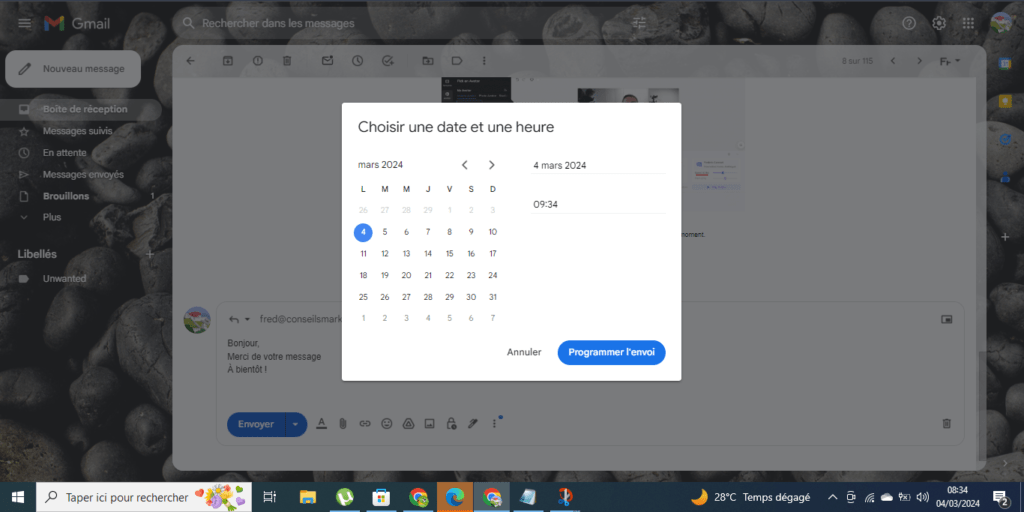
- Click on Schedule sending
Advanced features for even finer management
In addition to simple scheduling, Gmail offers advanced options for even more precise management of your emails:
- Send a follow-up message: Schedule a follow-up email to be sent if your recipient has not responded to your initial message after a certain period of time.
- Choose the type of notification: Determine whether you want your recipient to receive a notification by email or SMS.
- Set an expiration date: Schedule the automatic deletion of your message after a certain time.
Tips for optimal use
Precision and purpose
When writing your message, be precise and clear, as you will not be able to change it once it is scheduled. Make sure you include all the necessary information and clearly state your objective.
Follow-up and confirmation:
Use the email tracking feature to see if your message has been received and opened by the recipient. This allows you to measure the impact of your communication and adapt your strategy if necessary.
Respect for time zones:
Schedule your mailings according to your recipient's time zone. Avoid sending untimely emails at inappropriate hours that could disrupt their business.
Advanced options
Take advantage of the email platform's advanced options to schedule recurring emails, automate your communications, and save time. You can also cancel scheduled sends if needed.
By following these tips, you optimize the effectiveness of your scheduled emails and strengthen the impact of your communications.
A valuable tool for optimal management of your communications

Whether you are a professional, a student, or simply a regular Gmail user, scheduling emails offers many advantages:
- Save time: Plan your emails in advance and free up time for more important tasks.
- Improve your productivity: Organize your communications and be sure never to miss an important opportunity.
- Manage time zones: Send emails to your contacts at a time that suits them, even if you are in a different time zone.
- Personalize your communication: Schedule welcome emails, reminders, or birthday messages for a more personalized customer experience.
Conclusion
Scheduling emails in Gmail is a valuable tool for anyone looking to optimize their communication. Whether you want to schedule a follow-up with a potential client, send a thank-you message after a meeting , or simply organize your emails based on your time zones, Gmail makes it easy to do so.
Furthermore, if you wish to compartmentalize your communications, you can easily create a secondary email address on Gmail . This will allow you to separate your personal and professional life, or to create specific addresses for different types of communications , such as newsletters or social media notifications.


