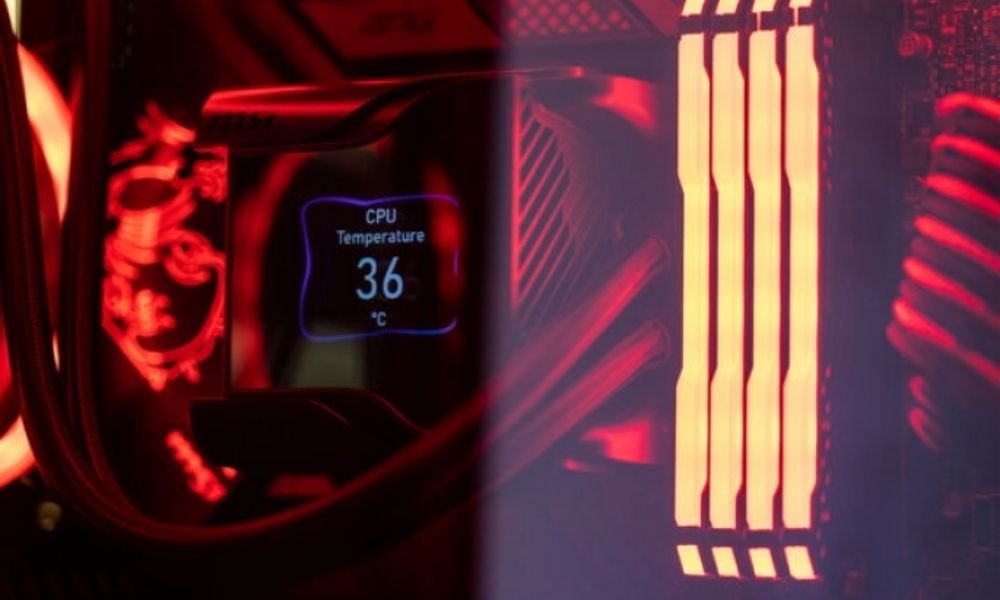
When using your computer, it's essential to monitor your CPU temperature. Overheating can lead to problems such as unexpected shutdowns, slowdowns, or even permanent damage to your hardware. In this article, we'll explain how to check your CPU temperature and give you tips on how to cool it down if necessary.
Why check the processor temperature?
Your processor is the brain of your computer, responsible for executing all tasks and operations. When it's running, it generates heat, and if this heat isn't dissipated properly , it can build up and cause problems. High temperatures can lead to decreased PC performance, system errors, and even hardware failures.
The risks of high processor temperature
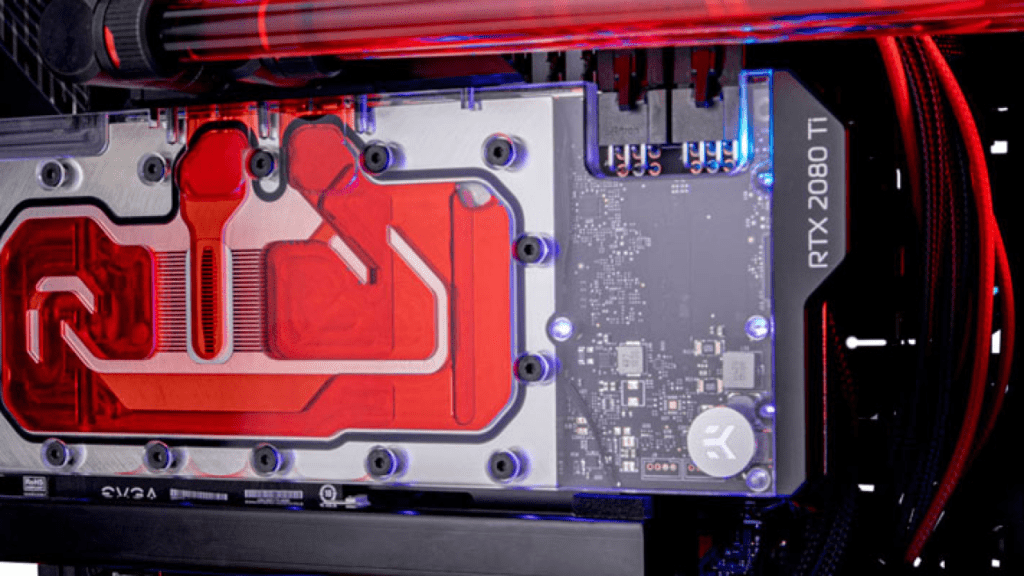
When your processor reaches excessive temperatures , several problems can occur. Here are some of the risks associated with high processor temperatures :
1. Slowdown in performance
An overheating processor can cause your system to slow down overall. Tasks that were normally quick may take longer to complete, which can make your computing experience frustrating.
2. System instability
High temperatures can cause system errors and frequent crashes. Your computer may freeze, freeze, or even restart unexpectedly, which can lead to data loss and interruptions to your work.
3. Reduced processor lifespan
overheating of the processor can damage internal components and reduce its lifespan. This means you may eventually need to replace your processor, which can be expensive.
How to check the processor temperature

Now that you understand the importance of checking your processor temperature , here are a few simple methods to do so:
1. Use temperature monitoring software
There are many free software programs available that allow you to monitor your CPU temperature in real time. Some of the most popular include Core Temp, HWInfo, and NZXT's Cam . These programs display the temperature of each core of your CPU, allowing you to quickly detect any overheating.
2. Access your computer's BIOS
Another way to check your CPU temperature is to access your computer's BIOS . The BIOS is software built into your motherboard that allows you to configure various hardware settings . In the BIOS, you can find information about your CPU temperature, as well as other important system information.
3. Use third-party applications
Some third-party applications, such as SpeedFan , can also help you monitor your CPU temperature. These applications often offer advanced features, such as the ability to adjust fan speeds to control your system's temperature.
Tips for cooling your processor
If you notice that your processor temperature is too high, here are some tips to cool it down:
1. Clean your computer
Dust and debris can your computer's fans and , limiting their ability to dissipate heat. Be sure to clean your computer regularly using compressed air to remove accumulated dust .
2. Check the cooling system
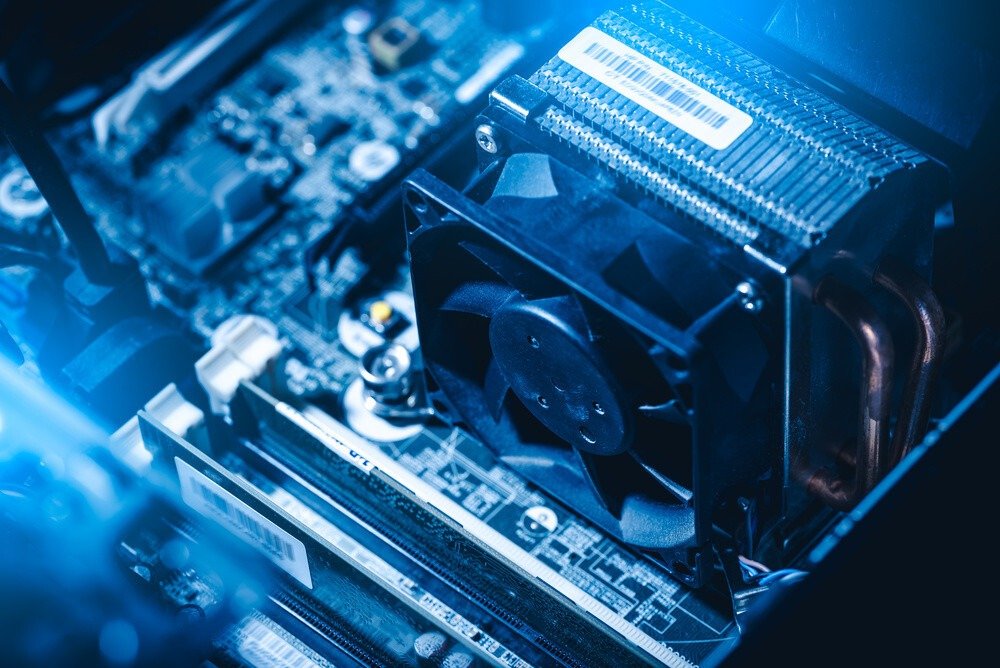
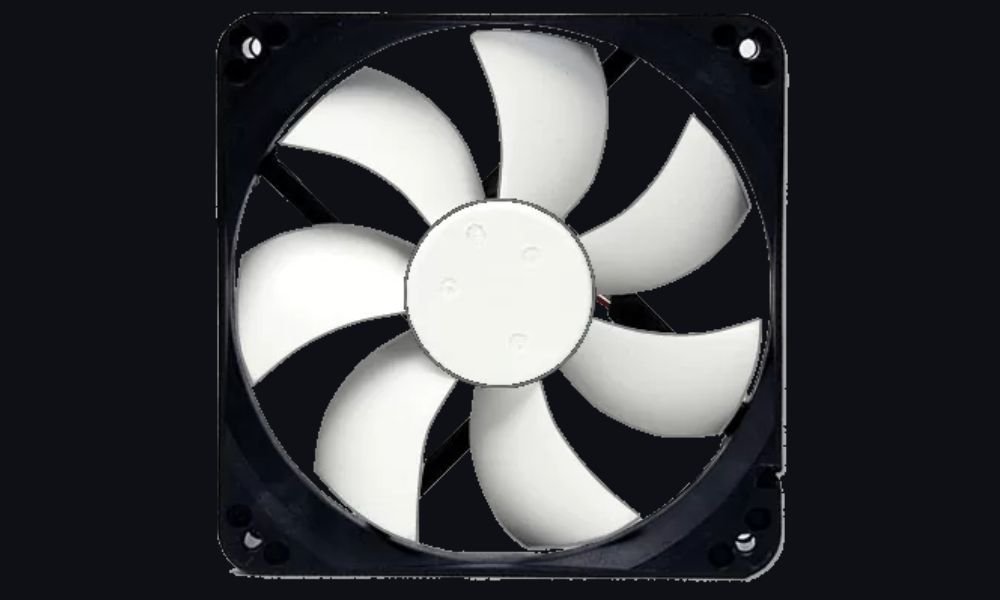
Make sure your computer case fans are working properly and that the heatsinks are securely attached to your processor. If necessary, consider replacing any faulty fans or adding more to improve airflow inside your case.
3. Apply thermal paste
Thermal paste is a heat-conducting material applied between the processor and the heatsink to improve heat transfer. If you notice your processor temperature is high, it may be helpful to remove the heatsink , clean off the old thermal paste, and apply a fresh layer.
This article might interest you: The Best Thermal Pastes!
4. Monitor intensive workloads
Certain tasks, such as video games or video rendering, can put your processor under heavy load, which can lead to increased temperature. Try limiting these workloads or using monitoring software to adjust your processor's performance settings according to the load.
5. Consider upgrading the cooling system

If you find that despite your best efforts, your processor temperature remains high, it might be wise to consider upgrading your cooling system more efficient air cooler or even invest in a liquid cooling system for optimal heat dissipation.
FAQ:
1. What is the normal temperature of a processor?
A processor's normal operating temperature varies depending on the model and workload. Generally, a normal operating temperature is between 30 and 60 degrees Celsius . However, it's best to consult the manufacturer's specifications for the recommended temperatures for your specific processor.
2. How can I tell if my processor is overheating?
You can check if your processor is overheating by monitoring its temperature using monitoring software such as Core Temp or HWInfo . If the temperature exceeds the manufacturer's recommended limits, or if you experience performance or stability issues, your processor is likely overheating.
3. What are the signs of a processor overheating?

Signs of CPU overheating can include system slowdowns, frequent crashes, system errors, unexpected restarts, and unusually loud fan noises. If you notice any of these signs, it's important to check your CPU temperature and take steps to cool it down if necessary.
4. What are the consequences of prolonged processor overheating?
Prolonged processor overheating can lead to a reduced lifespan, frequent system errors, hardware failures, and decreased PC performance . It can also cause permanent damage to your hardware, potentially requiring a costly processor replacement.
5. What are the best practices for maintaining CPU temperature at an optimal level?
To maintain your processor temperature at an optimal level, here are some best practices to follow:
- Ensure your computer is properly ventilated by checking that the fans are working correctly and by regularly cleaning the heat sinks and air filters.
- Avoid using your computer on soft surfaces such as cushions or blankets , as this can block the ventilation holes and prevent proper airflow.

- Avoid overloading your processor by running multiple resource-intensive applications . Close unnecessary programs and limit intensive tasks whenever possible.
- Keep your operating system and drivers up to date to benefit from the latest performance and cooling optimizations.
- If you are using a laptop, make sure not to block the ventilation openings with your hands or objects. Use a flat, hard surface to allow for proper airflow.
By following these best practices, you can maintain your processor temperature at an optimal level and avoid problems related to overheating.
Conclusion
Monitoring your CPU temperature is essential for optimal performance and a longer lifespan for your PC. By using monitoring software, checking your BIOS, and taking steps to cool your CPU, you can prevent problems related to high temperatures . Remember to regularly monitor your CPU temperature and take the necessary steps to keep your system running smoothly.
By taking care of your processor and keeping it at an appropriate temperature, you can enjoy a smooth computing experience and avoid overheating problems . Feel free to use the tools and tips mentioned in this article to monitor and maintain your processor temperature within safe limits. Your computer will thank you!