

The pink screen of death is a problem that can affect Windowsusers. It's a malfunction that causes horizontal or vertical pink lines to appear on the screen, making normal computer use impossible. This problem can have several causes, such as a faulty connection, an outdated graphics driver, a virus, or hardware overheating. Fortunately, there are solutions to fix the horizontal lines on a PC screen and restore a normal display. In this article, we'll explain how to fix the pink screen of death on Windows by following a few simple steps.
Check the connections
The first thing to do when you encounter the pink screen of death is to check the connections between your monitor and your computer. The HDMI, VGA, or DVI cable may be improperly connected, damaged, or incompatible with your hardware. To check the connections, follow these steps:

- Step 1: Turn off your computer and monitor.
- Step 2: Unplug the cable that connects your monitor to your computer.
- Step 3: Check the condition of the cable and ports. If there are any signs of damage, replace the cable with one compatible with your equipment.
- Step 4: Reconnect the cable, making sure it is properly inserted into the ports.
- Step 5: Turn on your computer and monitor and see if the problem persists.
If the problem is solved, great! Otherwise, move on to the next solution.
Update the graphics driver
The graphics driver is the software that allows your graphics card to communicate with your operating system and monitor. If the graphics driver is outdated, corrupted, or incompatible with your version of Windows, it can cause the pink screen of death. To update your graphics driver, follow these steps:
- Step 1: Press the Windows + X keys and click on Device Manager.
- Step 2: Expand the Graphics cards category and right-click on your graphics card.
- Step 3: Click on Update driver and choose Automatically search for updated drivers.

- Step 4: Follow the on-screen instructions to install the updated driver.
- Step 5: Restart your computer and see if the problem persists.
If the problem is solved, great! Otherwise, move on to the next solution.
Scan and remove viruses
Viruses are malicious programs that can infect your computer and damage your system. Some viruses can change display settings or damage system files, which can lead to the pink screen of death. To scan for and remove viruses, follow these steps: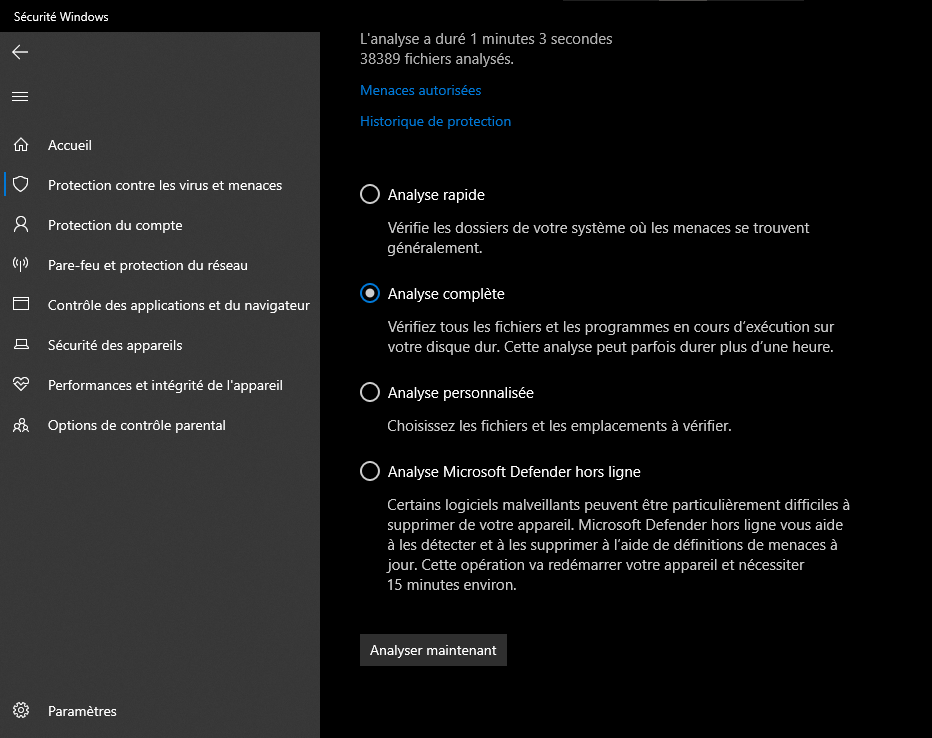
- Step 1: Open your antivirus software and run a full scan of your computer.
- Step 2: If the software detects viruses, follow the instructions to remove or quarantine them.
- Step 3: Restart your computer and see if the problem persists.
If the problem is solved, great! Otherwise, move on to the next solution.
Clean and cool the equipment
Overheating hardware can also cause the pink screen of death. If your graphics card, processor, or hard drive is too hot, they can malfunction and affect the display. To clean and cool the hardware, follow these steps:
- Step 1: Turn off your computer and unplug it from the electrical outlet.
- Step 2: Open your computer case and dust the components with a soft cloth or a can of compressed air.
- Step 3: Check that the fans are working properly and are not obstructed by dust or cables.
- Step 4: Close your computer case and plug it back into the electrical outlet.
- Step 5: Turn on your computer and see if the problem persists.
If the problem is solved, great! Otherwise, move on to the next solution.
Reset display settings
Your monitor or system display settings may be incorrectly configured, which can cause the pink screen of death. To reset your display settings, follow these steps:
- Step 1: Right-click on an empty space on the desktop and click on Display settings.
- Step 2: In the Screen Resolution section, choose the resolution recommended by Windows.
- Step 3: In the Orientation section, choose Landscape.
- Step 4: In the Scale and Layout section, choose 100%.
- Step 5: Click Apply and restart your computer.
If the problem is solved, great! Otherwise, move on to the next solution.
Repair system files
System files are essential for Windowsto function correctly. If these files are damaged or missing, they can cause errors such as the pink screen of death. To repair system files, follow these steps:
- Step 1: Right-click on the Start menu.
Step 2: Select Windows PowerShell (admin). - Step 3: Type sfc /scannow and press Enter.

- Step 4: Wait for the process to finish and restart your computer.
If the problem is solved, great! You've successfully fixed the pink screen of death on Windows. Otherwise, you may need to contact a professional or replace your monitor.
FAQ
What is the pink screen of death?
Windows users , especially those with OLED PC monitors . It's a malfunction that causes horizontal or vertical pink lines to appear on the screen, making normal computer use impossible.
What are the causes of the pink screen of death?
The pink screen of death can have several causes, such as a bad connection, an outdated graphics driver, a virus, or hardware overheating.
How to fix the pink screen of death on Windows ?
To fix the pink screen of death on Windows, you can try the following solutions:
- Check the connections between your screen and your computer.
- Update your graphics card driver.
- Scan and remove viruses that may infect your computer.
- Clean and cool your computer hardware.
- Reset your screen or system display settings.
- Repair system files that may be damaged or missing.
Can the pink screen of death damage my computer?
The pink screen of death isn't a problem that directly damages your computer, but it can be a symptom of a more serious issue, such as hardware overheating or a virus infection. Therefore, it's advisable to fix the pink screen of death as soon as possible to prevent the situation from worsening.
Can the pink screen of death be caused by software?
The pink screen of death can be caused by software that modifies display settings or interferes with the graphics driver. For example, some video games or graphics applications can cause the pink screen of death if they are misconfigured or incompatible with your hardware. To avoid this problem, it is recommended to check the software requirements before installing it and uninstall it if it causes the pink screen of death.
Can the pink screen of death be resolved by a system restore?
System Restore is a Windows feature that allows you to revert to a previous system state in case of a problem. System Restore can be a solution to fix the Pink Screen of Death if the problem occurred after a system change, such as installing software, a driver, or an update. To perform a system restore, follow these steps:
- Step 1: Press the Windows + R keys and type rstrui in the dialog box.
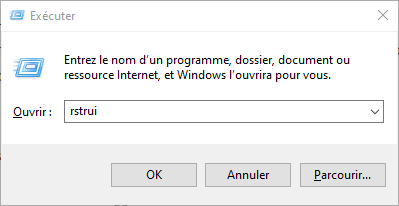
- Step 2: Click Next and choose a restore point from before the problem occurred.
- Step 3: Click Next and confirm your choice.
- Step 4: Wait for the process to finish and restart your computer.
If the problem is solved, great! If not, move on to another solution.
Can the pink screen of death be prevented?
The pink screen of death can be prevented by taking a few simple precautions, such as:
- Regularly check the connections between your screen and your computer.
- Regularly update your graphics card driver.
- Constantly scan your computer with antivirus software.
- Clean your computer equipment often and ensure it is well ventilated.
- Adjust display settings according to Windowsrecommendations.
By following these tips, you will reduce the risk of encountering the pink screen of death.
Can the pink screen of death be caused by a faulty screen?
The pink screen of death can be caused by a faulty monitor, especially if you have an OLED PC monitor. OLED screens are more susceptible to aging and pixel burn-in, which can lead to display anomalies like the pink screen of death. If you've tried all the previous solutions and the problem persists, your monitor may be the culprit. In this case, you may need to contact the manufacturer or retailer to request a replacement or repair.
Conclusion
Windows users . It's a malfunction that causes horizontal or vertical pink lines to appear on the screen, making normal computer use impossible. This problem can have several causes, such as a faulty connection, an outdated graphics driver, a virus, or hardware overheating. In this article, we've presented six solutions to fix the horizontal lines on a PC screen and restore a normal display. We hope this article has been helpful and that you've been able to fix the pink screen of death on Windows .


