
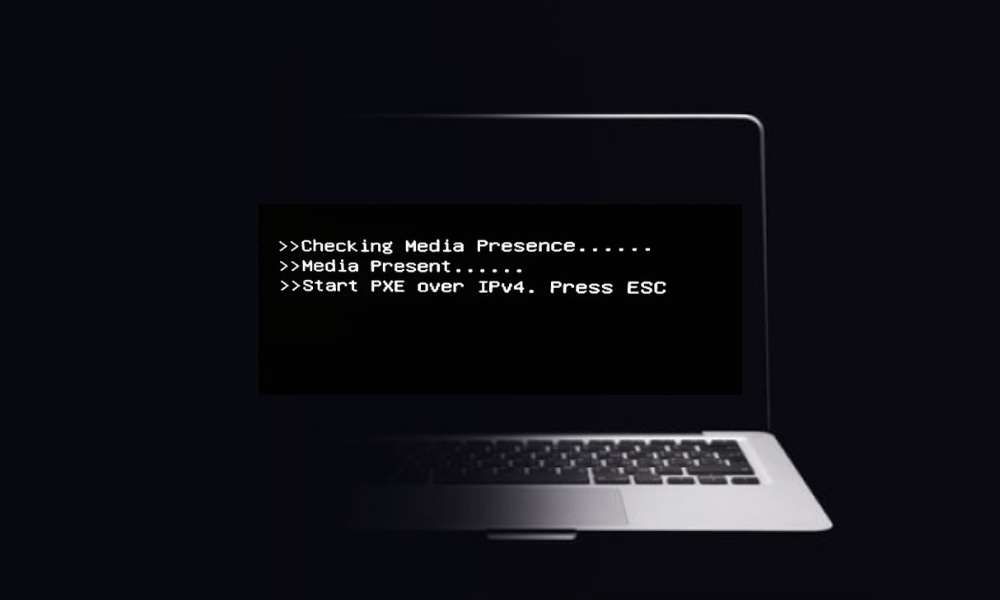
" Checking media presence" is a message that sometimes appears when starting a computer, particularly in Windows 10.It means that the system is trying to detect the presence of bootable media, such as a hard drive, USB flash drive, or CD-ROM. If the message is followed by "No media present," it indicates that the system has not found any valid bootable media and cannot start Windows.
This problem can have several possible causes, such as a hard drive failure, incorrect BIOS configuration, operating system corruption, or a virus infection. Fortunately, there are solutions to fix it and regain access to your computer. In this article, we'll explain how.
How to solve the problem of checking media presence?
Check the hard drive
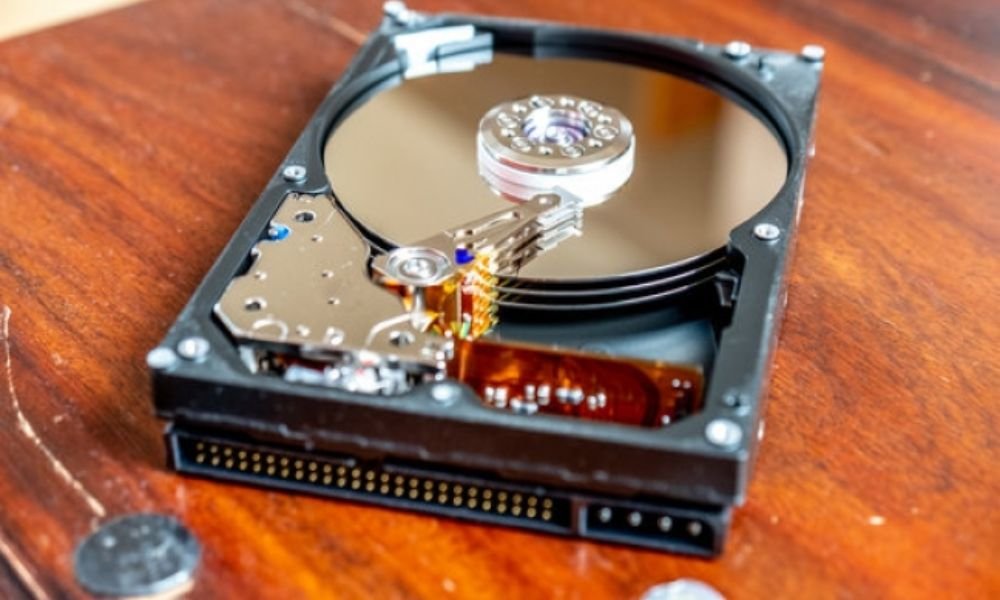
The first thing to do when you encounter the "checking media presence" message is to verify that your hard drive is properly connected and recognized by the BIOS. To do this, you must access the BIOS by pressing the key indicated on the screen when the computer starts up (usually F2, F10, F12, or Delete).
Next, you need to look for the section that displays the list of boot devices (boot order or boot priority) and check that your hard drive appears in this list.
If this is not the case, your hard drive may be damaged or not detected by the system . In this case, you will need to repair your undetected internal hard drive by following the appropriate steps. If your hard drive is recognized but does not boot correctly, you may need to repair the boot sector or restore the operating system.
Check the startup mode
If your hard drive is recognized by the BIOS, you must then verify that the boot mode is correctly configured. There are two possible boot modes: UEFI and Legacy.
UEFI is a newer and more secure mode that uses a special partition called EFI to store boot information.
Legacy is an older, more compatible boot mode that uses the hard drive's Master Boot Record (MBR) to store boot information. The boot mode must match your hard drive's partitioning type.
If you installed Windows in UEFI mode, you must configure the BIOS in UEFI mode. If you installed Windows in Legacy mode, you must configure the BIOS in Legacy mode. To change the boot mode, you must access the BIOS and find the section that allows you to modify this setting (boot mode or boot option). You must then select the appropriate mode and save the changes.
Check the operating system
If the boot mode is configured correctly, you should thencheck the operating system statusmay Windows be damaged or infected by a virus and therefore unable to boot properly. To check this, you will need to use external boot media, such as a USB flash drive or a CD-ROM containing Windows or a repair tool.
Next, insert the media into your computer and change the boot order in the BIOS so that the external media takes priority over the hard drive. Then, restart your computer and follow the on-screen instructions to access repair options Windows. You can then try a system restore to a date before the problem occurred, an automatic repair, or a system reset.
Comparative table of UEFI and Legacy boot modes
| Fashion | Benefits | Disadvantages |
| UEFI | More secure | Less compatible |
| Faster | More complex | |
| More flexible | ||
| Legacy | More compatible | Less secure |
| Simpler | Slower | |
| Less flexible |
FAQ about checking media presence
What is the BIOS?
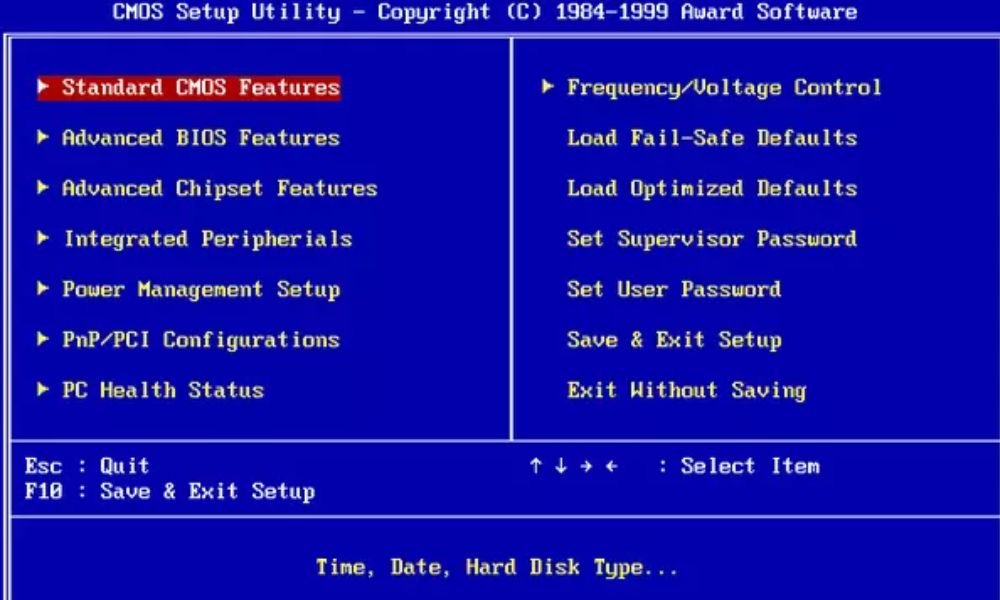
The BIOS (Basic Input Output System) is a small program that runs when the computer starts up and allows you to configure basic system settings, such as the time, date, password, and boot order. The BIOS is stored in non-volatile memory (ROM), which retains the data even when the computer is turned off.
What is MBR?
The Master Boot Record (MBR) is the first sector of the hard drive that contains the system's boot information. It contains boot code that launches the bootloader, which then starts the operating system. The MBR also defines the hard drive's partition table, that is, how the hard drive is divided into different areas.
What is the EFI partition?
The EFI (Extensible Firmware Interface) partition is a special partition that replaces the MBR in UEFI boot mode. It contains system boot information, such as the boot loader and menu entries. It also contains system-specific configuration files and programs. The EFI partition is typically formatted as FAT32 and is approximately 100 MB in size.
How do I create an external bootable drive?
To create an external bootable drive, you will need a blank USB flash drive or CD-ROM and a working computer. Next, download the ISO image of the operating system or repair tool you wish to use. Then, use burning or bootable USB drive creation software to transfer the ISO image to the external drive. Insert the external drive into your computer and change the boot order in the BIOS so that the external drive takes priority over the hard drive. Finally, restart your computer and follow the on-screen instructions to access the Windows.
Conclusion
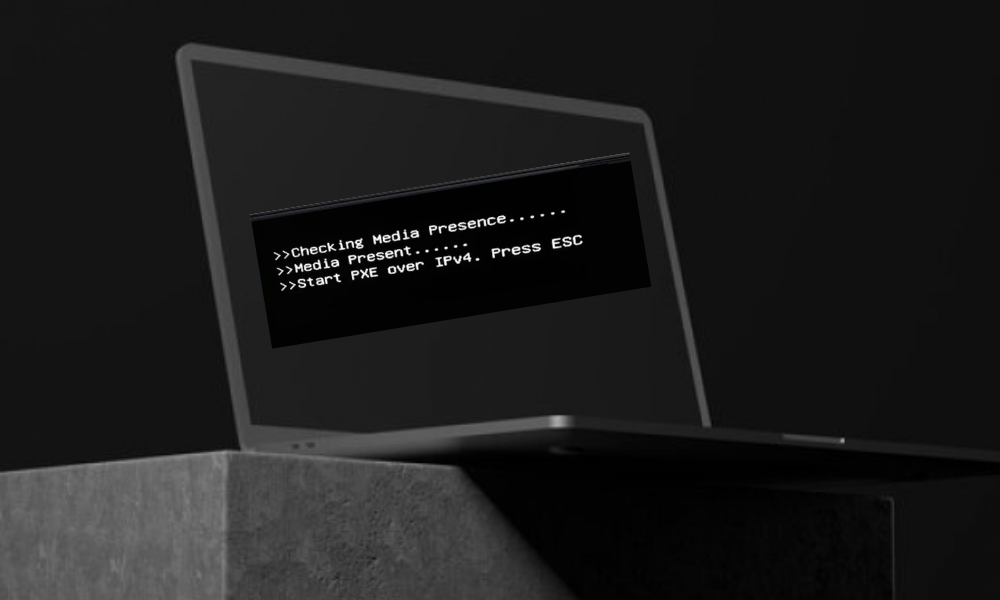
The "Checking media presence" message can be a sign of a serious problem preventing your computer from booting properly. It can have several possible causes, such as a hard drive failure, incorrect BIOS configuration, operating system corruption, or a virus infection. To resolve this, you should verify that your hard drive is properly connected and recognized by the BIOS, that the boot mode is correctly configured, and that the operating system is intact. If these are not the case, you should use an external bootable drive to attempt a repair or reset of Windows. Another possible solution is to disable startup programs that might interfere with the boot process. We hope this article was helpful and that you were able to regain access to your computer. If you have any questions or comments, please feel free to leave them below. Thank you for reading!


