
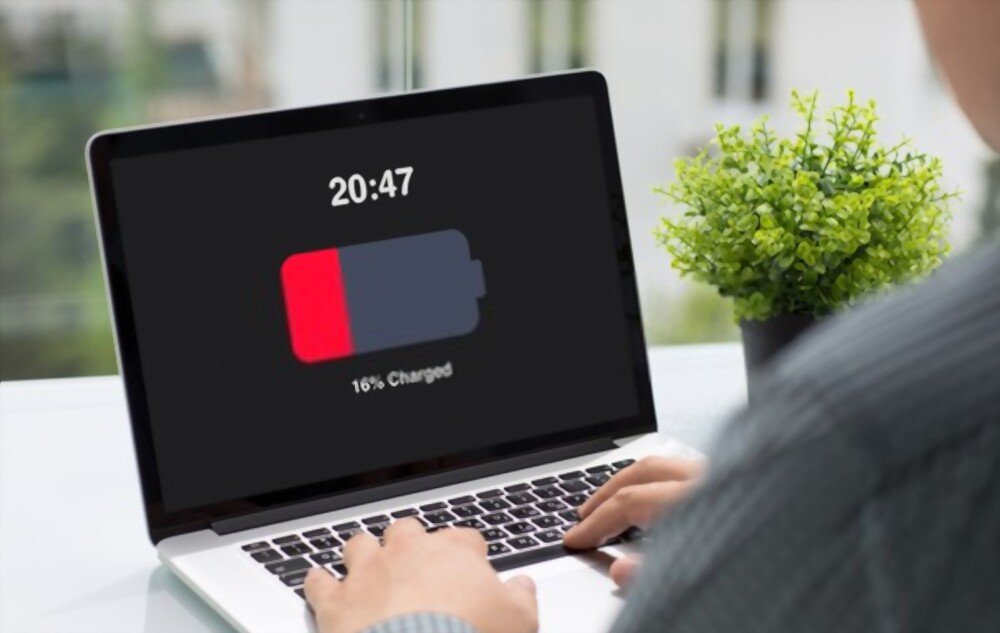
Windows 11 is Microsoft's new operating system, promising numerous improvements in design, performance, and security. However, some users have noticed that their batteries drain faster than before after installing the update. What are the causes of this problem, and how can it be fixed? That's what we'll explore in this article.
What are the possible causes of rapid battery drain under Windows 11?
Several factors can influence your Windows 11 laptop's battery consumption. Here are the most common:
- power supply parameters
- Foodie apps
- Background updates
- Compatibility issues
How can I fix the problem of the battery draining quickly under Windows 11?
If you notice that your battery is draining faster than before under Windows 11, here are some solutions you can try:
Check the power supply settings

To access the power supply settings:
- Click on the battery icon in the taskbar.
- Then go to “ power supply and standby settings”.
- Choose the power supply method that suits you best.
By default, Windows 11 offers three modes: “Recommended”, “Power Saver”, and “High Performance”. You can also customize advanced settings by clicking on “Additional power supply options”. We recommend choosing the “Recommended” or “Power Saver” mode if you want to extend your battery life.
Close resource-intensive applications
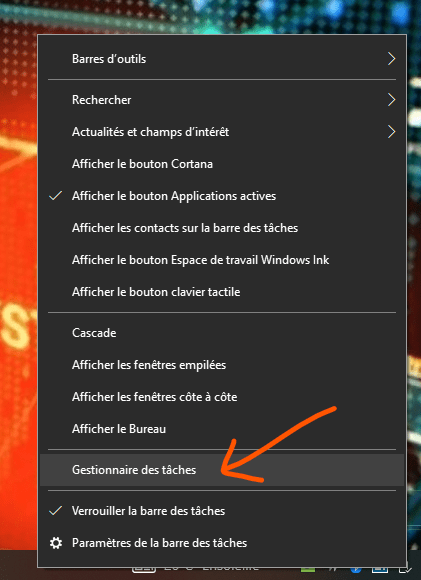
To find out which apps are using the most battery, you can check the task manager. To do this:
- Right-click on the taskbar, then click on “Task Manager”.
- In the “Process” tab, you can sort the applications in descending order according to the “ Power Supply ” column.
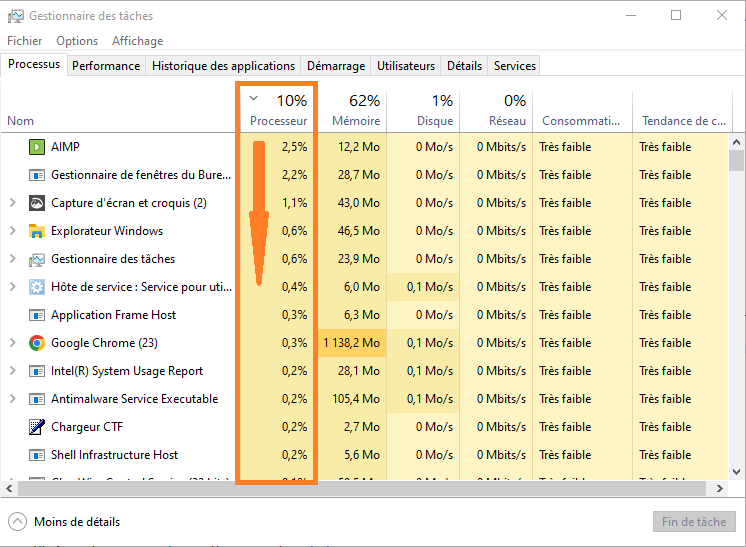
You can then close the applications that consume the most battery by right-clicking on them and then clicking on “End task”.
You can also uninstall applications you don't need or limit their automatic startup in the “Startup” tab.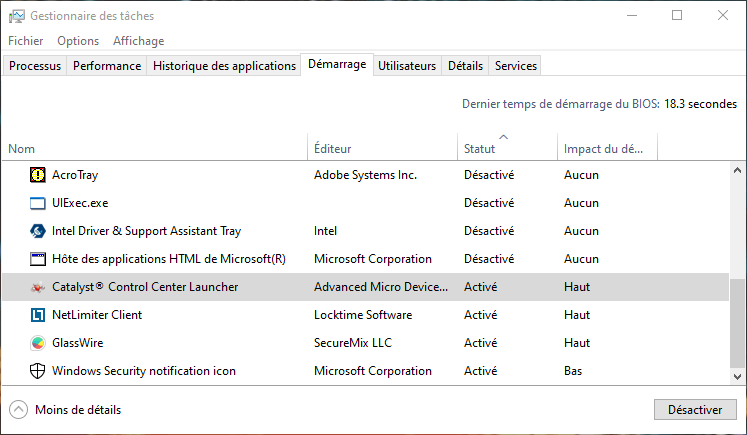
Disable background updates
To disable background updates, you need to change your Windows Update settings. To do this:
- Click the “Start” button, then click the settings icon (the gear icon).
- Next, click on “Update & Security”, then on “Windows Update”.
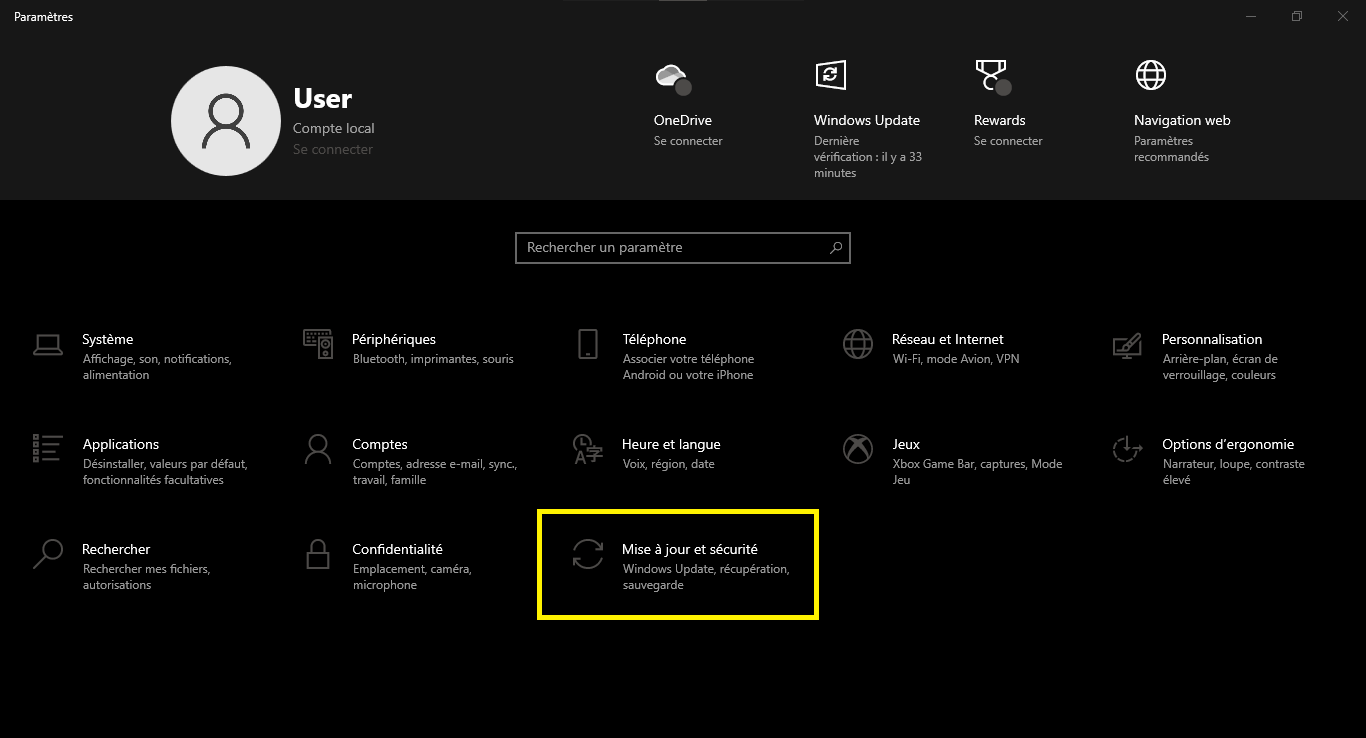
- Click on “Advanced options”, then uncheck the box “Automatically download updates even if my connection is limited”.

You can also choose when to install updates by clicking “Schedule installation”. However, we recommend that you do not completely disable updates, as they are important for system security and proper functioning.
Update your drivers and software
To avoid compatibility issues, it is recommended that you update your drivers and software regularly. To update your drivers, you can use Device Manager. To do this:
- Right-click the “Start” button, then click “Device Manager”.

- Next, right-click on the device you want to update, and then click on “Update driver”.

You can also use software like Driver Booster, which automatically scans your computer and installs the latest available drivers. To update your software, you can use the Microsoft Store or check for an update option in the software's menu.
Good to know : If you don't have internet access, you can also install windows 11 offline using installation media (USB flash drive or DVD) that you've previously created on another computer. To do this, you need to download the Media Creation Tool from the Microsoft website and follow the instructions.
Comparative table of power supply modes under Windows 11
| Fashion | Brightness | Processor speed | Autonomy |
| Recommended | Average | Average | Average |
| Energy saver | Weak | Weak | High |
| High performance | High | High | Weak |
FAQ
How can I tell how much battery is left in Windows 11?
To check your battery level in Windows 11, click the battery icon in the taskbar. You will then see a percentage indicating the remaining level, as well as an estimate of the time remaining before the battery is empty.
How do I enable dark mode in Windows 11?
Dark mode is an option that displays a black background instead of a white one on your screen. This can reduce eye strain and save battery life.
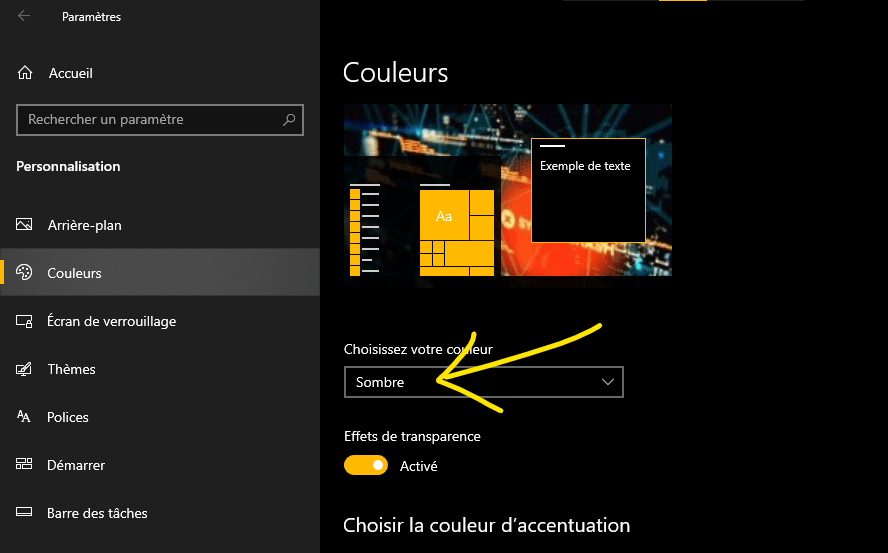
To enable dark mode in Windows 11:
- Click the “Start” button, then click the settings icon (the gear icon).
- Next, click on “Personalization”, then on “Colors”.
- Then choose the “Dark” option from the “Default application mode” dropdown menu.
How to optimize battery life under Windows 11?
To optimize battery life under Windows 11, it is recommended to follow a few simple tips:
- Avoid exposing your laptop to extreme temperatures (too hot or too cold).
- Avoid leaving your laptop plugged in permanently when the battery is full.
- Avoid completely draining your battery before recharging it.
- Use a charger that is compatible with your laptop model.
How do I switch to airplane mode in Windows 11?
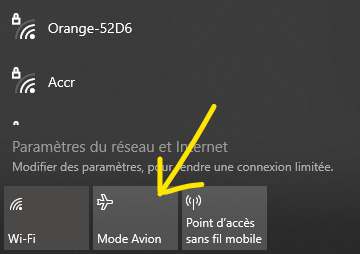
Airplane mode is an option that allows you to disable all wireless connections (Wi-Fi, Bluetooth, mobile data) on your laptop. This can be useful when traveling by plane or when you want to save battery. To switch to airplane mode in Windows 11, click the network icon in the taskbar, and then select the "Airplane mode" button.
How to restore factory settings in Windows 11?
Restoring factory settings is an operation that erases all data and programs installed on your laptop and returns the system to its initial settings. This can be useful if you are experiencing persistent problems or if you want to sell or give away your laptop.
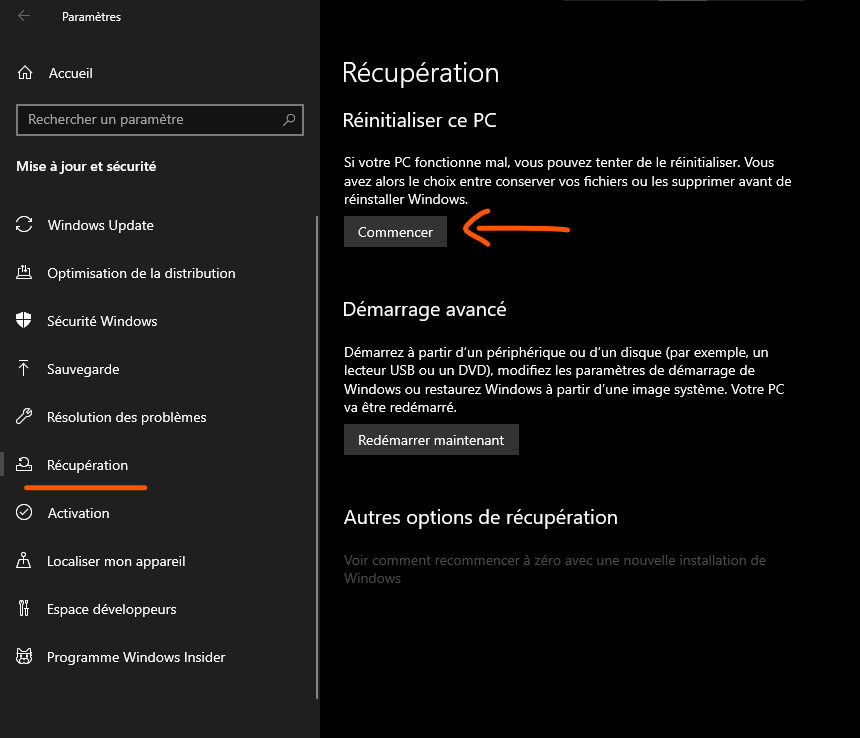
To restore factory settings in Windows 11:
- Click the “Start” button, then click the settings icon (the gear icon).
- Next, click on “System”, then on “Recovery”.
- Click on “Reset this PC”.
- Choose the option that suits you best.
You can either keep your personal files or delete everything. Please note that this operation is irreversible and may take some time.
Conclusion
Windows 11 is an innovative operating system that offers numerous features and a modern design. However, it can also cause battery drain issues for some users. Fortunately, there are simple solutions to address this, such as adjusting power power supply , closing resource-intensive applications, disabling background updates, or updating drivers and software. These solutions can also help boost the performance of your Windows 11 PC. If Windows Windows laptop .


