your Xbox controller refusing to cooperate? Is it flashing but not connecting , and you don't know what to do?
Solution 1: Check the controller's batteries
The first thing to do when your Xbox controller is flashing but won't connect is to check the battery . It's possible your controller is simply out of power or the batteries are dead .
To check, simply look at the indicator light on the controller: if it 's flashing slowly , it means the battery is low . All you have to do is plug in the controller to charge it or simply replace the batteries.
To extend the life of your batteries, here are a few tips:
- Turn off your controller when not in use: press and hold the Xbox button for 6 seconds until the light goes out.
- Avoid exposing your controller to extreme temperatures , humidity , or direct sunlight .
- Use good quality or .
Solution 2: Connect the controller to the console or PC with a USB cable
If the problem persists after checking the batteries, you can try connecting your controller to your console or PC with a USB cable restore the wireless connection or allow you play in wired mode if you prefer.
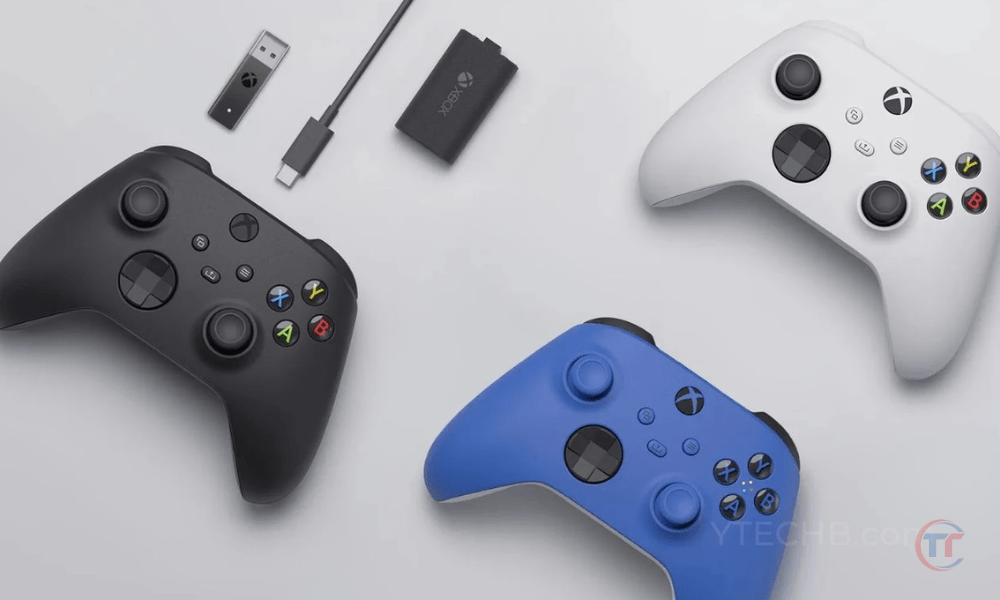
To connect the USB cable, here's what you need to do:
- Make sure you use a USB cable that is compatible with your controller.
- Plug the micro-USB connector into the port located at the top of your controller.
- Connect the other end of the cable to a free USB port on your console or PC.
- Wait until the controller's indicator light comes on and stops flashing. This means the controller is connected.
Using a USB cable has several advantages:
- You do not need batteries or a power source to power your controller.
- You benefit from a and latency-free connection
- You can update your controller's software more easily.
Solution 3: Sync the controller with the console or PC
If you prefer to play wirelessly , you need to sync your controller with your console or PC . This establishes a wireless connection between the two devices and prevents interference with other wireless peripherals.
To pair your controller with your console or PC, here's what you need to do:
- If you play on a Xbox One, Xbox Series X or Xbox Series S console :
- Press the console's power supply button to turn it on.
- Next, press the sync button located on the front of the console, next to the USB port. The console's indicator light will flash. Then, press the sync button located on the back of the controller, next to the battery compartment. The controller's indicator light will flash rapidly.
- Wait until both lights stop flashing and remain lit. This means the controller is paired with the console.
- If you play on a Windows 10 PCYou must have a Xbox Wireless Adapter for PC or a PC equipped with Bluetooth.
- If you are using a wireless adapter:
- Plug it into a free USB port on your PC
- Press the button on the adapter. The indicator light on the adapter will flash.
- Next, press the sync button located on the back of the controller, next to the battery compartment. The controller's indicator light will flash rapidly.
- Wait until both lights stop flashing and remain lit. This means the controller is paired with the adapter
- If you are using Bluetooth:
- Activate it on your PC and search for available devices.
- Next, press the sync button located on the back of the controller, next to the battery compartment. The controller's indicator light will flash rapidly.
- Next, select “ Xbox Wireless Controller ” from the list of devices and follow the on-screen instructions to complete the pairing.
- If you are using a wireless adapter:
To avoid interference and improve the wireless signal, here are a few tips:
- Place your console or PC and controller at a reasonable distance, not too far and not too close.
- Avoid obstacles between your console or PC and your controller, such as walls, furniture, or electronic devices.
- Keep your console or PC and controller away from sources of interference, such as Wi-Fi routers, cordless phones, or microwaves.
Solution 4: Update the controller software
the controller software may . It's therefore advisable to controller software version update if necessary.
To check and update your controller's software version, here's what you need to do:
- If you are playing on an Xbox One, Xbox Series X, or Xbox Series S console:
- Connect your controller to your console with a USB cable.
- Next, go to the console settings, then to “ Devices and Connections ”, then to “ Accessories ”.
- Select your controller and press the “ More options ” button. You will then see the controller's software version displayed on the screen. If an update is available, press the “ Update now ” button and follow the on-screen instructions to perform the update.
- If you are playing on a Windows 10 PC:
- Connect your controller to your PC with a USB cable or a wireless adapter.
- Xbox Accessories app on your PC and select your controller. You will then see the controller's software version displayed on the screen. If an update is available, click the “ Update ” button and follow the on-screen instructions to perform the update.
Updating the controller software offers several benefits:
- It helps to improve the performance and stability of the controller.
- It allows you to add extra features and options .
- It allows for the correction of bugs and problems encountered .
Solution 5: Reset the controller firmware
the controller's firmware may . The firmware is the internal program that controls the controller's operation. It can be corrupted by a failed update , a power surge , or improper handling .
In this case, you can try controller's firmware restore its factory settings .
Good to know : Google Stadia is compatible with PS4 and Xbox One controllers
To reset the controller's firmware, here's what you need to do:
- Connect your controller to your console or PC with a USB cable .
- Press and hold the LB, RB, Menu, and View buttons simultaneously for 5 seconds. The controller's indicator light will turn off and then back on.
- Unplug the USB cable and test the wireless connection of the controller .
Before and after resetting the controller's firmware, here are some precautions to take:
- Before resetting the firmware, make sure you have backed up your custom controller settings , such as joystick and trigger sensitivity, to your console or PC. This will allow you to restore them after the reset.
- After resetting the firmware, you may need to resynchronize your controller with your console or PC , as explained in Solution 3.
Solution 6: Clean the controller contacts
the controller's contacts may . The contacts are the metal parts that transmit electrical current between the battery and the controller's circuit board.
If the contacts are dirty or rusty , they can prevent the controller from working properly .
To clean the controller contacts, here's what you need to do:
- Remove the batteries from the controller and unplug the USB cable if you are using one.
- Remove the screws from the controller . You can find tutorials online to help you do this without damaging your controller.
- Once the controller is disassembled, locate the contacts inside the battery compartment and on the circuit board. They are usually gold or silver in color .
- Clean the contacts with a soft cloth or cotton swab moistened with 70% alcohol . Rub gently to remove dirt or oxidation without scratching the contacts.
- Allow the contacts to dry for a few minutes, then reassemble the controller following the reverse steps of disassembly.
To keep the controller clean and prevent oxidation of the contacts, here are some recommendations:
- Store your controller in a dry, dust-free place when not in use.
- Avoid touching the contacts with your fingers or with metallic objects that could soil or corrode them.
- Change the batteries regularly or recharge the battery frequently to prevent them from completely discharging and leaking.
Solution 7: Repair or replace the defective controller components
If none of the previous solutions resolved the issue of your Xbox controller flashing but not connecting, one of the controller's internal components may be faulty . This could be the circuit board, the wireless module, the USB port, the Xbox button, or other parts.
In this case, you have two options to repair or replace the faulty components:
- it yourself if you are a handyman and have the necessary tools, or
- Entrust your controller to a professional who can repair it for you.

If your controller is still under warranty , you can contact Microsoft customer service to request a free replacement . You will need to provide proof of purchase and the serial number of your controller, and comply with the warranty conditions.
You will also need to return your defective controller to Microsoft.
FAQs
What are the conditions for receiving a free replacement controller from Microsoft's after-sales service?
The conditions for receiving a free replacement controller from Microsoft's after-sales service are as follows:
- Your controller must still be under warranty . The warranty period varies depending on the country and the controller model. You can check the warranty period on the official Microsoft website or on your proof of purchase.
- Your controller must have a manufacturing defect or a hidden flaw . The warranty does not cover damage caused by abnormal use, negligence, modification, or unauthorized repair.
- You must provide proof of purchase and the serial number of your controller . Proof of purchase can be a receipt, invoice, or other document. The serial number is located on the label on the back or inside the battery compartment of your controller.
- You must return your defective controller to Microsoft in appropriate packaging . Microsoft will provide you with a prepaid shipping label. You will also need to complete an online form to request a replacement.
Also read : HDMI 2.1 bug affects Xbox Series X and Nvidia GPUs
What are the risks of disassembling or repairing your controller yourself?
The risks of disassembling or repairing your controller yourself are as follows:
- You can further damage your controller if you mishandle it or use unsuitable tools.
- You can void your controller warranty if you break the seal or sticker that proves it has not been opened.
- You may lose your custom controller settings if you have not saved them beforehand.
How can I tell if the problem is with the console or the PC and not the controller?
To find out if the problem is with the console or the PC and not the controller, simply test your controller with another console or another PC , or test another controller with your console or your PC .
If your controller works correctly with another console or PC, the problem is with your console or PC. If another controller doesn't work correctly with your console or PC, the problem is with your console or PC.
What are the possible solutions if the problem originates from the console or PC and not the controller?
If the problem originates from the console or PC and not the controller, there are several possible solutions, such as:
- Restart your console or PC . This may resolve temporary or software issues affecting the wireless connection.
- Update your console or PC software . This can improve wireless connection compatibility and stability.
- Check your console or PC settings . This will help ensure that the wireless connection is enabled and configured correctly.
- Repairing or replacing faulty components in your console or PC may require the intervention of a professional or the manufacturer's after-sales service.
Where can I find more information about the problem of the Xbox controller flashing but not connecting?
For more information on the issue of the Xbox controller flashing but not connecting, you can consult the following sources:
- The official Microsoft website offers guides, tutorials, forums, and customer support to help you troubleshoot issues with your Xbox controller. You can access the site by clicking here .
- The Xbox Support website offers articles, videos, FAQs, and a live chat to help you troubleshoot issues with your Xbox console. You can access the site by clicking here .
- Windows Support website offers articles, videos, FAQs, and an online chat to help you troubleshoot problems with your Windows 10 PC. You can access the site by clicking here .