
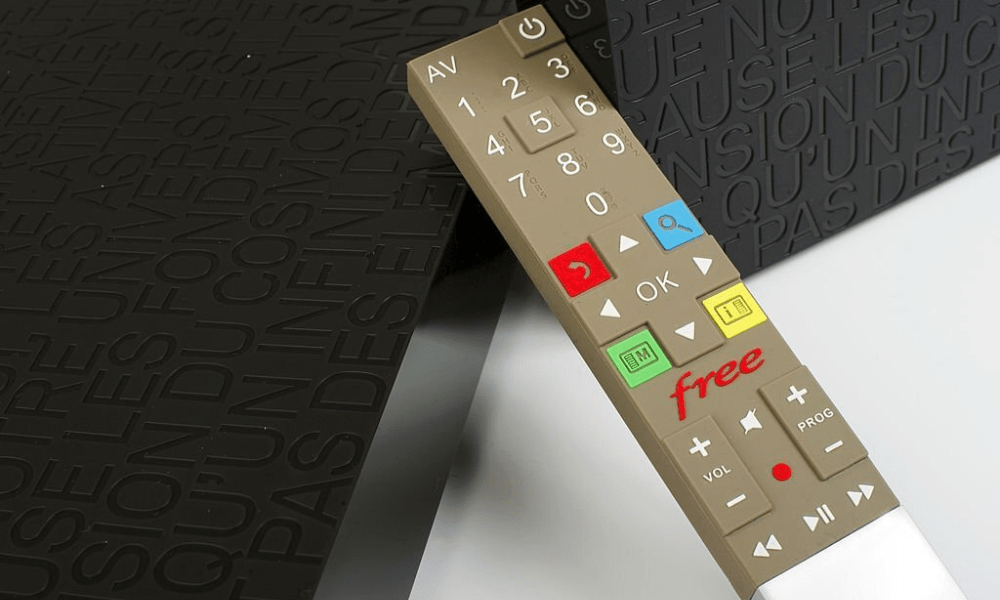
You're a Free subscriber and you use a remote control to operate your box . But one day, you notice that your remote is flashing red rapidly and no longer working properly. What is the cause of this problem and how can you fix it? That's what we'll explore in this article.
Possible causes of the Free remote control flashing red
There are several reasons why your Free remote control might be flashing red rapidly . Here are the most common:
- The remote control is out of battery
- The remote control is defective
- The remote control is out of sync
Solutions to fix the flashing red light on the Free remote control
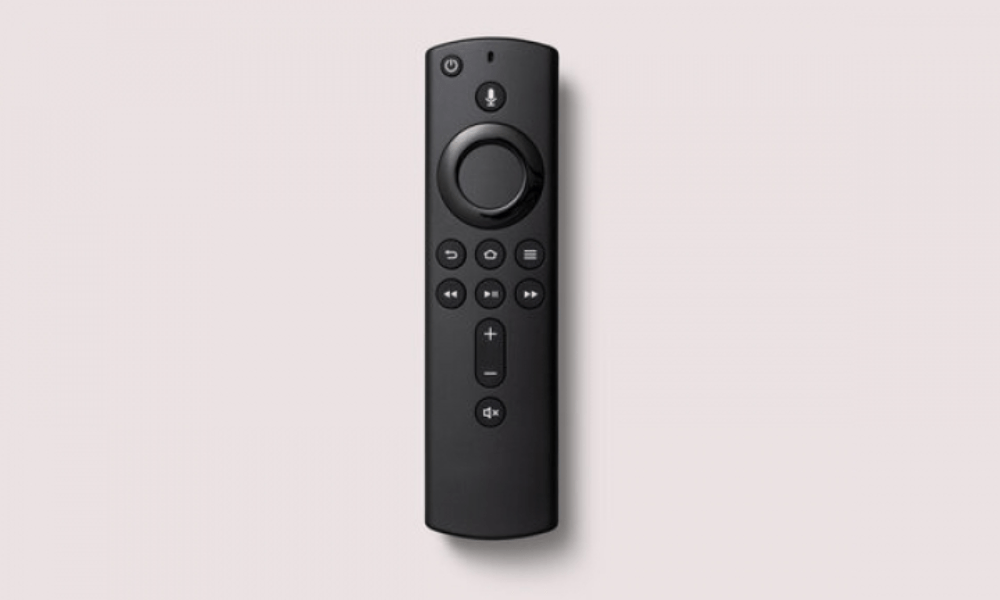
If your Free remote control is flashing red rapidly, here are some solutions you can try to resolve the problem:
Change the batteries
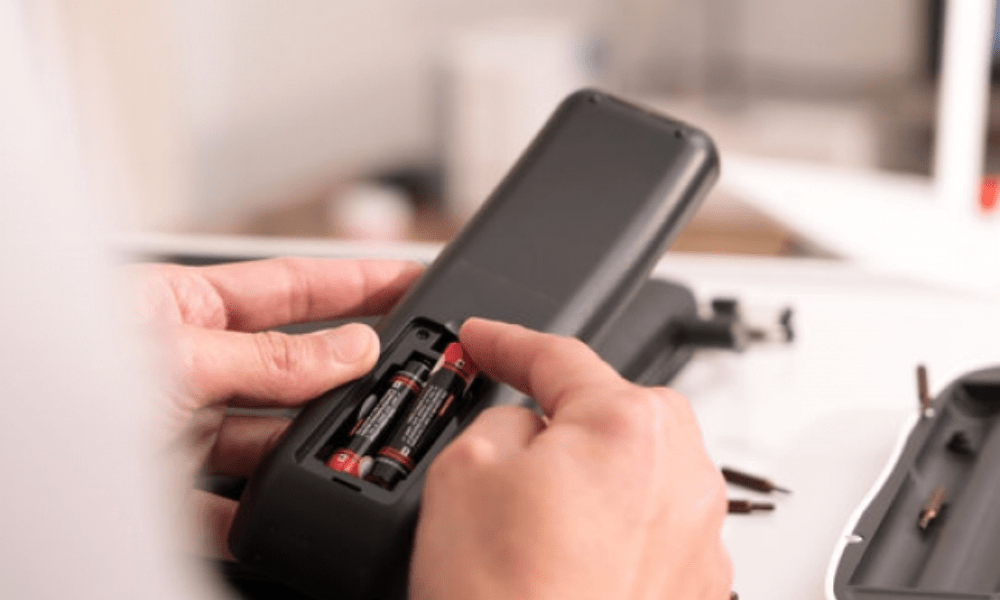
The first thing to do is check the batteries in your remote control. If they are dead, replace them with new batteries of the same type ( LR03 or AAA ). If the problem persists, proceed to the next solution.
Reset the remote control
If changing the batteries doesn't solve the problem, you can try resetting your remote. To do this, press and hold the Free and Standby for 10 seconds, until the red LED turns off. Then, release the buttons and briefly press the Free . The red LED should flash once and then turn off. If the problem persists, proceed to the next solution.
Resynchronize the remote control
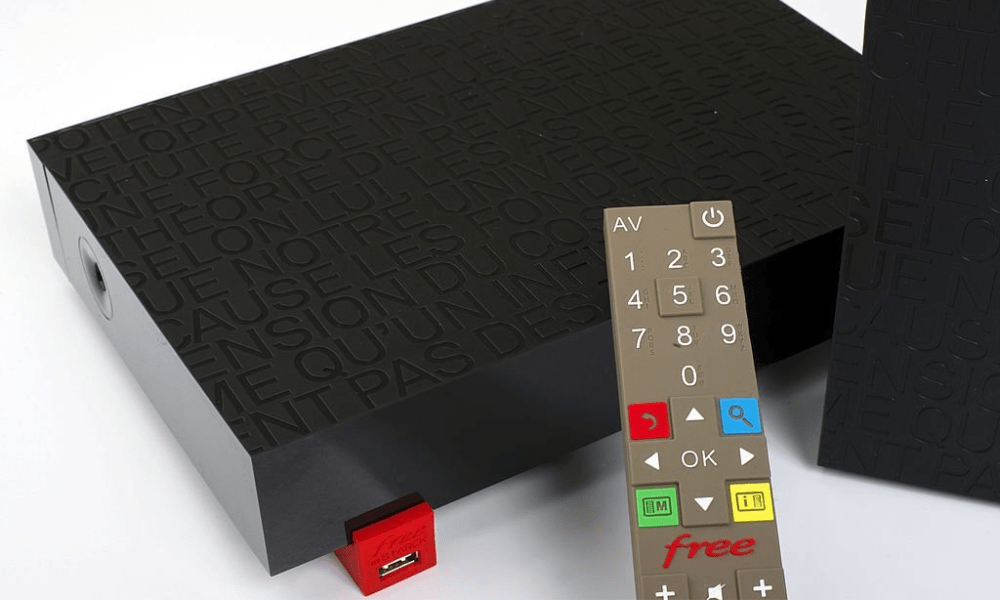
If resetting the remote control doesn't work either, you can try resynchronizing your remote control with your router. To do this, follow these steps:
- Turn off your box by pressing the On/Off located at the back.
- Move your remote control closer to your box (to within one meter).
- Press and hold the Free and Standby for 10 seconds, until the red LED turns off.
- Release the buttons and briefly press the Free . The red LED should flash once and then turn off.
- Turn on your box by pressing the On/Off located on the back.
- Wait until the box displays the time, then briefly press the Free . The red LED should flash once and then turn off.
- Your remote control is resynchronized with your box and should work normally.
FAQ
Here are some frequently asked questions from Free remote control users:
How can I tell if my Free remote control is out of battery?
You can check by pressing any button on your remote control. If the red LED flashes dimly or not at all, your batteries are dead. If the red LED flashes normally, your batteries are still good.
How can I tell if my Free remote control is faulty?
You can check by testing your remote control with another compatible device, such as a TV or DVD player. If your remote control doesn't work with that device, it's faulty. If it works, it's not faulty.
How can I tell if my Free remote control is out of sync?
You can check this by pressing the Free button on your remote control. If the red LED flashes rapidly, your remote control is out of sync. If the red LED flashes normally, your remote control is synced.
How do I change the code on my Free remote control?
You can change the code on your Free remote control if you want to control multiple boxes with the same remote or if you want to avoid interference with other remotes. To do this, follow these steps:
- Turn off your box by pressing the On/Off located at the back.
- Press and hold the Free and Standby for 10 seconds, until the red LED turns off.
- Release the buttons and briefly press the Free . The red LED should flash once and then turn off.
- Press the number button corresponding to the code you wish to assign to your remote control (from 1 to 9). The red LED should flash the number of times corresponding to the chosen number and then turn off.
- Turn on your box by pressing the On/Off located on the back.
- Wait until the box displays the time, then briefly press the Free . The red LED should flash once and then turn off.
- Your remote control has changed its code and must work with the corresponding box.
How do I repair my Free remote control if it's broken?
If your Free remote control is broken, for example if it no longer turns on or if a button no longer works, you can try to repair it yourself by following the instructions in this tutorial: https://www.youtube.com/watch?v=Zw7Q6x2Zm0k. Otherwise, you can contact Free customer service to request a replacement or repair of your remote control.
How do I clean my Free remote control if it's dirty?

If your Free remote control is dirty, for example if it has fingerprints or dust, you can clean it by following these steps:
- Remove the batteries from your remote control and set them aside.
- Use a soft, slightly damp cloth to wipe the surface of your remote control. Do not use chemicals or abrasives that could damage your remote control.
- Use a cotton swab or toothpick to clean the gaps between the buttons and around the red LED. Do not press too hard to avoid damaging the electrical contacts.
- Allow your remote control to air dry for a few minutes.
- Put the batteries back in your remote control and check that it is working properly.
How do I use my Free remote control with other devices?
You can use your Free remote with other compatible devices, such as a TV, DVD player, or amplifier. You can even use it to access the secret menu of your Samsung TV .
To do this, you need to program your remote control by following these steps:
- Turn on the device you wish to control with your remote control.
- Press the TV on your remote control for 3 seconds, until the red LED lights up.
- Press the number button corresponding to the type of device you want to control (1 for a TV, 2 for a DVD player, 3 for an amplifier).
- Press and hold the Power on your remote control until the device turns off.
- Release the Power and briefly press the TV . The red LED should flash once and then turn off.
- Your remote control is programmed to control the selected device. You can test the other functions of your remote control by pressing the corresponding buttons.
How do I unprogram my Free remote control if I no longer want to control other devices?

You can unprogram your Free remote control if you no longer wish to control other devices with it. To do this, follow these steps:
- Press the TV on your remote control for 3 seconds, until the red LED lights up.
- Press the number button corresponding to the type of device you wish to reprogram (1 for a TV, 2 for a DVD player, 3 for an amplifier).
- Press and hold the Free on your remote control for 10 seconds, until the red LED turns off.
- Free button and briefly press the TV . The red LED should flash once and then turn off.
- Your remote control has been deprogrammed and no longer controls the selected device. You can only control your set-top box with your remote control.
Conclusion
You now know why your Free remote control is flashing red rapidly and how to resolve this issue . We hope this article has been helpful and that you've regained control of your box. If you'd like to upgrade your mobile phone and enjoy a cutting-edge smartphone at a great price, check out Free Flex, Free's rent-to-own service . If you have any further questions or are experiencing other difficulties with your Free remote control, please don't hesitate to contact Free customer service at 3244 or visit their website.


