
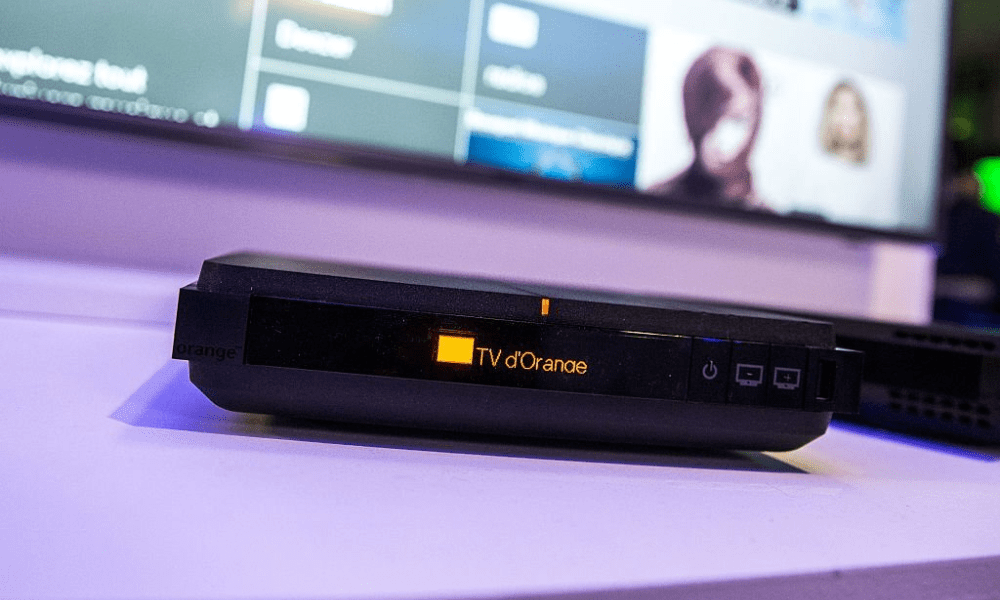
The Livebox 5 is the broadband modem provided by Orange to fiber optic subscribers . It allows you to benefit from a fast and stable internet connection, as well as services such as television, telephone, and Wi-Fi. However, the Livebox 5 can sometimes malfunction and display a flashing white light . What does this signal mean? What are the possible causes? And above all, how can you fix it? In this article, we will explain how to resolve this problem and restore an optimal internet connection.
What does the flashing white light on the Livebox 5 mean?
The flashing white light on the Livebox 5 indicates that the modem is starting up or updating. This is normal and should not last more than a few minutes. If the light remains flashing white for more than 10 minutes, it means there is a problem with the Livebox 5 or with the fiber optic line.
What are the possible causes of the flashing white light on the Livebox 5?

There are several possible causes that could explain why the Livebox 5 is flashing white :
- A power outage or a disconnection of the power supply of the Livebox 5.
- A poor connection of the fibre optic cable between the wall socket and the Livebox 5.
- A fault on the fiber optic box or on Orange's fiber optic network.
- A software update for the Livebox 5 that has failed or is interrupted.
- An internal malfunction of the Livebox 5 .
How to resolve the problem of the flashing white light on the Livebox 5?

Depending on the cause of the problem, there are different solutions to resolve the flashing white light issue on the Livebox 5. Here are the steps to follow:
- Check that the Livebox 5 power supply cable is properly plugged into a power outlet and the modem. If the cable is damaged, replace it with a compatible one.
- Check that the fibre optic cable is properly connected to the wall socket and to the Livebox 5. If the cable is damaged, replace it with another cable supplied by Orange.
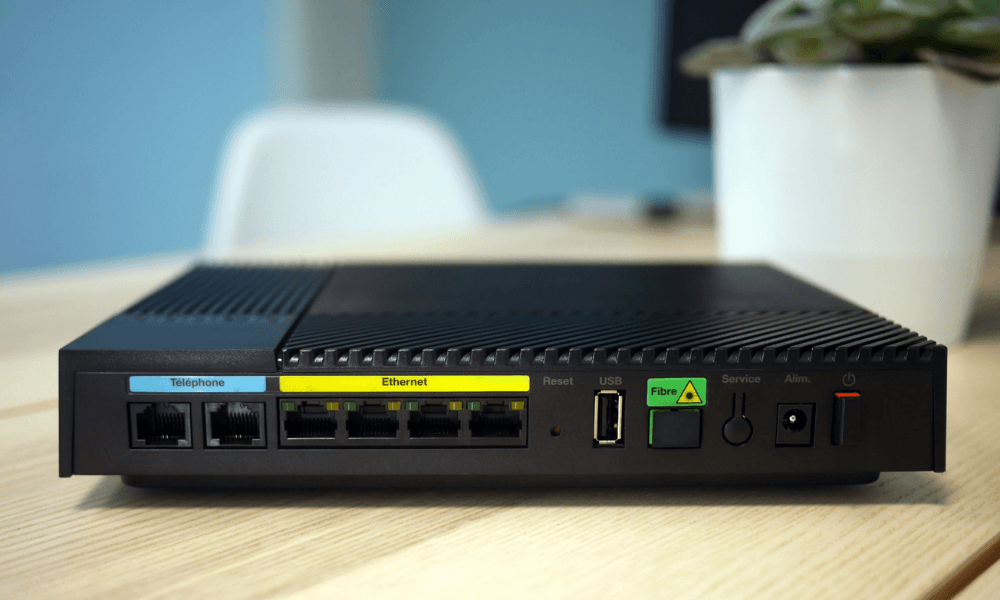
- Restart the Livebox 5 by pressing the power button located on the back of the modem for a few seconds. Wait until the light becomes solid or changes color.
- Reset the Livebox 5 by pressing the reset button located on the back of the modem for 10 seconds with a pointed object. Wait until the light becomes solid or changes color.
- Contact Orange customer service at 3900 to report the problem and request a diagnosis of your fiber optic line. If the problem originates from the fiber optic box or the fiber optic network , a technician will be able to come to your home to carry out the necessary repairs.
- If none of the previous solutions work, your Livebox 5 may be faulty. In this case, you can request a free replacement of your modem from Orange.
FAQs
Here are some frequently asked questions from Livebox 5 users:
What is the difference between the flashing white light and the solid white light on the Livebox 5?
The flashing white light means the Livebox 5 is starting up or updating . The solid white light means the Livebox 5 is connected to the internet and working normally.
What is the meaning of the other indicator colors on the Livebox 5?
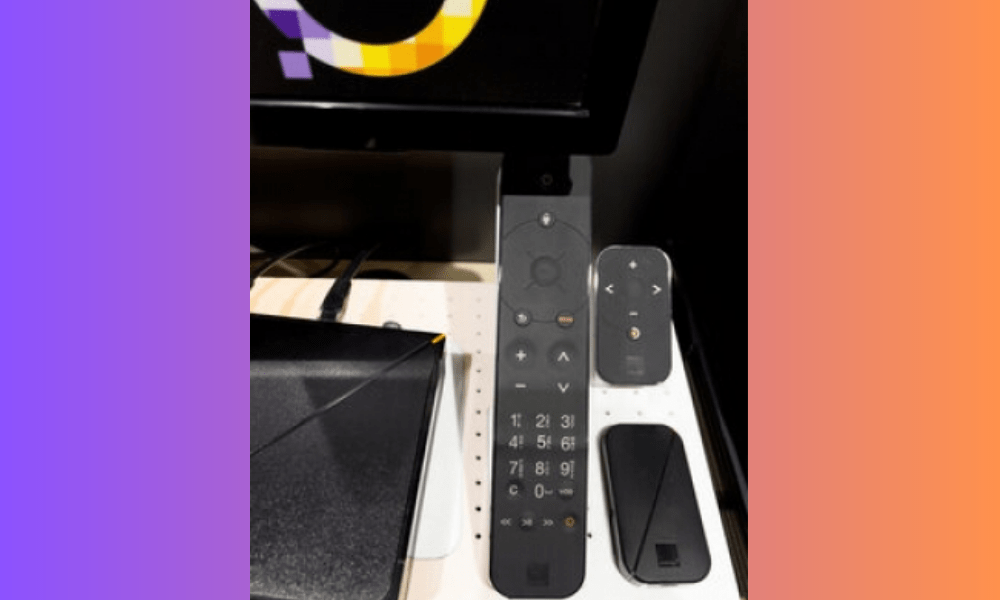
There are four other possible colors for the indicator light on the Livebox 5:
- The red light indicates a problem with the fiber optic line or the fiber optic box . You should contact Orange customer service to request a diagnosis.
- The green light indicates that the Livebox 5 is in energy-saving mode . Simply press the power button to exit this mode and restore a normal internet connection.
- The blue light indicates that the Livebox 5 is in Wi-Fi pairing mode . This allows you to easily connect a wireless device to the Livebox 5 by pressing the WPS button located on the back of the modem.
- The purple light indicates that the Livebox 5 is in DECT pairing mode . This allows you to easily connect a cordless phone to the Livebox 5 by pressing the DECT button located on the back of the modem.
How do I turn the indicator light on or off on the Livebox 5?
You can turn the indicator light on or off on your Livebox 5. To do this, log in to the Livebox 5 management interface by typing http://livebox/ into your web browser. Then, go to the “ My Livebox Settings menu . There you can choose to turn the indicator light on or off.
How do I change the Wi-Fi password on my Livebox 5?
To change the Wi-Fi password on your Livebox 5, you need to log in to the Livebox 5 management interface by typing http://livebox/ into your web browser. Then, go to the “ My Livebox Network menu . You can then change the Wi-Fi network name and password.
How do I enable or disable guest Wi-Fi on the Livebox 5?
Wi -Fi is a feature that allows you to create a separate Wi-Fi network for your guests, without giving them access to your main network. To enable or disable Guest Wi-Fi on the Livebox 5, you need to connect to the Livebox 5 management interface by typing the address http://livebox/ into your web browser. Then, go to the “ My Livebox ” tab and then to the “ Network ” menu. You can then enable or disable Guest Wi-Fi and choose a name and password for this network.
How do I configure parental controls on the Livebox 5?
Parental controls are a feature that allows you to restrict internet access for certain devices or during certain time periods. To configure parental controls on the Livebox 5 , you need to connect to the Livebox 5 management interface by typing the address http://livebox/ into your web browser. Then, go to the “ My Livebox Parental Controls menu . You can then create profiles and rules for each device connected to your network.
How do I update the Livebox 5 software?
The Livebox 5 software updates automatically when you turn on or restart your modem. You don't need to do anything to perform this operation. To check if an update is available, you can access the Livebox 5 management interface by typing http://livebox/ into your web browser. Then, go to the " My Livebox System Information menu . You will then be able to see the current software version and the date of the last update.
How to fix weak or unstable Wi-Fi on the Livebox 5?
If you are experiencing weak or unstable Wi-Fi problems on the Livebox 5, there are several possible solutions:
- Check that the Livebox 5 is placed in a clear location away from sources of electromagnetic interference (microwaves, cordless phones, etc.).
- Change the Wi-Fi channel on your Livebox 5 to avoid interference with other nearby Wi-Fi networks. To do this, access the Livebox 5 management interface by typing http://livebox/ into your web browser. Then, go to the “ My Livebox ” tab and then to the “ Network ” menu. You can then choose a different Wi-Fi channel .
- Use a powerline adapter or Wi-Fi extender to boost the Wi-Fi signal range in your home. These devices plug into a standard electrical outlet and relay the Livebox 5's Wi-Fi signal to remote or poorly covered areas.
- Update the Livebox 5 software and the Wi-Fi driver of your connected devices to benefit from the latest improvements and bug fixes.
How do I enable or disable bridge mode on the Livebox 5?
Bridge mode is a feature that allows you to disable the router integrated into the Livebox 5 and transform it into a simple modem. This can be useful if you want to use your own router or if you need a specific network configuration. To enable or disable bridge mode on the Livebox 5, you need to connect to the Livebox 5 management interface by typing the address http://livebox/ into your web browser. Then, go to the “ My Livebox Advanced Settings menu . You can then enable or disable bridge mode and restart your modem.
How do I access the hard drive integrated into the Livebox 5?
The Livebox 5 has a built-in 1TB that allows you to store multimedia files (photos, videos, music, etc.) and access them from your connected devices . To access the Livebox 5's built-in hard drive, you need to connect to the Livebox 5's Wi-Fi network and use an application compatible with the DLNA (Digital Living Network Alliance) protocol . For example, you can use the Orange TV app on your smartphone or tablet, or the Windows Media Player application on your computer. You will then be able to browse the files stored on the Livebox 5's hard drive and play them on your devices.
How do I activate or deactivate the TV recording service on the Livebox 5?
The TV recording service is a feature that allows you to record TV programs broadcast by Orange onto the hard drive of your Livebox 5. You can schedule recordings in advance or live from your TV decoder or the Orange TV app. To activate or deactivate the TV recording service on your Livebox 5 , you need to log in to the Livebox 5 management interface by typing http://livebox/ into your web browser. Then, go to the “ My Livebox Storage menu . There you can activate or deactivate the TV recording service and choose the disk space allocated to this feature.
How do I change the password for accessing the Livebox 5 management interface?
To access the Livebox 5 management interface , you need to enter a password, which by default consists of the first eight characters of your Wi-Fi key. It is recommended that you change this password to enhance the security of your modem. To change the password for accessing the Livebox 5 management interface , connect to the Livebox 5 management interface by typing the address http://livebox/ into your web browser. Then, go to the “ My Livebox Settings menu . You will then be able to change the password for accessing the management interface.
How do I activate or deactivate the Wi-Fi calling service on the Livebox 5?
The Wi-Fi calling service is a feature that allows you to use your Livebox 5's Wi-Fi network to make or receive phone calls with your mobile phone. This can be useful if you have poor mobile network coverage at home or if you want to save on your mobile data plan. To activate or deactivate the Wi-Fi calling service on your Livebox 5 , you need to log in to the Livebox 5 management interface by typing http://livebox/ into your web browser. Then, go to the " My Livebox " tab and then to the " Telephony " menu. You can then activate or deactivate the Wi-Fi calling service and choose which numbers are authorized to use this feature.
How do I activate or deactivate the voicemail service on the Livebox 5?
Voicemail is a feature that allows you to record voicemail messages left by callers who were unable to reach you on your landline. You can listen to your voicemail messages from your landline, mobile phone, or email. To activate or deactivate voicemail on your Livebox 5, you need to log in to the Livebox 5 management interface by typing http://livebox/ into your web browser. Then, go to the “ My Livebox Telephony menu . There you can activate or deactivate the voicemail service and choose your notification and personalization options.
How do I activate or deactivate the unlimited calls service to mobiles on the Livebox 5?
The unlimited calls to mobiles service is a paid option that allows you to make unlimited calls to mobile numbers in mainland France and the French overseas departments and regions (DOM) from your landline. To activate or deactivate the unlimited calls to mobiles service on your Livebox 5, log in to your Orange customer account at https://www.orange.fr/. Then, go to the “ Offers and options Manage my options menu . You can then activate or deactivate the unlimited calls to mobiles service and view the rates and terms and conditions.
How do I activate or deactivate the satellite TV service on the Livebox 5?
Satellite TV is a paid option that allows you to receive Orange TV channels via satellite instead of the fiber optic network. This can be useful if you live in an area not covered by fiber optics or if you want better picture quality. To activate or deactivate satellite TV on your Livebox 5 , log in to your Orange customer account at https://www.orange.fr/. Then, go to the " Offers and Options Manage my options menu . You can then activate or deactivate satellite TV and view the rates and terms and conditions.
Conclusion
The flashing white light on your Livebox 5 may indicate a problem with your internet connection. It's important to check your modem connections and follow the steps outlined in this article to resolve the issue. If the light doesn't turn off or change color after following these steps, please contact Orange customer service for assistance.


