
TikTok is one of the most popular apps right now, with over 2 billion downloads and more than 1 billion monthly active users! But like any online service, it's not immune to bugs or outages that can ruin the experience for both creators and viewers. What should you do if TikTok isn't working properly? How do you fix bugs on TikTok?
What are the most common bugs on TikTok?
Bugs, problems, and outages on TikTok can manifest in various ways, depending on the cause and severity of the malfunction. Here are some examples of the most frequent issues:
- The application either fails to launch or closes abruptly.
- The application is slow or unresponsive.
- The application displays an error message or error code.
- The application is using too much battery or mobile data.
- The application does not allow users to log in or create an account.
- The application does not allow posting or watching videos.
- The application does not allow the use of certain features, such as filters, effects, duets, comments, messages, etc.
- The application does not respect privacy or security settings.
What are the possible causes?
Bugs on TikTok can have several causes, which may be related to the application itself, your device, or your internet connection. Here are some possible causes:
- An application update that was either not done or was done incorrectly.
- A version of the application that is not compatible with your device or operating system.
- A lack of storage space or RAM on your device.
- A third-party application that conflicts with TikTok or uses too many resources.
- A network or internet connection problem that prevents the application from functioning properly.
- A technical problem or maintenance on TikTok's servers.
How can I tell if TikTok is down?
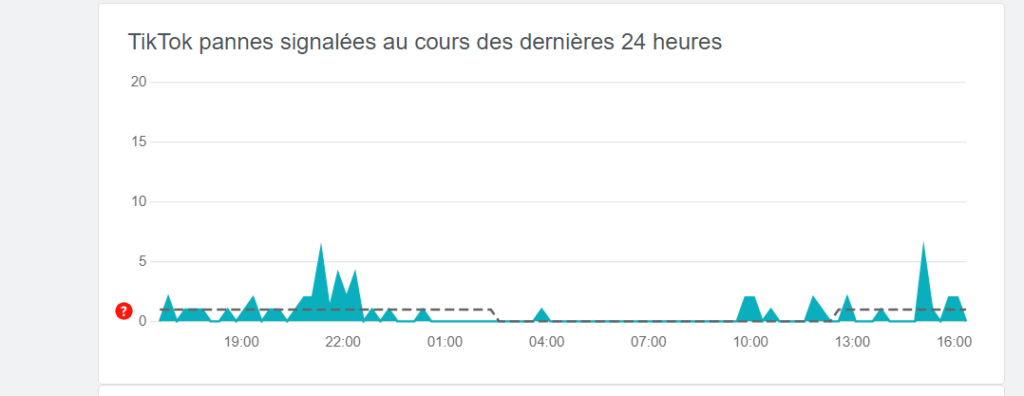
Before trying to troubleshoot a problem on TikTok, you should first check whether the issue stems from the app itself or your internet connection. To do this, you can consult websites like https://downdetector.fr/statut/tiktok/, which compiles user reports and indicates whether TikTok is down or not. You can also check social media platforms like Twitter or Facebook to see if others are experiencing the same problem.
If you find that TikTok is indeed down, there's not much you can do except wait for the service to be restored. Generally, the TikTok teams are responsive and communicate about the causes and duration of outages on their official account https://twitter.com/tiktok_support or on their help center.
How to fix bugs on TikTok?
If you encounter a bug, problem, or outage on TikTok, there are several solutions you can try to resolve it. Here are a few steps to follow:
1. Check your internet connection
The first thing to do is check that your internet connection is sufficient and stable enough to use TikTok. You can test your connection speed and quality using a dedicated website or app. If your connection is slow or unstable, you can try:
- Move closer to the wifi router or change location if you are on wifi.
- Activate airplane mode and then deactivate it if you are using mobile data.
- Restart your Wi-Fi router or device if the problem persists.
2. Update the TikTok app
The second thing to do is to check that you have the latest version of the TikTok app. Updates fix bugs, improve performance, and add new features. To update the TikTok app, you can:
- Open the Play Store (Android) or the App Store (iOS) on your device.
- Search for TikTok in the search bar.
- Click the "Update" button if an update is available.
3. Force close the TikTok app
The third thing to do is force-close the TikTok app. This frees up RAM and restarts the app from scratch. To force-close the TikTok app, you can:
- Open your device settings.
- Go to the "Applications" or "Application Manager" section.
- Select TikTok from the list of applications.
- Click on the "Force stop" or "Force close" button.
4. Clear the cache and data of the TikTok app
The fourth thing to do is clear the cache and data of the TikTok app. This removes temporary files and outdated data that can cause bugs or problems. To clear the cache and data of the TikTok app, you can:
- Open your device settings.
- Go to the "Applications" or "Application Manager" section.
- Select TikTok from the list of applications.
- Click on the "Clear cache" or "Delete cache" button.
- Click the "Clear data" or "Delete data" button.
Warning: This operation may delete some information, such as your history, preferences, or login details. You will therefore need to log back into your account after clearing the cache and data.
5. Uninstall and reinstall the TikTok app
The fifth thing to do is uninstall and reinstall the TikTok app. This will remove all files and settings related to the app and start with a clean installation. To uninstall and reinstall the TikTok app, you can:
- Open the Play Store (Android) or the App Store (iOS) on your device.
- Search for TikTok in the search bar.
- Click on the "Uninstall" or "Delete" button.
- Wait until the uninstallation is complete.
- Click on the "Install" or "Get" button.
- Wait until the installation is complete.
6. Contact TikTok support
The sixth thing to do is contact TikTok support if none of the previous solutions worked or if you suspect the problem lies with TikTok's servers. You can contact TikTok support using the following methods:
- Open the TikTok app on your device.
- Go to the "Me" section in the bottom right corner of the screen.
- Click on the three dots in the top right corner of the screen.
- Go to the "Help and Feedback" section.
- Choose the option "Report a problem" or "Contact us".
- Follow the on-screen instructions.
You can also contact TikTok support by email at feedback@tiktok.com or by phone at +1 888 975 0568.
Conclusion
TikTok is an entertaining and creative app, but it's not without its bugs, glitches, or outages that can spoil the user experience. Fortunately, there are simple and effective solutions to resolve most of the issues encountered on this platform. If you follow the steps outlined in this article, you should be able to fully enjoy TikTok without interruption.
See also: Instagram bug