

Are you tired of those intrusive ads cluttering your mobile phone screen? Do you want to know where they come from and how to block them permanently? Discover several solutions in this article that will allow you to remove these annoying ads on Android and iOS!
Intrusive ads on Android or iOS: Where do they come from?

Generally, free apps that you download from app stores contain ads. And while these ads can sometimes be a source of revenue for developers, they can become too intrusive and abusive for you. Understand, then, that the ads displayed on your smartphone screen come from free, and sometimes malicious, apps .
Fortunately, there are several solutions to overcome this problem
Solution 1: Reverse!
The simplest, quickest and most effective way to get rid of intrusive ads is to go back and uninstall the app suspected of generating advertising content.
Basically, to get rid of intrusive ads, you'll need to do the opposite of what triggered them. Just installed a completely unknown app? Then disable it!
Solution 2: Identify and limit your advertising tracking
Most smartphones include an advertising identifier that facilitates the display of advertising content. This allows advertisers to gather as much information about you as possible and thus offer you ads that are relevant to your interests!
Therefore, to limit your advertising tracking, you must:
On Android
1. Go to your smartphone's settings, then click on “ Google Settings ”
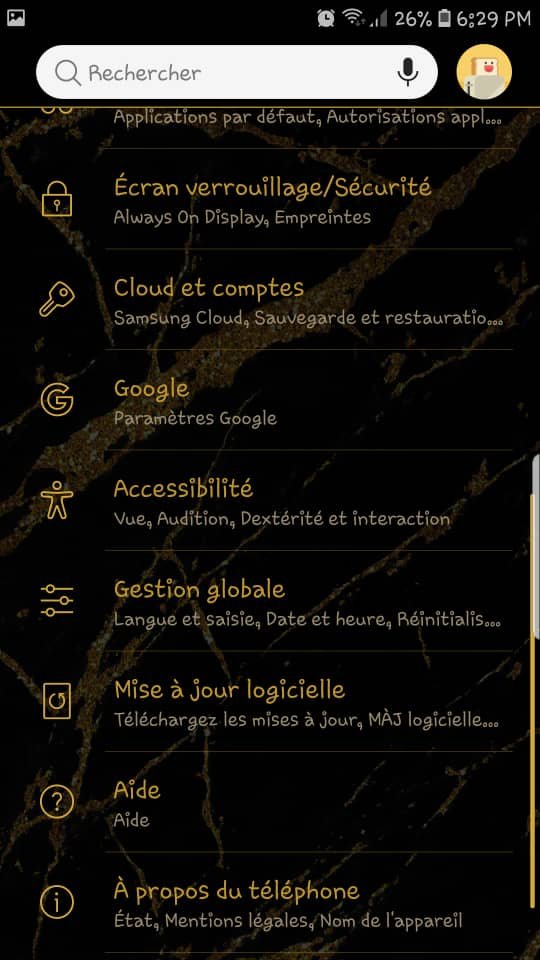
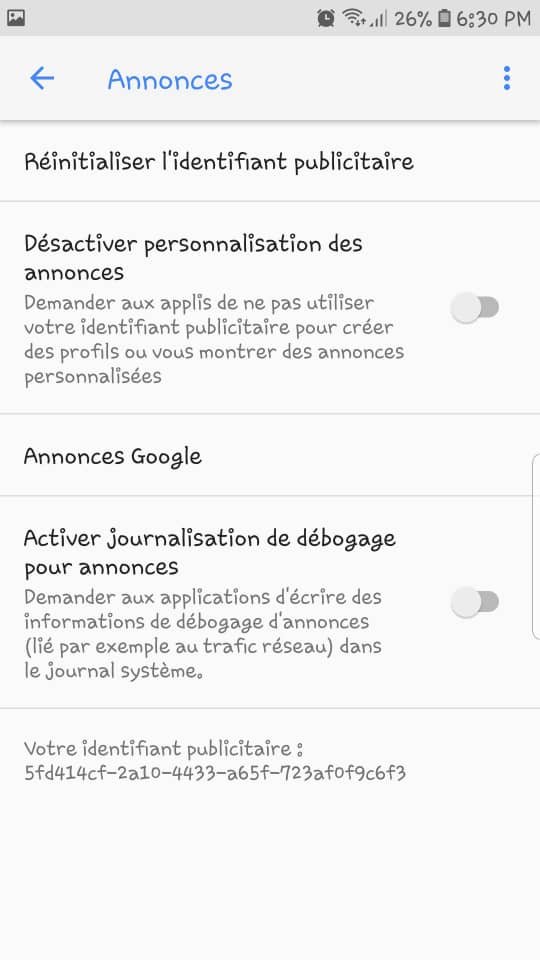
2. Next, tap the “ Ads ”
Disable ad personalization button to enable it.
On iOS
1. Go to your device settings
2. Search for and then click on the “ Privacy ”
3. Scroll down, locate and click on the “ Advertising ”
4. To finalize the operation, press “ Limit Ad Tracking ”
Solution 3: Stop applications running in the background
Background apps have this annoying tendency to collect your important information and transmit it… (logins; location). To stop apps running in the background,
On Android
1. Go to your Android smartphone's settings
Applications ” option
3. Select the application in question, then click on the “ Close running applications ”
On iOS
1. Go to “ Settings ”
2. In the “ General ” option, uncheck “ Background data refresh ”
Alternatively, you can quickly double-tap the button at the bottom of the screen. Then, swipe the app you just closed upwards.
Solution 4: Use an ad blocker

Today, there are a plethora of free apps that make it easier to reduce web page loading times on Android. Among them is the Adblock Fast app, which is available for free on Google Play .
You can also install the Adblock Fast app from the Play Store and App Store.
Once the application is installed on your mobile device,
If you are using an iPhone:
1. Go to the " Settings "
2. Search for and then click on the " Safari "
3. Next, tap on " Content blockers " to activate Adblock Fast
If you are using an Android device:
1. Download and install the application
2. That's it! 😀
You won't need to go into the settings to activate anything. Adblock Fast will integrate automatically, and say goodbye to intrusive ads!
You can also install Crystal Adblock on your smartphone. It's another ad blocker widely used on iPhones, but also compatible with other browsers such as Chrome, Firefox, Opera, etc.
Speaking of browsers, this article might interest you: Opera GX: The best browser for gamers?
Solution 5: Block intrusive ads on your mobile device via Chrome

To permanently block advertising content via Google Chrome, proceed as follows:
1. Open your browser and click on the three vertically aligned dots in the upper right corner
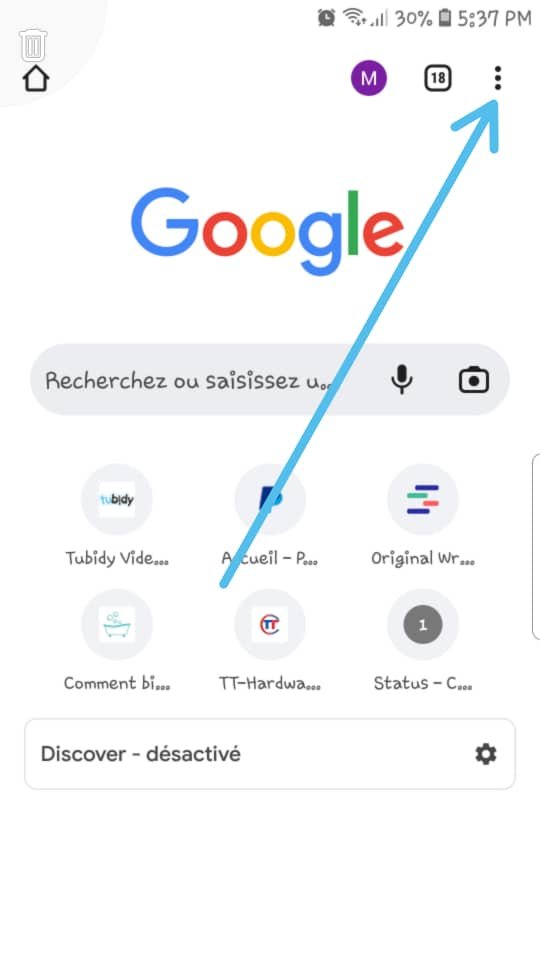
Settings " option.
3. Scroll down and click on " Site settings "
Pop-ups option and tap on it.

5. Next, click the button on the right to block pop-up windows and redirects!
Pop-ups option and click on the one located just below, the " Ads "

7. Same procedure, click on the button just to the right to block intrusive or misleading advertising content.
You can also delete browsing data on Chrome via your phone's Settings. To do this:
1. Enter your smartphone's settings
Applications ” options Google Chrome ” >>> “ Storage ” >>> “ Clear data ”
If you try all these methods and the intrusive ads persist, it's highly likely that malware is the culprit. To get rid of it, you'll need to download an antivirus program and run a scan. Avast and AVG are among the best antivirus software for smartphones on the market… so don't hesitate!


