

Do you want to download or update an app on your Android smartphone, but the Play Store is displaying a server error message ? Don't panic, there are solutions to resolve this problem and regain access to the Google app store.
What is a server error on the Play Store?
A server error on the Play Store is a malfunction that prevents the proper functioning of the Android application download and update
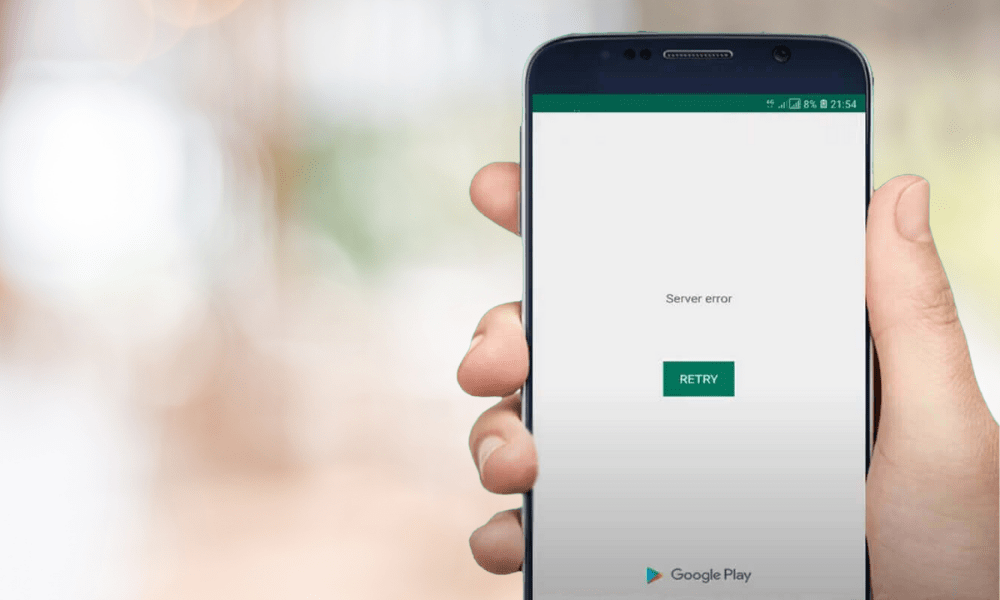
It usually manifests as an alert message displayed on the smartphone screen, such as “ Error retrieving information from the server ” or “ A server error has occurred. Please try again .” These messages are often accompanied by an error code , such as RH-01, DF-DFERH-01, 495, 504, etc.
There are many possible causes of a server error on the Play Store. It could be an internet connection problem , a bug in the Play Store or download manager , a conflict with the Google account associated with the smartphone, or an incompatibility between the version of the Play Store and the Android operating system.
How to resolve a server error on the Play Store?
Fortunately, there are solutions to resolve a server error on the Play Store and regain access to Android apps. Here are the different possible solutions, to be tested in order until the problem is resolved.
Check the internet connection
The first thing to do is check that your smartphone is properly connected to the internet , either via Wi-Fi or mobile data. If the connection is weak or unstable, try moving closer to the Wi-Fi router, switching networks, or restarting your smartphone .
You can also check that airplane mode is not activated, and that mobile data is allowed for the Play Store .
Related article : Google Play service has stopped – How to fix the error on Android?
Clear the cache and data of the Play Store and Download Manager
The second solution is to clear the cache and data of the Play Store and the download manager.
- The cache is a temporary storage space that speeds up application loading, but it can sometimes become corrupted or outdated and cause errors.
- Data includes personal information and application-related settings, which can also be a source of conflict.
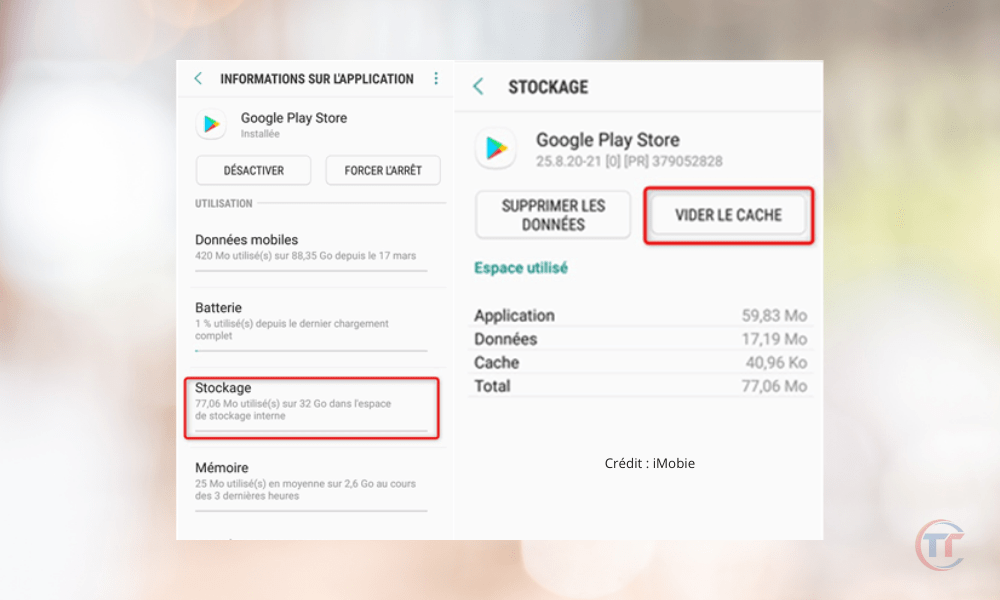
To clear the cache and data of the Play Store and Download Manager, follow these steps:
- Go to your smartphone's settings Applications " or " Application Manager " section.
- Google Play Store app and tap on it.
- Tap on “ Storage ”, then on “ Clear cache ” and “ Clear data ”.
- Go back and look for the “ Download Manager ” or “ Download Services ” app and tap on it.
- Tap on “ Storage ”, then on “ Clear cache ” and “ Clear data ”.
- Restart your smartphone and open the Play Store.
Uninstall Play Store updates
The third solution is to uninstall the Play Store updates . The latest version of the Play Store may be incompatible with your smartphone or may contain a bug that causes server errors.
To revert to the original version from the Play Store, follow these steps:
- Go to your smartphone's settings Applications " or " Application Manager " section.
- Google Play Store app and tap on it.
- Tap the three dots in the top right corner of the screen, then tap “ Uninstall updates ”.
- Confirm your choice by pressing “ OK ”.
- Restart your smartphone and open the Play Store.
Remove and add the Google account
The fourth solution is to remove and re-add the Google account associated with your smartphone. Your Google account may be out of sync , or there may be an authentication issue preventing the Play Store from working correctly.
To remove and add the Google account, follow these steps:
- Go to your smartphone's settings Accounts " or " Users and accounts " section.
- Tap the Google account you want to delete, then tap the three dots in the top right corner of the screen, then tap “ Delete account ”.
- Confirm your choice by pressing “ OK ”.
- Go back and tap “ Add an account ”, then tap “ Google ”.
- on-screen instructions
- Restart your smartphone and open the Play Store.
Reset application preferences
The fifth solution is to reset app preferences . Some apps may have been disabled or some settings may have been changed , affecting the Play Store's functionality.
To reset application preferences, follow these steps:
- Go to your smartphone's settings Applications " or " Application Manager " section.
- Tap the three dots in the top right corner of the screen, then tap “ Reset app preferences ”.
- Confirm your choice by pressing “ Reset applications ”.
- Restart your smartphone and open the Play Store.
Install an older version of the Play Store
The sixth solution is to install an older version of the Play Store . It's possible that the current version of the Play Store is incompatible with your smartphone or contains a bug that causes server errors.
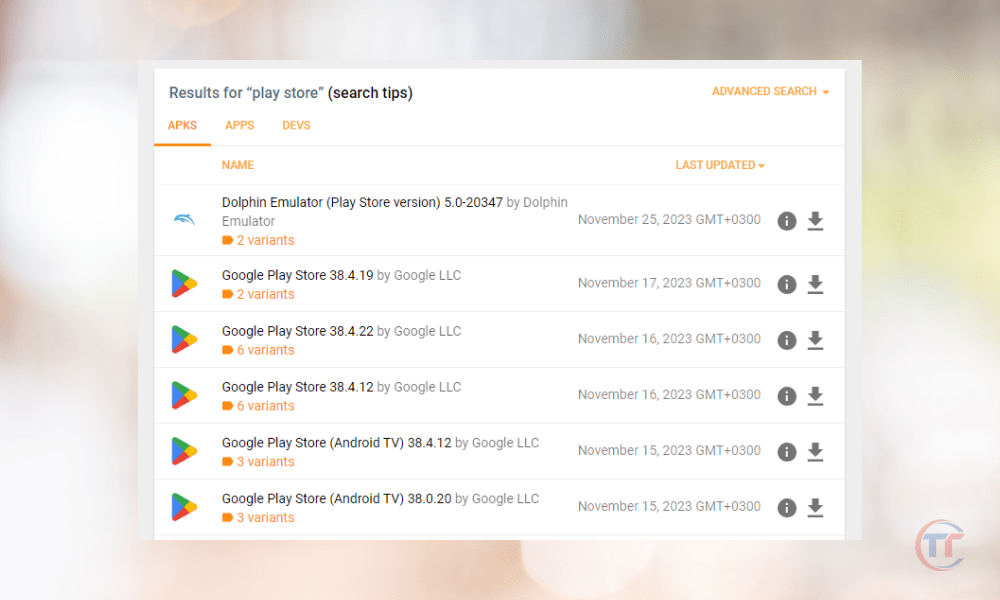
To install an older version of the Play Store, follow these steps:
- Go to a website APK files from the Play Store, such as APKMirror or APKPure .
- Find the version of the Play Store you want to install, making sure it is compatible with your smartphone and your version of Android.
- Download the APK file to your smartphone, accepting any security warnings.
- Open the APK file and install it , allowing unknown sources if necessary.
- Restart your smartphone and open the Play Store.
Good to know : How to find the best flights with Google Flights?
Reset the phone to factory settings
The final solution, to be used as a last resort, is to reset the phone to factory settings . This operation erases all data and settings from your smartphone, which can resolve the most persistent problems. Warning: this solution is irreversible , and you must absolutely back up your personal data before proceeding.
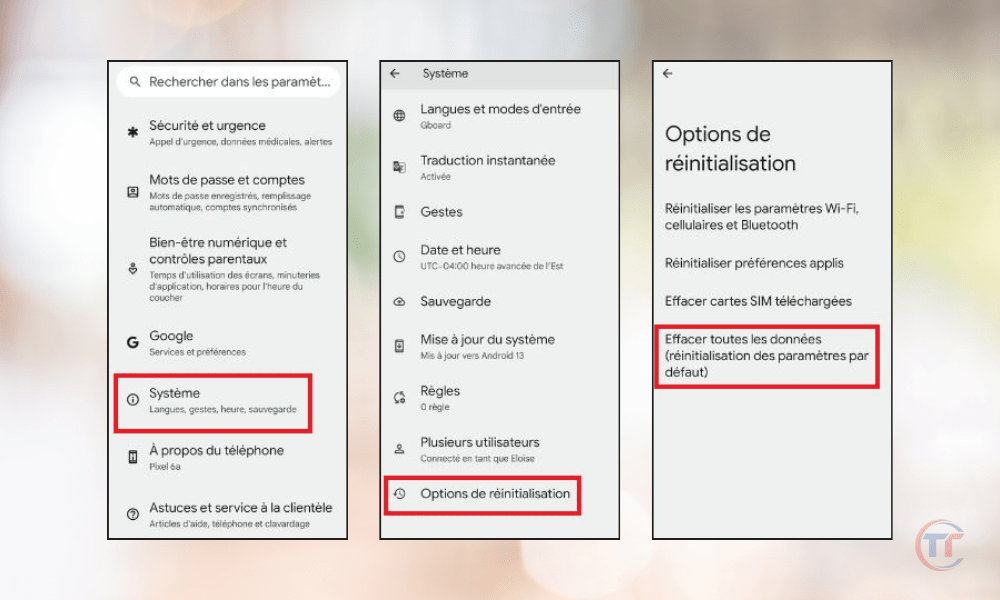
To reset the phone to factory settings, follow these steps:
- Go to your smartphone's settings System " or " Backup and reset " section.
- Tap “ Reset phone ” or “ Restore factory settings ”.
- Confirm your choice by pressing “ Reset phone ” or “ Erase everything ”.
- Wait for the process to finish and for your smartphone to restart.
- Configure your smartphone as you did for the first time and open the Play Store.
FAQ
How do I find out what the Play Store error code is?
The Play Store error code set of letters and numbers that identifies the type of server error you are experiencing. It usually appears in parentheses after the alert message, for example, “ Error retrieving information from server ( RH-01 )”.
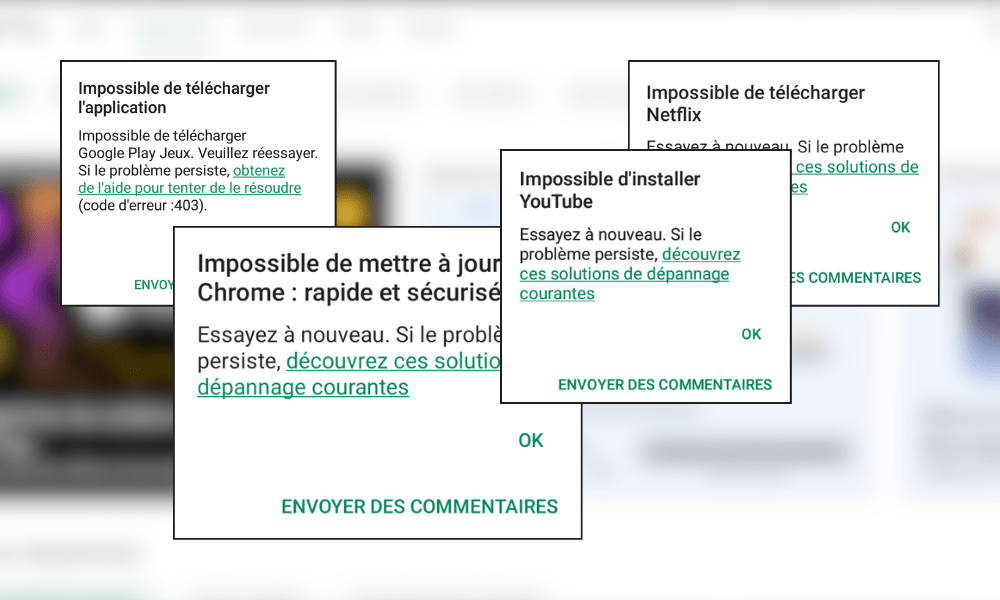
What do the different Play Store error codes mean?
The various Play Store error codes correspond to specific problems that can affect the service's functionality. Here are some examples of common error codes and their meanings:
- RH-01 : Error retrieving information from the server. This code indicates that the Play Store cannot access your Google account information.
- DF-DFERH-01 : Error retrieving information from the server. This code indicates that the Play Store is unable to access application information.
- 495 Error downloading or updating apps. This code indicates that the Play Store is unable to download or update apps due to an internet connection or cache issue.
- 504 Error installing applications. This code indicates that the Play Store is unable to install the applications due to a compatibility or memory issue.


