

NFC ( Near Field Communication ) is a wireless technology that allows data to be exchanged between two compatible devices over short distances . With your iPhone, you can use NFC to make contactless payments , share files, photos, contacts, or links with other iPhone users, or interact with connected devices such as NFC tags or Bluetooth speakers.
But how do you activate NFC on your iPhone? Are all iPhone models compatible with NFC? Which apps use NFC on your iPhone? In this article, we'll answer all these questions and show you how to fully enjoy NFC with your iPhone.
How do I activate NFC on my iPhone?
Solution 1
NFC is enabled by default on your iPhone. You don't need to make any special adjustments to use it. Simply bring your iPhone close to another compatible device or connected object, and the connection will be established automatically.
However, you should know that NFC on your iPhone works in two different ways depending on the situation:
Reading mode
It allows your iPhone to read data from an NFC tag or connected device. For example, you can scan a QR code with your camera or read a business card with your Contacts app. Read mode is always active on your iPhone, even if you have turned off Wi-Fi or Bluetooth.
The emission mode
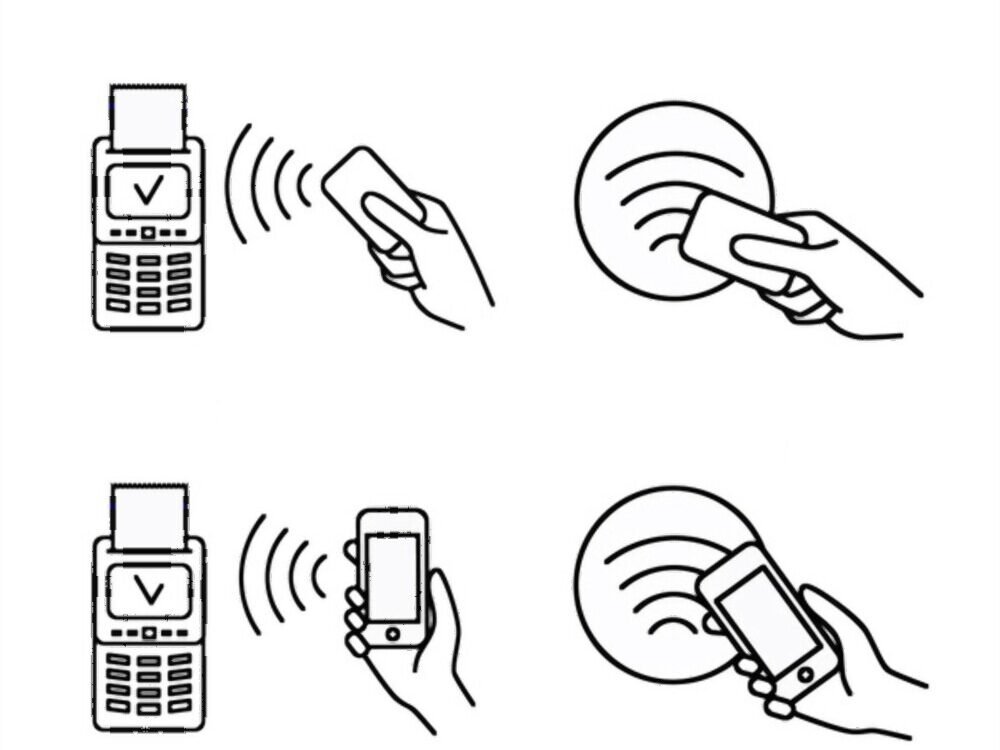
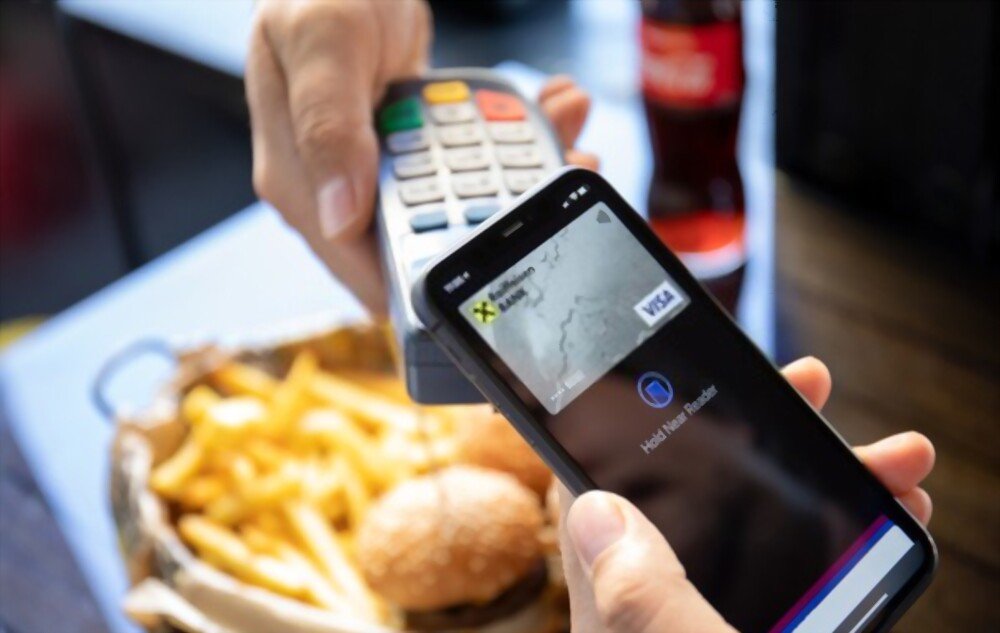
It allows your iPhone to send data to another compatible device or a contactless payment terminal. For example, you can pay with Apple Pay or share files with AirDrop. Send mode requires you to unlock your iPhone with Face ID, Touch ID, or your passcode.
Solution 2
If the first solution doesn't work, you can try enabling NFC step by step on your iPhone. Here's how:
Step 1 : Check that your iPhone is NFC-enabled. Models from the iPhone 6 onwards can read NFC tags, but only models from the iPhone XS onwards can write them.
Step 2 : Enable NFC on your iPhone. To do this, go to Settings > Control Center > Customize Controls and add the QR Code/NFC Shortcut.
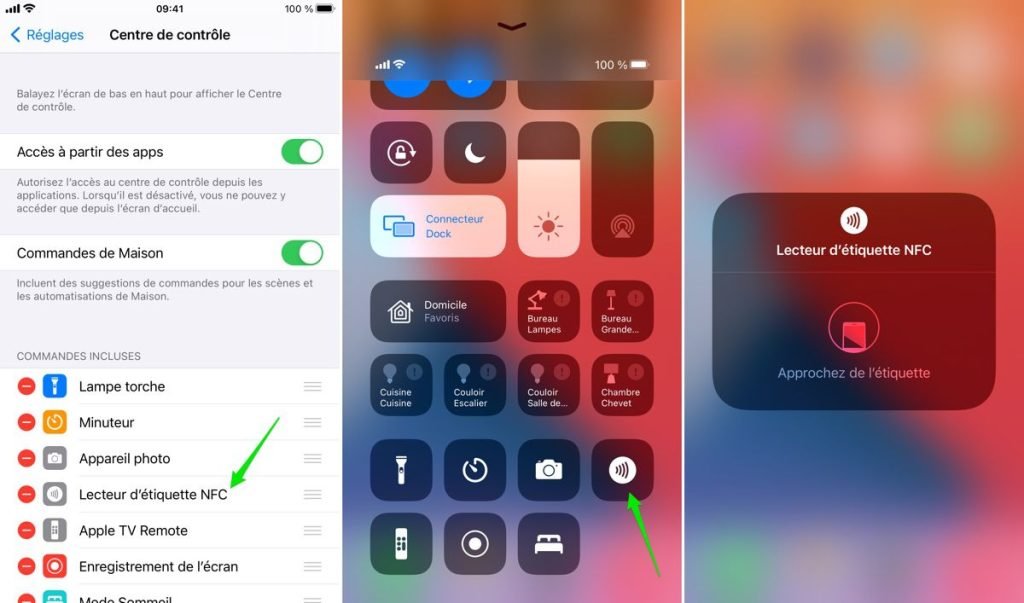
Step 3 : Open the control center by swiping down from the top of the screen (or up from the bottom if you have an iPhone with a Home button) and tap the QR/NFC Code Reader icon.
Step 4 : Bring your iPhone close to the NFC tag you want to read. A notification will appear on the screen with the tag's contents. You can tap it to open the corresponding app or perform the associated action.
Step 5 : If you want to write an NFC tag with your iPhone, you need to download a dedicated app, such as NFC Tools or NFC TagWriter. Follow the app's instructions to choose the tag type and content, then bring your iPhone close to the blank tag to write it.
Which apps use NFC on your iPhone?
NFC on your iPhone can be used by several native or third-party applications. Here are a few examples:
Apple Pay
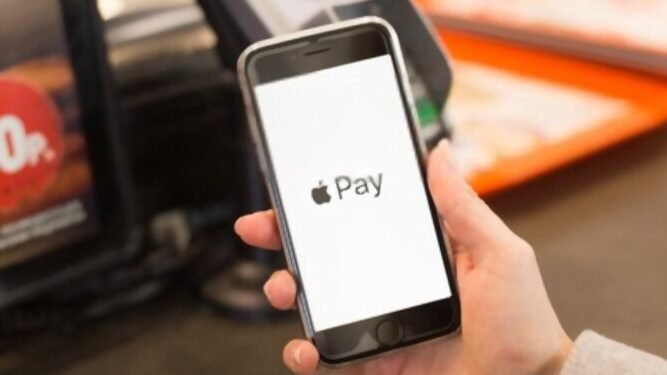
This is Apple's contactless payment service. It lets you pay with your iPhone in stores, on public transportation, or in apps that accept Apple Pay. To use Apple Pay, you need to add your bank card to the Wallet app and select it as your default card. Then, simply hold your iPhone near the contactless payment terminal and confirm with Face ID, Touch ID, or your passcode.
AirDrop
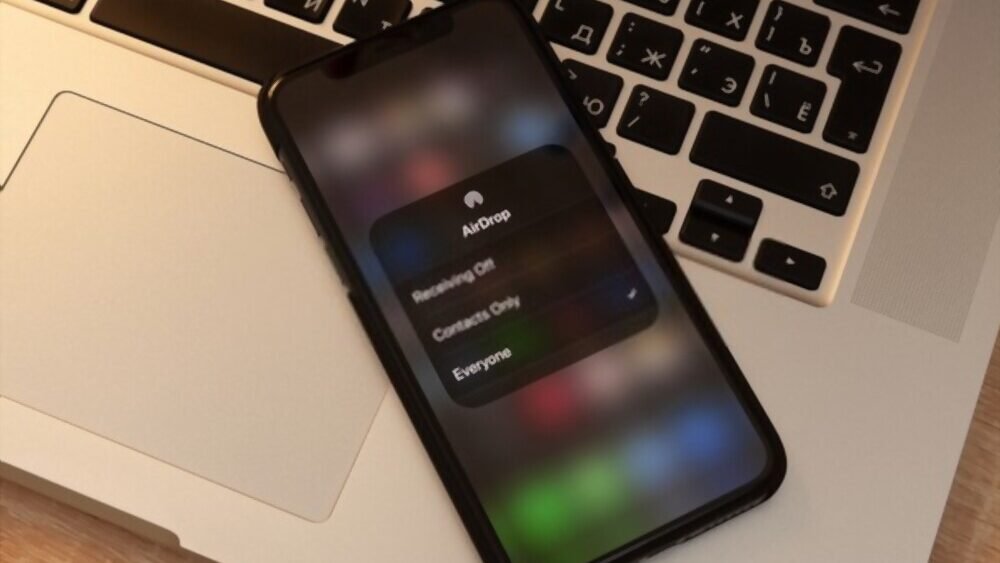
This is the file-sharing service between Apple devices. It lets you send or receive photos, videos, documents, or links with other nearby iPhone, iPad, or Mac users. To use AirDrop, you need to turn on Wi-Fi and Bluetooth on your iPhone and choose who can send you files in Settings. Then, simply select the file you want to share and choose the recipient from the list of available devices. If you want to use File Explorer on your iPhone to manage your local files or those on iCloud Drive, you can do so by opening the File Explorer app and browsing your folders.
Wallet

This is the app that stores your bank cards, loyalty cards, plane tickets, or movie tickets. It allows you to easily access and use your cards with NFC. For example, you can scan your plane ticket at the airport or your loyalty card at the supermarket with your iPhone. To use Wallet, you need to add your cards to the app and view them by swiping right from the lock screen.
Contacts
This is the app that manages your phone contacts. It lets you read or write business cards using NFC. For example, you can scan someone's business card with your camera or create your own business card with the Contacts app and share it with another iPhone user. To use Contacts with NFC, you need to enable the App Clip feature in Settings.
There are also other apps that use NFC on your iPhone to interact with connected devices such as Bluetooth speakers, headphones, smart lights, or interactive toys. You can find these apps on the App Store or on the device manufacturer's website.
Which iPhone models are compatible with NFC?
NFC has been available on iPhones since the iPhone 6 and iPhone 6 Plus, released in 2014. All subsequent models also feature NFC. Here is the complete list of iPhone models compatible with NFC:
- iPhone 6 and 6 Plus
- iPhone 6s and 6s Plus
- iPhone SE (1st and 2nd generation)
- iPhone 7 and 7 Plus
- iPhone 8 and 8 Plus
- iPhone X, XR, XS and XS Max
- iPhone 11, 11 Pro and 11 Pro Max
- iPhone 12, 12 mini, 12 Pro and 12 Pro Max
- iPhone 13, 13 mini, 13 Pro and 13 Pro Max
Comparison table of iPhone models compatible with NFC
| Model | Year | Reading mode | Emission mode |
| iPhone 6 / 6 Plus | 2014 | Yes | Yes (Apple Pay only) |
| iPhone 6s / 6s Plus | 2015 | Yes | Yes (Apple Pay only) |
| iPhone SE (1st generation) | 2016 | Yes | Yes (Apple Pay only) |
| iPhone 7 / 7 Plus | 2016 | Yes | Yes |
| iPhone 8 / 8 Plus | 2017 | Yes | Yes |
| iPhone X / XR / XS / XS Max | 2018 | Yes | Yes |
| iPhone 11 / 11 Pro / 11 Pro Max | 2019 | Yes | Yes |
| iPhone SE (2nd generation) | 2020 | Yes | Yes |
| iPhone 12 / 12 mini / 12 Pro / 12 Pro Max | 2020 | Yes | Yes |
| iPhone 13 / 13 mini / 13 Pro / 13 Pro Max | 2021 | Yes | Yes |
FAQ:
What is the difference between NFC and Bluetooth?
NFC and Bluetooth are two wireless technologies that allow data exchange between two compatible devices. The main difference is range: NFC operates at a maximum distance of a few centimeters, while Bluetooth can reach several meters. NFC is therefore better suited for quick, one-off interactions such as contactless payments or file sharing, while Bluetooth is better suited for longer-term connections such as streaming music or data synchronization.
How can I tell if my iPhone has NFC?
You can find out if your iPhone has NFC by checking its model number in Settings. If you have an iPhone from the iPhone 6 through the iPhone 13, then your device has NFC. You can also test NFC by bringing your iPhone close to another compatible device or smart object and seeing if a notification appears on your screen.
How do I disable NFC on my iPhone?
You can't completely disable NFC on your iPhone because it's necessary for features like Apple Pay and Wallet. However, you can limit its use by disabling certain options in Settings. For example, you can disable App Clip, which allows your iPhone to read NFC tags associated with third-party apps. You can also disable Control Center, which allows your iPhone to scan QR codes with the camera.
Does NFC consume a lot of battery?
No, NFC doesn't drain the battery much, as it's only active when you bring your iPhone close to another compatible device or smart object. The rest of the time, it remains in standby mode and doesn't significantly impact your device's battery life. However, if you use wireless charging , you'll consume more battery than with a traditional charger.
Is NFC secure?
NFC uses an encryption protocol to protect the data exchanged. Furthermore, NFC's short range limits the risk of interception or hacking. However, potential vulnerabilities exist, such as data theft by a malicious device near yours or the modification of tags to redirect to fraudulent websites. It is therefore recommended to disable NFC when not in use and to verify the source of tags before scanning them.


