

The Galaxy Store is an app and game download platform developed by Samsung for its Galaxy devices . It offers exclusive content, special offers, and personalized updates.
If you prefer to use other download sources like the Google Play Store, you can uninstall or disable the Galaxy Store on your Samsung smartphone. In this article, we'll explain how to do this, presenting four different methods, along with their advantages and disadvantages.
Method 1: Uninstall the Galaxy Store from the applications panel
The first method involves uninstalling the Galaxy Store from the application panel, which is the screen where you can access all the applications installed on your smartphone.
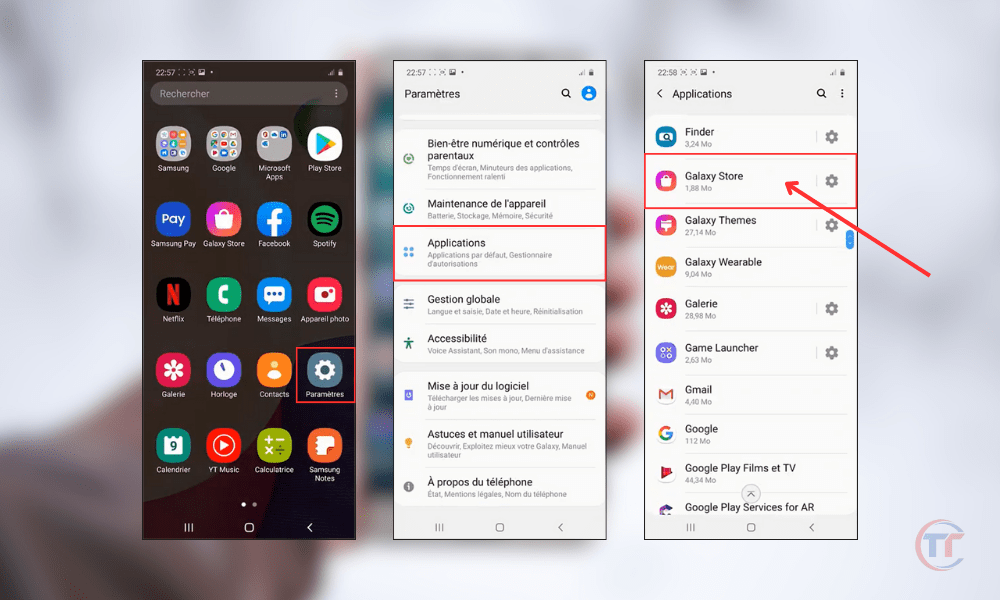
Here are the steps to follow:
- Open the phone's " Settings "
- Click on " Applications"
- Search for " Galaxy Store " among the applications
- Click on " Uninstall"
A confirmation window will appear asking if you want to uninstall the application. You must press “OK” to confirm the uninstallation.
Method 2: Disable the Galaxy Store from the application settings
The second method involves disabling the Galaxy Store from the application settings, which can be accessed from your smartphone's general settings.
Here are the steps to follow:
- Open the phone's " Settings "
- Click on " Applications"
- Search for " Galaxy Store " among the applications
- Click on " Disable"
After pressing the “Disable” button, a confirmation window will appear warning you of the possible consequences of disabling the app. You must press “Disable app” to confirm the deactivation.
Read also : How to connect a device via Wi-Fi Direct on Samsung?
Method 3: Force stop the Galaxy Store from the application settings
The third method involves forcing the Galaxy Store to stop from the application settings, which are accessible from your smartphone's general settings.

Here are the steps to follow:
- Open the phone's " Settings "
- Click on " Applications"
- Search for " Galaxy Store " among the applications
- Click on " Force stop"
A confirmation window will appear asking if you really want to force-quit the application. You must tap “OK” to confirm the force quit.
Advantages and disadvantages of each method
Each method has its advantages and disadvantages, which we will summarize in this table:
| Method | Benefits | Disadvantages |
|---|---|---|
| Uninstall | – Frees up internal storage space – Reduces mobile data consumption – Improves device performance | – Loss of access to exclusive Galaxy Store apps |
| Disable | – Reduces mobile data consumption – Improves device performance – Can reactivate the application at any time | – Still using internal storage space – Loss of access to exclusive Galaxy Store apps |
| Force a stop | – Improves device performance – Conserves battery – Can relaunch the application at any time | – Still uses internal storage space – Loss of access to exclusive Galaxy Store apps – Risk of making the app unstable or unusable |
Good to know : How to delete the “New Tag added” notification on Huawei and Samsung?
How do I reinstall or reactivate the Galaxy Store?
If you have uninstalled or disabled the Galaxy Store, and you want to reinstall or reactivate, you can follow these steps:
- To reinstall the Galaxy Store :
- To reactivate the Galaxy Store :
- Go to Settings > Applications.
- Search for Galaxy Store among the applications or system applications.
- Reactivate the Galaxy Store app


