
Do you travel often and want to see the time in both your home city and your destination on your iPhone's lock screen? Do you have a loved one living in a different time zone and want to know what time it is there? Or are you simply curious about the time in other parts of the world? Whatever your reason, you can display two clocks on your iPhone's lock screen using widgets. In this article, we'll explain how to do it, step by step, to personalize your lock screen with two different clocks. Follow the guide!
What is a widget?
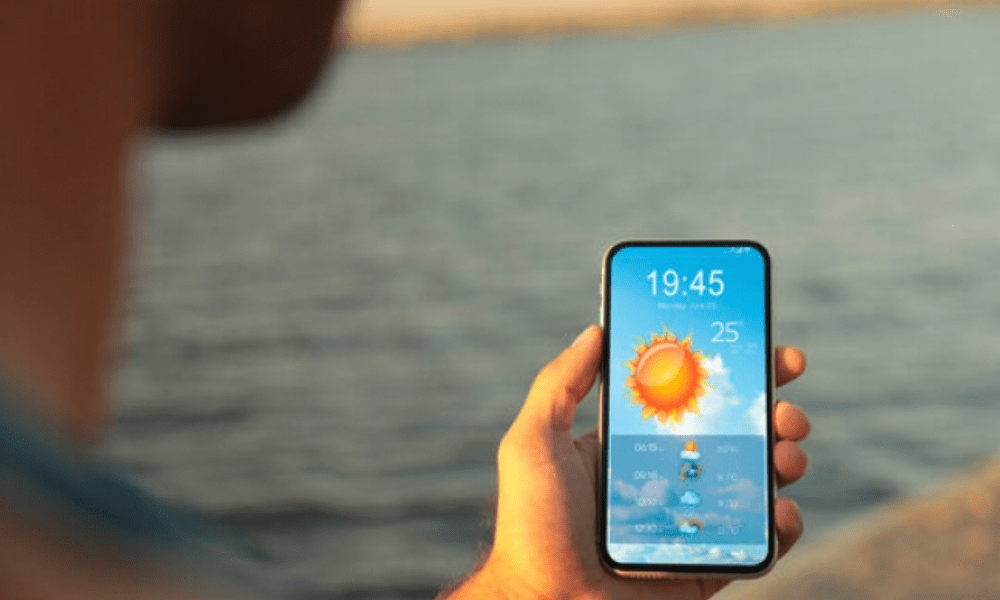
A widget is a small application that displays useful or entertaining information on your home screen, lock screen, or Today View. For example, the Weather widget lets you see the temperature and weather forecast for your current location or other cities. The Calendar widget shows you upcoming events from your calendar. The Battery widget shows you the battery level of your iPhone and connected accessories. Widgets exist for all kinds of apps, such as Music, Photos, Reminders, Notes, and more .
Widgets are available in three sizes: small, medium, and large. You can choose the size that best suits your needs based on the amount of information you want to display and the available screen space. You can also create widget stacks, which are collections of widgets that are displayed alternately depending on the context (time, location, activity, etc.). For example, a smart stack can show you the Weather widget in the morning, the Calendar widget during the day, and the Music widget in the evening.
How do I add the Clock widget to the lock screen?
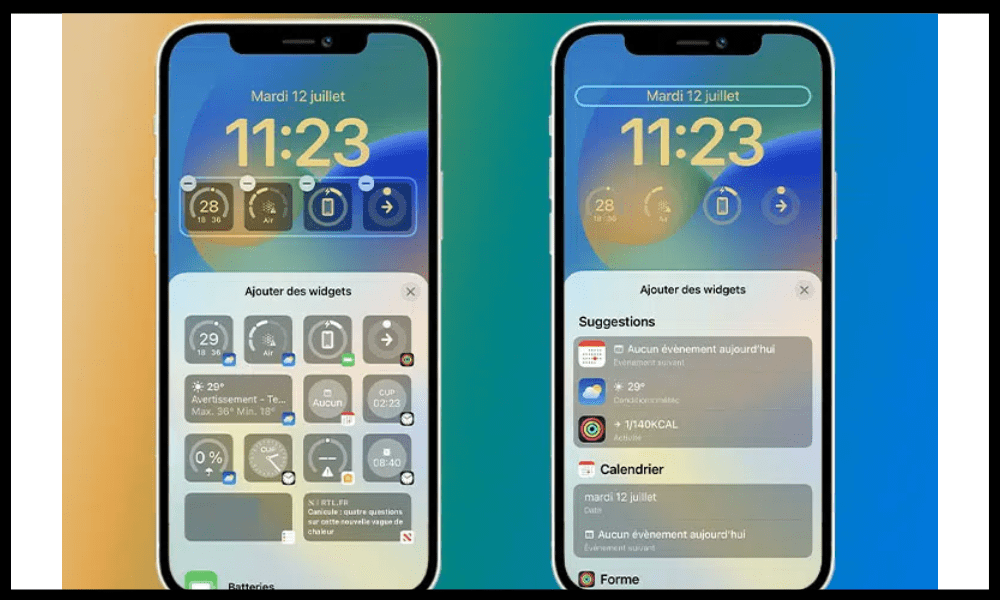
The Clock widget is the one we're interested in for displaying two clocks on the lock screen . It allows you to see the current time in different cities around the world that you've previously selected. To add the Clock widget to the lock screen, here's how:
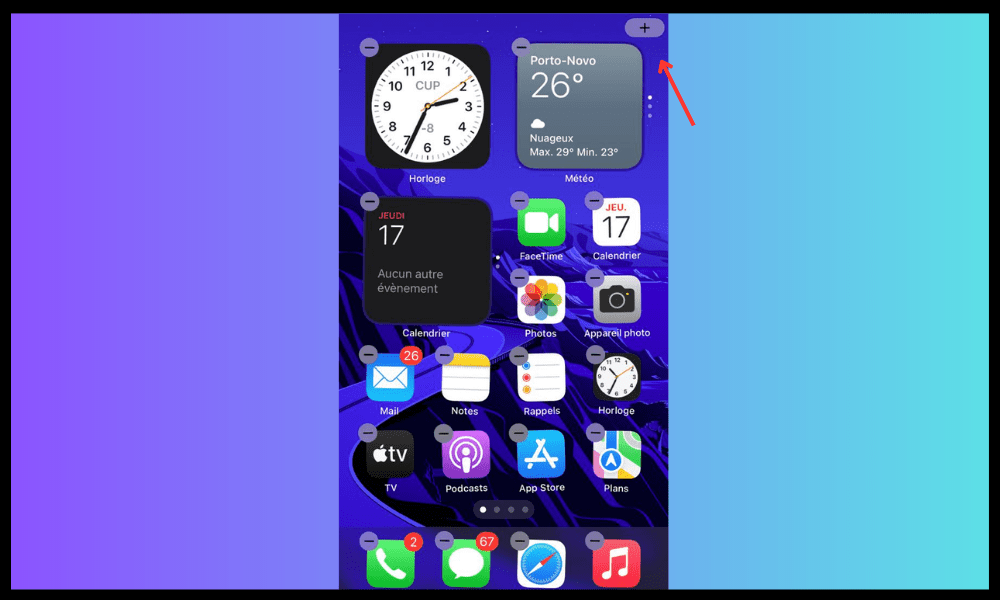
- Press and hold on the lock screen until the Personalize symbolized by a ( + ) appears, then click on it .
- In the list that appears, select Clock .
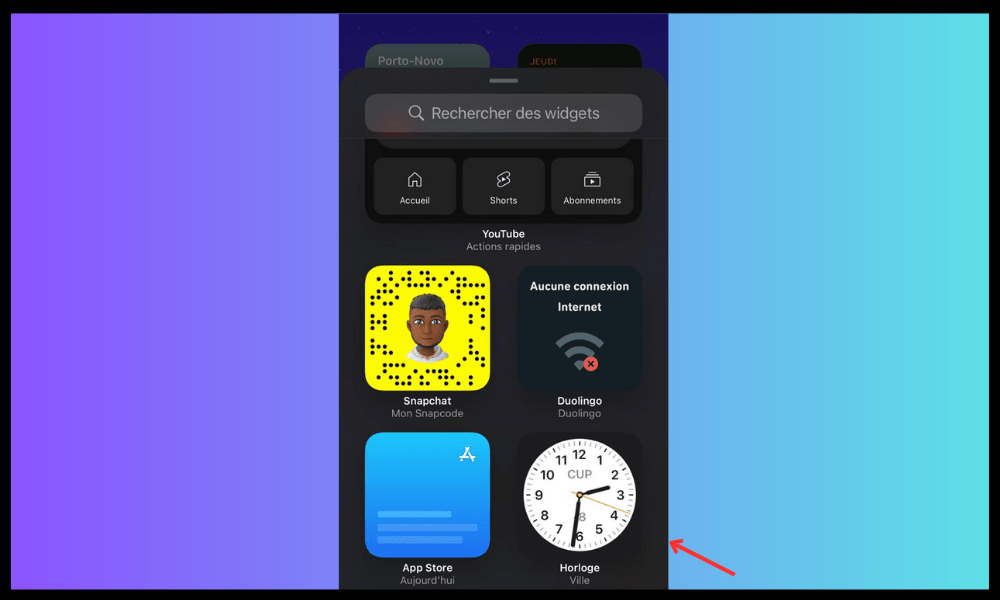
- Tap Add widget .
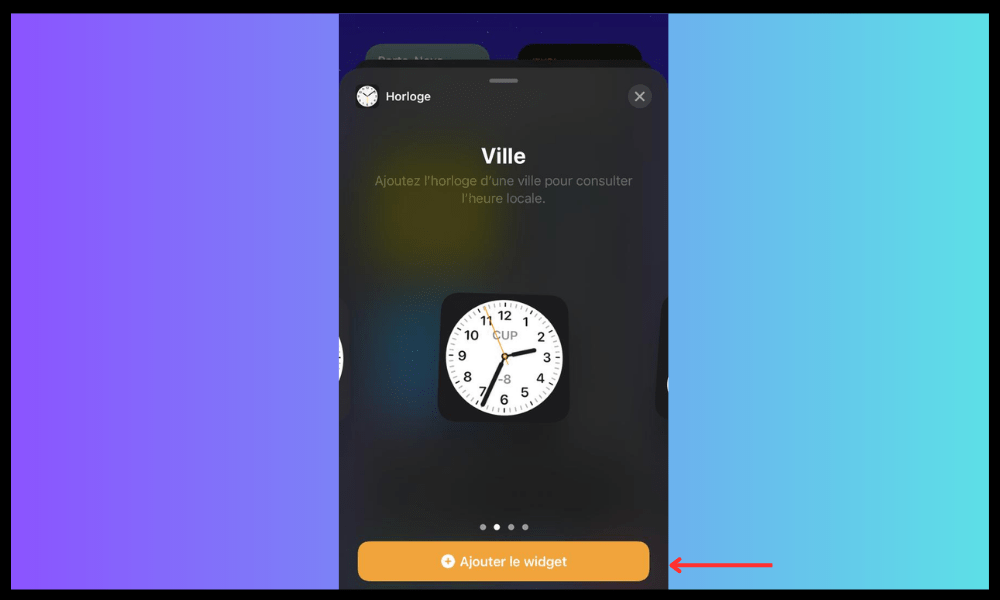
- When you are finished, touch the close button, then OK .
You can choose the size of the Clock widget depending on the number of cities you want to display. The small size displays one city, the medium size displays four, and the large size displays six.
How do I choose which cities to display in the Clock widget?
To choose which cities to display in the Clock widget, you must first add them to the Clock app on your iPhone. Here's how:
- Open the Clock .
- Tap the add button in the upper right corner.
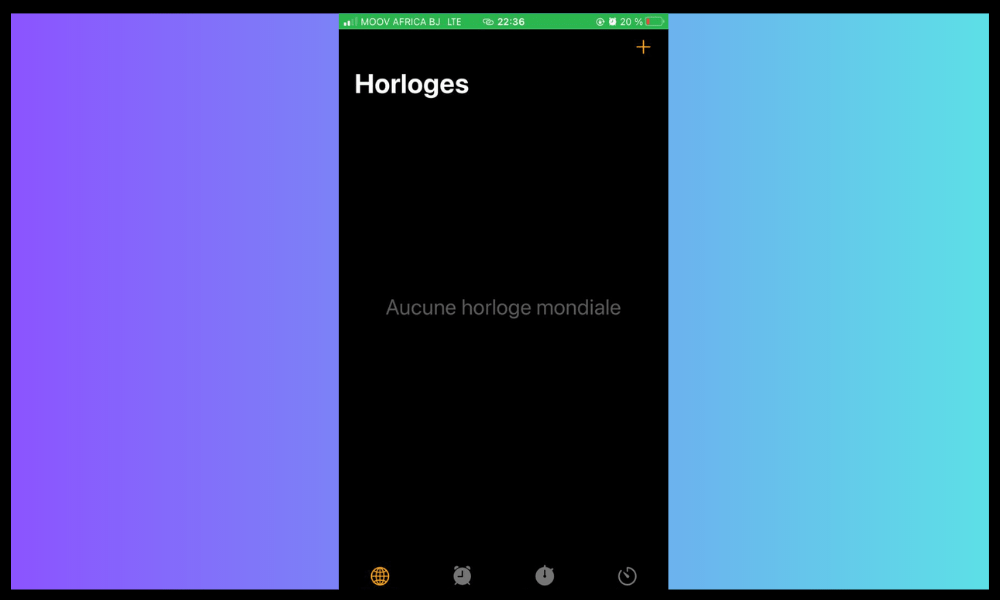
- Enter the name of a city or choose one from the list.
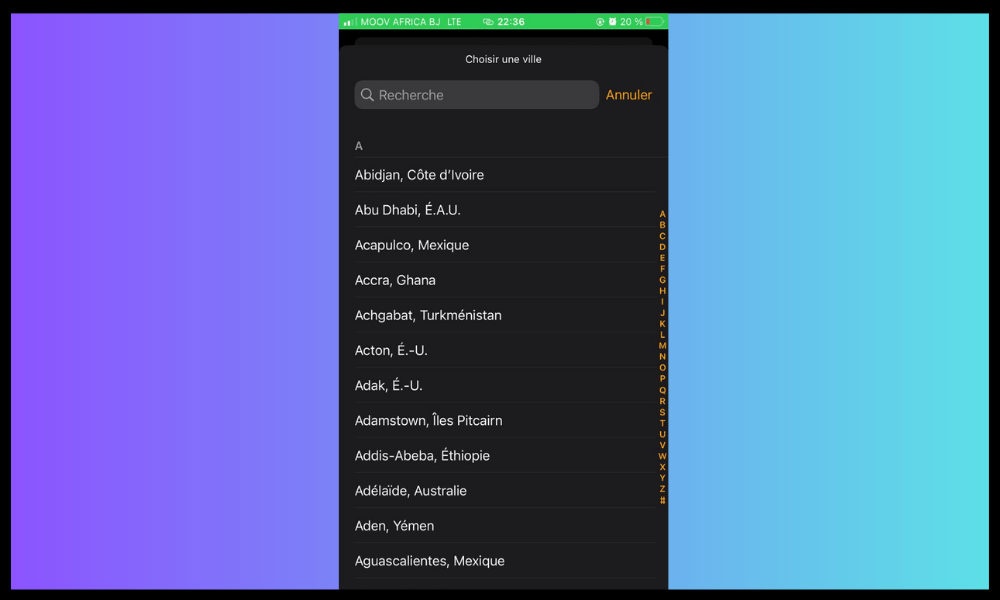
- Repeat the process to add as many cities as you want.
Once you've added the cities to the Clock , they'll automatically appear in the Clock widget on your lock screen. You can change the order in which the cities are displayed by tapping Edit in the Clock app, then dragging the cities up or down.
How do I change the Clock widget on the lock screen?
If you want to modify the Clock widget on the lock screen , for example to change its size or position, here's how to do it:
- Tap the Clock widget on the lock screen to open the Quick Actions .
- Tap Edit widget to change its size or the cities displayed.
- Tap Rearrange widgets to change its position on the lock screen.
- Tap Remove widget to remove it from the lock screen.
You can also swipe the Clock widget left or right to scroll through the different cities you have added.
What are the advantages of displaying two clocks on the lock screen?
Displaying two clocks on your iPhone's lock screen can be useful in several situations. Here are a few examples:
- If you are travelling to a country that has a time difference with your home country , you can display the local time and the time at home to avoid jet lag , know when to call your loved ones or plan your activities.
- If you have a friend, family member, or business partner who lives in a different time zone , you can display their time and yours to know when to contact them, respect their schedule, or synchronize your calendars.
- If you are interested in international news , you can display the time in major world capitals to follow events in real time, find out about elections, demonstrations or natural disasters.
- If you are a sports fan, you can display the time in the countries where the competitions you follow are taking place , such as the Olympic Games, the World Cup or the Tour de France , so as not to miss live broadcasts, results or rankings.
But did you know you can also stream or share content from your iPhone to a larger screen using Miracast wireless technology? Miracast is an alternative to AirPlay , Apple's screen mirroring application. Miracast is compatible with most Android devices, but not with Apple products. However, there are ways to work around this limitation and use Miracast on your iPhone .
FAQ
Here are some frequently asked questions on the subject:
Can I display more than two clocks on the lock screen?
Yes, you can display up to six clocks on the lock screen , by choosing the large size of the Clock .
Can I display two clocks with different formats (12-hour or 24-hour)?
No, you can't display two clocks with different formats. The Clock widget's format depends on your iPhone's general settings. To change it, go to Settings > General > Date & Time > 24-Hour Format.
Can I display two clocks with different colors?
No, you cannot display two clocks with different colors. The Clock widget automatically adapts to your iPhone's wallpaper color.
Can I display two clocks with different time zones?
Yes, you can display two clocks with different time zones . Simply add the corresponding cities in the Clock app.
Can I display two clocks with custom names?
No, you cannot display two clocks with custom names. The Clock widget displays the official names of the cities you have added in the Clock app.
Can I display two analog or digital clocks?
Yes, you can display two clocks, either analog or digital. To change the display mode, tap the Clock widget on the lock screen, then tap Edit Widget. You will then see an option to choose between Analog and Digital.
Can I display two clocks with different hands?
No, you cannot display two clocks with different hands . The Clock widget uses the same hands for all the cities you have added.
Can I display two clocks with different symbols (AM/PM or UTC)?
No, you can't display two clocks with different symbols . The Clock widget uses the same symbol for all the cities you've added, based on your iPhone's general setting. To change it, go to Settings > General > Date & Time > 24-Hour Format .
Can I display two clocks with different dates?
Yes, you can display two clocks with different dates . The Clock widget displays today's date under each city you've added. If the city is in a different day than yours, you'll see a + or - symbol indicating the difference.
Can I display two clocks with different alarms?
No, you can't display two clocks with different alarms. The Clock widget doesn't display alarms you've set in the Clock app. To see your alarms, you need to open the Clock and tap the Alarm tab.
Can I display two clocks with different sounds?
No, you can't display two clocks with different sounds. The Clock widget doesn't make any sound. To adjust the sound on your iPhone, you need to use the volume buttons or go to Settings > Sounds & Haptics.
Can I display two clocks with different animations?
No, you cannot display two clocks with different animations. The Clock has no animation. It updates automatically every minute.
Can I display two clocks with different themes (light or dark)?
No, you can't display two clocks with different themes. The Clock widget adapts to your iPhone's display mode ( light or dark ). To change the display mode, go to Settings > Display & Brightness > Dark Mode.
Can I display two clocks on the lock screen without using the Clock widget?
No, you cannot display two clocks on the lock screen without using the Clock widget . It's the only way to have this feature on your iPhone.
Conclusion
Now you know how to display two clocks on your iPhone's lock screen using widgets. It's a handy and easy-to-set-up feature that lets you see the time in different cities around the world at a glance. This way, you can stay connected with loved ones , colleagues, or people you're interested in, regardless of their time zone. Feel free to try this tip and let us know what you think in the comments!


