Want to listen to music on your PlayStation 5 with Spotify? But no luck, you're experiencing a Spotify bug on your PS5 ? Don't panic! Here's what you need to do!
What is the Spotify bug on the PS5?
The Spotify bug on the PS5 manifests itself by the inability to play songs or podcasts on the Spotify application installed on your console.
You may see an error message such as “Playback on Spotify is not working” or “Unable to connect to Spotify” displayed on the screen.
This bug can be caused by several factors, such as:
- A poor internet connection
- A problem with the Spotify server or the PSN server
- A missing operating system update for the console or Spotify application
- A conflict with other applications open on the console
How to fix the Spotify bug on PS5?
Fortunately, there are several solutions to fix the Spotify bug on the PS5 and get back to enjoying your favorite music or podcasts. Here are the steps to follow to resolve the problem:
Method 1: Restart the PlayStation 5 console
The first thing to do is restart your PlayStation 5 console, following these instructions:
- Press the PS button on your controller to access the quick menu
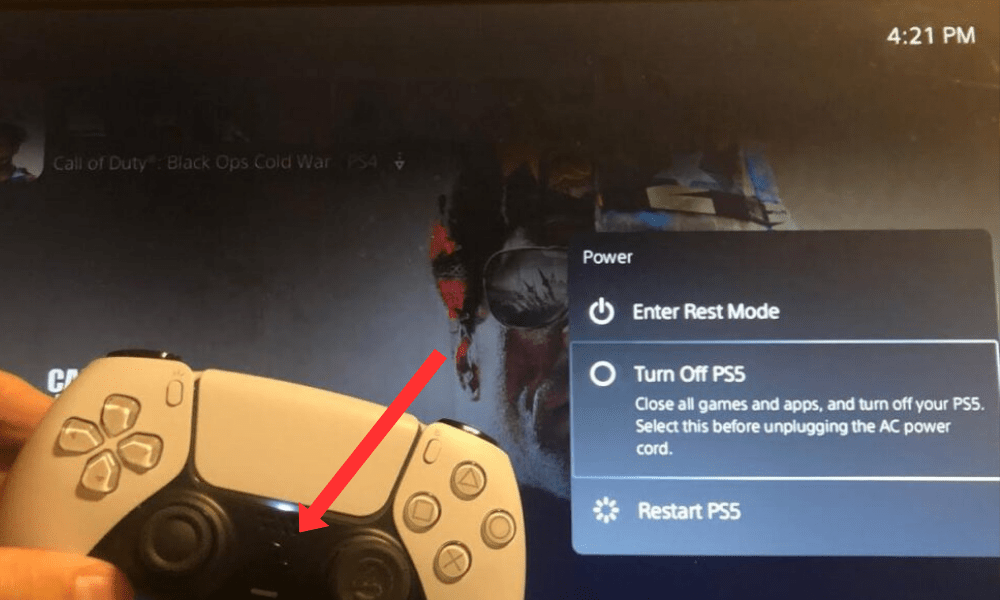
- Select Power Supply > Turn off console
- Wait a few seconds, then turn the console back on by pressing the button.power supply
- Open the Spotify app and check if the bug is fixed.
This method allows you to reset the internet connection and close applications that might interfere with Spotify.
This article might interest you : PS5 that shuts down by itself
Method 2: Check the Spotify server status
The bug may be caused by a problem with the Spotify server, which prevents the application from connecting and playing songs or podcasts.
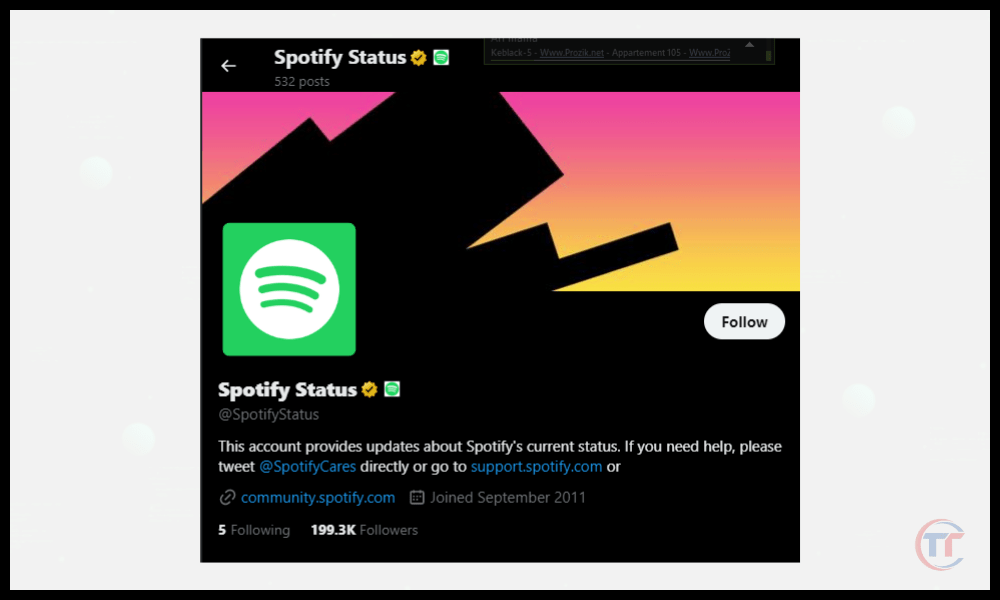
To check the status of the Spotify server, you can consult the official Twitter account @SpotifyStatus , which posts real-time information about any service outages . If the Spotify server is down , you will have to wait until it is restored before you can use the application normally.
Method 3: Check the PSN server status
Similarly, it is possible that the bug is related to a problem with the PSN (PlayStation Network) server, which manages the online services of the PlayStation 5 console.
To check the status of the PSN server, you can visit the official PlayStation Network Status website , which displays any service interruptions or maintenance . If the PSN server is down, you will have to wait until it is restored before you can use the Spotify app normally.
Method 4: Troubleshoot the network connection
If the Spotify and PSN servers are operational, but you are still experiencing the bug, your internet connection may be unstable or insufficient to run the Spotify application properly.
To troubleshoot your network connection, you can follow these tips:
- Check that your PlayStation 5 console is properly connected to the internet, either via Ethernet cable or Wi-Fi.
- Check that your router or internet box is working properly and that there are no interferences or obstacles that could reduce signal quality.
- Try switching networks or toggling airplane mode and then back to normal mode to refresh the connection.
- Test your internet connection speed using a website like Speedtest or by going to Settings > Network > Test Internet Connection on your console
- If your connection speed is too slow or inconsistent, contact your internet service provider to resolve the issue.
Method 5: Reinstall the Spotify application
If none of the previous methods work, the bug may be due to a problem with the Spotify application itself, which may be corrupted or outdated.
In this case, the most drastic solution is to reinstall the Spotify application on your PlayStation 5 console, following these steps:
- Press the PS button on your controller to access the quick menu
- Select Spotify > Options > Delete
- Wait until the application is uninstalled, then restart your console.
- Go to the PlayStation Store and search for Spotify.
- Download and install the Spotify app on your console
- Open the Spotify app and log in to your account
- Check if the bug is resolved
Note: Reinstalling the Spotify app will cause you to lose any songs and podcasts you downloaded for offline listening. You will need to download them again after the bug is fixed.
FAQ
How can I control Spotify on my PS5 with my smartphone or tablet?
You can use the Spotify Connect to link your smartphone or tablet to your PS5 console on the same network from the Spotify home screen. Name your playlist and press the X button to create.
- To add tracks to a playlist, tap the square button when you're on the screen of a track you want to add. Select Add to playlist and choose the playlist you want to add the track to.
- To remove tracks from a playlist, press the square button when you're on the screen of a playlist you want to edit. Select Edit playlist and press the triangle button to remove the tracks you no longer want.
How can I share my favorite music or podcasts from Spotify on my PS5?
You can share your favorite music or podcasts from Spotify to your PS5 using the following options:
Via PlayStation Network
- Press the square button when you are on the screen of the title or podcast you want to share.
- Select Share and choose the friends you want to share with.
- They will receive a notification with a link to the title or podcast you sent them.
Via Twitter
- Press the square button when you are on the screen of the title or podcast you want to share.
- Select Share and choose Twitter
- You will be redirected to the Twitter application where you can compose your tweet with the link to the title or podcast you want to share.