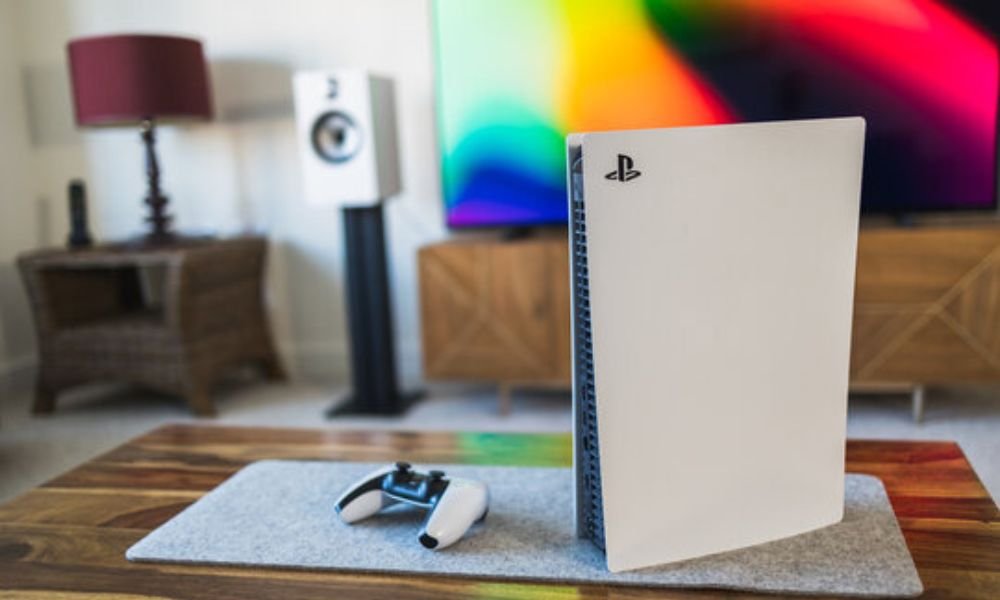
In the middle of a video game with your friends, your PS5 suddenly crashes ? A deafening noise? Display problems? Lag? A problem that's preventing you from crushing your opponent 😉… You've tried several solutions, but none of them work. Don't panic! We'll show you the best tips and tricks to fix every problem your PS5 might encounter.
Display malfunctions
If your game console screen has suddenly disappeared, become scratched, or no longer displays an image, look no further. Try these repair techniques:
Step 1: Examine the cable connections
First, check that the connection cable is properly plugged in. If it isn't, unplug it and plug it back in immediately, pressing it firmly. If it still doesn't work, try a different HDMI cable to see if the first one is damaged. One tip: make sure your console is plugged into the correct HDMI input on your television.
Step 2: Analyze the console's HDMI port
The LED indicator on your PS5 shows no problem, yet your screen remains blank. This issue likely stems from the HDMI port. To troubleshoot, first check if the port's pin is bent or broken. Then, gently lift the port to prevent any accidental cable disconnections.
Read also: The best gaming monitors to choose for playing on PS5!
Step 3: Inspect the HDMI circuit
When the problem isn't with the connection, the PS5 port, or the screen, it's very likely due to the HDMI circuit or the graphics card. In this case, it's a component inside the PS5 that's no longer working. Simply consult an expert or follow the video below to perform the replacement:
Connection difficulties
If your PS5's internet connection is slow or intermittent, several solutions are possible:
1. Opt for an Ethernet cable connection for greater efficiency;
2. Avoid using applications that consume too much data simultaneously;
3. Pause downloads while you play.
However, if the connection doesn't work at all, try the following solutions:
4. Update your network settings;
5. Change your Wifi antenna;
6. In case of serious violations, your PSN account may be temporarily or permanently banned, so check it.
The deterioration of the CD player
Is your CD player rejecting the discs you insert? Or is it completely failing to recognize them? There are several reasons why this might happen. Here's how to fix it.
• If the player picks up the disc but doesn't read it, carefully check that the CD isn't too scratched or broken. It may be rejected for this reason. If the problem isn't with the disc, the issue is likely with the player's lens. In this case, it will need to be replaced.
• If the player makes excessive noise and then ejects discs, its operating system is damaged. The mechanism must then be replaced.
• If the player shows no signs of operation, doesn't even turn on, doesn't accept or eject discs, then its motor is faulty. It should be completely replaced.
This article might interest you : PS5 Out of Stock in Switzerland – Great Deals to Grab!
The increase in noise level
reasons why a PS5 might be noisy . Depending on the cause, here are some suitable solutions.
• When you play a game that demands a lot of cooling, the console's noise level increases. At this point, it's advisable not to play these types of games excessively to preserve the console's efficiency.
• When the console fan has a mechanical problem, it makes more noise. In this case, replacing it is the best solution.
• When a significant amount of dust accumulates on the PS5's fan, it produces a very high-pitched noise. In this case, a thorough cleaning of the entire ventilation system is recommended. Using compressed air is an excellent idea.
The controllers are malfunctioning
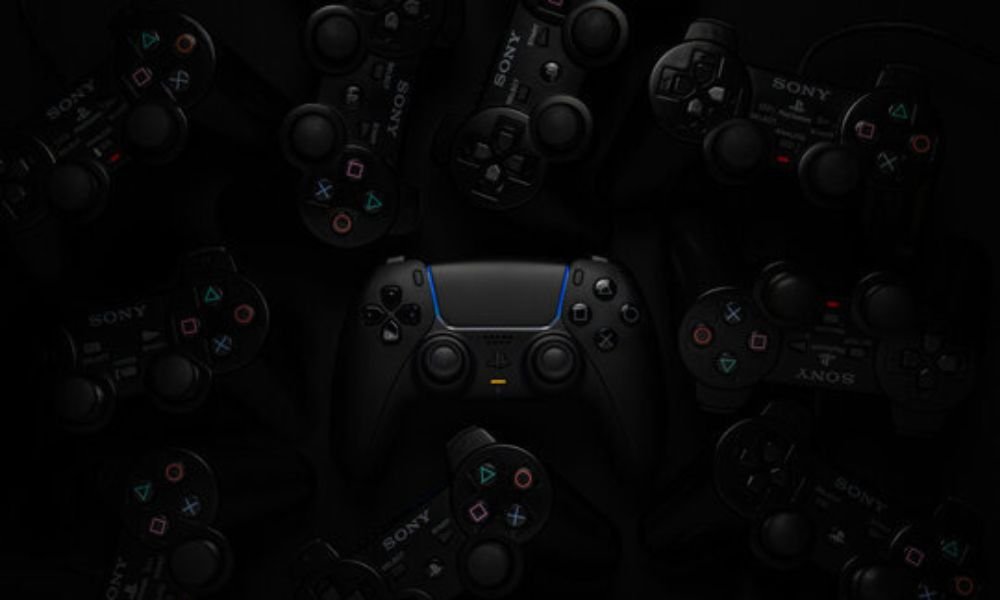
It's a shock for any gamer to have non-functional controllers. Whether they turn off quickly, are not recognized, or don't turn on at all, there is a suitable solution.
• If your wireless controller shuts down quickly or doesn't even turn on, the problem is most likely the battery. Charge it for a sufficient amount of time. If the problem persists, it's time to replace the battery.
• If the controller isn't recognized by the console, the problem might be with the USB connector. Try connecting the same controller to another console to see if the issue lies there. Then, connect the console to another controller to test that as well. If you can identify the problem, replace the connector.
We hope these tips will help you identify and fix a problem with your PS5 . However, don't stress yourself out if the problem is more complex than you expected; taking it to a repair shop would be the best option!