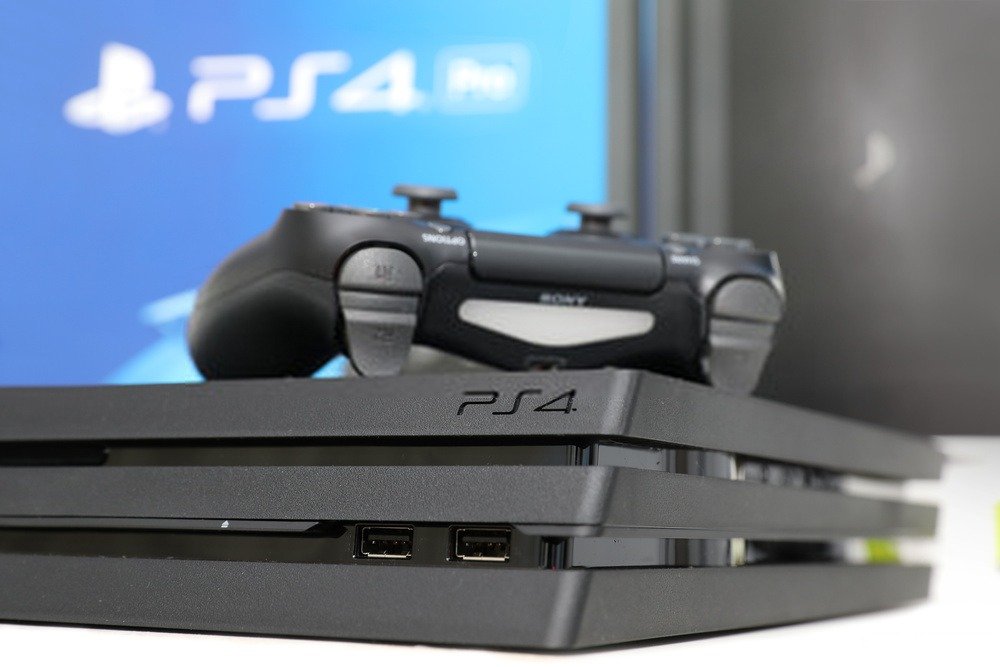
Is your PS4 refusing to turn on or stuck on a black screen ? Don't panic! This problem is quite common and there are simple and effective solutions to fix it.
We recommend watching this video if your PS4 won't turn on at all!
1. Check the cables and ports
The first thing to do is check that all cables and ports are properly connected and in good condition . A cable may be faulty or improperly inserted, preventing the PS4 from receiving the power supply or video signal.
Therefore, you need to check the following:
- power supply cable : make sure it is properly connected to the PS4 and the wall outlet, and that it is not damaged or cut.
- The HDMI cable : make sure it is properly connected to the PS4 and your TV or monitor, and that it is not bent or broken.
- The HDMI port : make sure it is not obstructed by dust or debris, and that it is not damaged or bent.
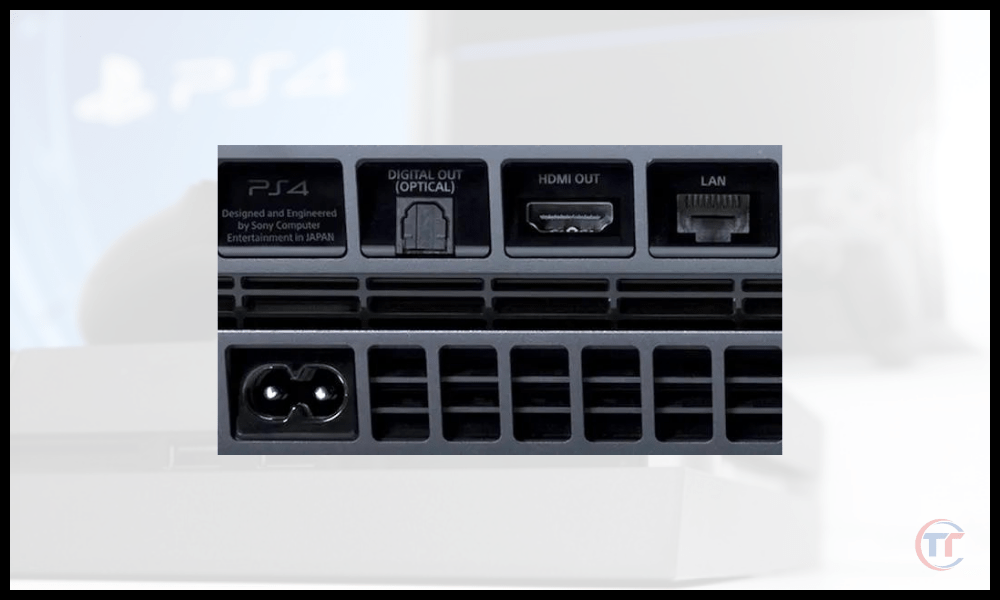
If you notice a problem with any of these components, try replacing it with another cable . If the problem persists, proceed to the next step.
Good to know : To be sure that the problem isn't with your TV, connect the PS4 to your laptop with an HDMI cable .
2. Restart the PS4
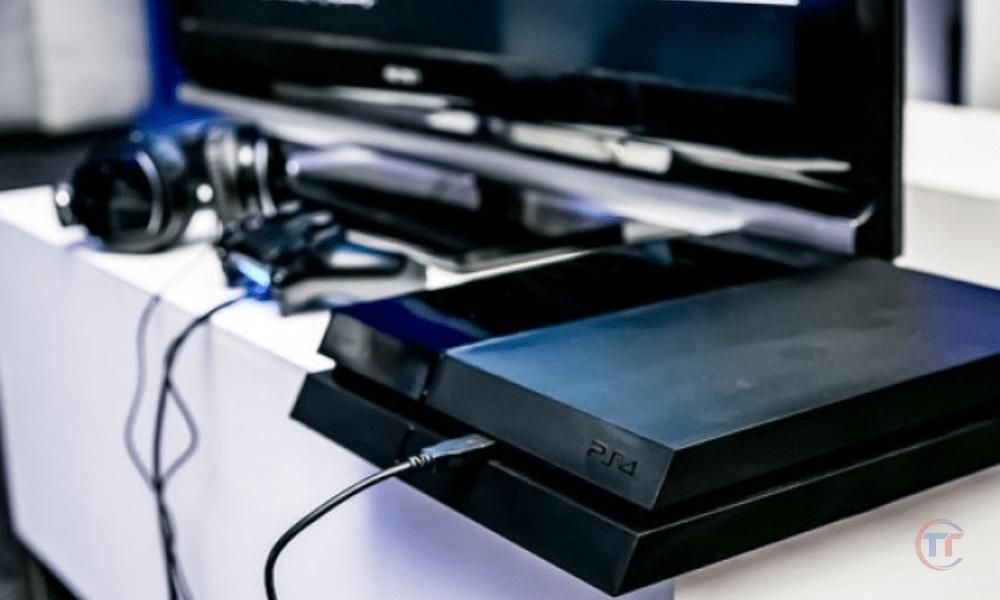
The second thing to do is reset the PS4 . This is a simple operation that allows you to restart the console without erasing your data . To reset the PS4, you must follow these steps:
- Completely turn off the PS4 by pressing the power supply located on the front of the console. The indicator light should go out.
- power supply cable from the PS4 and wait at least 30 seconds.
- power supply cable and turn the PS4 back on by pressing the power supply . The indicator light should turn blue and then white.
- Check if the PS4 starts normally and displays the home screen.
If the problem persists, proceed to the next step.
3. Reset the PS4 in safe mode
The third thing to do is to start the PS4 in safe mode . This is a special mode that allows access to advanced options for troubleshooting technical problems. To start the PS4 in safe mode, you must follow these steps:
Here is a video tutorial to help you
- Completely turn off the PS4 by pressing the power supply located on the front of the console. The indicator light should go out.
- Press power supply button until you hear two beeps . The first beep occurs when you press the button, and the second beep occurs approximately 7 seconds later .
- Release the power supply and connect your controller to the PS4 with a USB cable.
- Press the PS button on your controller to turn it on and access the safe mode menu .
Once you are in the safe mode menu, here are the options that may resolve your problem with your PlayStation 4:
Safe mode options to resolve the issue with your PS4
- Changing the resolution : Choose the lowest possible resolution, then check if the PS4 starts normally. If it does, you can then gradually increase the resolution until you find the one that suits you best.
- Update the system software : This operation can fix bugs or vulnerabilities that prevent the PS4 from starting. You must have a stable internet connection sufficient storage space to perform this operation.
- Rebuilding the database : This operation can take several hours depending on the size of the hard drive and the amount of data. It does not erase your data , but it may delete some custom settings .
- Initializing the PS4 : This operation will erase all your data , including games, save files, screenshots, videos, etc. Therefore, you must back up your data to an external storage device or the cloud before performing this operation. You must also have the PS4 system software installation file on a USB drive.
If none of these options work , your PS4 may be damaged or experiencing a problem with your PS4's system storage or disc drive .
4. Replace the PS4 hard drive
If your PS4 isn't starting up properly, the hard drive may be damaged or faulty. The PS4's hard drive contains the system software and game data. To check if the problem is with the hard drive, you can try the following steps:
- Completely turn off your PS4 and unplug it from the mains.
- Remove the hard drive cover located on the left side of the PS4 and unscrew the screw that holds the hard drive bracket.
- Remove the hard drive bracket and disconnect the SATA cable from the hard drive .
- Connect the hard drive to a computer using an external USB enclosure and check if it is recognized. If the hard drive is not recognized or shows signs of physical damage, it must be replaced with a new hard drive compatible with the PS4.
- If the hard drive is recognized by the computer, you can try formatting it to FAT32 or exFAT and reinstalling the PS4 system software on it. You can download the latest version of the system software from the official PlayStation website and copy it to a USB flash drive formatted as FAT32 or exFAT. Create a folder named “PS4” at the root of the USB flash drive, then create a subfolder named “UPDATE” inside that folder. Copy the system software file (PS4UPDATE.PUP) into the “UPDATE” folder.
- Reconnect the hard drive to the PS4 using the SATA cable and place it back in its slot. Screw the screw back in and replace the hard drive cover.
- Plug your PS4 into the mains and insert the USB key containing the system software into one of the PS4's USB ports.
- Turn on your PS4 in safe mode by pressing the power supply button for at least 7 seconds until you hear two beeps.
- Select option 7 “Initialize PS4 (reinstall system software)” and follow the on-screen instructions to complete the installation.
If these steps do not resolve the issue, your PS4 may have other hardware or software problems that require professional repair. You can contact PlayStation Customer Support for assistance or consult an authorized repair technician .
FAQ
What are the possible causes of the PS4 startup problem?
There are several possible causes that can prevent the PS4 from starting normally, such as:
- power supply problem : the PS4 is not receiving enough current or is experiencing an overvoltage.
- A connection problem : the HDMI cable or HDMI port is faulty or incorrectly connected, preventing the PS4 from sending the video signal to the TV or monitor.
- A software problem : the PS4 system software is corrupted or outdated, resulting in errors or malfunctions.
- A hardware problem : the hard drive, motherboard or other internal component of the ps4 is damaged or defective, preventing the ps4 from functioning properly.
It is also possible that your console has overheated or experienced other problems and that your PS4 is shutting down on its own and will no longer start up properly.
How can I tell if the problem is with the HDMI cable or the HDMI port?
To determine if the problem originates from the HDMI cable or the HDMI port, you can perform the following tests:
- Try using a different HDMI cable that is compatible with both the PS4 and your TV or monitor. If the problem disappears, it means your previous HDMI cable was faulty or improperly connected.
- Try connecting your PS4 to a different TV or monitor using the same HDMI cable . If the problem disappears, it means your previous HDMI port was faulty or obstructed.
- Try connecting another device (for example, a DVD player or another game console) to your TV or monitor using the same HDMI cable. If the problem persists, it means your HDMI cable or HDMI port is faulty.
How do I update the PS4 system software in safe mode?
To update the PS4 system software in safe mode, you need a stable internet connection and a USB drive formatted as FAT32 or exFAT . You also need to download the PS4 system software installation file from the official Sony website and copy it to the USB drive in a folder named “ PS4/UPDATE ”. Then, follow these steps:
- Start the PS4 in safe mode by following the instructions given in the article.
- Update system software option from the Safe Mode menu.
- Select the option “ Update from USB storage device ”.
- Insert the USB key containing the system software installation file into one of the PS4's USB ports.
- Follow the on-screen instructions to start the update.
What are the risks of initializing the PS4?
Initializing the PS4 involves restoring the console to its factory settings . This operation erases all data stored on the PS4's internal hard drive, including games, save data, screenshots, videos, custom settings, etc.
Data stored in the cloud or on external media is not affected.
The risks of initializing the PS4 are therefore as follows:
- will lose all your local data and will need to download it again or restore it from a backup.
- You will lose all your personalized settings and will need to reconfigure them according to your preferences.
- You will lose all your trophies that were not synced with the cloud and you will have to unlock them again.
How do I back up my data before initializing the PS4?
To back up your data before initializing the PS4, you have two options:
- Backing up your data to the cloud : This option requires a PlayStation Plus subscription and a stable internet connection . You can back up your game data (saves, settings, trophies, etc.) to the cloud by going to your PS4 settings , then to " App Saved Data Management ," then to " Saved Data on System Storage ," then selecting the data you want to back up, pressing the " Options " button on your controller, and then choosing " Upload to Online Storage ."
- Backing up your data to an external storage device : This option requires an external storage device (USB flash drive, external hard drive, etc.) formatted in FAT32 or exFAT with sufficient free space. You can back up your game data (saves, settings, trophies, etc.) to an external storage device by going to PS4 settings , then to " Application Saved Data Management ," then to " Saved Data on System Storage ," then selecting the data you want to back up, pressing the " Options " button on your controller, and then choosing " Copy to USB Storage Device ." You can also back up your screenshots and videos by going to the PS4 Gallery, then selecting the files you want to back up, pressing the " Options " button on your controller, and then choosing " Copy to USB Storage Device ."
Conclusion
In conclusion, if your PS4 won't start or remains stuck on a black screen, you can try the following solutions:
- Check the cables and ports
- Restart the PS4
- Reset the PS4 in safe mode
- Replacing the PS4 hard drive