Do you have a PS5 controller and want to use it on your Android phone to play your favorite games? It's possible!
In this article, we will explain how to connect a PS5 controller to Android, whether via Bluetooth or USB.
We will also give you tips to optimize your gaming experience and show you how to reconnect your controller to your PS5 console after using it on Android.
I. Why use a PS5 controller on Android?
Before explaining how to connect your PS5 controller to your Android phone, you might be wondering why you should do it. Here are some answers.
The advantages of a PS5 controller compared to a classic controller
The PS5 controller offers several advantages over a classic controller, whether it's a PS4, Xbox, or other controller. Here are the main ones:
The ergonomic design and innovative features of the DualSense.
The PS5 controller was designed to offer a comfortable grip and total immersion in games. It features innovative functionalities such as:
- Haptic feedback, which allows you to feel the vibrations and shocks of the game,
- adaptive triggers, which offer variable resistance depending on the action performed,
- the built-in microphone, which allows communication with other players or giving voice commands.
These features make the PS5 controller more responsive, more precise, and more immersive than classic controllers.
Compatibility with many games and applications.
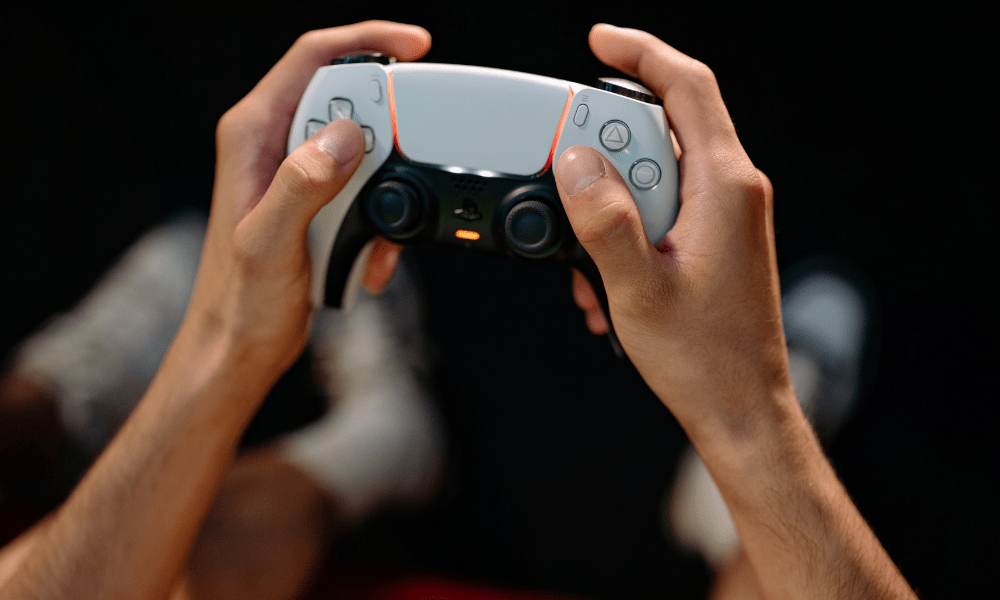
The PS5 controller is compatible with many games and applications available on the Google Play Store, including those that support HID (Human Interface Device) mode, which allows the controller to be recognized as an input device.
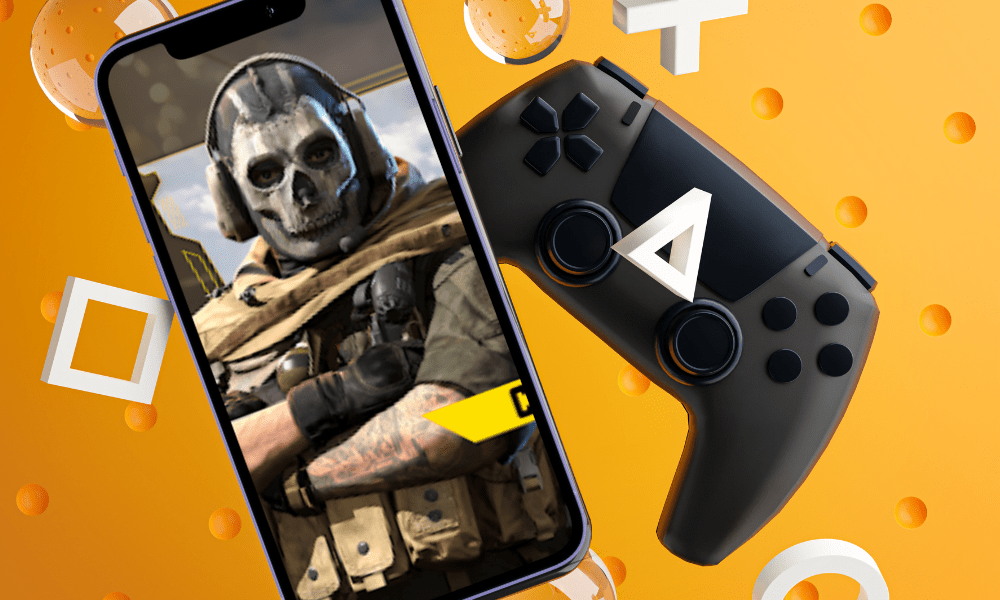
This allows you to enjoy your mobile games with better control, such as Call of Duty Mobile, Fortnite, Minecraft, or Asphalt 9.You can also use the PS5 controller to stream your PS5 games to your phone via the PS Remote Play, which lets you play your PS5 games remotely using your Wi-Fi network or mobile connection.
You can also use the PS5 controller to test the latest releases from the Google Play Store, such as Google Stadia cloud games , or Google Cardboard virtual reality games
If you're interested, you can also try connecting the PS5 controller to a PS4 console.
II. How to connect a PS5 controller to Android via Bluetooth?
The first method for connecting a PS5 controller to Android is via Bluetooth . This is the simplest and most convenient method , as it allows you to use the controller wirelessly and leaves your phone's USB port free for other uses. Here's how to do it.
Prerequisites for a successful connection
To connect a PS5 controller to Android via Bluetooth, you need:
- An Android phone with the latest operating system version, which supports Bluetooth 5.0. You can check your operating system version and Bluetooth compatibility in your phone's settings.
- A charged PS5 controller within range of the phone.
Steps to pair the controller with the phone
Once you have checked the prerequisites, you can pair your PS5 controller with your Android phone by following these steps:
- Put the controller into pairing mode by pressing the PS and Create.
You must press and hold these two buttons simultaneously for approximately 3 seconds, until the controller's light bar flashes blue. This indicates that the controller is in pairing mode and ready to be detected by the phone.
- Select the controller from the list of available Bluetooth devices on the phone.
On your phone, go to Settings , then to “ Connections ” or “ Network & Internet ,” and then to the “ Bluetooth ” section . You will see a list of available Bluetooth devices nearby. Look for the name of the PS5 controller, which should be “ Wireless Controller .” Tap it to begin the pairing process.
- Wait until the connection is established and the player indicator lights up.
After selecting the controller, a confirmation message will appear on your phone asking if you want to pair it. Tap "Yes" or "OK" to confirm. You will then see the controller's light bar change from blue to pink, and the player indicator light up white.
Tips for optimizing the gaming experience
Once you've connected your PS5 controller to your Android phone via Bluetooth, you can enjoy your games and apps with enhanced control. Here are some tips to optimize your gaming experience:
- Check the compatibility of games and applications with the controller :
- PS5 controller compatibility depends on the game or application
- You can check compatibility on the Google Play Store or by testing
- You can use a third-party application to map the keys if needed
- Adjust the controller settings according to your preferences :
- Go to phone settings
- The section “Connections” or “Networks and Internet”
- The “ Bluetooth ” sub-section
- The gear symbol next to the controller's name
- You can adjust the sensitivity, vibration, volume, or reset the controller
- Turn off notifications and calls on the phone :
- To play without being disturbed by notifications or calls, activate " Do Not Disturb " mode or " Airplane " mode
- Swipe down from the top of the screen, then tap the corresponding icon
III. How to connect a PS5 controller to Android via USB?
The second method for connecting a PS5 controller to Android is via USB . This is the most reliable and efficient method , as it allows you to use the controller with a stable connection and no lag. Here's how to do it.
Prerequisites for a successful connection
To connect a PS5 controller to Android via USB, you will need:
- An Android phone with a USB-C port or an adapter
You need an Android phone with a USB-C port, which is the latest and most universal port for mobile devices. If your phone doesn't have a USB-C port, but a micro-USB or another type of port, you'll need an adapter that allows you to connect a USB-C cable to your phone.
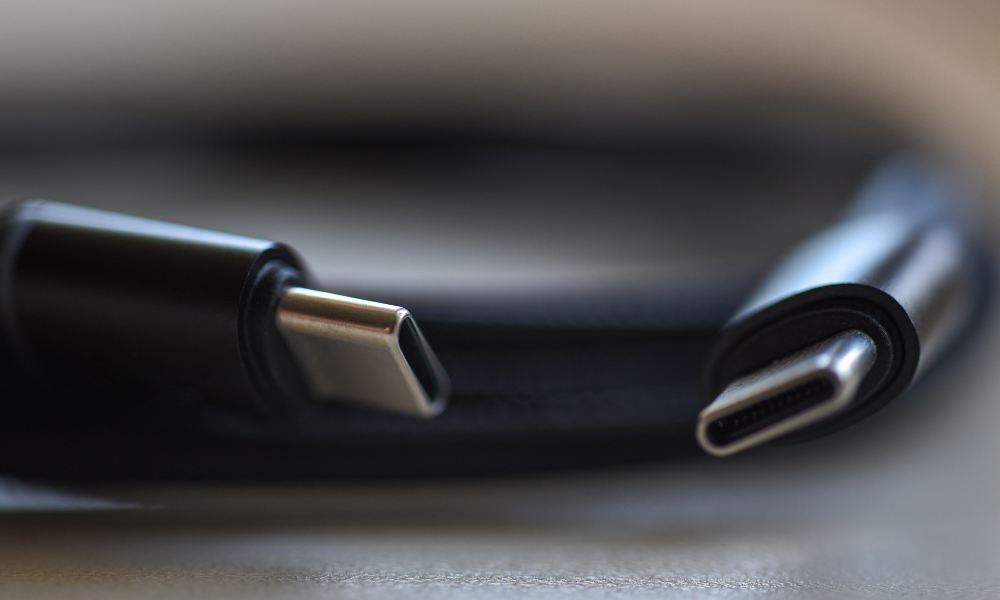
- A charged PS5 controller and a USB cable with a Type-C connector
You will need a USB cable with a Type-C connector, which is the same type of connector as the PS5 controller. You can use the USB cable that came with the PS5 controller, or another compatible USB cable.
Steps to connect the controller to the phone
Once you have checked the prerequisites, you can connect your PS5 controller to your Android phone by following these steps:
- Connect the USB cable to the controller and the phone
You need toconnect the USB cable to the PS5 controllerby inserting the Type-C connector into the port located on the back of the controller, between the two triggers. Then you need to connect the USB cable to your Android phone by inserting the same Type-C connector into the port located on the side or bottom of your phone.
- Wait until the controller is recognized by the phone and the player indicator lights up
A message will appear on your phone asking if you want to " allow the controller to access phone data". Press the "Yes" or "OK" button to confirm.
You will then see the controller's player indicator light up white. This means the controller is recognized by the phone, and you can use the controller to control your phone.
Also read : PS5 account sharing: How to share your games?
FAQ
What is the difference between a Bluetooth connection and a USB connection?
Bluetooth connection and USB connection are two methods to connect a PS5 controller to an Android phone.
- The Bluetooth connection allows you to use the controller wirelessly, but it requires enabling Bluetooth on both the phone and the controller, and it may be unstable or laggy.
- The USB connection allows you to use the controller with a stable and lag-free connection, but it requires a USB cable and a USB-C port or adapter on the phone, and it does not allow you to charge the controller.
How can I tell if a game or application is compatible with the PS5 controller?
You can check the compatibility of a game or app by consulting its description on the Google Play Store, or by testing it directly. Generally, games or apps that support HID (Human Interface Device) mode are compatible with the PS5 controller, as they recognize the controller as an input device.
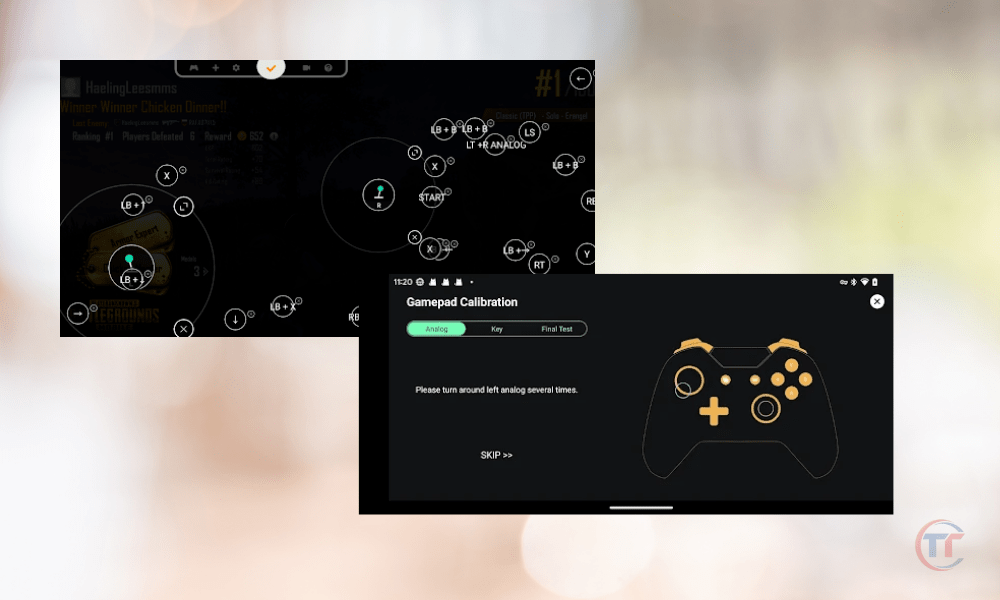
You can also use a third-party application, such as Octopus or Panda Gamepad Pro, to configure the controller with games or applications that are not compatible.