

Have you ever encountered this error message on your web browser: “ Secure connection failed ”? This is a problem that can prevent you from accessing certain websites that use the HTTPS protocol to secure data exchange . This protocol encrypts the information you send and receive on the web , protecting it from hackers . However, sometimes there can be communication errors between your browser and the website's server, resulting in the secure connection failing.
What are the possible causes of the secure connection failure?

There are several reasons why you might be experiencing this problem. Here are the most common:
- Your system clock is incorrectly set.
- Your antivirus or firewall is blocking the connection.
- Your browser is outdated or misconfigured.
- The website you are visiting has a technical problem .
How to resolve the secure connection failure problem?

Depending on the cause of the problem, there are different solutions to resolve the secure connection failure. Here are some suggestions:
- Check and correct your computer's system clock. Make sure the date and time are correct and synchronized with an online time server. You can access the system clock settings by clicking the clock icon in the taskbar, and then clicking “Change date and time settings”.

- Temporarily disable your antivirus or firewall. Try temporarily disabling your security software, then try accessing the problematic website again. If this works, it means your antivirus or firewall is blocking the secure connection. You can then try modifying your security software settings or adding the website to your exceptions list.
- Update or reset your web browser. Make sure you are using the latest available version of your web browser, and check that there are no pending updates.
You might like this article: Port 443: the key to HTTPS security!
You can also reset your web browser by clearing browsing data such as cache, cookies, and history. This can resolve some HTTPS compatibility or performance issues. To reset your web browser, you can follow these steps:
- In Google Chrome, click the three-dot menu in the upper right corner, then click “Settings”. In the “Privacy and security” section, click “Clear browsing data”. Choose the time period and types of data to clear, then click “Clear data”.

- In Mozilla Firefox, click the three-bar menu in the upper right corner, then click “Options”. In the “Privacy & Security” section, click “Clear Data”. Choose the types of data you want to clear, then click “Clear”.

- In Microsoft Edge, click the three-dot menu in the upper right corner, then click “Settings”. In the “Privacy, search, and services” section, click “Choose what to clear”. Select the time period and data types to clear, then click “Clear now”.

- Contact the website owner. If none of the previous solutions work, the problem may be with the website itself. You can then try contacting the website owner using the contact information available on the site or through a search engine. Explain the problem you are experiencing and ask if they can check or correct their SSL certificate.
What are the risks of a secure connection failure?

A failed secure connection can have consequences ranging from minor to serious, depending on the type of website you are visiting. If you are trying to access a website that does not contain sensitive or personal information, such as a news or entertainment site, the risk is low. You can simply move on to another website or wait until the problem is resolved.
However, if you try to access a website containing confidential or sensitive , such as a banking site , an e-commerce site , or a government website , the risk is high. You could be exposed to fraud or espionage attempts if you ignore the error message and continue the connection. Indeed, you may be the victim of a " man-in-the-middle " attack, which involves intercepting and modifying the data exchanged between your browser and the website's server. In this case, a hacker could steal your login credentials, banking details, or other personal information .
Therefore, it is recommended to never ignore the "Secure Connection Failed" error message and to always verify the website address you are visiting. If you have any doubt about the website's reliability, do not enter your sensitive or personal information.
Also read: The best search engines without cookies and without history for browsing incognito!
FAQ
Here are some frequently asked questions about secure connection failure:
What is the difference between HTTP and HTTPS?
 HTTP (Hypertext Transfer Protocol) is the protocol used to transfer data between your browser and the website's server. HTTPS (Hypertext Transfer Protocol Secure) is a secure version of HTTP that uses encryption to protect the data exchanged. HTTPS is indicated by a green padlock in the browser's address bar.
How can you tell if a website uses HTTPS?
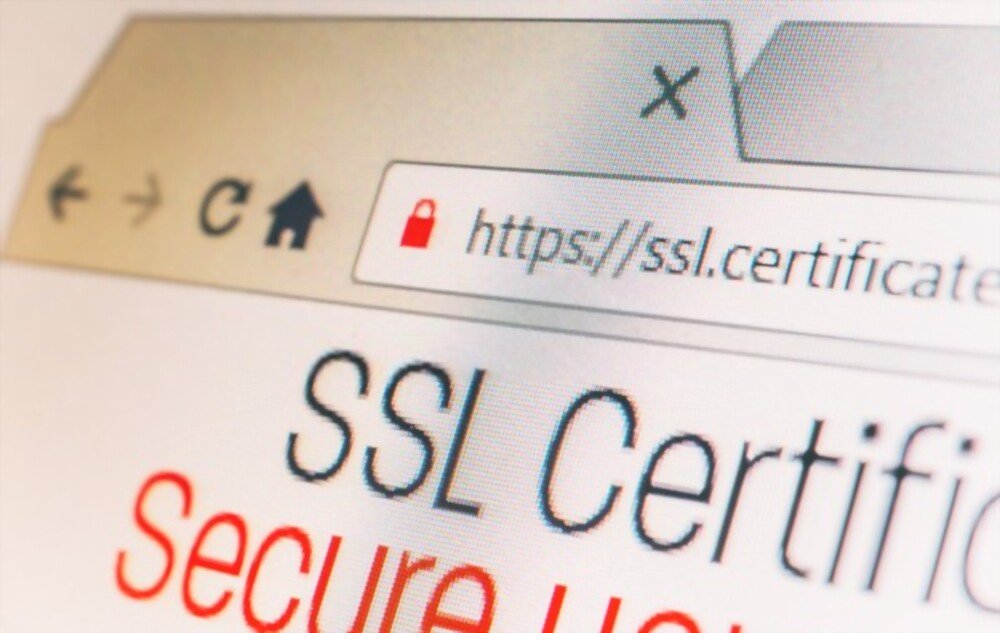 You can tell if a website uses HTTPS by looking at the website address in your browser's address bar. If the address starts with https:// instead of http://, it means the website uses HTTPS. You can also click the green padlock in the browser's address bar to view the website's SSL certificate details. The SSL certificate shows you the website owner's name, the issuing authority, and the certificate's expiration date.
What should I do if the green padlock does not appear in the browser's address bar?
 If the green padlock doesn't appear in your browser's address bar, it means the website isn't using HTTPS, or that the website's SSL certificate is invalid or expired. In this case, you should be careful and not enter any sensitive or personal information on the website. You can also try contacting the website owner to report the problem.
Does HTTPS guarantee website security?
HTTPS guarantees the security of the connection between your browser and the website's server, but not the security of the website itself. A website may use HTTPS but be poorly designed, poorly protected, or infected with malware. Therefore, it's important to always check the reputation and trustworthiness of any website you visit, using reliable sources such as user reviews, quality labels, or search engines.
Do all websites have to use HTTPS?
No, not all websites are required to use HTTPS, but it is highly recommended. HTTPS builds user trust by assuring them that their data is protected and that the website is legitimate. HTTPS also improves a website's search engine ranking, giving it an advantage over websites that don't use it. Increasingly, web browsers display warnings or block access to websites that don't use HTTPS.
Conclusion: Secure connection failed
A failed secure connection can pose varying degrees of risk, depending on the type of website you are visiting. If you are trying to access a website that does not contain sensitive or personal information, the risk is low. However, if you are trying to access a website that contains confidential or important information, the risk is high. You could be exposed to fraud or espionage attempts if you ignore the error message and continue the connection.
Therefore, it is recommended to never ignore the "Secure Connection Failed" error message and to always verify the website address you are visiting. If you have any doubt about the website's reliability, do not enter your sensitive or personal information.
We hope this article has helped you understand and resolve the secure connection failure issue. If you have any questions or comments, please feel free to share them in the section below.


