Are you having trouble with your keyboard ? Is it no longer typing letters, or are some keys not working ? Don't panic, there are simple and effective solutions to resolve this issue and get your keyboard working again. In this article, we'll present 10 methods to troubleshoot your keyboard and explain the possible causes of this malfunction.
What are the causes of a keyboard that no longer types letters?

There are several reasons why a keyboard might stop typing letters or why some keys might stop responding. Here are the main ones:
- A physically damaged keyboard
- A missing or outdated keyboard driver
- A faulty USB port
- An incorrectly configured energy-saving setting
- A bug with the Windows 10 filter key
- A major update to Windows 10
How to solve the problem of a keyboard that no longer types letters?
Depending on the cause of the problem, there are different solutions to repair your keyboard and get it working again . Here are 10 methods you can try:
Method 1: Use the Windows + spacebar keyboard shortcut

Before resorting to more complex methods, we recommend trying a quick and easy solution that can resolve the error in some cases. Simply press the Windows + spacebar simultaneously. This shortcut allows you to change the keyboard layout and correct any potential configuration issues .
Method 2: Disable energy saving
If you suspect your power-saving settings are responsible for your keyboard problem, you can try disabling them by following these steps:
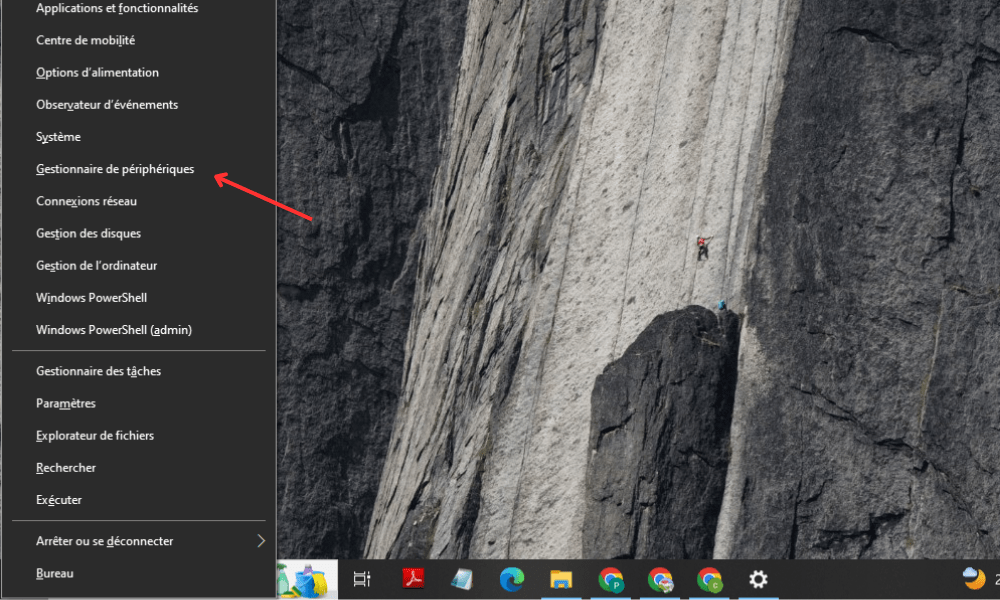
- Right-click the Start button and choose Device Manager.
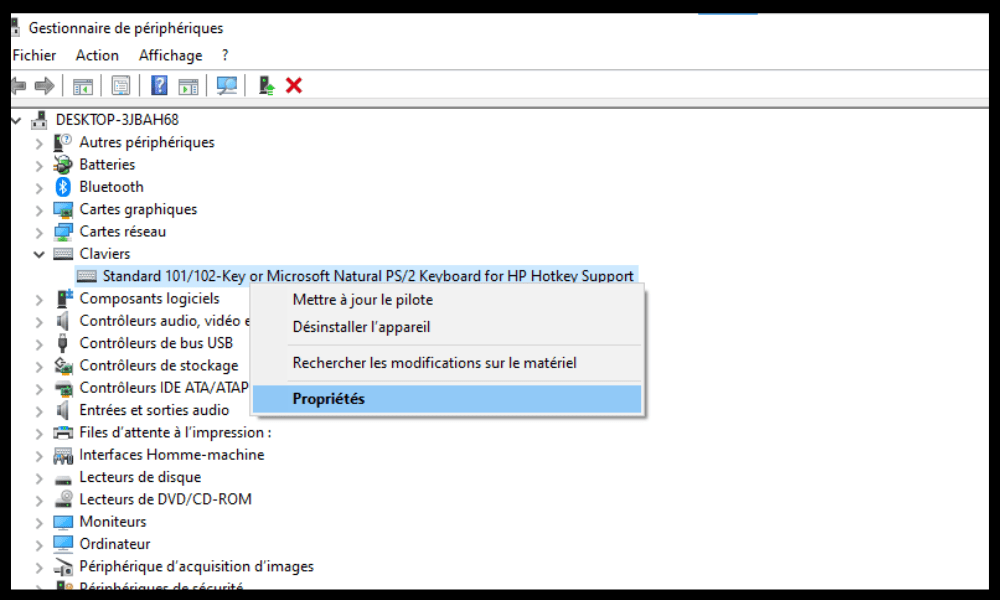
- Expand the Keyboards category and right-click on your keyboard.
- Select Properties and then go to the power supply Management tab.
- Uncheck the box "Allow the computer to turn off this device to save power".
- Click OK to confirm the changes.
- Restart your computer and check if your keyboard is working again.
Method 3: Disable mouse keys
Mouse keys are a feature that allows you to use the numeric keypad to control the mouse cursor. If this feature is accidentally enabled, it may prevent your keyboard from typing letters. To disable it, follow these steps:
- Open the Control Panel by right-clicking the Start button and choosing Control Panel.
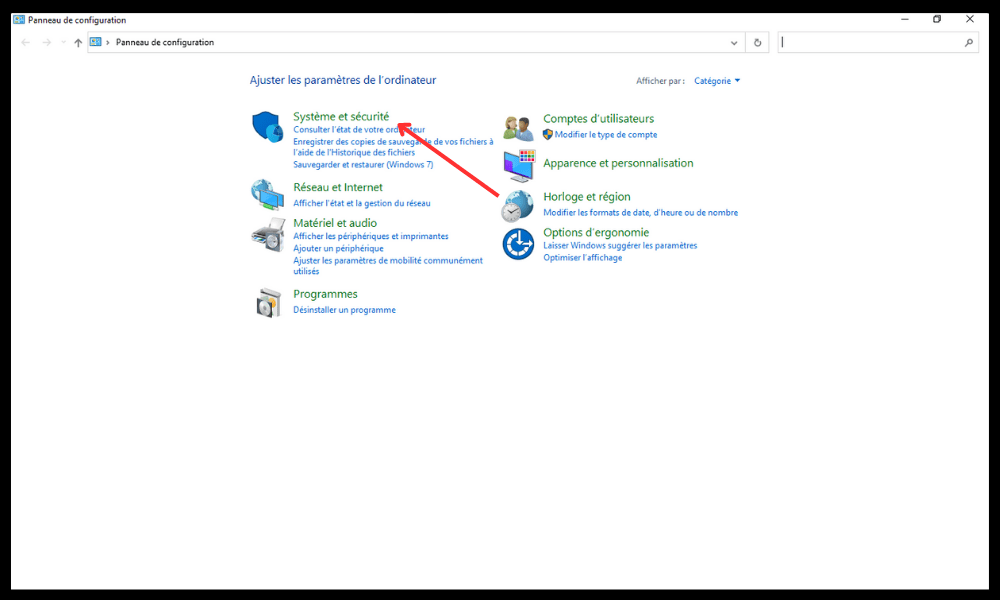
- Click on Ease of Access options and then on Change how your keyboard works.
- Uncheck the Enable Mouse Keys box.

- Click Apply and then OK.
- Test your keyboard and see if the problem is solved.
Method 4: Update your keyboard driver
If your keyboard driver is missing or outdated, it can cause problems. To update your keyboard driver, you can use Device Manager or dedicated software like Driver Booster. Here's how to do it with Device Manager:
- Right-click the Start button and choose Device Manager.
- Expand the Keyboards category and right-click on your keyboard.
- Choose Update driver and then Automatically search for an updated driver.

- Follow the on-screen instructions to install the latest driver.
- Restart your computer and check if your keyboard is working properly.
Method 5: Call the repairman
Windows 10 has a built-in tool that can detect and fix common problems on your computer, including keyboard issues. To launch the troubleshooter, follow these steps:
- Open Settings by pressing the Windows + I keys.
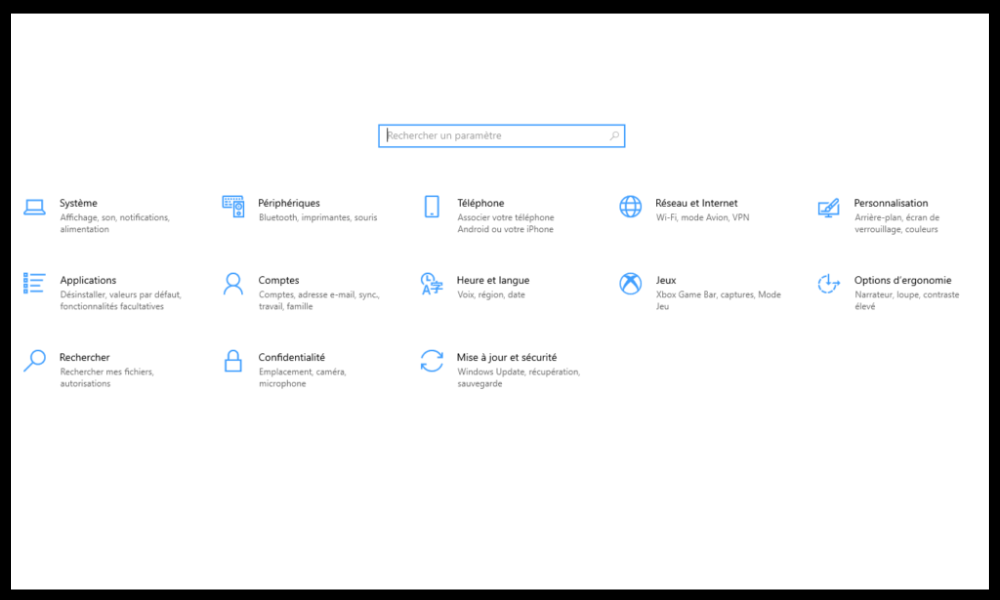
- Click on Update & Security, then on Troubleshooting.
- Select Keyboard from the list and click Run troubleshooter.

- Follow the on-screen instructions so the technician can analyze and repair your keyboard.
- Restart your computer and see if the problem persists.
Method 6: Try logging into the system as a different user
Your keyboard problem might be related to your user account. To check this, you can try logging into the system as a different user. If you don't have another user account, you can create a temporary one by following these steps:
- Open Settings by pressing the Windows + I keys.
- Click on Accounts, then on Family and other users.
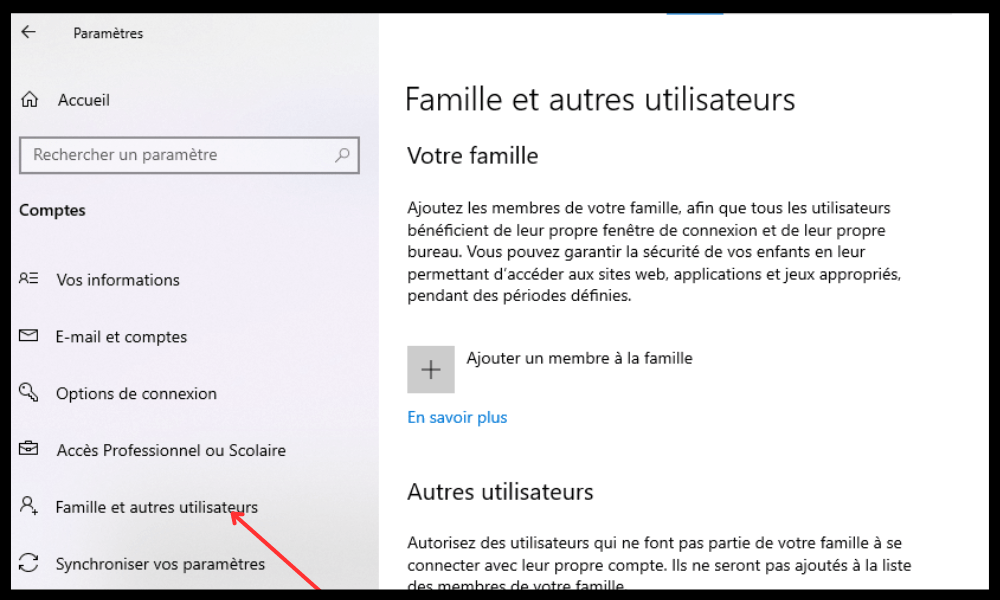
- Click on Add another user to this PC and then on I don't have this person's sign-in information .

- Click on Add a user without a Microsoft account and then enter a username and password.
- Click Next to create the user account.
- Log out of your current account and log in to the new account you just created.
- Test your keyboard and see if the problem is solved.
If your keyboard works normally with another user account , it means the problem is related to your original account; perhaps your Windows account is locked or experiencing a critical issue… In this case, you can try repairing your user profile or creating a new one.
Method 7: Check the region or language settings

If your keyboard isn't typing letters correctly or if some keys are reversed, you may have a region or language settings issue. To check and change these settings, follow these steps:
- Open Settings by pressing the Windows + I keys.
- Click on Time and Language, then on Language.
- Check that the displayed language matches your keyboard language. If it doesn't, click Add a language and select the appropriate language.

- Click on the language you just added and choose Set as default language.
- Click on Options, then on Add a keyboard, and select the type of keyboard you use.
- Click on the keyboard you just added and choose Set as default keyboard.
- Restart your computer and check if your keyboard is working properly.
Method 8: Clean your keyboard

If your keyboard is dirty or grimy, it may not type letters or some keys may be stuck. To clean your keyboard , you can use a soft cloth, a cotton swab, compressed air, or a vacuum cleaner. Here's how:
- Turn off your computer and unplug your keyboard if it is an external keyboard.
- Turn your keyboard over and shake it gently to dislodge any dirt or crumbs that have accumulated between the keys.
- Use a soft, slightly damp cloth to wipe the keyboard surface. Do not use chemicals or alcohol that could damage the keyboard.
- Use a slightly damp cotton swab to clean the spaces between the keys. Be careful not to leave any cotton fibers on the keyboard.
- Use a can of compressed air or a vacuum cleaner to blow or vacuum any remaining dust from the keyboard. Hold the can of compressed air about 15 cm away from the keyboard and spray in short bursts. Hold the vacuum cleaner about 5 cm away from the keyboard and use an appropriate nozzle.
- Allow your keyboard to dry completely before plugging it back in or turning your computer back on.
- Test your keyboard and see if the problem is solved.
Method 9: Reset your computer
If none of the previous methods worked, you can try resetting your computer. This will restore your system to its factory settings and remove any corrupted or malicious files that might be affecting your keyboard.
Warning: This operation will also erase your personal data, applications, and settings. We therefore advise you to back up your important files before proceeding.
Here's how to reset your computer:
- Open Settings by pressing the Windows + I keys.
- Click on Update & Security, then on Recovery.

- Under Reset this PC, click Get Started.
- Choose the Keep my files option if you want to keep your personal documents or the Delete all option if you want to erase everything.
- Follow the on-screen instructions to complete the reset.
- Restart your computer and check if your keyboard is working properly.
Method 10: Replace your keyboard
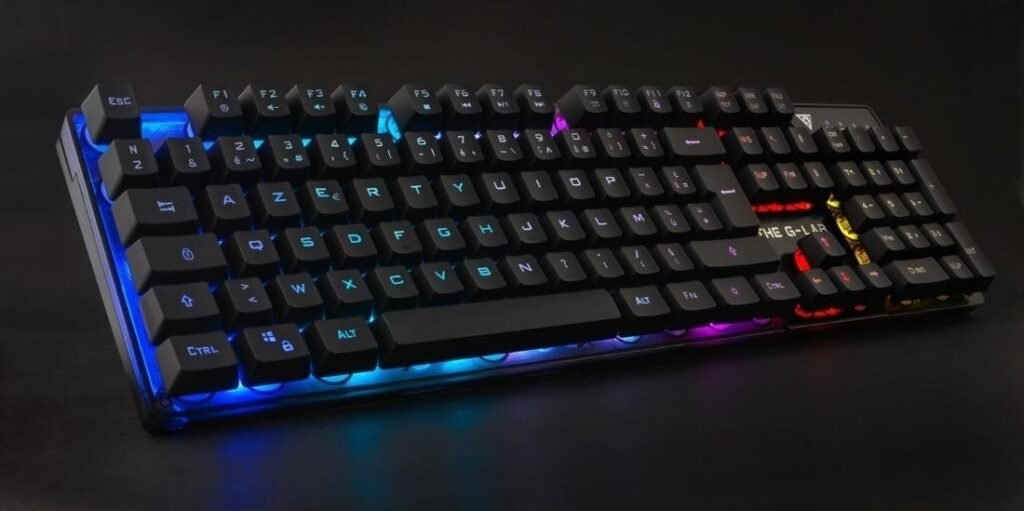
If all the above methods have failed, your keyboard may be irreparably damaged and need to be replaced. If you use an external keyboard, you can easily buy a new one and plug it into your computer. If you use a keyboard built into your laptop, you can try disassembling and replacing it yourself, provided you have the necessary tools and skills. Otherwise, you can contact a professional or a repair service to perform the replacement.
Summary and comparison table of the 10 solutions
| Method | Benefits | Disadvantages |
|---|---|---|
| Use the Windows + spacebar shortcut | Quick and easy | Does not work in all cases |
| Turn off energy saving | Prevents keyboard deactivation | May increase energy consumption |
| Disable mouse keys | Allows you to correct a configuration problem | Requires access to the Control Panel |
| Update the keyboard driver | Helps resolve compatibility issues | Requires access to Device Manager |
| Launch the troubleshooter | It allows you to detect and repair common problems | Does not guarantee a complete resolution |
| Try another user account | This allows you to check if the problem is related to the user profile | Requires creating a new user account |
| Check the region or language settings | Allows you to correct a keyboard layout problem | Requires access to Settings |
| Clean the keyboard | Allows you to remove dirt or dust that is blocking the keys | Can damage the keyboard if done incorrectly |
| Reset the computer | Allows you to restore the system to its factory settings | Erases personal data, applications and settings |
| Replace the keyboard | Provides a new and functional keyboard | Expensive and complex |
FAQ: Frequently asked questions about a keyboard that no longer types letters
Why is my keyboard typing numbers instead of letters?
If your keyboard is typing numbers instead of letters , you may have Num Lock or the Num Lock key enabled. To disable this feature, press the Num Lock key or Fn + Num Lock, depending on your keyboard model.
Why is my keyboard typing symbols instead of letters?
If your keyboard is typing symbols instead of letters , you may have activated the Alt Gr or Alt + Ctrl key. To deactivate this feature, press the Alt Gr or Alt + Ctrl key, depending on your keyboard model.
Why doesn't my keyboard work on some websites or applications?
If your keyboard isn't working on certain websites or apps , there may be a compatibility or settings issue. You can try updating your browser or app, switching to a different browser or app, disabling extensions or plugins, clearing your cache and cookies , or checking your keyboard access permissions.
Why doesn't my keyboard work at startup?
If your keyboard doesn't work at startup, there may be a connection or recognition problem. You can try unplugging and replugging your keyboard , changing the USB port, checking the BIOS or UEFI settings, or booting into safe mode.
Conclusion: the keyboard no longer types letters
A keyboard that no longer types letters or has faulty keys can be very frustrating and prevent you from using your computer properly. Fortunately, there are simple and effective solutions to fix this problem and restore your keyboard to working order. We hope this article has been helpful and that you were able to troubleshoot your keyboard using our methods. If you have any questions or comments, please feel free to leave them below.