
Nordnet is an internet service provider fiber optic , and ADSL connections . By subscribing to a Nordnet internet plan , you get one or more free email addresses with a customizable domain name. But how do you create and configure your Nordnet email account ? How do you forward or save your emails ? In this article, we explain everything you need to know about Nordnet email.
How do I create a Nordnet email address?
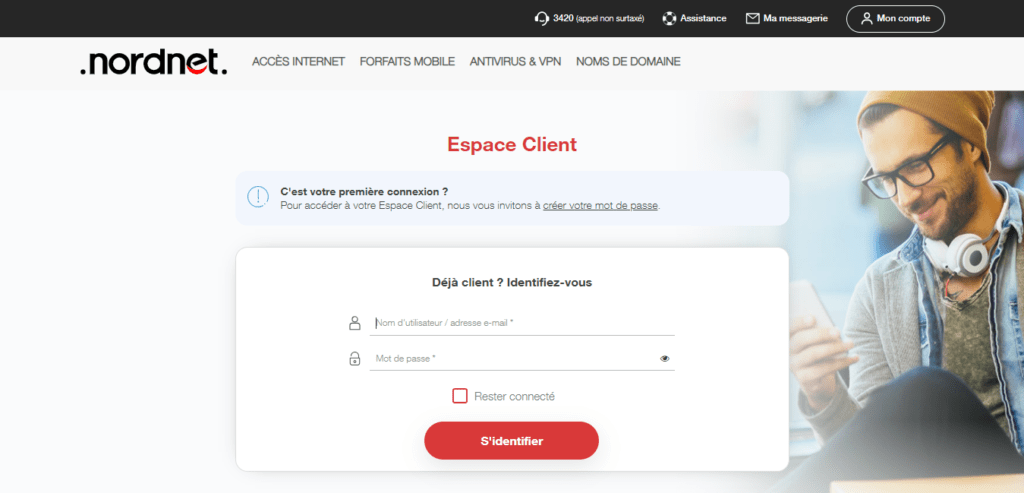
To create a Nordnet email address , you must first be a Nordnet internet , whether it's Nordnet fiber, the Neosat offer, or another offer. Then, you need to go to your Nordnet customer area.
Once logged into your customer area, you can access the “ My email addresses ” section and click on the “ Create a new address ” button.
You can then choose your email address name, without the “ @nordnet.fr ”, as well as the associated password. You can also choose your email address's domain name from those offered by Nordnet or those you have purchased or transferred to Nordnet.
You can create up to 10 email addresses with your Nordnet internet subscription . Each email address has 5 GB of storage space.
How do I configure my Nordnet email account?
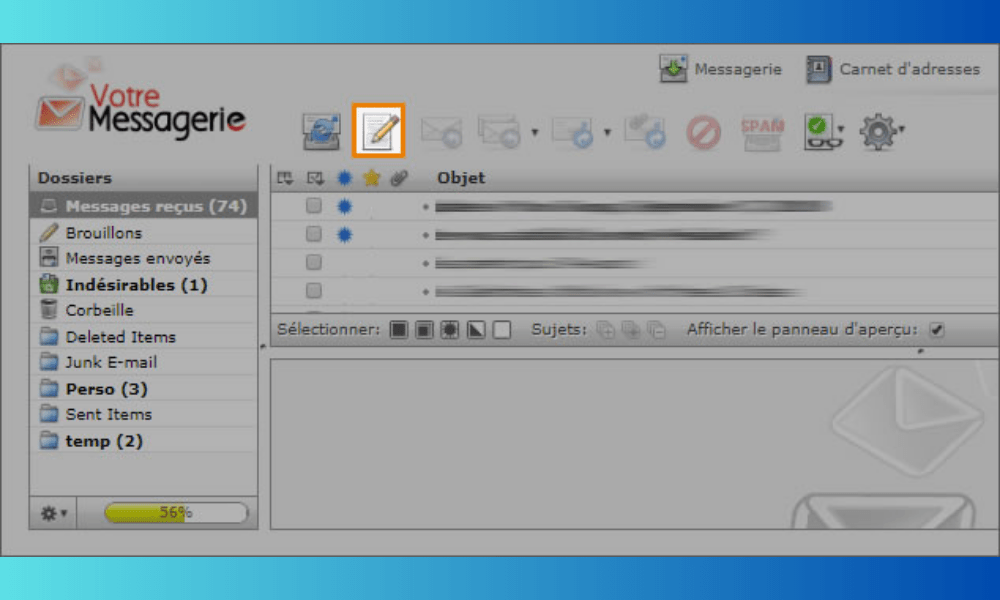
To configure your Nordnet mailbox , you have two options: use Nordnet webmail or use an email software .
Use Nordnet webmail
Nordnet webmail is an online service that allows you to access your Nordnet mailbox from any web browser on your computer, smartphone, or tablet. To use Nordnet webmail , you must follow these steps:
- Open your web browser;
- Go to the website “ nordnet.com/messagerie ”;
- In the “ Email address ” field, enter the name of your Nordnet email address without writing “ @nordnet.fr ”;
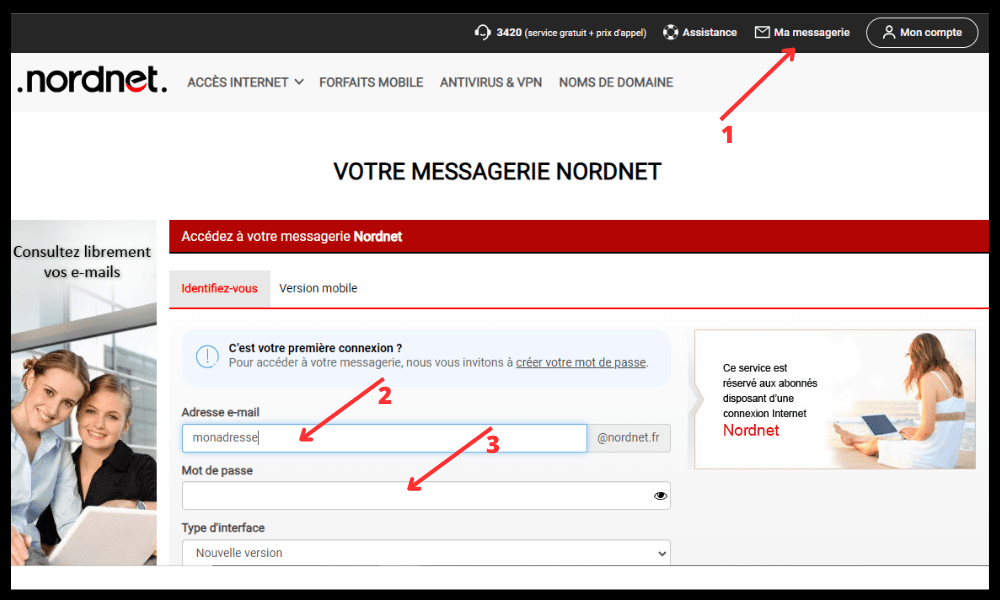
- Next, enter your password and select “ New version ” in the “ Interface type ” section;
- Confirm.
You then access your Nordnet mailbox, where you can view, send and receive emails, as well as manage your contacts, folders and settings.
Use an email program

An email client is a program installed on your computer, smartphone, or tablet that allows you to manage your emails without using a web browser. Many email clients are available, such as Outlook, Thunderbird, Mail, and Gmail.
To use email software with your Nordnet email address , you need to configure the incoming (POP or IMAP) and outgoing (SMTP) server settings for your account. Here are the settings to use:
- Incoming POP server: pop.nordnet.fr / Port: 995 / Security: SSL/TLS
- Incoming IMAP server: imap.nordnet.fr / Port: 993 / Security: SSL/TLS
- Outgoing SMTP server: smtp.nordnet.fr / Port: 465 / Security: SSL/TLS
- Username: your Nordnet email address without the “@nordnet.fr”
- Password: your email password
You can then synchronize your Nordnet mailbox with your email software, and take advantage of its features.
How do I redirect or save my Nordnet emails?
If you have multiple email addresses, or if you wish to change your email address, you may need to set up email forwarding or email retention with Nordnet . Email forwarding allows you to automatically transfer emails received at your Nordnet email address to another email address of your choice. Email retention allows you to keep a copy of the forwarded emails in your Nordnet mailbox .
To forward or save your Nordnet emails, you must log in to your Nordnet webmail, then follow these steps:
- Preferences ” icon
- Click on the “ Filters ” tab;
- In the “ Filters ” area, click on the “ + ”;
- Give this new filter a name;
- For all emails ” option
- In the drop-down menu, select the value “ Redirect email to ”;
- Enter the email address to which you wish to redirect your emails;
- If you wish to keep a copy of the redirected emails, check the “ Keep email ” option;
- Click on “ Save ”.
You have now configured the redirection or retention of your Nordnet emails. You can create as many filters as you like, depending on your needs.
FAQ: Our answers to frequently asked questions about the Nordnet Mail service
How do I change my Nordnet email password?
To change your Nordnet email password, go to your Nordnet customer area and click on the “ My email addresses ” section. Then, select the email address whose password you wish to change and click the “ Edit ” button. You can then enter a new password, respecting the indicated security criteria.
What to do if there is a problem with Nordnet email?
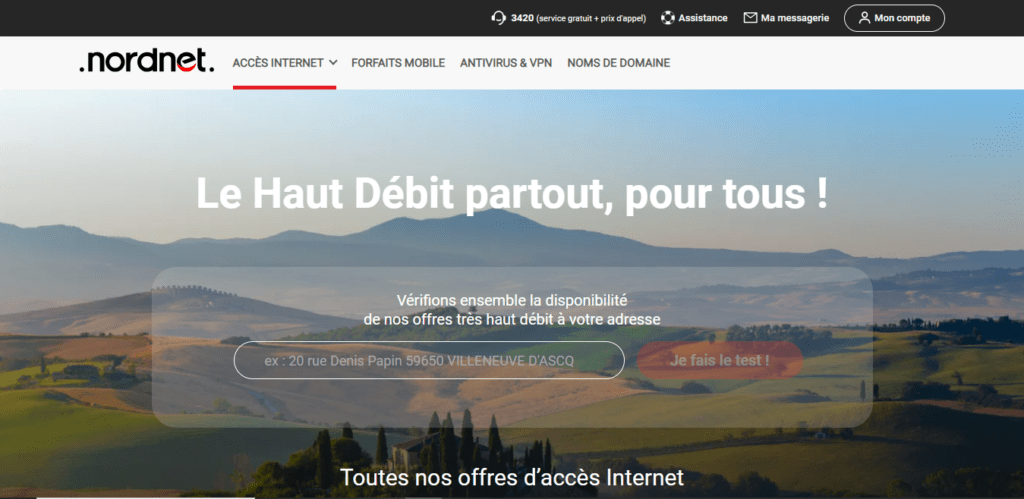
If you encounter a problem with your Nordnet email , such as an error message, a problem sending or receiving emails, or a connection issue, you can consult the " Support " section of the Nordnet website. There you will find help articles and tutorials to resolve the most common problems. You can also contact Nordnet customer service by phone at 3420 ( Monday to Friday from 8 a.m. to 9 p.m. and Saturday from 8:30 a.m. to 6 p.m. ), by email at contact@nordnet.fr, or by mail at the following address:
Nordnet Customer Service 20 rue Denis Papin 59650 Villeneuve d'Ascq
How do I delete a Nordnet email address?
To delete a Nordnet email address, go to your Nordnet customer area and click on the “ My email addresses ” section. Then select the email address you wish to delete and click the “ Delete ” button. Please note that this action is irreversible and will permanently delete all messages and contacts associated with that email address.
How do I create an out-of-office message on a Nordnet email address?
To create an out-of-office message on a Nordnet email address,
- You need to log in to your Nordnet webmail, then click on the “ Preferences ” icon;
- Click on the “ Automatic Reply ” tab;
- Send an automatic reply option ;
- Enter the message you wish to send to people who email you while you are away;
- You can also define the validity period of your out-of-office message by checking the " Only send during this period " option and specifying the start and end dates;
- Click on “ Save ”.
You have now created an out-of-office message on your Nordnet email address . This message will be sent only once per sender to prevent spam. You can modify or delete your out-of-office message at any time by following the same steps.
However, if you wish to create a fake email address for security or privacy reasons, we advise against doing so with your Nordnet account, as this could have legal or technical consequences. There are other online services that allow you to create a temporary fake email address safely .
How do I back up my Nordnet emails?
If you wish to keep your Nordnet emails , you can save them to your computer, smartphone, or tablet using an email client. To do this, you must configure your Nordnet account with the POP protocol, which allows you to download your emails to your device. Here are the settings to use:
- Incoming POP server: pop.nordnet.fr / Port: 995 / Security: SSL/TLS
- Outgoing SMTP server: smtp.nordnet.fr / Port: 465 / Security: SSL/TLS
- Username: your Nordnet email address without the “@nordnet.fr”
- Password: your email password
You can then synchronize your Nordnet mailbox with your email software and save your emails to your device. Please note that if you use the POP protocol, your emails will be deleted from the Nordnet server after downloading. If you wish to keep a copy of your emails on the Nordnet server , you must select the " Leave a copy of messages on the server " option in your email software settings.
Conclusion
Nordnet Mail is a free and convenient service for Nordnet internet subscribers. It allows you to create and configure your Nordnet mailbox with a customizable domain name. You can access your Nordnet mailbox from Nordnet webmail or from an email client. If you wish to install Gmail on your PC , you can also synchronize your Nordnet account with Google's service by following the steps on the Nordnet website. You can also forward or save your Nordnet emails if you want to change your email address or consolidate your messages. We hope this article has been helpful in understanding how Nordnet Mail works. If you have any questions or comments, please feel free to leave them below.


