
Word is a very popular word processing software used by millions of people worldwide. It allows you to write professional or personal documents , and also to format them according to your needs and preferences. Among the many formatting options available is the ability toadd borders to text in Word. This can be useful for highlighting a quote, a title, a definition, or any other important element of the document. But how do you add borders to text in Word? What are the steps to follow? What are the advantages and disadvantages of this technique? That's what we'll explore in this comprehensive and detailed article.
What is a text frame?

A text border is a border that surrounds text or part of the text in a Word document. It can be of various shapes, colors, thicknesses , and styles, depending on the desired effect. It can also be accompanied by a colored background or a drop shadow to enhance contrast and visual appeal.
A text frame can serve several purposes:
- To draw the reader's attentionto important or relevant information
- Structure the document by creating distinct areas.
- To delineate elements that belong to the same category or theme
- To give the document depth and dynamism
- Personalize the document according to your tastes and creativity
If you encounter problems with Winword.exe while using Word, you can try repairing or reinstalling Office to resolve issues related to missing or corrupted system files.
How do I put a border around text using Word?
To put a border around text using Word, you need to follow these steps:
- Select the text you want to frame, or click where you want to insert the frame
- Go to the Design

- Click the Borders button in the Paragraph group
- Choose the Border and Shading option …
- In the window that opens, select the Border
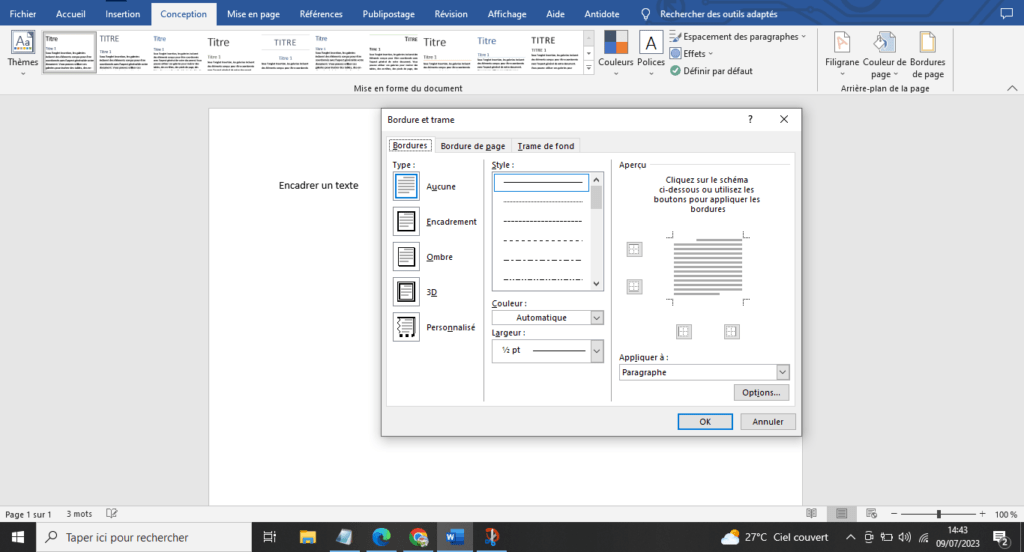
- Select the desired border type from the Style
- Choose the border color from the Color
- Choose the border thickness from the Width
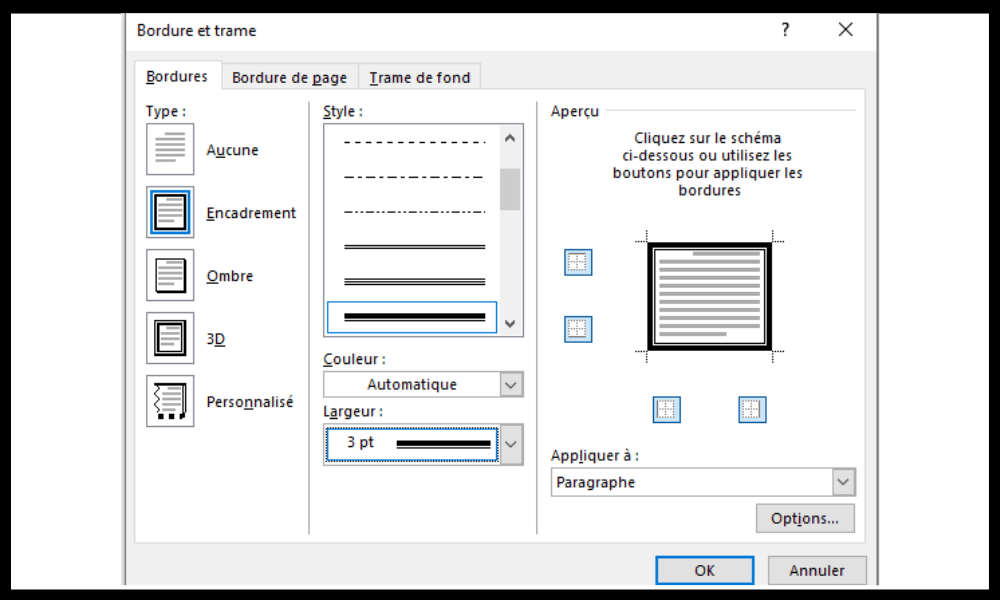
- Choose the border layout in the Preview by clicking the corresponding buttons.
- Confirm by clicking the OK
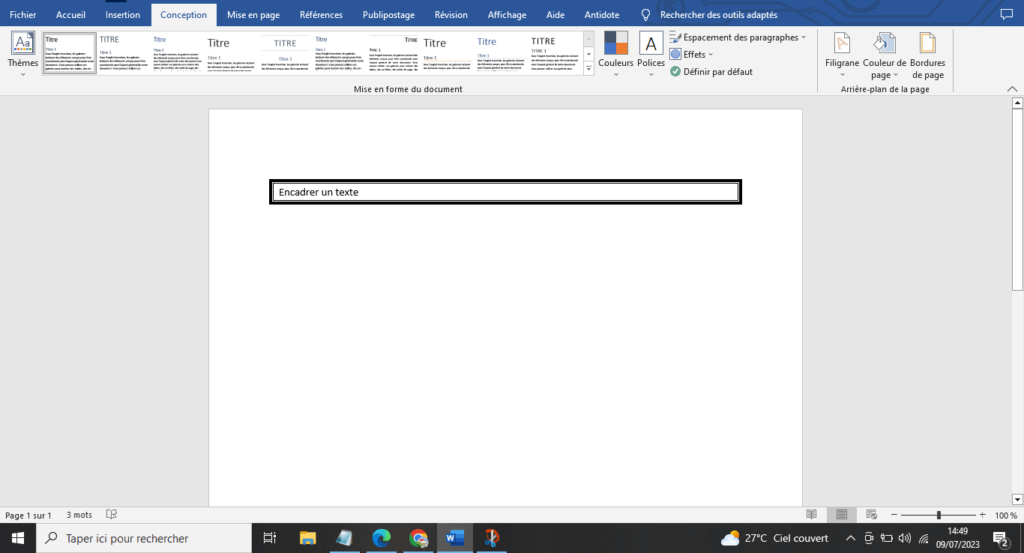
And there you have it, the text is framed with Word! It is possible to modify the frame at any time by repeating the same steps and changing the settings according to your needs.
What are the advantages and disadvantages of framing text with Word?

Using Word to frame text has advantages and disadvantages that you should be aware of before you begin.
The advantages are :
- It's a simple and quick technique to implement.
- It's a technique that offers a wide variety of choices and possibilities.
- This technique makes the document more attractive and professional.
The disadvantages are :
- This technique can make the document cumbersome and impair its readability if used excessively.
- This technique can cause compatibility problemswith other software or file formats.
- This is a technique that can be difficult to adapt to changes in layout or text size.
FAQ
Here are some frequently asked questions about framingtext with Word :
How do I remove a text box?
To remove a text border, simply select the bordered text, go to the Layout, click the Borders, and choose the No Border.
How do I frame text with a colored background?

To add a colored background to text, follow the same steps as for adding a border, but select the Background Shading instead of the Border. You can then choose the background color from the Shading Color.
How do you frame text with a drop shadow?
To frame text with a drop shadow, you must follow the same steps as to frame text with a border, but by checking the Shadow box in the Options section of the Border and Shading window.
How do I frame text with a custom shape?
To frame text with a custom shape, insert a shape into the document, resize and position it as needed, then copy the text you want to frame and paste it into the shape. You can then modify the shape and the text as desired.
How do you frame text with an image?
To frame text with an image, insert the image into the document, resize and position it as needed, then right-click on it and select " Text Wrapping." You can then choose " Behind Text" or "In Front of Text" depending on whether you want the text to be visible over the image. You can then edit the image and text as desired.
How do I center text within a frame?
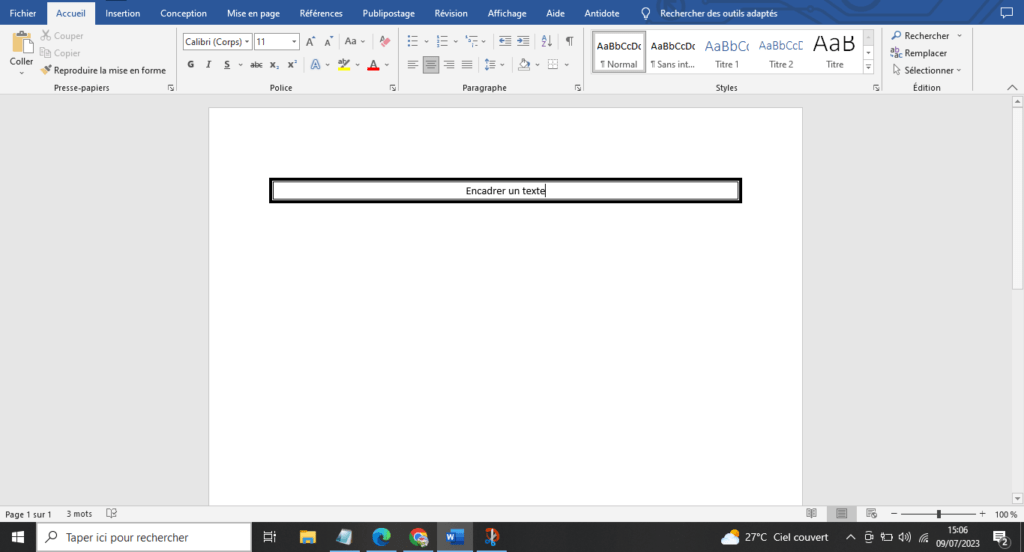
To center text in a frame, select the text to be centered, then go to the Home of the ribbon, and click the Center button in the Paragraph group.
How do I align multiple text frames?
To align multiple text boxes, select the boxes you want to align, then go to the Format tab on the ribbon and click the Align button in the Arrange group. You can then choose the Align Left, Align Center, Align Right, Align Top, Align Middle, or Align Bottom as needed.
How can I prevent the text boxes from moving when the document is edited?
To prevent text boxes from moving when editing the document , right-click on each box and select Format Shape. In the window that opens, select the Layout and Properties tab, then click the Position button . You can then select Fixed in the Location Options section .
How can I make the text frames adapt to the size of the text?
To make the text boxes adjust to the text size , right-click on each box and select Format Shape . In the window that opens, select the Size and Rotation tab, then uncheck the Lock Proportions box in the Scale section
How can I make the text boxes linked together?
To link text boxes together, right-click on each box and select " Create a link between text boxes." Small blue squares will then appear around the edges of the boxes. Simply click on a blue square in one box and drag it to another blue square in a different box to create a link. The text will then flow automatically from one box to the next.
Conclusion
Adding borders to text in Word is a simple and effective way to highlight certain elements of your document. Whether you want to draw attention, structure the content, delineate categories, or personalize the look, you have a wide variety of choices and options for creating text borders tailored to your needs. You can also modify the border settingsat any time, according to your preferences and changes. Whether you're using Word on a computer or a smartphone, you can add borders to text easily and quickly by following the steps outlined in this article. Feel free to experiment and have fun with the different border and shading options. You'll see that your document will gain in appeal and professionalism.