

Do you own an LG TV and notice that the picture has a bluish, sometimes purple, tint? This problem is quite common and can have several possible causes. Fortunately, there are solutions to fix it. In this article, we'll explain how to resolve the bluish picture issue on an LG TV in 5 simple steps.

Step 1: Check that you are on the correct input or source
The first thing to do is check that you have selected the correct input or source on your TV. You may have accidentally changed the source, or your remote control may be malfunctioning. To do this, press the Source button on your remote and select the input corresponding to your connected device ( HDMI , USB, etc.). If the problem persists, proceed to the next step.
Step 2: Check all cable connections

The second thing to do is check all the cable connections between your TV and your connected devices. A cable may be loose, damaged, or incompatible. To do this, unplug and replug all the cables, making sure they are fully inserted into the sockets. Also, try a different HDMI cable or socket if possible. If the problem persists, proceed to the next step.
Step 3: Reset your TV

The third thing to do is reset your TV to factory settings. Your TV may have a software problem affecting the picture. To do this, follow these steps:
- Press the Home button on your remote control
- Select Settings
- Select All settings
- Select General
- Select Reset to factory settings
- Confirm the reset
Warning: This operation will erase all your personalized settings and saved data. If the problem persists, proceed to the next step.
Step 4: Adjust the image settings
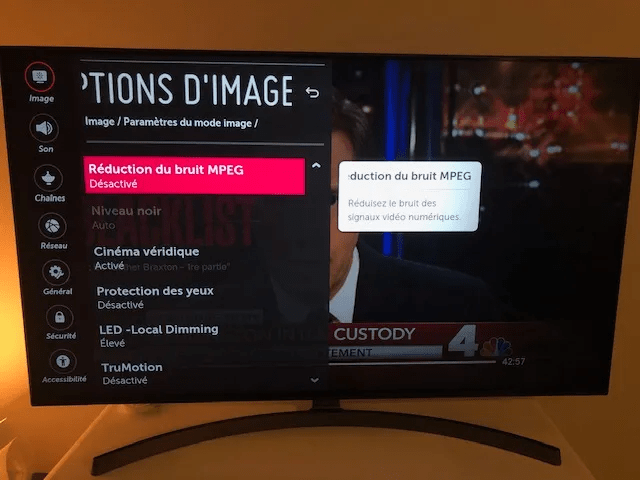
The fourth thing to do is adjust your TV's picture settings. It's possible your TV has an incorrect setting causing the bluish tint. To do this, follow these steps:
- Press the Home button on your remote control
- Select Settings
- Select All settings
- Select Image
- Select Eye Comfort Mode and turn it off if it is enabled
- Select Energy saving and set it to Off or Minimum if it is enabled
- Select White Balance and adjust the Red, Green, and Blue values according to your preferences
If the problem persists, proceed to the next step.
Step 5: Contact an authorized LG repairer
The fifth and final step is to contact an authorized LG repair center if none of the previous solutions have worked. Your television may have a hardware problem that requires professional intervention. To do this, visit the official LG website and find the service center nearest you. You can also call LG customer service at the following number: 3220 (free call from a landline).


