
Are you looking for a solution that will allow you to automatically log in to your Facebook account without having to enter your login details? Here are some links that make automatic login to Facebook easy!
Connect to Facebook automatically and quickly?
The Facebook automatic login option helps you enormously when you forget your email address and/or your access password.
Indeed, when you log in to Facebook for the first time, the application itself or the browser you are currently using will automatically save your username and password after having your approval, of course.
Therefore, the next time you log in to Facebook , you will no longer need to provide your credentials before accessing your Facebook Home Page !
However, you will first need access to the social network. Do you want to register or simply log in to configure the " Automatic Login " option?
After that, you can set up the Facebook automatic login option. Not sure how to do that yet? Don't worry! This short video will help:
How do I set up automatic login to my Facebook account?
Time saving; confidentiality of login information: there's no need to list the many advantages of instant login on Facebook!
Are you tired of typing your login details every time you want to access your Facebook account? You should know that the settings vary depending on how you log in:
Automatic Facebook login from a browser?

- Access your browser settings and click on the " Security and Privacy " option located in the left sidebar.
- Then click on " Clear browsing data " to delete cookies and other data stored on the computer.
- Then restart your browser and click on this link to launch Facebook
- Enter your login credentials, check the " Keep my session active" box and press " log in ".
- A pop-up window will then appear in the upper right corner asking if you want to allow automatic login on future visits. Click " Allow ". You should then be automatically logged in next time!
Automatic Facebook login from within the application itself?
Do you use the Facebook app to log in on your smartphone or tablet? Do you want to switch to automatic login mode, but you don't know how, as was the case for this user who asked their question on: https://forums.commentcamarche.net/forum/affich-33408783-connexion-automatique ?
Follow these steps to begin automatically logging into your account from the official application.
Step 1: Do you already have it on your phone? Uninstall it first and go to the Google Play Store to download a new one. Why? Well, because if you're used to logging into Facebook and you've never allowed automatic login, the chances of it suddenly reappearing are very low. So you need to reinstall the app.
Step 2: After installing it on your device, access it, enter your login credentials, and click " Log in ".
Step 3: A notification should appear on your smartphone screen asking if you approve automatic login for future use. Click " YES "! The app will automatically save your login details, and you're good to go for a quick Facebook login !
Automatic Facebook Messenger login: here's the link!
If you use Facebook Messenger and want to quickly log in to your account without entering your login details, automatically log in to Facebook Messenger using the following official links:
If you are using the browser on your PC or mobile device:
Step 1: Clear browsing data by referring to the method described above
Step 2: Access the Messenger automatic login page. To do this:
Step 3: Enter your login information ( username and password Keep me logged in option and finally press the " Log in "
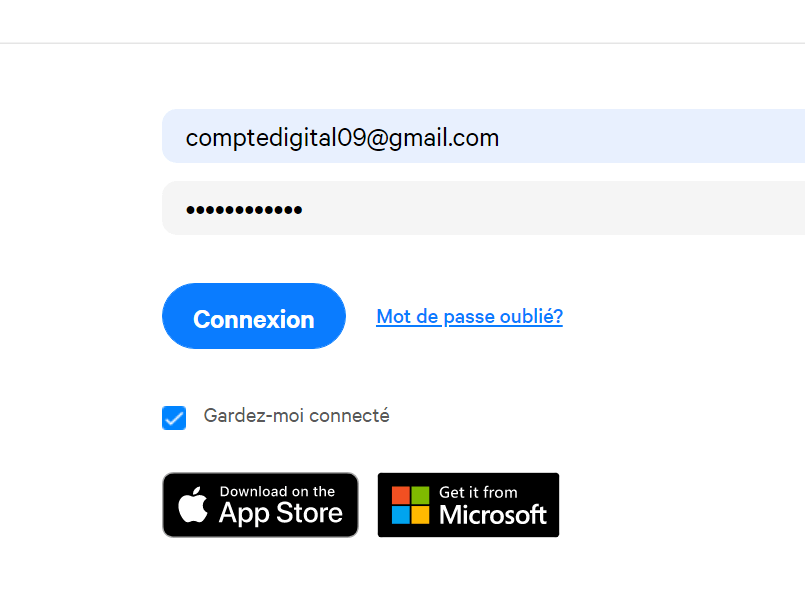
Step 4: As this is your first time logging in, you will receive a notification asking if you want to log in automatically on future visits. Click " Allow " and you're done!
You can now access your Messenger account without entering your login details!
If you are using a mobile device (smartphone or tablet):
Step 1: Log in to your Messenger account. Don't have the app or just uninstalled it?
Step 2: After installation, enter your username and password, then click " LOG IN ".
Step 3: In a notification, Facebook Messenger will ask if you want to save your login information and log you in instantly soon. Accept by clicking " Yes ".
Important : Never used Facebook or Messenger on your device? You can skip clearing your browsing data or reinstalling the app! However, if you're already a regular Facebook user, you probably won't receive any notifications. In that case, deleting and reinstalling the app is an excellent alternative, as it will trick your browser and Facebook into thinking this is your first time logging in!
How do I disable automatic login on Facebook?
While automatically logging into your Facebook account is certainly advantageous, it comes with many risks. Anyone can access your account when they try to log in to Facebook from the device you're using. To disable this feature, follow these steps:
If you are using a browser (Google Chrome):
Step 1 : Log out of your Facebook account to begin
Step 2: Next, go to your Chrome browser settings and then click on the " Main Menu " in the left sidebar.
Step 3: AutoFill option and press " Password "
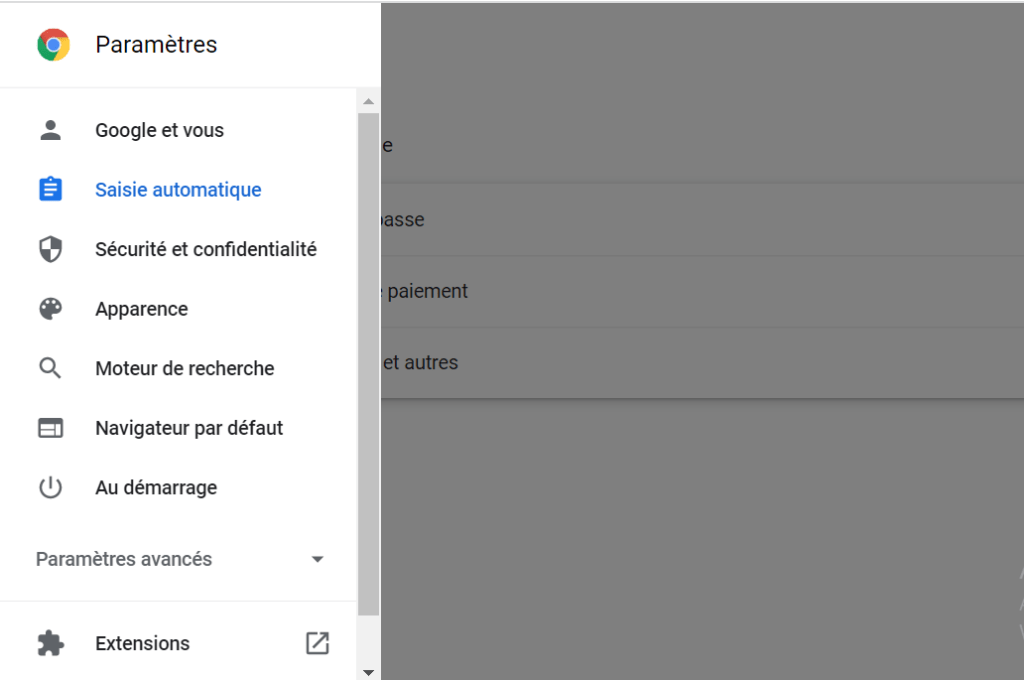
Step 4: Search for the Facebook account and if you find it, tap the three vertically aligned dots on the right and finally click the " Delete " option.
It's done! Your account is now completely disconnected from the browser. From now on, you will need to enter your login credentials before accessing your news feed !
If you are using the Facebook or Messenger app:
To disable automatic login on the Facebook or Messenger app , you'll need to reinstall it! After that, the first time you log in, you can choose not to save your credentials. This way, every time you need to log in, Facebook or Messenger will ask you to enter your information! Easy peasy, right? 😎