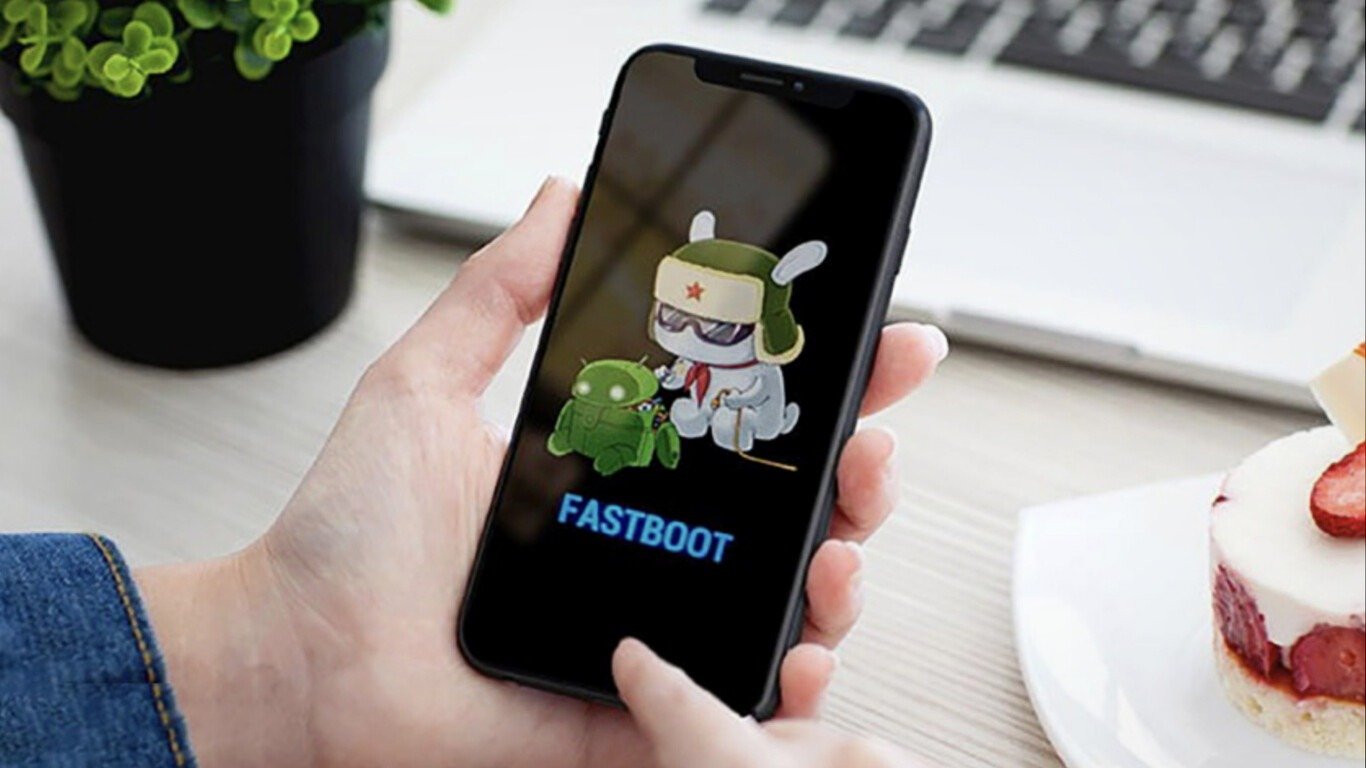
While using your Xiaomi smartphone, does a small green Android robot with a nurse treating it suddenly appear on the screen? Just below the image, do you see a " Fastboot " message and your smartphone becomes unresponsive?
This is a problem that anyone using aXiaomi mobile phone might encounter. In this article, we'll show you the methods that will allow you to exit Fastboot mode. Eager to learn how? Let's get started!
Fastboot mode: what is it?
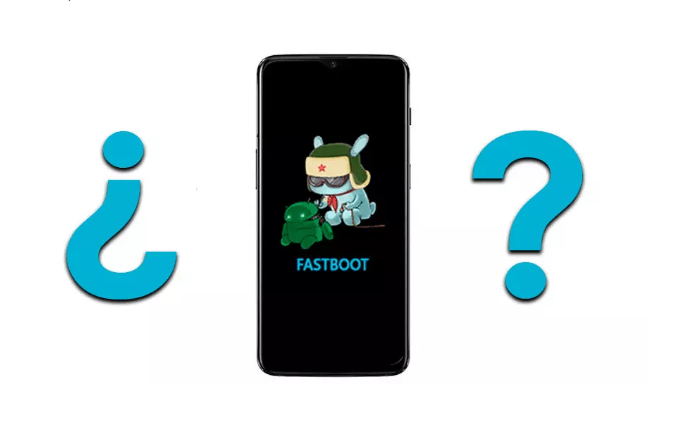
Fastboot mode , also known as quickboot mode , is present on all Android devices, not just your Xiaomi phone. While it might seem like a real problem that could harm your phone, it's important to know that this isn't the case at all!
Indeed, Fastboot mode is a tool that allows you to make internal modifications or completely reset a device running on Android.
It is also very useful for:
- A flash file system update
- Recover, restore or back up data
- Clear the keypad locks if you have forgotten your password.
- Perform a forced restart
- Restore your Android smartphone to factory settings!
Steps to exit Fastboot mode on Xiaomi smartphones
The existing solutions for exiting fast startup mode are very simple. Before revealing them, we invite you to watch this short video, which will undoubtedly be very helpful.
Below, we show you the different methods that will allow you to easily exit Fastboot mode in case the video tutorial is not clear enough for you:
Method 1: Use the on/off controls

You can only use buttonpower supply to exit Fastboot mode. Here's how:
- Press and hold the power button on your Android phone until the Fastboot message disappears.
- Ensure the operation lasts at least 40 seconds to achieve the desired results.
- If everything is working correctly, thedisplay should have disappeared and you will see that your smartphone restarts normally.
Method 2: Use the power supply and volume buttons to flash the smartphone

If the previous method doesn't work and the Fastboot message persists, there's another solution. You can flash your smartphone using its buttons. If you don't want to use only the power buttonpower supplyyou can proceed as follows:
- Press the power button and the volume down button
- Press and hold these two buttons for about 30 seconds until the screen disappears. Your smartphone should then restart automatically!
Note: You may find yourself using the volume up button instead of the volume down button with some smartphones, such as the Redmi Note.
See also: TTY mode: what is it for and how to activate it on mobile?
Method 3: Try releasing the power supply button on your smartphone
Sometimes, after flashing your smartphone, you'll see it start loading the operating system and you might even see the logo. However, after a few seconds, you'll be redirected to the Xiaomi Fastboot screen. If you encounter this problem, please proceed as follows:
- Use the previous step (volume keys andpower supply) to exit Fastboot mode.
- Please wait a few moments while the small green Android robot with a nurse caring for it disappears.
- Once you seeAndroid restarting again, you must instantly buttonpower supply. (Always keep the volume button pressed).
- Please wait until your smartphone starts working properly again.
Method 4: Use a third-party application to exit Fastboot mode

If you have a laptop and a USB data cable connected to your smartphone, you can exit Fastboot mode via a third-party application: “ Android Multi Tool”.
This application can help you enable or disable fast startup mode as needed. It can also help ensure that all data and information on your mobile device is verified.
Therefore, to use this application, please follow the steps below:
- Use a USB cable to connect your device and your PC. If you don't have a USB cable, we recommend purchasing one by clicking on one of the following images:
string(271) "[503] Server error: `POST https://webservices.amazon.fr/paapi5/getitems` resulted in a `503 Service Temporarily Unavailable` response:
![INIU USB-C Fast Charging Cable 3.1A, [2m+2m+0.5m/3-Pack] USB to USB-C Cable, Nylon Charger...](https://tt-hardware.com/wp-content/plugins/aawp/public/assets/img/thumb-spacer.png)