Did you know that Windows 11 is packed with tools for capturing your laptop screen? Whether you want to share a funny picture with your friends, save an important tutorial, or log a computer bug, this article guides you step by step through the different options available.
1. Keyboard shortcuts: speed of execution
1.1. Full screenshot:
Simply press the Print Screen (or PrtScn ) key on your keyboard. Your screenshot will then be copied to the clipboard. You can then paste it into an image editing program, such as Paint or Photoshop , to save or edit it.

Tip: For a faster screenshot, use the Windows + Print Screen . The screenshot is automatically saved in the "Screenshots" folder of your image library.
1.2. Capturing a defined area:
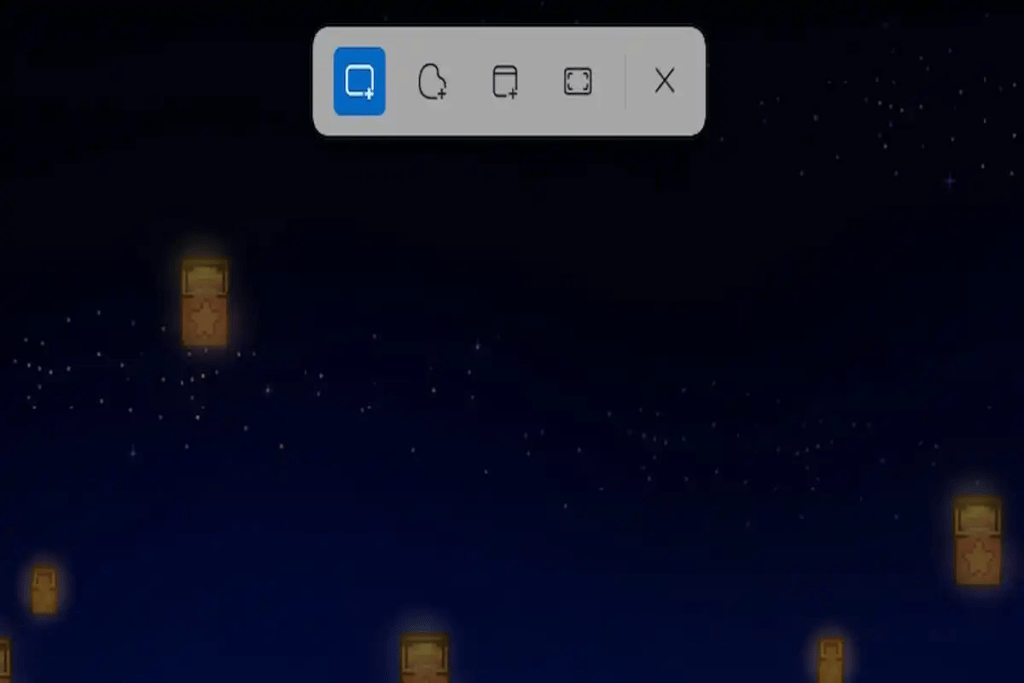
To capture only a portion of the screen, use the keyboard shortcut Windows + Shift + S. Your screen will dim and a crosshair cursor will appear. Then, select the area you want to capture by holding down the left mouse button. The screenshot will be automatically copied to the clipboard.
Tips:
- Use the Shift , Ctrl and the arrow keys to refine your selection.
- Press the Esc to cancel the capture.
1.3. Capturing an active window:
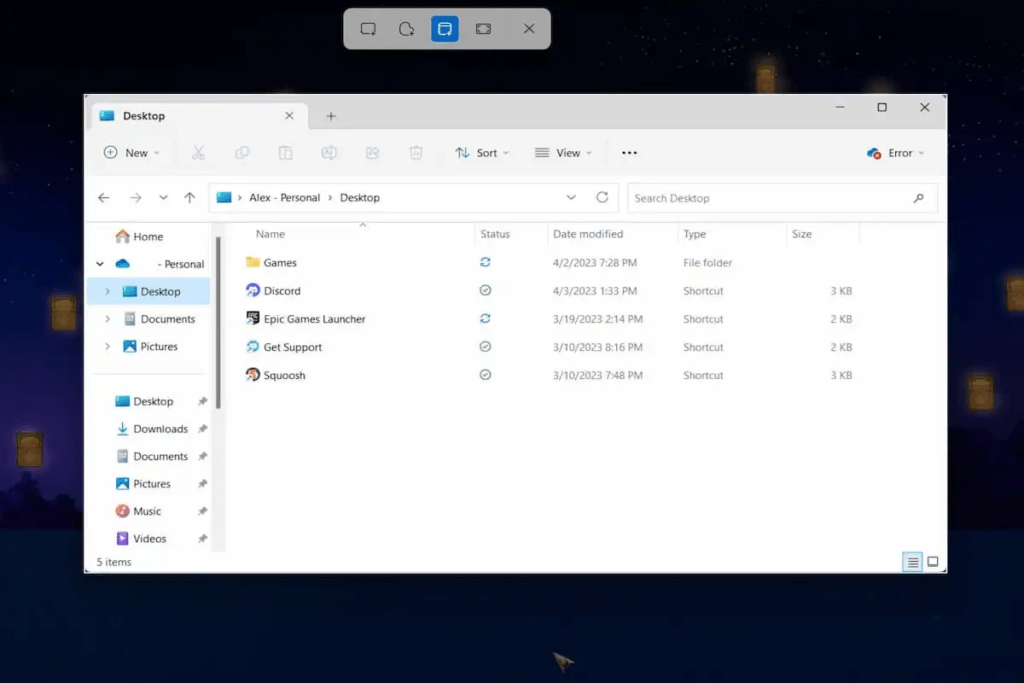
To capture only the active window, use the keyboard shortcut Windows + Alt + Print Screen . The screenshot is automatically copied to the clipboard.
2. Screenshot Tool: Advanced Options
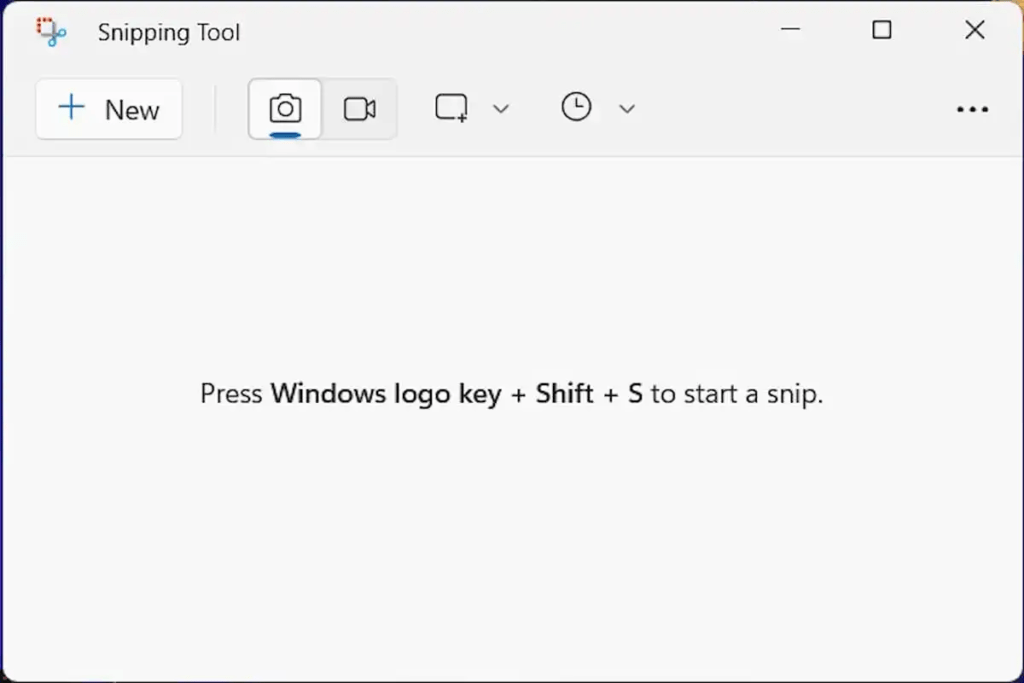
The Snipping Tool built into Windows 11 offers more advanced features for capturing and annotating your screenshots.
To open the Screenshot tool:
- Start Menu: Search for "Snipping Tool" and click on the result.
- Keyboard shortcut: Press the Windows + Shift + S.
- To run: Press the Windows + R , type "snippingtool" and press Enter .
Screenshot tool features:
- Different capture modes: rectangular capture, freeform capture, active window capture, full screen.

- Delay options: capture after a delay of 2, 5 or 10 seconds.
- Annotation tools: pen, highlighter, eraser, text box, etc.
- Capture recording format: PNG, JPEG, GIF or HTML.
Tips:
- New button to start a new capture.
- Edit your screenshots after you have taken them.
- Save your captures directly to the folder of your choice.
3. Third-party applications: for specific needs
If the native options in Windows 11 aren't enough, many third-party applications offer advanced screen capture features. Some of the most popular include:
- Lightshot: quick and easy screenshot capture with annotation tools.
- Snagit: Screen capture and video recording with many customization options.
Tips and tricks for taking successful screenshots
- Use the Shift key to capture straight shapes.
- Press the Ctrl key to resize your selection.
- Use the touch stylus for precise annotations.
- Save your screenshots in a dedicated folder for easy retrieval.
- Share your screenshots on social media or via email.
Conclusion
and video capture techniques Windows Windows 11 Windows 11 users. Whether you are a student, a professional, or simply a casual user, this article has provided you with the tools and information needed to capture and share your favorite moments on your laptop.