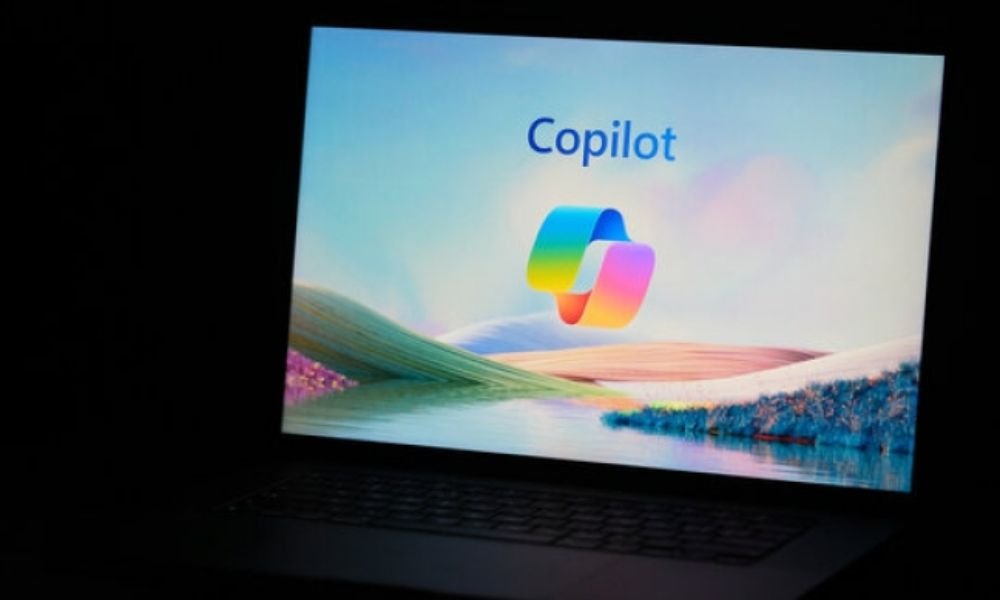
Since its release in 2023, Microsoft Copilot has revolutionized interaction with Windows 11. Integrating cutting-edge artificial intelligence, this intelligent assistant has proven to be a valuable tool for boosting creativity, collaboration, and productivity. Let's explore its features and how to use it to fully leverage its potential.
What is Microsoft Copilot?
Microsoft Copilot is an AI assistant built into Windows 11. Powered by OpenAI Codex technology, it uses a conversational language model to understand your queries and provide contextual and relevant answers. Copilot appears as a sidebar accessible from the desktop, offering real-time assistance to help you complete your tasks.
How do I use Copilot on Windows ?
Here are some ways to use Copilot on Windows :
- Start Menu : You can open Copilot by clicking the search icon in the Start Menu.
- Taskbar : You can also pin Copilot to the taskbar for quick access.
- Action panel : Copilot is accessible from the action panel, which can be accessed by clicking the notification icon in the lower right corner of the screen.
- Keyboard shortcut : You can use the keyboard shortcut Windows + Shift + C to open Copilot.
Copilot Conversation Styles
Copilot adapts to your needs and preferences thanks to its different conversation styles:
- Informative: Provides concise and objective answers to your questions.
- Creative: Helps generate original ideas and content.
- Collaborative: Facilitates communication and teamwork.
- Didactic: Offers explanations and tutorials to learn new skills.
Harness the power of Copilot
The possibilities offered by Copilot are vast and varied. Here are some concrete examples of its use:
- Answering your questions: Whether it's factual information or a technical problem, Copilot provides you with precise and documented answers.
- Manage your tasks and projects: Copilot helps you create to-do lists, set priorities and track your progress.
- Improve your productivity: Smart suggestions to optimize your workflow and save time.
- Stimulate your creativity: Generate original ideas for your personal or professional projects.
- Learn new skills: Access tutorials and training directly in the Copilot interface.
Questions specific to using Copilot under Windows
Is Copilot available in all languages?
No, Copilot is currently only available in English, French, German, Chinese, Spanish, Italian, Japanese, Portuguese and Russian.
How can I change the Copilot settings?
You can change Copilot settings by going to Settings > Privacy and security > Speech recognition > Microphone settings .
What if Copilot doesn't understand my question?
If Copilot doesn't understand your question, try rephrasing it more simply or precisely. You can also provide additional contextual information.
Is Copilot secure?
Microsoft is committed to protecting your privacy and data. Copilot only collects the data necessary to provide you with its services. You can consult Microsoft's privacy policy for more information.
How can I get help with Copilot?

You can get help with Copilot by visiting the Microsoft help page or by contacting Microsoft support.
Is Copilot free?
Yes, Copilot is free for all Windows 11 and 10 users.
Is Copilot compatible with older versions of Windows ?
No, Copilot is only compatible with Windows 11 and 10.
Conclusion
Microsoft Copilot proves to be a powerful and versatile tool for all Windows 11 . By leveraging its artificial intelligence and intuitive features, you can boost your productivity, explore your creativity, and collaborate more effectively. Feel free to explore the different options and conversation styles to discover the full potential of Copilot and transform your Windows .