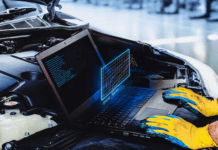
Laptops are practical and powerful devices, but they're not immune to malfunctions. Whether due to misuse, impact, overheating, or a virus, your laptop might fail to start, display a black screen, make noise, or slow down. Fortunately, there are solutions to repair these problems and avoid having to buy a new device. Here are the 10 most common laptop problems and how to fix them.
1. The laptop no longer turns on
If your laptop won't turn on at all, don't panic; it could be a simple power supply issue. Check that your charger is working properly and that it's securely plugged into both the wall outlet and your computer. If the green LED on the charger is lit but the laptop still won't start, the power supply may be insufficient or the connector may be damaged. Try a different compatible charger or a different electrical outlet.
If the problem persists, it could be due to reverse polarity caused by a micro-surge or a short circuit. In this case, you can try discharging any residual electricity from the motherboard by unplugging the charger and removing the battery (if it's removable). Then, press and hold the power button for one minute and reconnect the charger without reinserting the battery. If the PC powers on, you can then reinsert the battery.
If the problem persists, it could be due to a faulty component in the motherboard , processor, or RAM. In this case, you will need to consult a professional to diagnose and repair the issue.
2. The laptop displays a black screen
If your laptop turns on but the screen remains black, there could be several possible causes. The first thing to do is check that the brightness isn't set to minimum or that sleep mode isn't activated. You can try pressing Fn + F5 or Fn + F6 to adjust the brightness, or any key to wake the laptop from sleep mode.
If that doesn't work, the screen may be damaged or improperly connected. You can try connecting your laptop to an external monitor using an HDMI or VGA cable to determine if the problem lies with the monitor or the graphics card. If the image displays on the external monitor, then the internal monitor is the issue. It will then need to be replaced or properly reconnected.
If the image doesn't display on the external monitor, the problem likely lies with the graphics card or the BIOS (the system that manages the PC's startup). You can try resetting the BIOS by removing the CMOS battery from the motherboard for a few minutes and then reinserting it. If this doesn't resolve the issue, you'll need to consult a professional to repair or replace the graphics card.
3. The laptop is making noise

If your laptop is making unusual noises, it could be a problem with the fan or the hard drive. The fan is essential for cooling the internal components of the PC and preventing overheating. If the fan is clogged with dust or blocked by an object, it may make noise or spin faster than normal. You should then clean the fan with a soft cloth or a can of compressed air, making sure to turn off and unplug the PC beforehand.
If the noise is coming from the hard drive, it could be a sign of aging or wear. The hard drive is the component that stores your data and spins continuously when you use your PC. Over time, it can deteriorate or become fragile due to shocks or vibrations. You should then back up your important data to an external storage device and consider replacing the hard drive with a more efficient model such as an SSD (Solid State Drive).
4. The laptop is slowing down
If your laptop slows down over time, there could be several reasons related to software or hardware. On the software side, your PC might be cluttered with unnecessary programs that launch at startup, adware or spyware that consumes resources, or viruses that infect your system. You should then clean your PC by uninstalling programs you don't use, scanning your system with antivirus and anti-malware software, and defragmenting your hard drive to optimize storage space.
On the hardware side, your PC may lack sufficient RAM to run resource-intensive applications such as games or video editing software. In this case, you need to increase the RAM capacity by adding an extra module or replacing the existing one with a higher-performance one.
5. The keyboard or touchpad is not working
If your laptop's keyboard or touchpad isn't working properly, it could be a settings, driver, or connection issue. You can check if the keyboard or touchpad is accidentally disabled by pressing Fn + F3 or Fn + F9, depending on the model. You can also check if the keyboard or touchpad driver is up to date by going to Device Manager, right-clicking on the device, and selecting "Update driver.".
If that doesn't solve the problem, the keyboard or touchpad may be damaged by wear and tear, moisture, or impact. You can then try disassembling the keyboard or touchpad to check if the ribbon cable connecting it to the motherboard is properly connected and undamaged. If it is, you can reconnect it correctly or replace it with a new one.
6. The battery does not hold a charge
If your laptop battery drains too quickly , it could be due to usage, settings, or wear and tear. Regarding usage, you can extend battery life by avoiding power-intensive applications like games or streaming videos, reducing screen brightness, and enabling power saving mode in your settings.
In terms of settings, you can optimize battery management by calibrating it regularly. This involves completely draining the battery and then fully recharging it without interruption so that the system correctly detects its maximum capacity.
Regarding wear and tear, you should know that a battery naturally loses performance over time and with repeated charge/discharge cycles. You should therefore consider replacing the battery with a new one when it only lasts a few minutes.
7. The Wi-Fi is not working

If Wi-Fi isn't working on your laptop, there could be several possible causes related to the network, hardware, or software. Regarding the network, you should check that your internet router is working correctly and that it's emitting a sufficiently strong and stable Wi-Fi signal. If your internet router is working correctly but Wi-Fi isn't working on your laptop, it might be a problem with your device's Wi-Fi settings. To check this, you need to verify that Wi-Fi is enabled on your laptop and that you're connected to the correct network. You can enable or disable Wi-Fi by pressing the Fn + F2 or Fn + F12 keys, depending on the model.
8. The sound is not working
If the sound isn't working on your laptop, there could be several possible causes related to settings, drivers, or hardware. Regarding settings, you should check that the sound isn't muted or set to minimum on your computer or in the application you're using. You can also verify that the correct audio output device is selected in the sound settings (internal speakers, headphones, external speakers, etc.).
Regarding the driver, you need to verify that the sound card driver is up to date and that there are no conflicts or compatibility issues with the system or application. You can go to Device Manager, right-click on the sound card, and then choose “Update driver” or “Troubleshoot problems”.
Regarding the hardware, you should check that the internal or external speakers are not damaged or improperly connected. You can try connecting another audio device to test the sound or disassemble the internal speakers to check their condition.
9. The CD/DVD player is not working
If the CD/DVD drive isn't working on your laptop, there could be several possible causes related to the disc, the driver, or the hardware. Regarding the disc, you should check that the disc you're inserting is compatible with the drive (CD-R, CD-RW, DVD-R, DVD-RW, etc.) and that it isn't scratched, dirty, or damaged. You can try cleaning the disc with a soft cloth or reading it in a different drive.
Regarding the driver, you need to verify that the CD/DVD drive driver is up to date and that there are no conflicts or compatibility issues with the system or application. You can go to Device Manager, right-click on the CD/DVD drive, and then select “Update driver” or “Troubleshoot problems”.
Regarding the hardware, you should check that the CD/DVD drive is not damaged or improperly connected. You can try disassembling the CD/DVD drive to check its condition or replace it with a new one.
10. The laptop is overheating
If your laptop is overheating, there could be several possible causes related to usage, ventilation, or hardware. Regarding usage, you should avoid placing your laptop on a soft or hot surface that restricts airflow underneath (cushion, blanket, radiator, etc.). You should also avoid resource-intensive applications that put excessive strain on the internal components (games, videos, etc.).
Regarding ventilation, you should check that the fan is working properly and that it is not obstructed by dust or an object. You can clean the fan with a soft cloth or a can of compressed air, taking care to turn off and unplug the PC beforehand.
In terms of hardware, you should check that the internal components are not damaged or poorly cooled. You can disassemble the laptop to check the condition of the processor, graphics card, and thermal paste that dissipates heat. If necessary, you can replace faulty components or apply a new layer of thermal paste .
HOW TO FIND A COMPUTER REPAIR SHOP NEAR ME?
If, despite these tips, you are unable to repair your laptop or if you don't feel comfortable disassembling your device, you can find a computer repair center . But how do you find a computer repair shop near you?
There are several ways to find a computer repair technician near you:
- Word of mouth: You can ask your friends, neighbors, or colleagues if they know a good computer repair technician in your neighborhood or city. This is often the most reliable way to get opinions and recommendations.
- Directories: You can consult online or print directories that list computer repair technicians by location and specialty. You can compare prices, services, and customer reviews.
- Specialized websites: You can visit specialized websites that connect computer repair technicians with customers. You can select the type of problem, your laptop model, and your location. These sites will then provide you with a list of qualified and available repair technicians in your area. You can view their profiles, rates, and ratings. You can also request a free quote and schedule an appointment online.
WHY IS REPAIRING YOUR COMPUTER AN ECOLOGICAL ACTION?
Repairing your computer instead of buying a new one is an eco-friendly action that reduces your environmental impact. Indeed, manufacturing a computer requires a lot of natural resources and generates a lot of waste.
According to a study by ADEME (French Agency for Environment and Energy Management), manufacturing a laptop consumes approximately 240 kg of raw materials (metals, plastics, glass, etc.) and 22,000 liters of water. It also emits approximately 150 kg of greenhouse gases.
Manufacturing a laptop also requires the use of rare metals such as cobalt, lithium or neodymium, which are extracted under often precarious and polluting conditions in some countries such as China or the Democratic Republic of Congo.
In addition to manufacturing, the end-of-life of computers must also be considered, as they are often discarded without being recycled. According to the UN (United Nations), approximately 50 million tons of electronic waste are produced worldwide each year, of which only 20% is recycled.
This electronic waste contains toxic substances such as lead, mercury, and cadmium that can contaminate soil, water, and living beings. It also represents an economic loss because it contains precious metals like gold, silver, and copper that could be recovered and reused.
By repairing your computer rather than buying a new one, you avoid wasting natural resources.