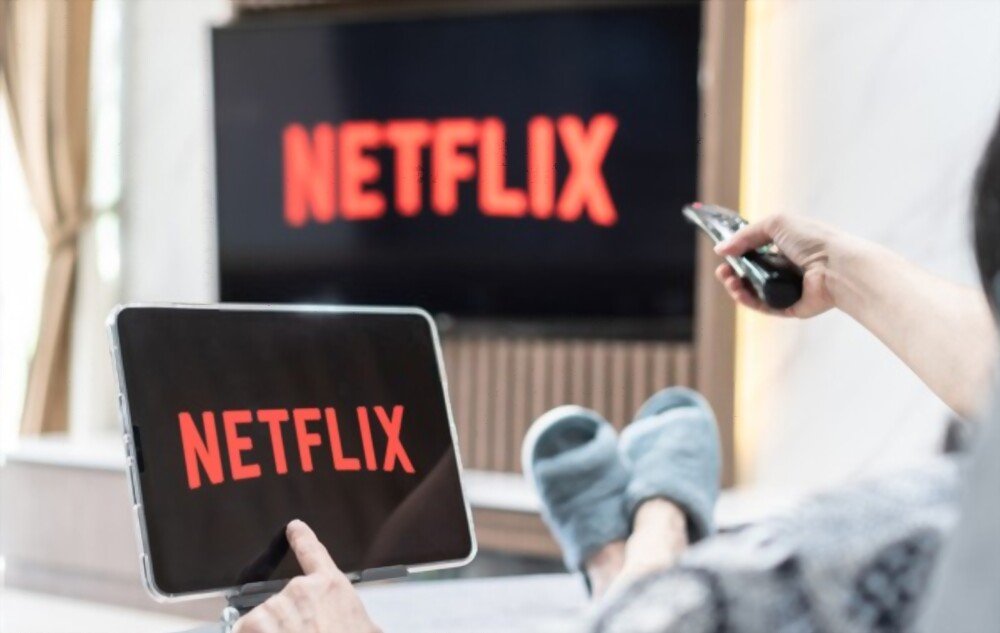
The aim of this article is to explain how to use Netflix on your Chromecast , a device that allows you to stream content from your smartphone, tablet, or computer to your TV. You'll discover Netflix's features on a Chromecast, compatible models, the setup and disconnection process, as well as some tips to get the most out of your streaming experience.
What is a Chromecast and how does it work?
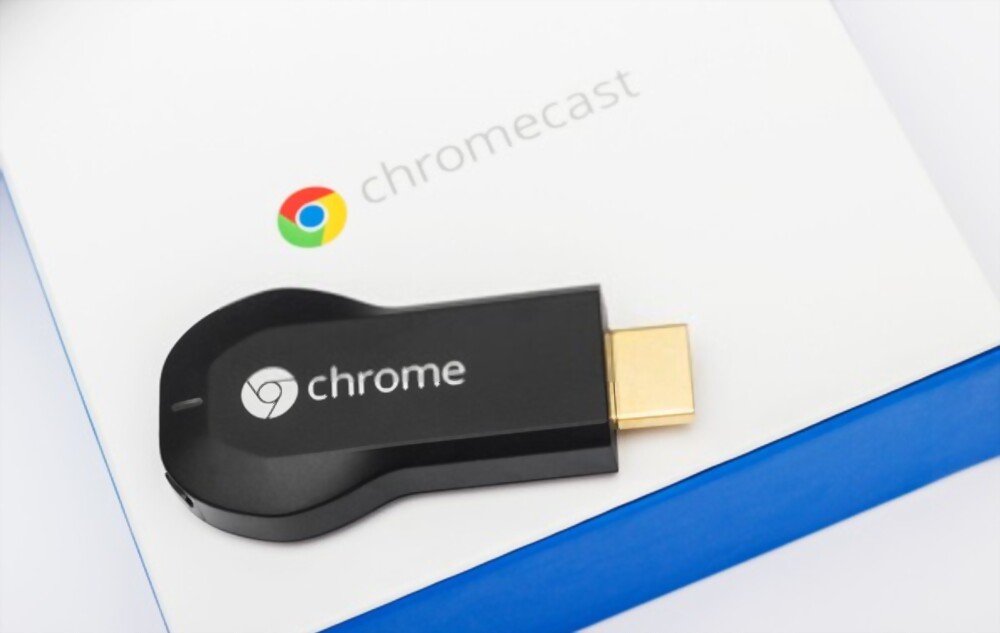
A Chromecast is a small device that plugs into your TV's HDMI port and connects to your Wi-Fi network. It allows you to stream content from compatible apps on your smartphone, tablet, or computer to your TV. This lets you watch movies, TV shows, YouTube videos, photos, music, and much more on the big screen.
To use a Chromecast, you need:

- A television with a free HDMI port
- An electrical outlet nearby
- A Wi-Fi network
- A smartphone, tablet, or computer with the Google Home app installed
- An app compatible with Chromecast, like Netflix
The Chromecast works very simply :
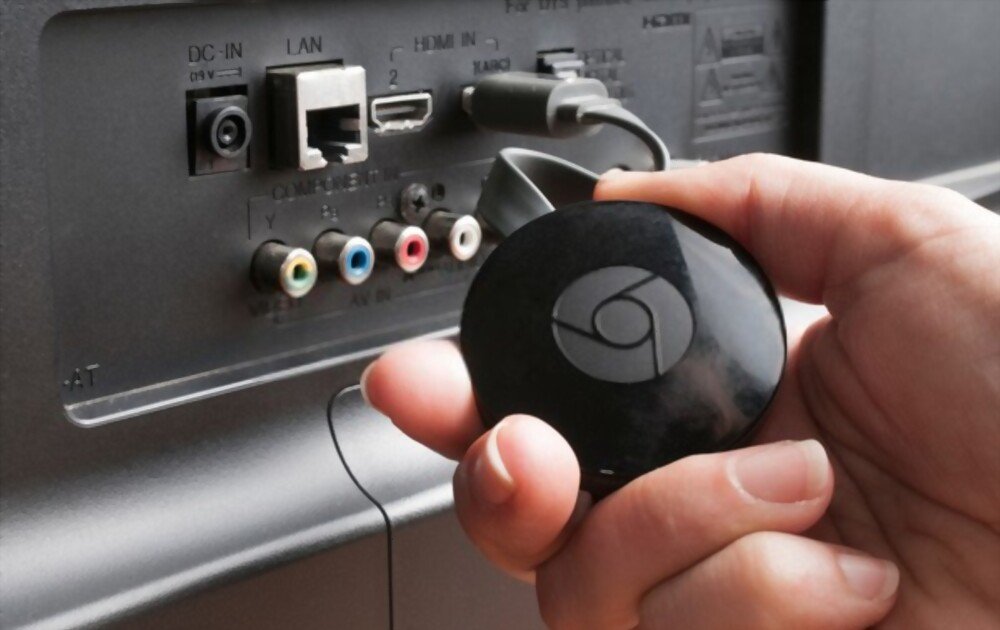
- Plug the Chromecast into your TV's HDMI port and into a power outlet
- Turn on your TV and select the HDMI source that corresponds to the Chromecast
- Follow the on-screen instructions to set up Chromecast with the Google Home app
- Launch the Netflix app on your device and sign in to your account
- Select the Cast icon in the upper or lower right corner of the screen

- Select your Chromecast from the list of available devices to launch the Netflix app on your TV
- Choose the movie or series you want to watch and press Play

You can control playback from your device or with the Chromecast remote if you have one. You can also use the "OK Google" voice command if you have a Google Home or other compatible device.
What are the features of Netflix on a Chromecast?
Netflix is one of the most popular apps for using a Chromecast. It offers a wide selection of movies, series, documentaries, and original programs to stream. Here are some of Netflix's features on a Chromecast:

- You can watch Netflix in HD or Ultra HD depending on your Chromecast model and the quality of your internet connection
- You can enjoy 5.1 surround sound or Dolby Atmos if your audio system is compatible
- You can enable subtitles or change the audio language according to your preferences
- You can resume reading where you left off on another device
- You can create multiple profiles to personalize your recommendations and settings
- You can activate Child mode to limit access to age-appropriate content for your children
Which Chromecast models are compatible with Netflix?
There are several Chromecast models that allow you to watch Netflix on your TV. Here is a comparison table of the main models:
| Model | Price | Resolution | Her | Remote | Google TV |
| Chromecast | 39 € | Up to 1080p | Surround 5.1 | No | No |
| Chromecast Ultra | 79 € | Up to 4K | Surround 5.1, Dolby Atmos | No | No |
| Chromecast with Google TV | 69 € | Up to 4K | Surround 5.1, Dolby Atmos | Yes | Yes |
| Chromecast HD with Google TV | 49 € | Up to 1080p | Surround 5.1, Dolby Atmos | Yes | Yes |
The Chromecast with Google TV and the Chromecast HD with Google TV are the latest and most feature-rich models. They include a remote control with a Netflix button and a voice assistant, as well as a Google TV interface that gives you access to other apps and streaming services.
How do I sign out of Netflix on a Chromecast?
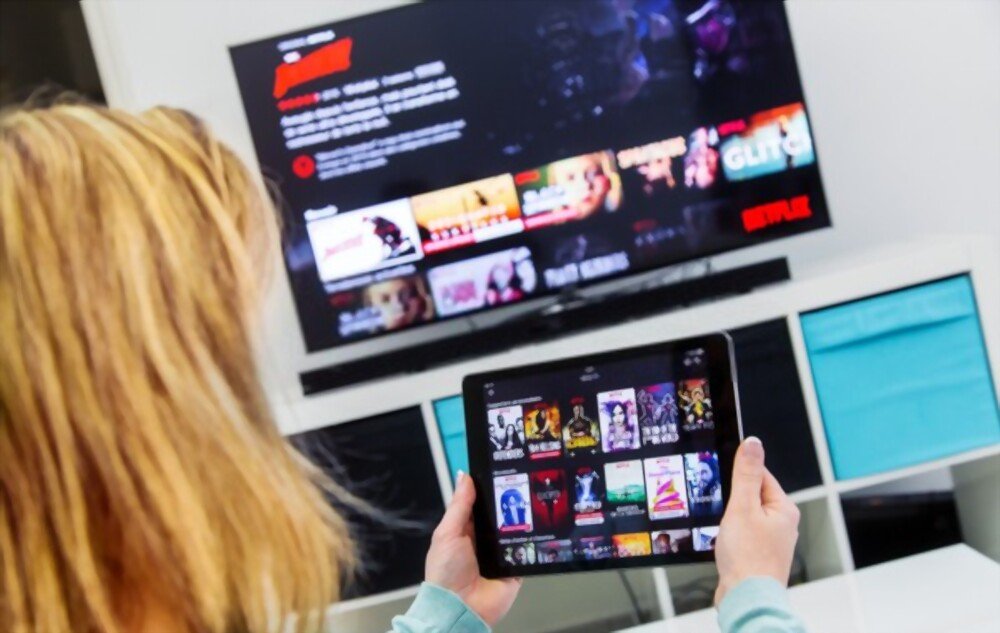
If you want to stop watching Netflix on your Chromecast, you have two options:
- Tap the Cast icon on your device and select Stop Casting
- Press the Back or Home button on the Chromecast remote
If you want to completely disconnect your Netflix account from your Chromecast, you must follow these steps:
- Launch the Google Home app on your device
- Select your Chromecast from the list of devices
- Tap the Settings icon in the top right corner of the screen
- Tap Video and Audio Applications
- Tap Manage services
- Tap on Netflix
- Tap Disconnect account
See also : Chromecast Amazon Prime Video: How to cast it to your TV?
FAQ
Here are some frequently asked questions you might have about Netflix and Chromecast:
How to watch Netflix in 4K on a Chromecast?
To watch Netflix in 4K on a Chromecast, you need:
- A Chromecast Ultra or a Chromecast with Google TV
- A television compatible with 4K resolution
- A high-speed HDMI cable
- A Netflix Premium subscription
- An internet connection of at least 25 Mbps
How to fix a connection problem between Netflix and Chromecast?
If you are experiencing connection problems between Netflix and Chromecast, you can try the following solutions:
If you are experiencing connection problems between Netflix and Chromecast, you can try the following solutions:
- Check that your device and your Chromecast are connected to the same Wi-Fi network
- Restart your device, your Chromecast, and your router
- Update the Netflix app and the Google Home app
- Reset your Chromecast to factory settings
How do I change the language or subtitles on Netflix using a Chromecast?
To change the language or subtitles on Netflix with a Chromecast, you need to:
- Start playing a movie or series on your TV
- Tap the Dialog icon in the bottom right corner of your device's screen
- Select your preferred audio language or subtitles
How do I activate Kids Mode on Netflix with a Chromecast?
To enable Kids Mode on Netflix with a Chromecast, you need to:
- Create a Child profile from the Netflix app or website
- Select the Child profile on your device before starting to cast to the Chromecast
- Lock the Child profile with a PIN code if you want to prevent profile switching
How to watch Netflix offline with a Chromecast?
It's not possible to watch Netflix offline with a Chromecast, as an internet connection is required to stream content to the TV. However, you can download movies or TV shows to your device from the Netflix app and watch them offline without using Chromecast.
Conclusion: Netflix and Chromecast, a winning duo for streaming
Netflix and Chromecast are two services that complement each other perfectly to offer you an optimal streaming experience. You can enjoy Netflix's diverse catalog on your TV with exceptional picture and sound quality. You can also control playback from your device or with your voice, and customize your settings to your liking.
Netflix and Chromecast are two services that complement each other perfectly to offer you an optimal streaming experience. You can stream Netflix to your TV using a smartphone , by using the Netflix app on your device and connecting it to the Chromecast via Wi-Fi. This allows you to enjoy Netflix's diverse catalog on your television with exceptional picture and sound quality. You can also control playback from your device or with your voice, and customize your settings to your liking.
If you don't already own a Chromecast, consider getting one to discover the benefits of this technology. And if you don't yet have a Netflix account, take advantage of the first month free to try the service with no commitment.