Have you ever wondered what a huge desktop monitor would be like? Imagine all the multitasking and immersive gaming possibilities you could have with a 50 or 60-inch screen instead of a standard 24-inch one! However, you've probably noticed that the larger the screens, the more prohibitively expensive they become.
But did you know you can use your TV as a computer monitor? It might seem like a convenient solution, but is it really the best option? In this article, we'll explore in detail how to use a TV as a computer monitor , the advantages and disadvantages, and the steps to set up your TV as a computer screen.
Using a television as a monitor
You can use a TV as a computer monitor , but this may require some adjustments. Depending on your computer's outputs and your TV's inputs, you might need to use a special cable and check certain settings. However, most modern computers can be easily connected to most modern TVs.

Modern televisions are equipped with HDMI outputs. Some older televisions have DVI inputs, or even VGA inputs specifically designed for use with a computer. If your graphics card has an HDMI output, you simply need to use an HDMI cable to connect your computer to your television.
If you're using an older graphics card or motherboard that only has a DVI output, you can use an inexpensive DVI-to-HDMI cable to connect it to your TV's HDMI output. Amazon offers a six-foot AmazonBasics version for just 7 euros.

However, VGA inputs/outputs are not an ideal choice, as they transmit an analog signal which offers a blurry image and lower resolution compared to HDMI or DVI cables.
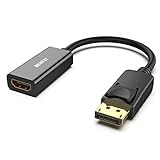
If you want to use your TV as a second or third screen, you may need to use a different port, such as the DisplayPort output of your graphics card. In this case, you'll need a different cable, such as a DisplayPort to HDMI cable . The main advantage of using the DisplayPort output rather than DVI or VGA is that HDMI and DisplayPort both transmit video and audio signals.
A DVI to HDMI cable can transmit both video and audio if your graphics card supports HDMI audio over DVI, which is unlikely if there are no HDMI ports. VGA, on the other hand, only transmits the video signal. If you use DVI or VGA , you will probably need to connect your computer's audio separately to your TV or use external speakers or headphones .
In summary, try to prioritize using an HDMI or DisplayPort to HDMI connection if possible, as this is the simplest solution.
Preparing your computer
Before connecting your TV to your computer, you must check if your graphics card (or your computer's integrated graphics card) is capable of supporting your TV's resolution . To do this, you will first need to find your TV's resolution by consulting the manufacturer's manual.
Some TVs have non-standard resolutions, so support for your TV isn't guaranteed. Most TVs use standard resolutions such as 720p , 1080p , or 4K . You'll then need to find the maximum resolution supported by your graphics card or integrated graphics by consulting the manufacturer's specifications or user manual.

Once you have verified the resolution compatibility, you can proceed with the physical connection of your television to your computer using the appropriate cable . Ensure that both devices are switched off before connecting the cables to avoid any potential damage.
Once the cables are connected, turn on your TV and your computer. You may need to select the correct input source on your TV to display the image from your computer. Consult your TV's manual for instructions on how to do this.
Display settings
Now that your TV is connected to your computer, you'll need to configure the display to ensure everything works correctly. In most cases, your computer will automatically detect the TV and adjust the display settings accordingly. However, there may be times when you need to make some manual adjustments.
Step 1 : Access your computer's display settings by right-clicking on the desktop and selecting " Display settings " or " Screen resolution ." You should see a list of detected displays, including your TV. Click on the TV to select it.
Step 2 : In the display settings, you can adjust the resolution, refresh rate, and other parameters to match those recommended by your TV manufacturer. Be sure to select your TV's native resolution for the best possible picture quality.
Step 3 : Next, you can also configure the display layout if you are using multiple monitors. You can choose to duplicate the display across both screens or extend the desktop to have more workspace. Experiment with different configurations to find the one that works best for you.
Advantages and disadvantages
Using a television as a computer monitor has certain advantages and disadvantages. Here are some points to consider:
Benefits :
- Screen size : Televisions generally offer larger screen sizes than computer monitors, which can improve the viewing and working experience.
- Multitasking : With a larger screen, you can easily perform multiple tasks at the same time, which can increase your productivity.
- Games and entertainment : Games and movies are more immersive on a big screen, which can enhance your entertainment experience.
Disadvantages:
- Resolution : Televisions generally have a lower resolution than computer monitors, which can result in a less sharp image quality.
- Latency : Some TVs have higher latency than dedicated monitors, which can affect the responsiveness of games and applications.
- Ergonomics : Televisions are not designed to be used at a normal working distance, which can lead to eye strain and posture problems.
See also: How to connect 2 screens to a laptop?
FAQ
Can I use any television as a computer monitor?
Most modern TVs can be used as computer monitors, but it is important to check your TV's specifications to ensure it is compatible with your computer.
What is the recommended resolution for using a television as a computer monitor?
The recommended resolution depends on the size of your TV. For 1080p TVs, the recommended resolution is 1920×1080. For 4K TVs, the recommended resolution is 3840×2160.
How can I reduce latency when using my TV as a computer monitor for gaming?
To reduce latency when using your TV as a computer monitor for gaming, here are a few tips:
- Use game mode : Many modern TVs have a game mode that reduces latency by disabling certain image processing and optimizing settings for gaming. Make sure you enable this mode in your TV's settings.
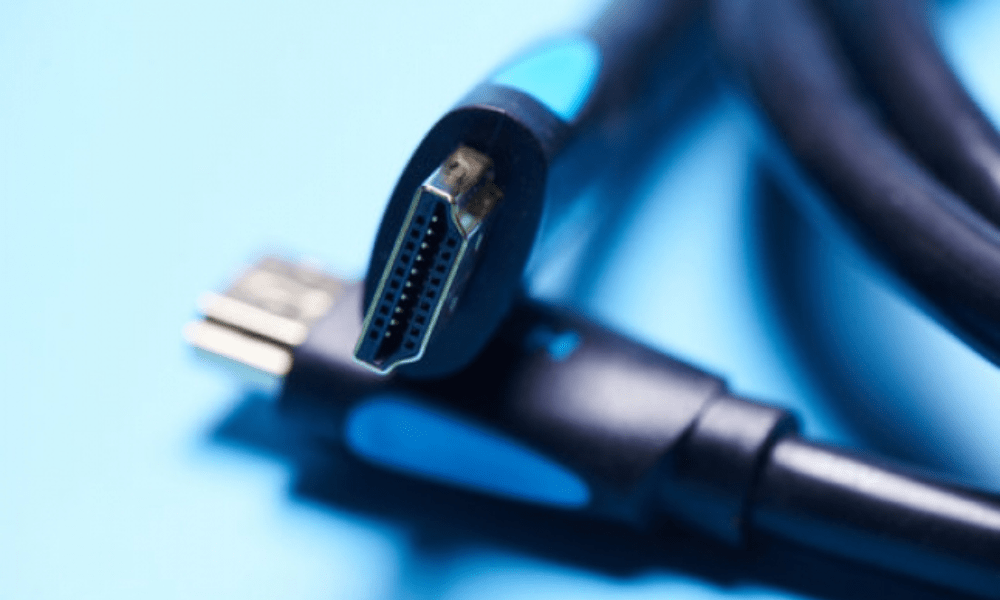
- Use a high-quality HDMI cable : A superior HDMI cable can help reduce latency by ensuring fast and stable signal transmission. Opt for a cable certified to HDMI 2.0 or higher for best results.
- Disable picture enhancement features : Some TVs have picture enhancement features such as motion smoothing or noise reduction. While these features can improve the visual quality for movies and TV shows, they can introduce additional latency when gaming. Be sure to disable them in your TV's settings.
- Lower the resolution : If you're experiencing high latency, you can try lowering your TV's resolution. A lower resolution requires less processing and can reduce latency. However, this can also affect picture quality, so experiment to find the right balance.
- Use a DisplayPort to HDMI adapter : If your graphics card has a DisplayPort output, you can use a DisplayPort to HDMI adapter to connect your TV. DisplayPort outputs generally have lower latency than HDMI outputs, which can improve gaming performance.
Can I use my TV as a computer monitor for work?
Yes, you can definitely use your TV as a computer monitor for work. The larger screen size allows you to display more content at once, which can be helpful for productivity tasks like photo editing, graphic design, or programming . Just be sure to adjust the resolution and display settings for the best experience.
What are the other advantages of using a television as a computer monitor?
Besides screen size, multitasking, and immersive gaming, using a TV as a computer monitor offers other potential advantages.
For example, some high-end televisions are equipped with advanced features such as HDR (High Dynamic Range) technology, which offers more vibrant colors and improved contrast. Furthermore, some televisions have built -in speakers of higher quality than those found in computer monitors , which can enhance the overall audio experience.
Conclusion
Using your TV as a computer screen can be a convenient way to enjoy a large display without investing in an expensive monitor. However, this requires some adjustments and may have both advantages and disadvantages. Be sure to check the compatibility of your TV and computer, choose the right cables, and properly configure your display settings to get the best possible experience.