In a world where speed and efficiency are paramount, upgrading your external hard drive to USB 3.0 might seem like a technical task, but it's actually achievable for everyone. You might be wondering why and how to undertake this upgrade.
This article will guide you through the steps necessary to transform your old external hard drive into a USB 3.0 compatible device data transfer speeds , making your daily computing tasks smoother and more efficient.
Why switch to USB 3.0?
USB 3.0 offers significant advantages over USB 2.0 . The main difference lies in data transfer speed. USB 3.0 can reach speeds of up to 5 Gbps , ten times faster than USB 2.0, which is limited to 480 Mbps .
This speed increase results in significantly shorter file transfer times, which is particularly beneficial for large files such as HD videos , photo libraries, and full system backups.
Materials needed for the upgrade
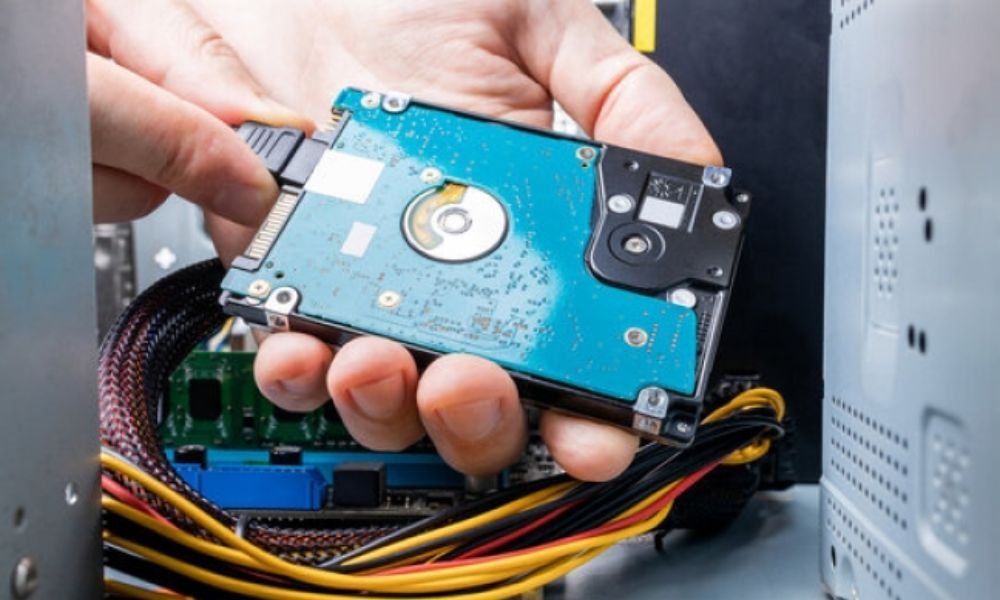
Before you begin, make sure you have the following equipment:
- A current external hard drive (USB 2.0).
- An external hard drive enclosure compatible with USB 3.0 (available for around €15).

- A suitable screwdriver for disassembling the old case.
- A computer with a USB 3.0 port.
Step 1: Choose the right case
Choosing the right enclosure is crucial for the compatibility and performance of your hard drive. First, check the dimensions of your hard drive. Hard drives generally come in two sizes: 2.5 inches (laptop hard drives) and 3.5 inches (desktop hard drives) .
Make sure the enclosure you buy is compatible with the size of your hard drive. Also, it's important to check the hard drive's interface. Most modern hard drives use a SATA interface , but older drives may use an IDE interface. Choose an enclosure that matches your hard drive's interface.
Plastic or aluminum casing?
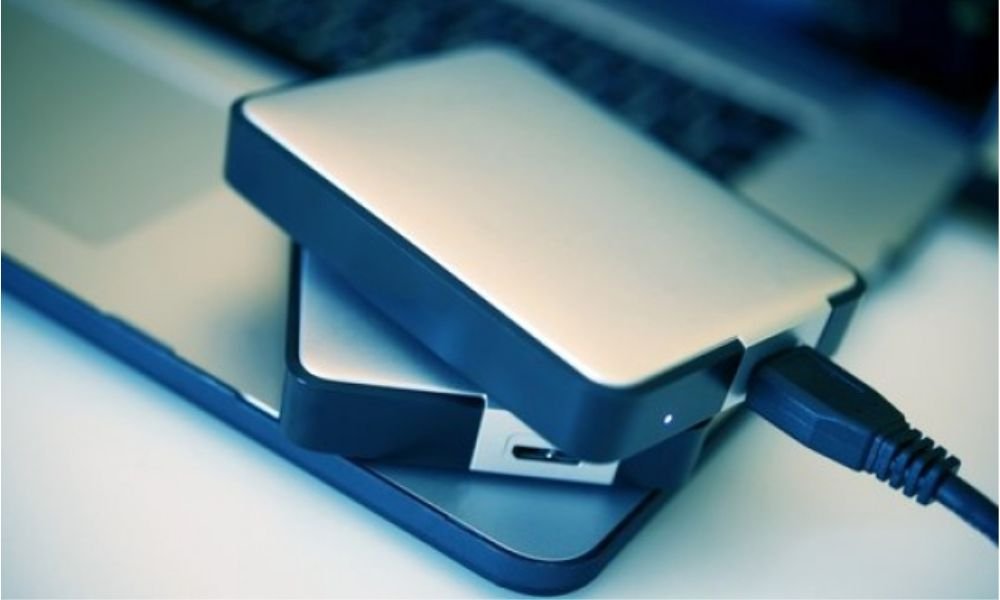
Plastic enclosures are generally less expensive and sufficient for normal home use. However, if you frequently transport your hard drive, an aluminum enclosure can offer better protection against bumps and physical damage. Furthermore, aluminum dissipates heat more effectively, which can extend the lifespan of your hard drive .
Step 2: Remove the hard drive from the old enclosure
To begin, turn off and unplug your external hard drive . Use a screwdriver to remove the screws from the old enclosure. Once the screws are removed, carefully open the enclosure. Be careful not to damage the internal components . Carefully remove the hard drive from the old enclosure by disconnecting all attached cables.
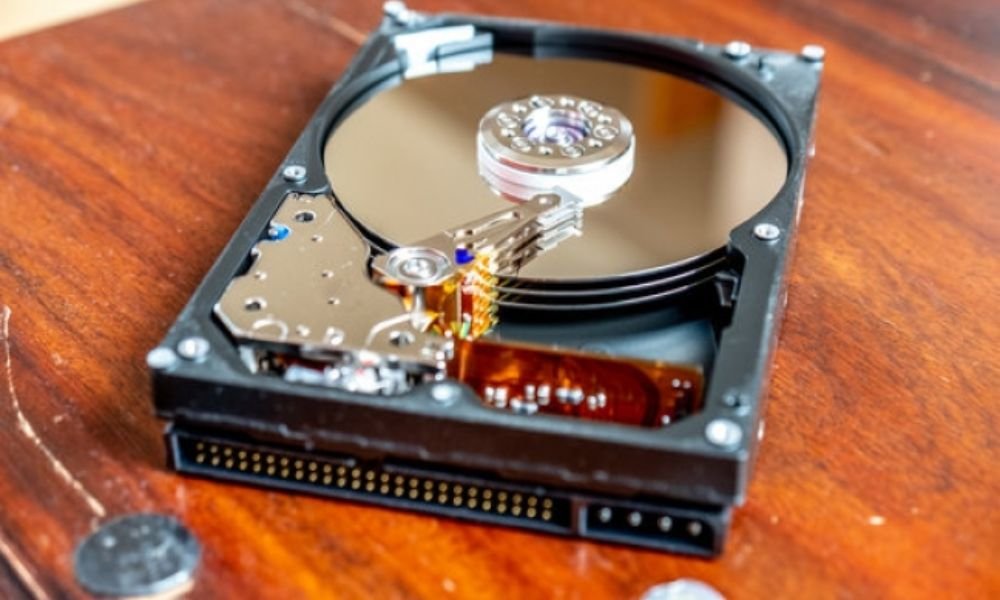
Step 3: Install the hard drive in the new USB 3.0 enclosure
Take your new USB 3.0 enclosure and open it following the instructions provided. Place the hard drive inside the enclosure, ensuring the connectors are properly aligned. Connect the SATA and power supply from the enclosure to the hard drive. Once connected, close the enclosure and secure it with the provided screws. Make sure all connections are secure and that the hard drive is firmly mounted inside the enclosure.
Step 4: Test the upgraded hard drive
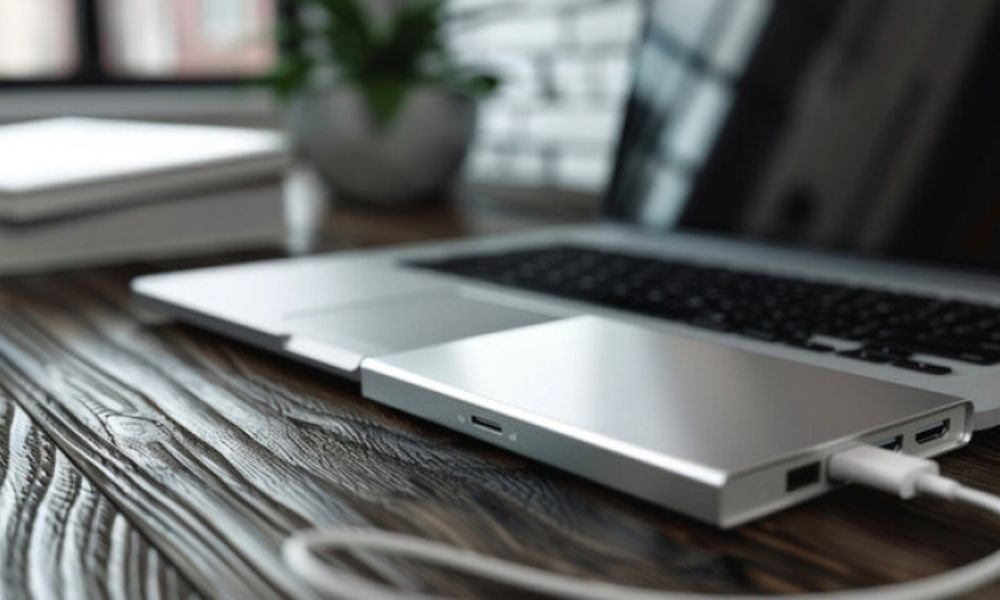
Connect your new USB 3.0 external hard drive to a USB 3.0 port on your computer. The computer should automatically detect the hard drive. If it doesn't, check the connections and make sure the hard drive is receiving power .
Once detected, transfer a few files to test the transfer speed. You should notice a significant improvement compared to the old USB 2.0 interface. If transfers are fast and smooth, your upgrade has been successful.
Step 5: Optimize performance
To get the most out of your new USB 3.0 hard drive , you can make a few additional adjustments. Be sure to use good-quality USB 3.0 cables. Poor-quality cables can limit performance and cause intermittent disconnections.
Additionally, check your computer's power supply your system's power supply ensure that the USB ports are configured to operate at full power.
Update the drivers
To ensure optimal compatibility and maximum performance, make sure your computer's USB drivers are up to date. You can check for driver updates through your operating system's Device Manager. Look for updates specific to USB controllers and install them if necessary.
Step 6: Regular Maintenance
To maintain the performance of your USB 3.0 external hard drive , regular maintenance is important. Defragment the hard drive periodically to optimize data access . Also, be sure to scan the hard drive to detect and repair any errors .
Use the diagnostic tools provided by the hard drive manufacturer or reliable third-party software. Additionally, avoid abruptly disconnecting the hard drive without using your operating system's safe removal option to prevent data corruption.
Conclusion
Upgrading your external hard drive to USB 3.0 is a relatively simple and affordable task that can significantly improve your data transfer performance . By following the steps detailed in this article, you can transform your old hard drive into a high-speed device, maximizing your efficiency and productivity .
In case of a problem, it's also useful to know how to recover data from a failed SSD . Not only will you extend the lifespan of your existing hardware, but you'll also benefit from the advantages of USB 3.0 technology without having to invest in a new hard drive.