
Ubiquitous in our daily lives, QR codes are brimming with useful information. Whether it's accessing a digital menu, downloading an app, or connecting to a Wi-Fi network, the possibilities offered by these small black and white squares are endless. But how do you easily scan them in Windows ? Don't worry, this comprehensive article guides you step by step through the different options available, simplifying technical terms for optimal understanding.
Scan a QR code using the Windows Camera app
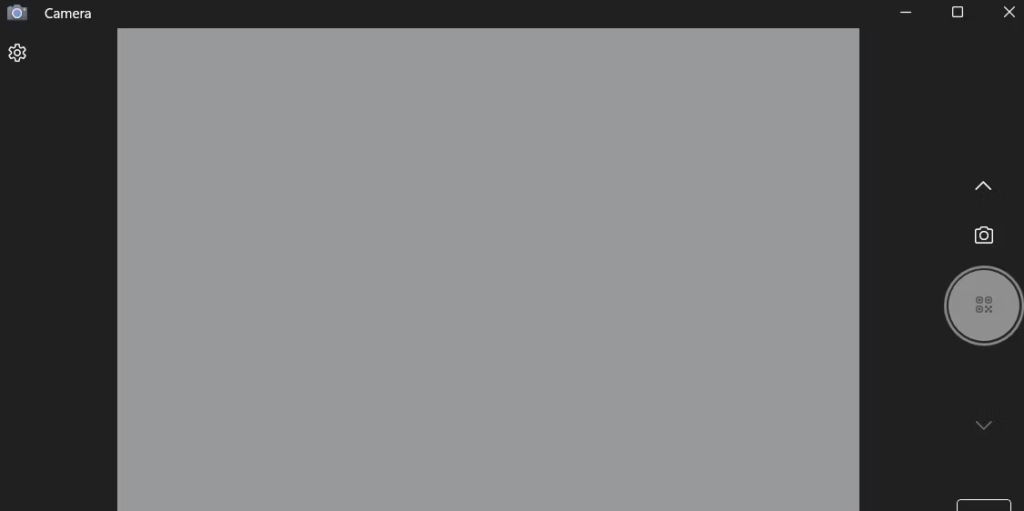
Windows update , the Camera app includes a built-in QR code reader. To use it, follow these simple steps:
- Open the Camera app. You can find it in the Start or by searching in the taskbar.
- Make sure the rear camera is selected.
- Place the QR code in the camera's field of view. The app will automatically detect it and display a notification.
- Click on the notification to view the information contained in the QR code. You can then perform the corresponding action, such as opening a web link, downloading a file, or connecting to a Wi-Fi network.
Tips:
- If your laptop does not have a rear camera, you can use an external webcam.
- You can also zoom in on the QR code to make it easier to detect.
- For more options, tap the " …" in the top right corner of the Camera . There you can enable the " Automatically scan QR codes " option for instant scanning.
Scanning a QR code from an image in Windows
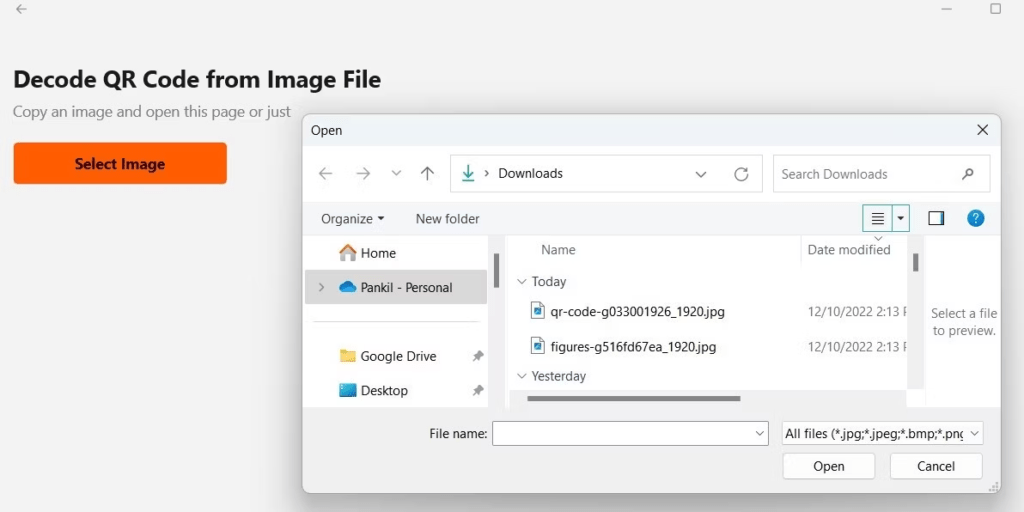
If the QR code you want to scan is in an image, you can use the " Import Photo " function in the Camera app. Here's how:
- Open the Camera app.
- Click on the "Import a photo" icon.
- Select the image containing the QR code.
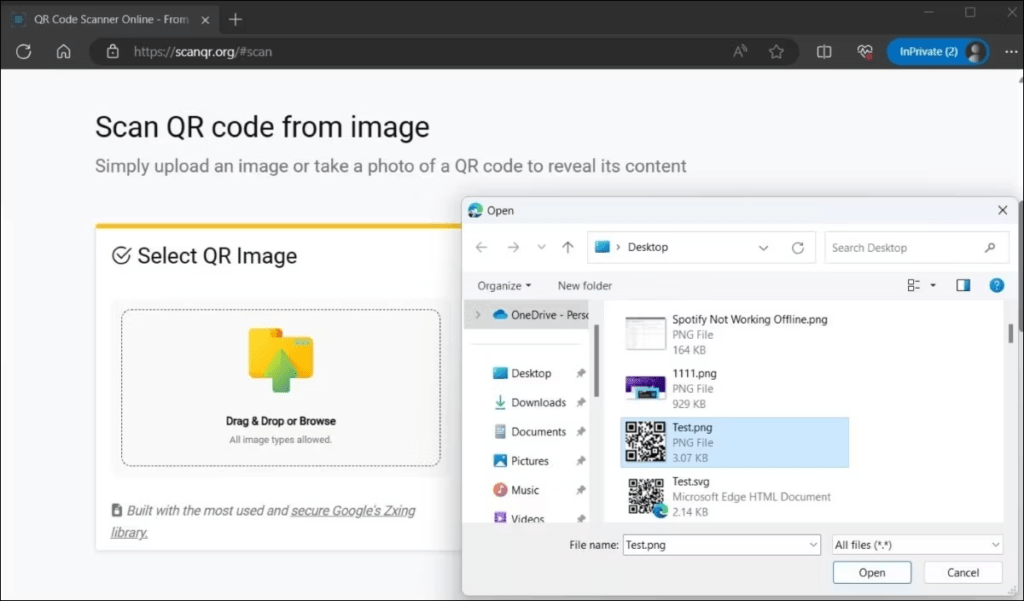
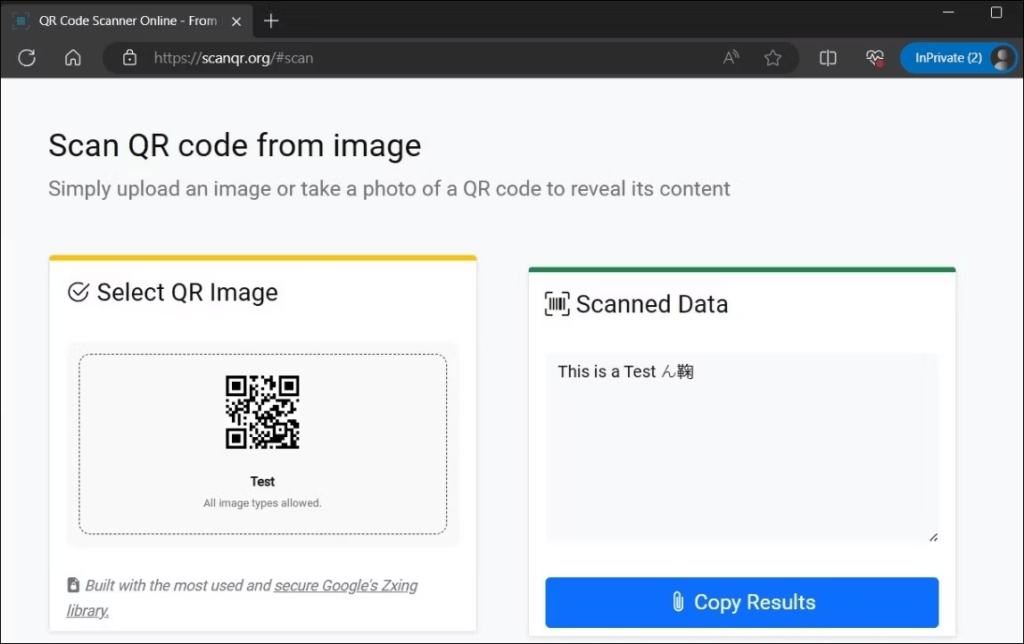
- The Camera will automatically detect the QR code and display a notification.
- Click on the notification to view the information contained in the QR code.
Tips:
- You can also use image processing software to extract the QR code from the image before scanning it.
- Ensure the QR code is clearly visible and sharp for better detection.
Scanning a QR code using the Codex application on Windows
Microsoft has developed a free app called Codex dedicated to scanning QR codes and barcodes. This app offers additional features compared to the Camera app, such as:
- Scan history : Codex keeps a history of all the codes you have scanned, allowing you to find them easily.
- Direct link to websites : When you scan a QR code containing a web link, Codex automatically redirects you to the website in question.
- Information sharing : You can easily share the information contained in a QR code with other people.
To use Codex, follow these steps:
- Download and install the Codex app from the Microsoft Store.
- Open the Codex application.
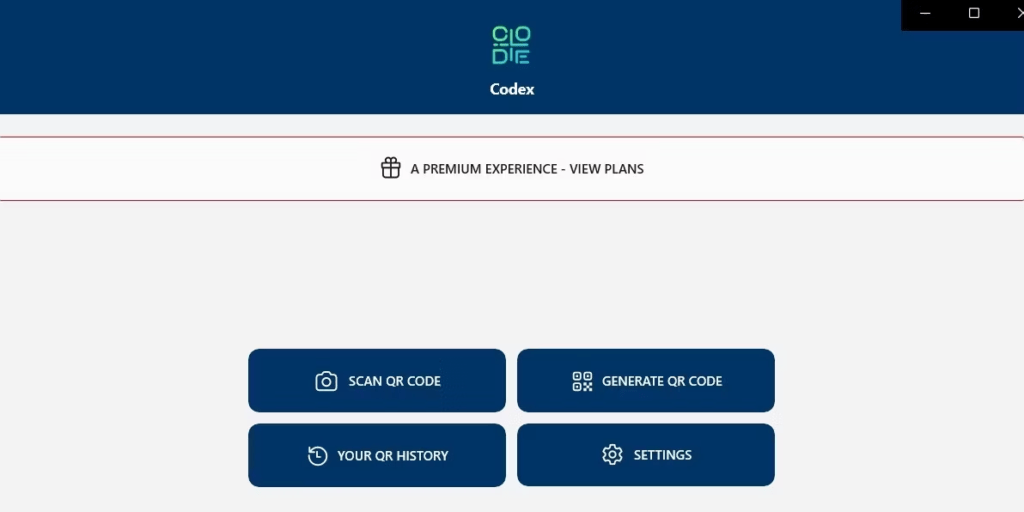
- Place the QR code in the camera's field of vision.
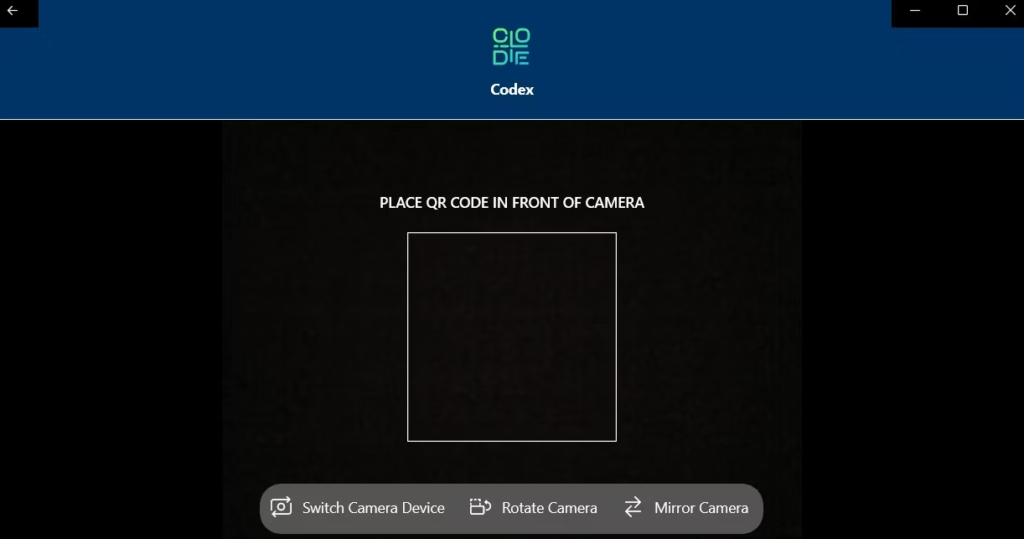
- The Codex app will automatically detect the QR code and display the information it contains.
- You can then perform the corresponding action, such as opening a web link, downloading a file, or connecting to a Wi-Fi network.
Tips:
- Codex settings to enable or disable certain features.
- You can also use Codex to scan barcodes .
Conclusion
Scan a QR code in Windows It's now child's play thanks to the various options available. Whether you use the built-in Camera app, the image import function, or the dedicated Codex app, you have simple and effective tools to unlock the information contained within those black and white squares. Feel free to experiment with these different methods to find the one that best suits your needs and preferences.
What if you went further by creating your own QR codes? ?
Thanks to free online generators, you can easily create your own QR code for free and customize it to your liking. Include a URL, a text message, your contact details, or any other type of information, and share it in an original and interactive way.
Important reminder : Be wary of QR codes from unknown sources, as they may contain malicious links or attempt to steal your personal information. Always verify the source of a QR code before scanning it.