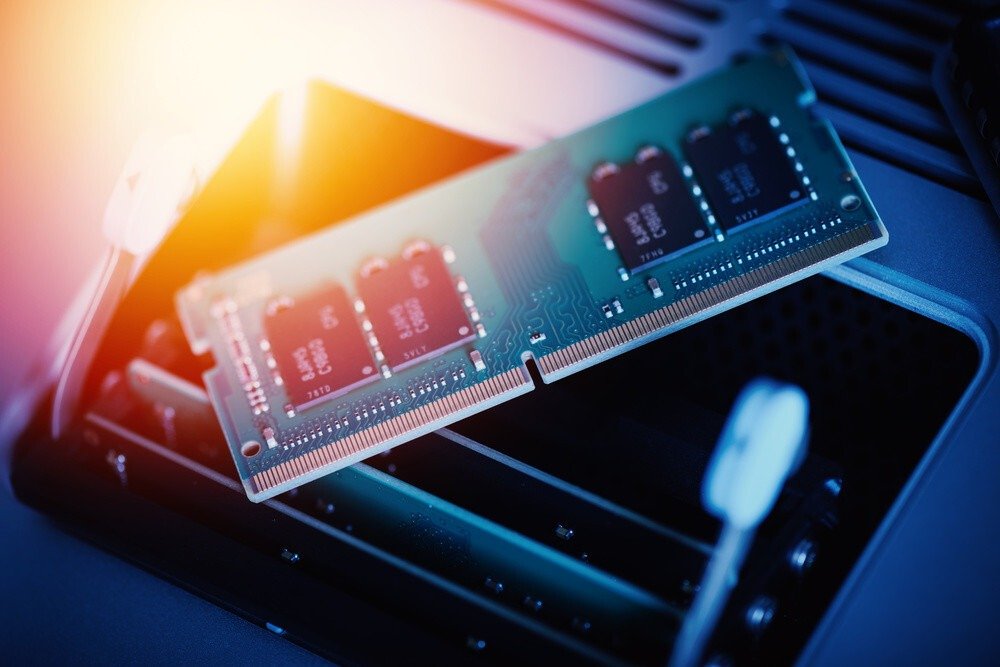
Looking for a performance boost for your computer? Overclocking your RAM might be the answer ! This technique involves pushing RAM modules beyond their factory specifications, increasing their speed and potential. While it may seem daunting, it's actually accessible to both novice and experienced users, provided you follow the key steps and take the necessary precautions. In this article, we'll guide you through the RAM overclocking process , providing detailed explanations and step-by-step instructions to help you succeed.
Before you begin
Before diving into RAM overclocking, it's crucial to check a few key points:
- Compatibility : Ensure your motherboard and processor support RAM overclocking. Consult your motherboard documentation or the manufacturer's website for confirmation.
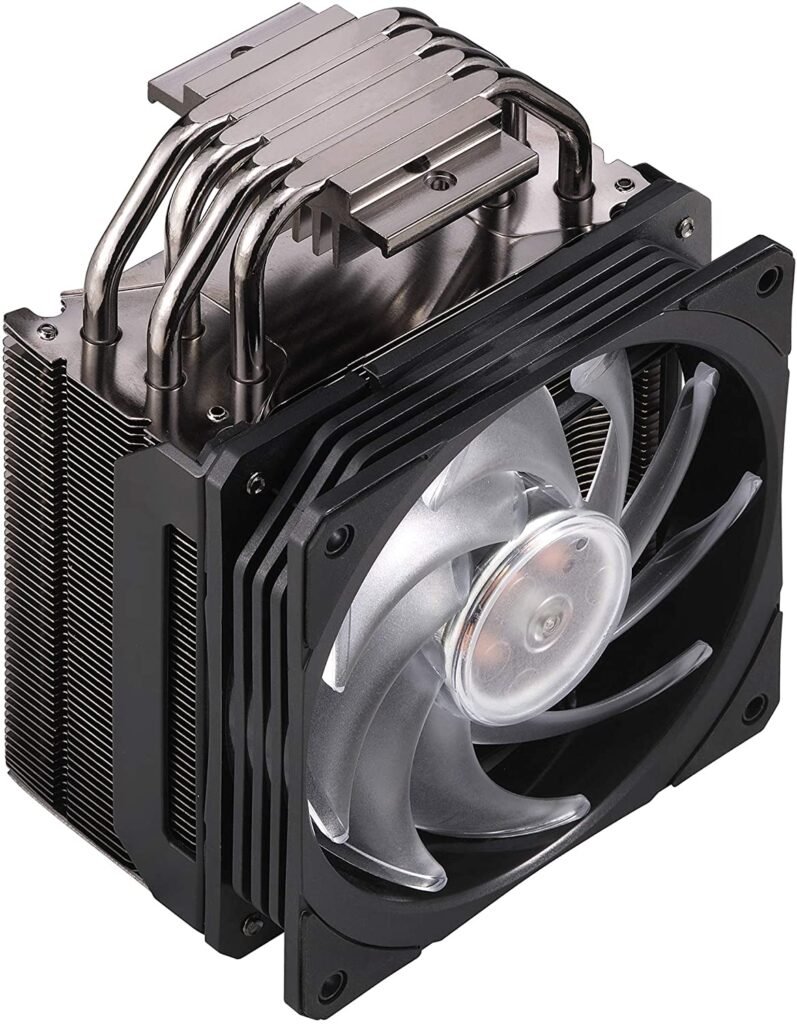
- Cooling : A high-performance cooling system is essential to ensure system stability during overclocking. Consider investing in a larger CPU cooler
- Safety : Overclocking carries risks to the stability and lifespan of components. Proceed with caution and back up your valuable data before starting.
Understanding the key parameters
To overclock RAM your motherboard's BIOS ( Basic Input Output System
Extreme Memory Profile (XMP)
Most recent RAM modules have a XMP profile that defines safe, manufacturer-tested overclocking settings. This is an excellent starting point for beginners.
RAM frequency
This refers to the speed at which the RAM operates, expressed in megahertz ( MHz ). Increasing this frequency is the main goal of overclocking.
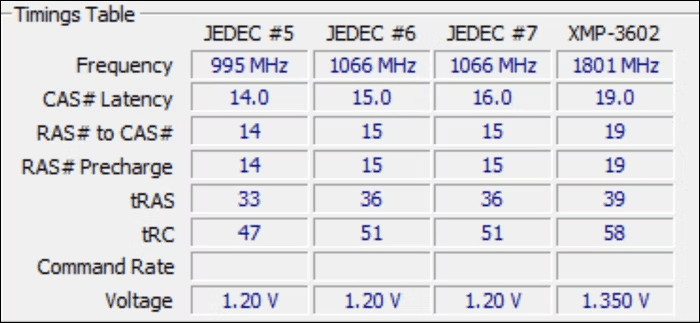
Timings
Timings define the delays between different RAM operations . Shorter timings improve performance, but may require higher voltage for stability.
RAM voltage
Increasing the voltage can improve stability at higher frequencies, but it can also generate more heat and damage components if not done carefully.
How to overclock your RAM?
Step 1: Check the compatibility of your hardware
Before you begin the RAM overclocking process, it's important to verify your hardware compatibility. Make sure your motherboard supports RAM overclocking and that your RAM is designed to be overclocked. Consult your motherboard manual and RAM specifications for detailed compatibility information.
Step 2: Access the BIOS
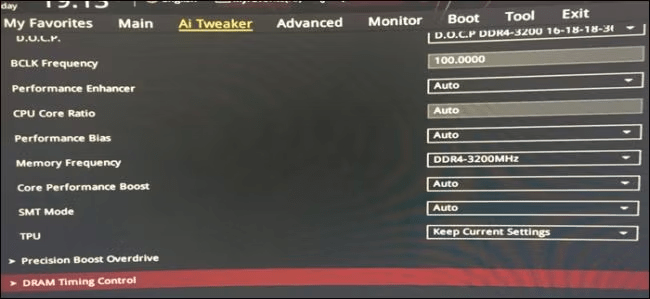
To overclock your RAM, you will need to access your computer's BIOS. Restart your computer and press the specified key (usually Delete, F2 , or F10) to access the BIOS. Once in the BIOS, look for the RAM or overclocking settings.

Step 3: Increase the RAM frequency
In your BIOS settings, locate the option to adjust the RAM frequency. Gradually increase the frequency in small increments, carefully testing system stability after each increase. If the system becomes unstable or you encounter errors, revert to the previous frequency.
Step 4: Adjust the RAM timings
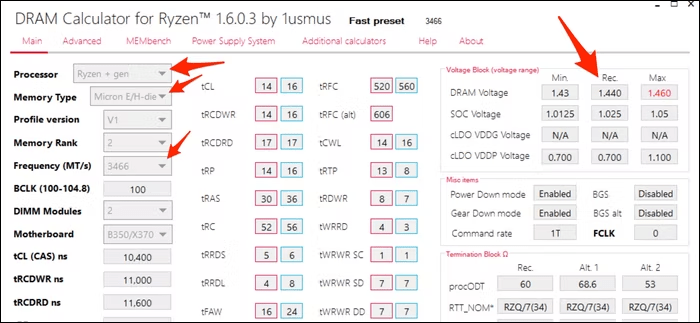
Besides frequency, RAM timings also play a significant role in performance. You can adjust timings in the BIOS settings by modifying the values of primary timings, such as CAS latency, RAS-to-CAS delay, and RAS preload time . Refer to your motherboard manual for recommended values for your specific RAM.
Step 5: Test the system's stability
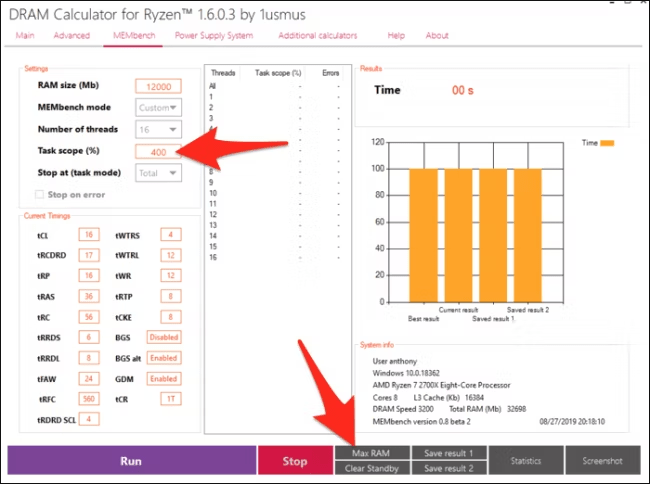
After adjusting your RAM frequency and timings, it's essential to test system stability to ensure the overclock is stable. Use stability testing programs like Memtest86+ to verify that your system is functioning correctly without errors. If errors occur, you'll need to revert to the previous settings and readjust your RAM parameters.
Step 6: Monitor the temperatures
When overclocking your RAM, it's important to monitor your system temperatures . High temperatures can lead to stability issues and damage your hardware. Use temperature monitoring software such as HWMonitor to check the temperatures of your CPU, GPU, and RAM during overclocking.

Step 7: Enjoy the improved performance
Once you've successfully overclocked your RAM stably , you can enjoy the improved performance of your system. You should notice shorter loading times, better responsiveness, and overall improved performance.
See also: The Best 16GB DDR4 RAM!
FAQ
1. Does overclocking RAM void my hardware warranty?
Overclocking your RAM may void your hardware warranty , as it involves altering factory settings. It's important to check your manufacturer's warranty terms before overclocking.
2. What are the risks of overclocking RAM?
The main risks of RAM overclocking are system instability, data errors, and hardware damage due to high temperatures. It is essential to proceed with caution and carefully monitor system temperatures and stability.
3. How can I restore my RAM to its factory settings?
If you experience any problems or wish to revert your RAM to factory settings, you can reset the BIOS settings using the " Load Defaults " or " Reset to Default " option in the BIOS settings.
4. What are some other methods for improving RAM performance?
Besides overclocking , there are other methods to improve RAM performance , such as adding extra RAM modules, using faster RAM, and optimizing software settings such as caches and swap files.
In conclusion, overclocking RAM can be an effective way to improve your computer's performance. However, it's important to proceed with caution and follow the steps outlined in this article. Remember to check your hardware compatibility, monitor temperatures, and test system stability . With the right precautions, you can enjoy the enhanced performance of your overclocked RAM.