Since the release of Windows 10, data privacy has become a hot topic. Indeed, Microsoft's operating system collects a significant amount of information about its users by default. Fortunately, there are ways to limit this sharing and regain control of your personal data.
This article offers a practical 4-step guide to improving the privacy of your data in Windows . Whether you're a novice or experienced user, you'll find concrete advice and tips here to protect your sensitive information.
1. Manage general privacy settings in Windows 10
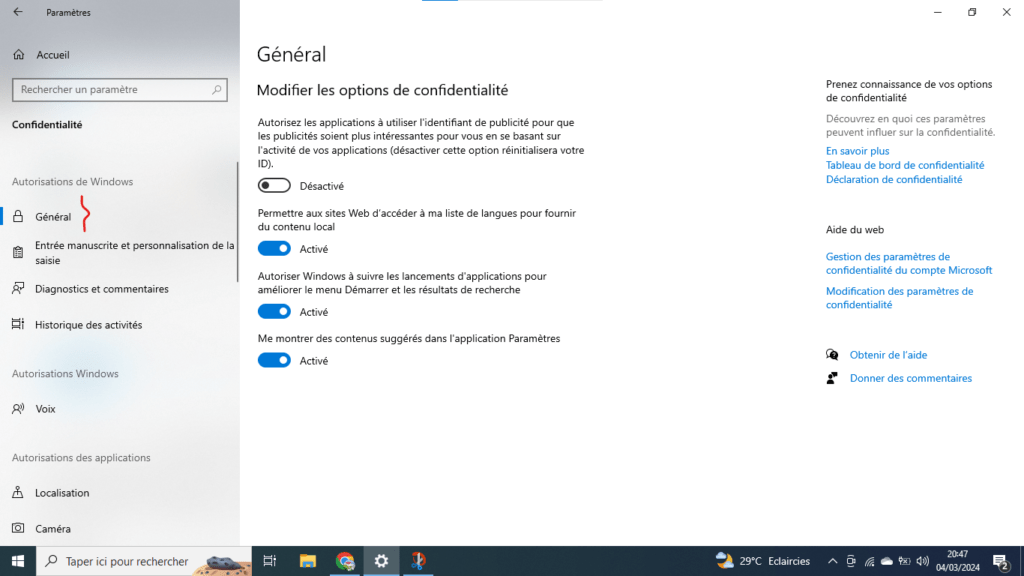
Step 1: Access the privacy settings
- Settings app Windows key + I).
- Select Privacy and security .
- In the left-hand menu, click on General .
Step 2: Disable data collection for advertising purposes
- Toggle the " Allow apps to use advertising ID for personalized experiences" to Off .
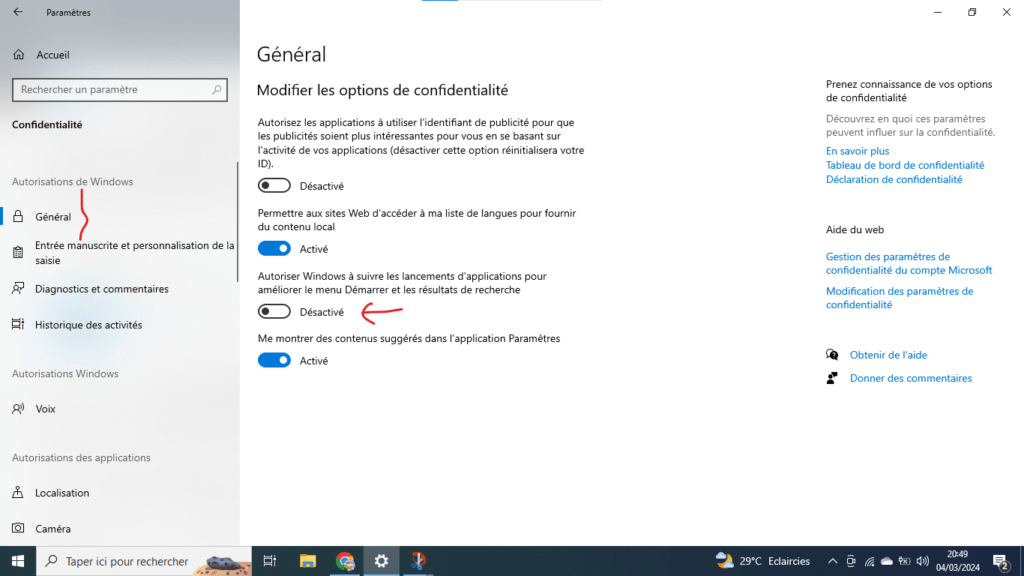
- Uncheck the box "Allow Windows to track application launches to improve the Start menu and search results" .
Step 3: Disable personalized suggestions
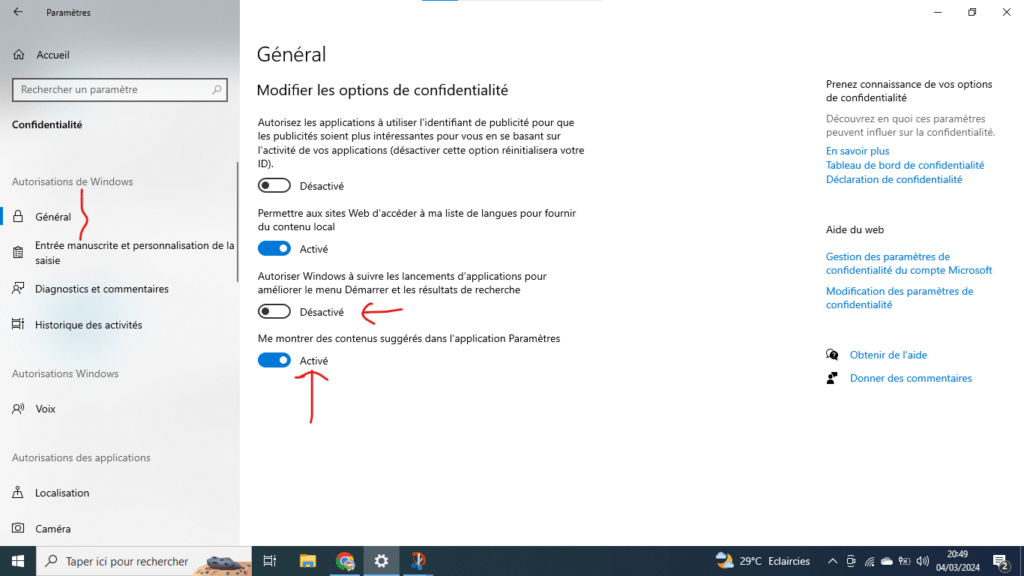
- Toggle the Show content suggestions switch in the Settings app to Off .
- Toggle the " Show content suggestions in Start menu and taskbar" to Off .
2. Control access to location data
Windows 10 can collect information about your geographical location. If you do not want Microsoft to share this data, you can disable location services for all apps or for specific apps.
To do this,
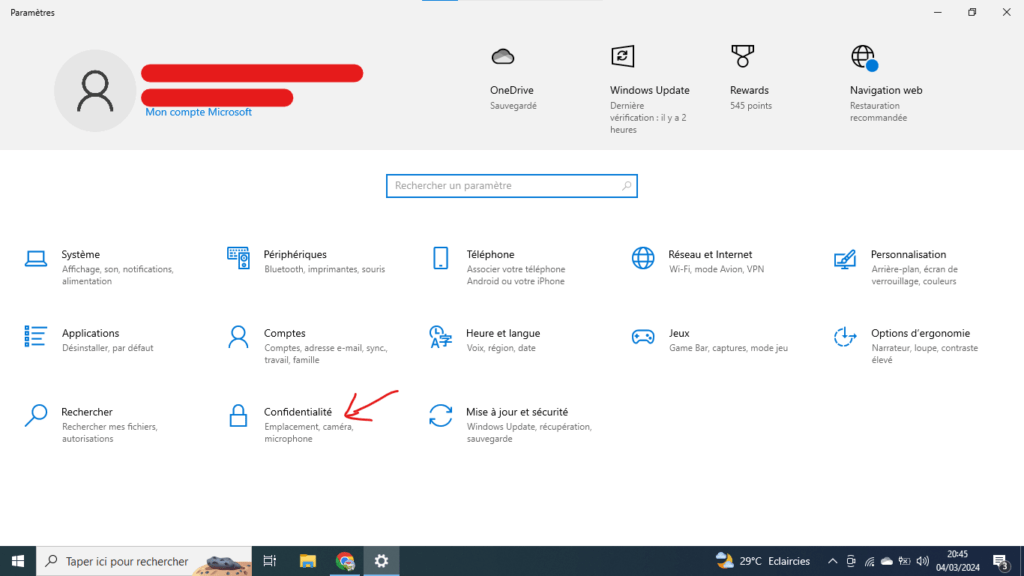
Step 1: Access the privacy settings
- Settings app Windows key + I).
- Select Privacy and security .
- In the left menu, click on Location .
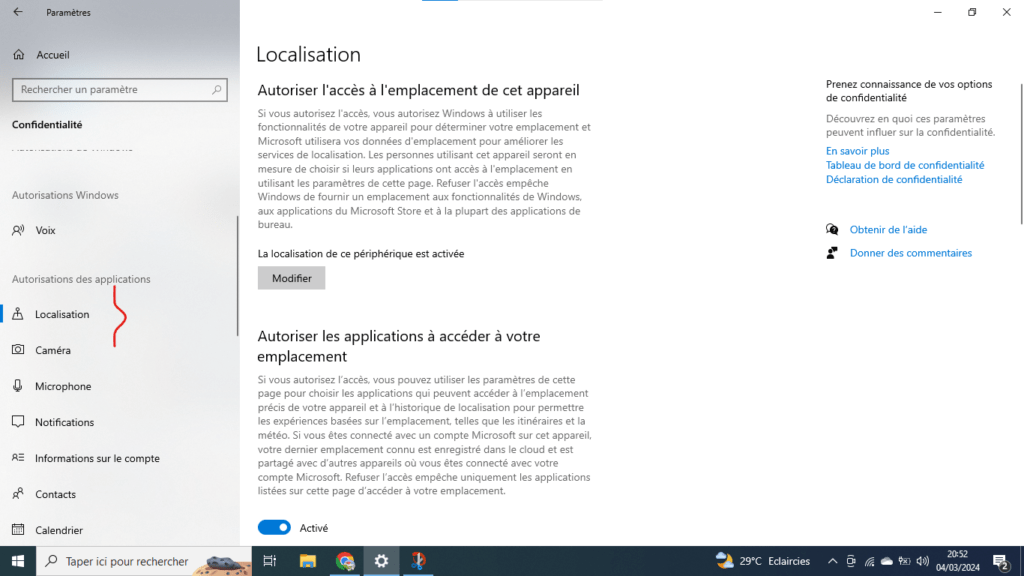
Step 2: Disable location services for all applications
- Switch the Location Service to Off .
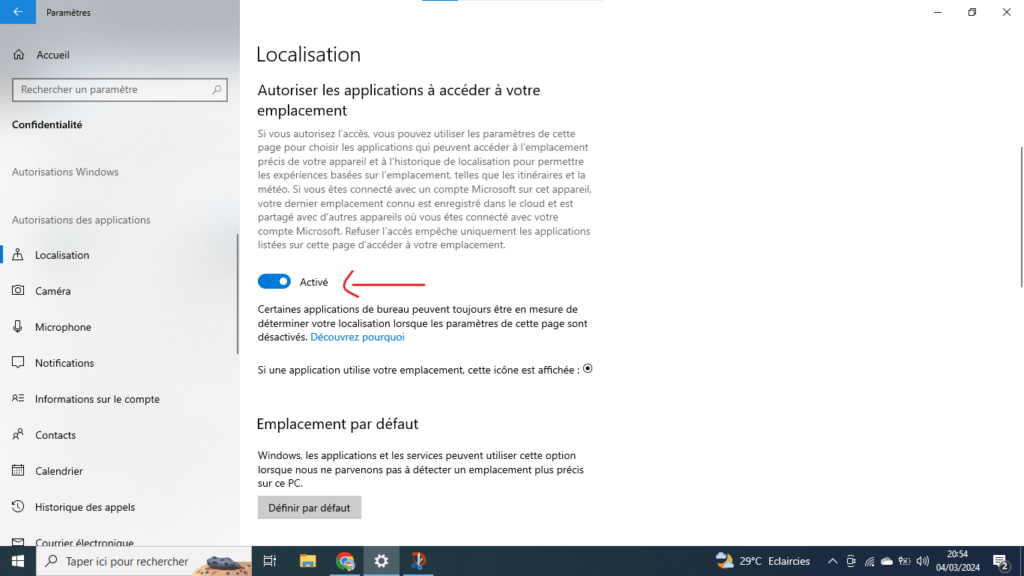
Step 3: Disable location services for certain apps
- Scroll down the page and select Choose which apps can access your exact location .
- Browse the list of applications and turn off the switch for the applications whose location you do not want to share.
3. Limit access to your personal data
Windows 10 allows apps to access your personal data, such as your name, email address, and photos. You can choose to limit this access by selecting which apps can use each type of data.
To do this, follow these steps:
Step 1: Access the privacy settings
- Settings app Windows key + I).
- Select Privacy and security .
- In the left menu, click on Application Permissions .
Step 2: Choose which applications can access your data
- Select the type of data you want to manage (e.g., Camera , Microphone , Contacts ).
- Go through the list of applications and turn off the switch for the applications that you do not want to access this type of data.
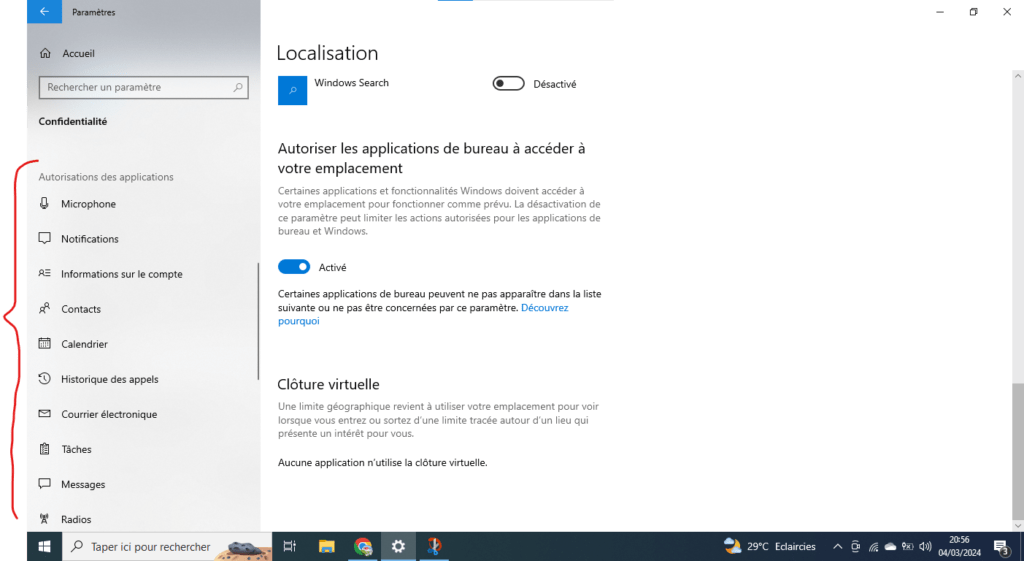
Remarks :
- Disabling access to data may prevent some applications from functioning correctly.
- You can also choose not to allow apps to access your data by default. To do this, toggle the " Allow apps to access your data" to "Off" at the top of the page.
4. Disable diagnostics and feedback
Windows 10 sends diagnostic data and feedback to Microsoft to improve its products and services. If you do not want to share this data, you can disable it.
Additional tips to strengthen confidentiality
- Use a local Microsoft account : A local Microsoft account does not require an internet connection and does not share your personal data with Microsoft.
- Encrypt your hard drive : Encrypting your hard drive protects your data from unauthorized access.

- Use a privacy-focused web browser : Some web browsers, such as Firefox and Brave, collect less data than Microsoft Edge.
- Install security and privacy extensions : Browser extensions, such as Privacy Badger and uBlock Origin, can block trackers and ads.
Conclusion
By following the advice in this article, you can significantly improve the privacy of your data in Windows and thus reduce the risk of having your Windows locked . Remember that protecting your personal data is an individual responsibility. Be vigilant and take the necessary steps to protect your sensitive information.