Do you enjoy watching YouTube videos on your TV, but lately you've been having trouble accessing the streaming service? You're not alone. Many users are complaining that they can no longer watch YouTube on their TVs, whether via a set-top box, Chromecast, game console, or other connected device. What are the possible causes of this problem and how can you fix it? That's what we'll explore in this article.
What are the possible causes of YouTube malfunctioning on my TV?
There are several reasons why YouTube might no longer work on your TV. Here are the main ones:
- An internet connection problem
- A compatibility issue
- An update problem
- A configuration problem
How do I fix the YouTube problem on my TV?
If you're having trouble watching YouTube on your TV, here are a few solutions you can try:
Check your internet connection
If you want to make the most of your internet connection on your tablet, you might consider activating a 50GB mobile internet plan . This plan will allow you to browse the web without worrying about your data usage. To activate it, visit your mobile operator's website or call customer service.
If you are still experiencing connection problems on your tablet, here are some tips to follow:

- Test the speed and stability of your internet connection on another device, such as a computer or smartphone. If you find it's too slow or experiences interruptions, contact your ISP to resolve the issue.
- You can also try restarting your modem or router, or changing your Wi-Fi channel if you are using this technology.
Check the compatibility of your TV or connected device

Check the list of devices compatible with YouTube on the service's official website. If your TV or connected device isn't on this list, it may no longer be able to access YouTube. You could then consider replacing it with a newer model, or using another method to watch YouTube on your TV, such as a Chromecast, a game console, or a computer connected via HDMI cable.
Check for available updates
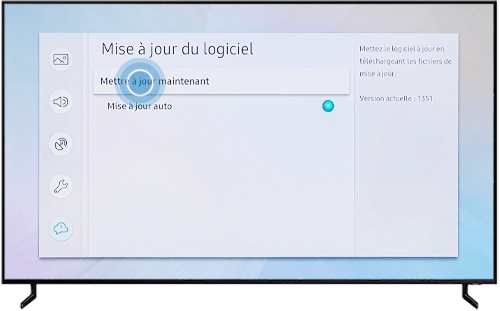
Go to your TV or connected device settings and look for the “Update” or “System” section. Check for available updates and install them if necessary. You can also check your TV or connected device manufacturer's website to see if there are any specific updates for YouTube.
Good to know: If you enjoy watching ad-free YouTube on your TV, why not try the free version of YouTube Premium? We invite you to read our article: How to get YouTube Premium for free
Check the settings on your TV or connected device
Go to your TV or connected device settings and look for the “YouTube” or “Applications” section. Make sure you have correctly entered your Google account credentials, that you have authorized YouTube access on your network, and that you have correctly configured the resolution, sound, and subtitle options. You can also try signing out and signing back in to your Google account, or resetting YouTube to its default settings.
Comparative table of solutions to fix the YouTube problem on my TV
| Solution | Benefits | Disadvantages |
| Check the internet connection | Simple and quick | This does not solve the problem if the connection is good |
| Check compatibility | This helps determine if the problem originates from the device | You will need to change devices if your current one is not compatible |
| Check for updates | Allows for the correction of bugs and malfunctions | Requires internet access and storage space |
| Check the settings | This ensures that the device is configured correctly | Requires knowledge of the parameters to check and modify |
FAQ
Why is YouTube no longer working on my Samsung TV?
YouTube may no longer work on your Samsung TV if it's too old or not up to date. You can check your Samsung TV's compatibility with YouTube on the service's official website, or consult the manufacturer's website for instructions on how to update your TV.
Why is YouTube no longer working on my LG TV?
YouTube may no longer work on your LG TV if it's too old or not up to date. You can check your LG TV's compatibility with YouTube on the service's official website, or consult the manufacturer's website for instructions on how to update your TV.
Why is YouTube no longer working on my Sony TV?
YouTube may no longer work on your Sony TV if it's too old or not up to date. You can check your Sony TV's compatibility with YouTube on the service's official website, or consult the manufacturer's website for instructions on how to update your TV.
Why is YouTube no longer working on my Philips TV?
YouTube may no longer work on your Philips TV if it's too old or not up to date. You can check your Philips TV's compatibility with YouTube on the service's official website, or consult the manufacturer's website for instructions on how to update your TV.
Why is YouTube no longer working on my Panasonic TV?
YouTube may no longer work on your Panasonic TV if it's too old or not up to date. You can check your Panasonic TV's compatibility with YouTube on the service's official website, or consult the manufacturer's website for instructions on how to update your TV.
Conclusion: How can I watch YouTube on my TV without any problems?
YouTube is a very popular streaming service that lets you watch all kinds of videos on your TV. To enjoy YouTube on your TV, you can use a device like Chromecast on Google TV , which plugs into your TV's HDMI port and gives you access to the YouTube app and other services. However, sometimes YouTube stops working on your TV, which can be very frustrating. Fortunately, there are solutions to this problem, such as checking your internet connection, device compatibility, available updates, and settings. By following these tips, you should be able to enjoy YouTube on your TV without any issues.