

The error “ Your organization’s data cannot be pasted here ” occurs when you try to copy content or company data from Outlook or other managed apps to another app installed on your Windows 11 , Windows 10 , iOS , or Android device . This message can be frustrating if you want to transfer important information from one program to another. In this article, we'll explain the possible causes of this error and the most appropriate solutions to resolve it.
What are the causes of the error “Your organization’s data cannot be pasted here”?

The primary cause of this error is the Microsoft Intune Policy Management (MIPM ) feature, which does not allow users to copy sensitive data to an unauthorized application on the same device.
However, there may be other possible causes, such as:
- An outdated version of the Outlook or Office application installed on your device
- A corrupted or damaged Office document that you are trying to copy
How to resolve the error “Your organization's data cannot be pasted here”?
Depending on the cause of the problem, there are several possible solutions to resolve the " Your organization's data cannot be pasted here " error. Here are some of the most common methods:
Manually update the Office suite

If you are using an older or unsupported version of the Outlook or Office app on your device , you may experience compatibility or functionality issues. For example, you might need to fix LibreOffice, which no longer opens on your Windows 11/10 . To rule out this possibility, you can manually update Office on your Windows 11/10 PC or on your iOS or Android device. To do so, follow these steps:
- On Windows 11/10, open an Office application (for example Word) and click on File > Account > Update Options > Update now .
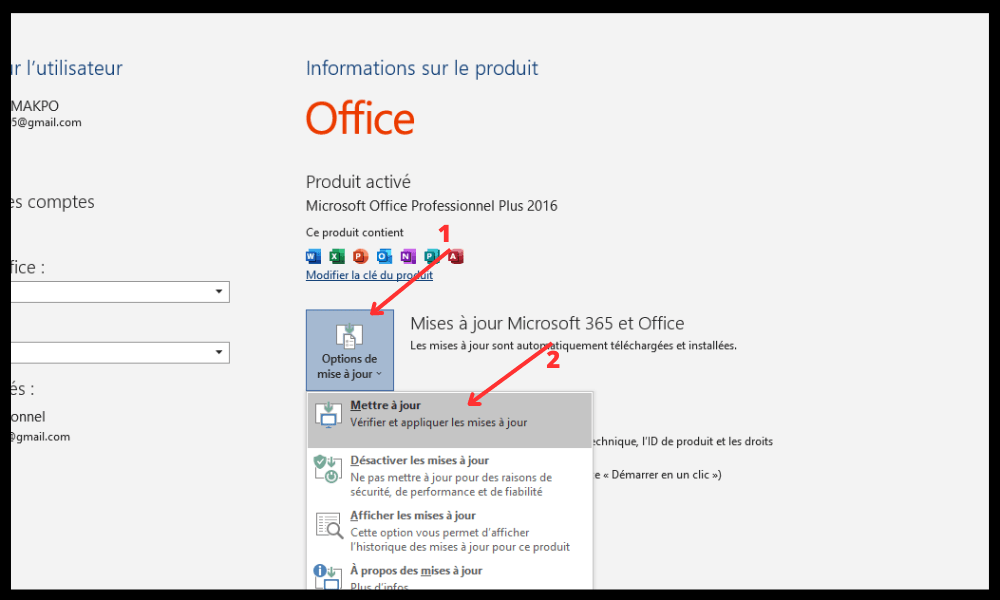
- On iOS, open the App Store and check for available updates for Office apps. Tap the Update button to install the latest versions.
- On Android, open the Google Play Store and check for available updates for Office apps. Tap the Update button to install the latest versions.

After updating the Office suite, restart your device and try copying and pasting the data again.
Recreate the Office document (applies to Excel)
The Office document you're trying to copy might be corrupted or damaged , preventing the copy-paste process. In this case, you can try recreating the document by following these steps:
- Create a new Excel file and select a cell.
- Fill the cell with a color or make other changes.
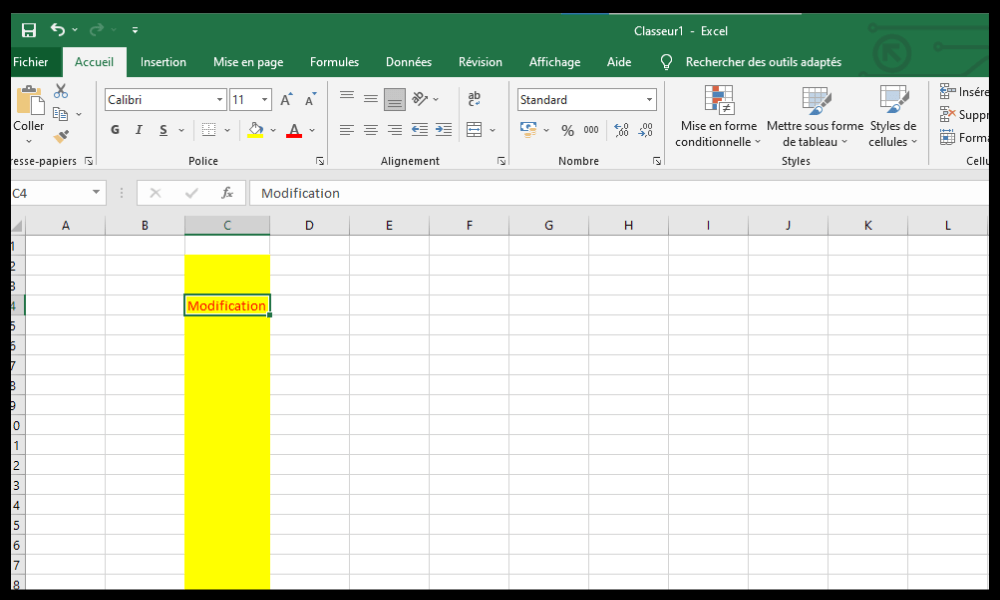
- Save the file to your OneDrive for Business location.
- Open the file you just saved and check if it is possible to copy and paste the data into it.
- If the problem persists, save your work and close Excel. Wait thirty seconds and try copying and pasting your data again.
Modify the Intune application protection policy

If none of the above methods work , the problem may be related to a Microsoft Intune policy that blocks copy-pasting to unauthorized applications. In this case, you will need to modify the policy to allow cutting, copying, and pasting to certain third-party applications. To do this, you will need to contact your organization's IT administrator and ask them to perform the following steps:
- Log in to the Azure portal with an administrator account.
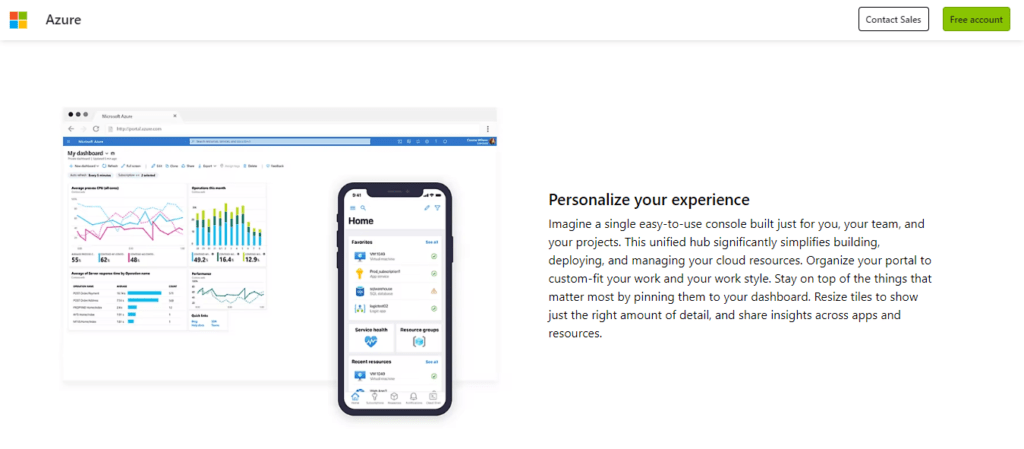
- Click on Intune > Client Applications > Application Protection Policies .
- Select the policy that applies to your device (e.g., Windows 10).
- Click on Properties > Data > Data access restrictions .
- Under Cut/copy/paste among other Intune-approved applications, choose Allow.
- Click on Save .
After modifying the Intune policy, restart your device and try copying and pasting the data again.
Summary table of solutions
| Solution | Description | Benefits | Disadvantages |
| Manually update the Office suite | Install the latest versions of Office applications on your device | Easy to do | It may not solve the problem if the cause lies elsewhere |
| Recreate the Office document (applies to Excel) | Create a new Excel file and save it to OneDrive for Business | Can repair a corrupted or damaged document | May take some time and requires an internet connection |
| Modify the Intune application protection policy | Contact your IT administrator to authorize cut/copy/paste functionality for certain third-party applications | This can resolve the issue if the cause is related to Intune policy | Requires IT administrator intervention and may compromise data security |
FAQ
What does the error “Your organization’s data cannot be pasted here” mean?
The error “ Your organization's data cannot be pasted here ” means you are trying to copy data from Outlook or another managed app to an app not authorized by Microsoft Intune policy. This feature is designed to protect sensitive data from leaks or theft .
What is Microsoft Intune?
Microsoft Intune is a cloud service that allows organizations to manage and secure their mobile devices and applications. It offers features such as policy management , device configuration , data protection , compliance , and much more.
How do I copy and paste data between applications authorized by Intune?
To copy and paste data between Intune-approved applications, simply select the content you want to copy, then press Ctrl+C (on Windows ) or Command+C (on Mac) to copy. Next, go to the application where you want to paste the data and press Ctrl+V (on Windows ) or Command+V (on Mac) to paste. If you make a mistake or change your mind, you can use the keyboard shortcut Ctrl+Z (on Windows ) or Command+Z (on Mac) to undo the last action.
How can I tell if an application is authorized by Intune?

To find out if an app is authorized by Intune , you can view the list of Intune-approved apps in the Azure portal . You can also check if the app has a blue badge with a white padlock in its icon. This badge indicates that the app is managed by Intune .
How do I disable the error “Your organization's data cannot be pasted here”?
Your organization’s data cannot be pasted here error , you will need to modify the Microsoft Intune policy that blocks cut/copy/paste to unauthorized applications . To do this, you will need to contact your organization’s IT administrator and ask them to allow cut/copy/paste to certain third-party applications.
Conclusion
The error “ Your organization’s data cannot be pasted here ” can be frustrating if you want to transfer important information between different applications. Fortunately, there are possible solutions to this problem, depending on the cause. You can try manually updating the Office suite , recreating the Office document , or modifying the Intune app protection policy . If none of these methods work, you can contact your organization’s IT administrator for assistance.
We hope this article was helpful and that you were able to copy and paste your organization's data without any problems . If you have any questions or comments, please let us know in the section below.


