

You installed the latest Windows 10 update , and since then, your computer won't start properly. It's stuck on a black screen with the message " Diagnosing your PC " and spinning dots. You don't know how to get out of this situation and restore your PC to normal operation. Don't panic; there are solutions to fix this problem and prevent it from happening again. In this article, we'll explain the possible causes of this issue and the steps to take to resolve it.
What causes Windows to get stuck on "Diagnosing your computer"?
Windows getting stuck on "Diagnosing your computer" can have several causes:
- A poorly installed update or incompatible with your hardware or software. Windows 10 regularly performs automatic updates to improve its performance and security, but sometimes these updates can cause bugs or conflicts with certain components or programs.
- hard drive or RAM problem . If your hard drive or RAM is damaged or insufficient, Windows 10 may have trouble starting or functioning correctly. It may then initiate a disk or memory scan and repair, but get stuck on this operation without completing.
- A virus or malware . If your computer is infected with a virus or malware, it may be prevented from starting normally or be redirected to a fake diagnostic screen designed to extort personal or financial information from you.
How to get out of the Windows "Diagnosing your computer" block?

If your computer is stuck on the "Diagnosing your computer" screen, you can try the following solutions:
You might also like this article: Reinstall and Repair the Photos app in Windows 10
Turn off and restart the computer

The first thing to do is to shut down and restart your computer . To do this, press and hold power supply power supply to turn the computer back on. Sometimes, this simple step is enough to resolve the issue and allow Windows 10 to start normally.
Start automatic repair
If restarting doesn't work, you can try running Windows 10 automatic repair . This feature allows Windows 10 to detect and fix problems that prevent it from starting.
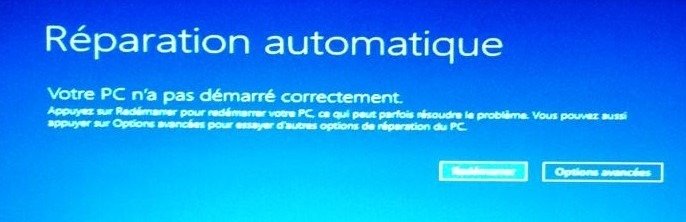
To start the automatic repair, you must:
- Turn the computer off and on again three times in a row by pressing the power supply button.
- On the fourth startup, you should see the message "Preparing automatic repair", then "Diagnosing your PC".
- Let the process run until you reach the advanced options.
- Then select Troubleshooting > Advanced options > Startup repair.
- Wait for the repair tool to finish its work and check if you can start your computer normally.
Uninstall the problematic update
If automatic repair doesn't resolve the issue, the problem might be caused by a poorly installed or incompatible update. In this case, you can try uninstalling the problematic update and pausing automatic updates to prevent it from reinstalling. To Windows 10 update , follow these steps:
- Select Start > Settings > Windows Update > Update history > Uninstall updates.
- In the list that appears, find the update you want to remove, and then select Uninstall next to it.
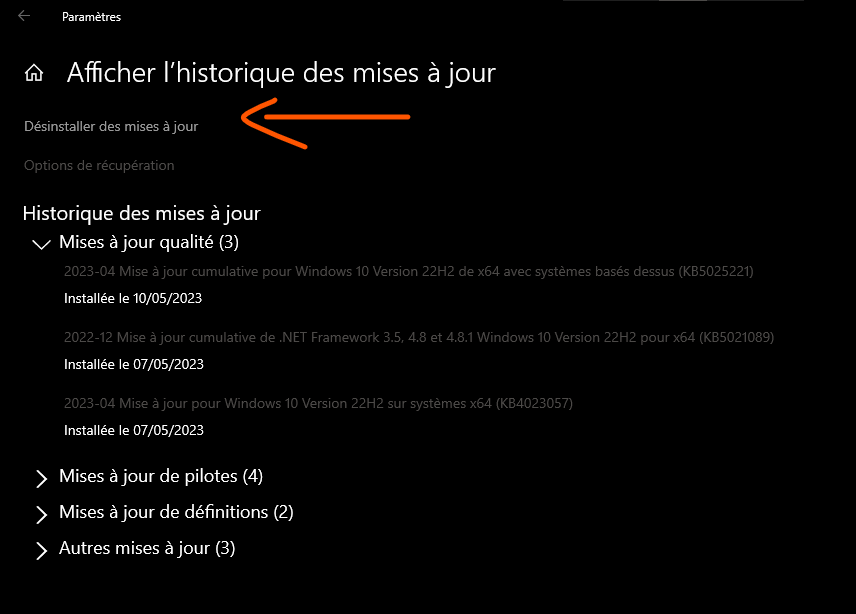
- Confirm the uninstallation of the update and wait during the process.
- Restart your computer and check if the problem is resolved.
To pause automatic Windows 10 updates, follow these steps:
- Select Start > Settings > Windows Update > Advanced options.
- Under Suspend updates, activate the toggle button and choose a suspension period (up to 35 days).
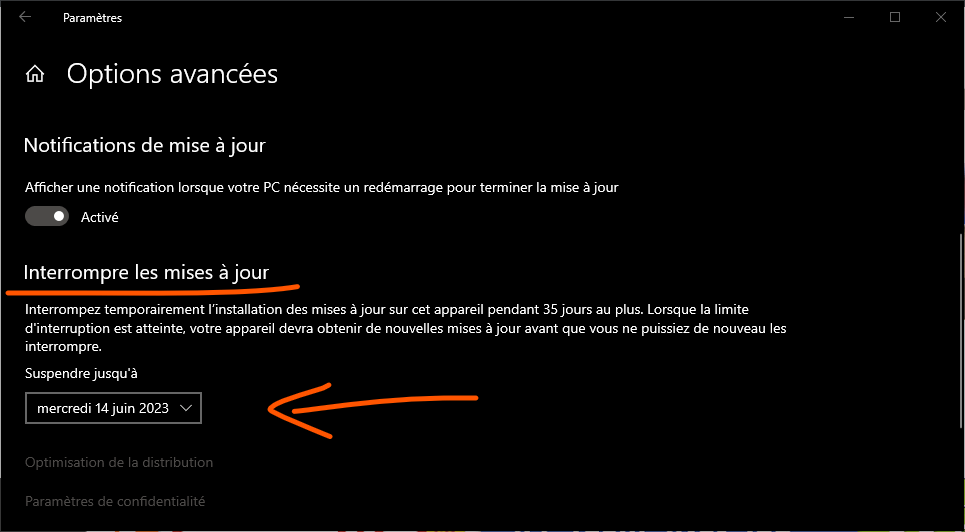
- You can also disable optional updates by unchecking the box "Download and install other Microsoft updates".
Reinstall the operating system
If none of the previous solutions work, your last option is to reinstall the operating system from a USB recovery drive. This operation will erase all data and settings on your computer, so be sure to back up your important files before proceeding.
To reinstall the operating system, follow these steps:
- Create a USB recovery drive using another Windows 10 computer. You will need a USB flash drive with at least 16 GB of storage. To create the recovery drive, follow this tutorial:

- Insert the USB recovery drive into your frozen computer and boot from it. To do this, you need to change the boot order in the BIOS or Quick Start menu. Consult your computer's manual for instructions on how to access the BIOS or Quick Start menu.
- When you see the Choose an option screen, select Recover from a drive.
- Follow the on-screen instructions to reinstall the operating system on your computer. Choose the option that removes everything to completely erase your hard drive and install a clean version of Windows 10.
Also read: How to repair an undetected internal hard drive on windows 10?
FAQ
Here are some frequently asked questions about the problem of Windows being stuck on "Diagnosing your computer":
How long does the computer diagnostic take?
Computer diagnostics can take anywhere from a few minutes to several hours, depending on the severity of the problem and your computer's speed. If the diagnostic process takes more than two hours without a result, your computer is likely frozen and you should try another solution.
How can we prevent this problem from happening again?
To prevent this problem from recurring, it is recommended that you keep your computer up to date with the latest available patches and drivers. You can also regularly check the health of your hard drive and RAM to detect and correct any errors. To do this, you can use the disk checking utility built into Windows 10 or third-party software such as CrystalDiskInfo or Hard Disk Sentinel. To use the Windows 10 disk checking utility, follow these steps:
- Open File Explorer and right-click on the disk you want to analyze.
- Click on Properties, then on the Tools tab.
- Click the Check button in the Error Checking section.
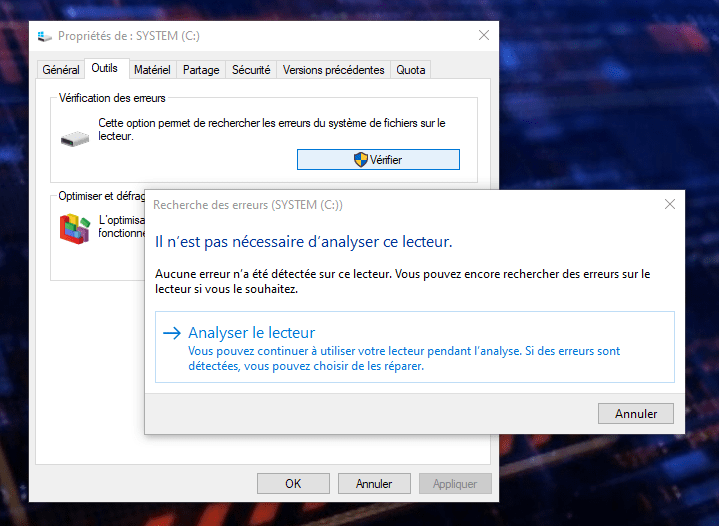
- Click on Analyze drive and wait for the tool to analyze your drive.
- If any errors are detected, follow the on-screen instructions to repair them.
Conclusion
The problem of Windows being stuck on "Diagnosing your PC" can be very frustrating and prevent you from using your PC normally. Fortunately, there are solutions to get out of this situation and repair your computer. In this article, we've outlined the main methods to resolve this issue:
- Turn off and restart the computer
- Start automatic repair
- Uninstall the problematic update
- Reinstall the operating system
We also explained how to check the health of your hard drive and RAM to prevent errors and failures. We hope this article was helpful and that you were able to get Windows 10 working again. Feel free to leave your comments or questions below.


