

User OOBE Broker is a Windows 10/11 operating system Windows installation and configuration process . User OOBE Broker runs in the background and manages interactions between the user and the OOBE.
What is the purpose of User OOBE Broker?

The main function of User OOBE Broker facilitate the OOBE process , which includes the following steps:
- Choose the language, region and keyboard
- Accept the terms of the license agreement
- Connect to a Wi-Fi network
- Create a local or Microsoft user account
- Configure privacy and security settings
- Windows features , such as Cortana or Windows Hello
User OOBE Broker also allows the user to modify certain OOBE settings after installation , such as the PC name, account password, or accessibility options.
How do I disable User OOBE Broker?

User OOBE Broker is not an essential process for Windows . Therefore, it can be disabled if the user wishes or if they encounter problems with OOBE . There are two methods to disable User OOBE Broker :
The first method involves using the Task Manager
For that :
- You need to press Ctrl+Shift+Esc to open the Task Manager.
- Next, you need to go to the Details and look for UserOOBEBroker.exe in the list of processes.
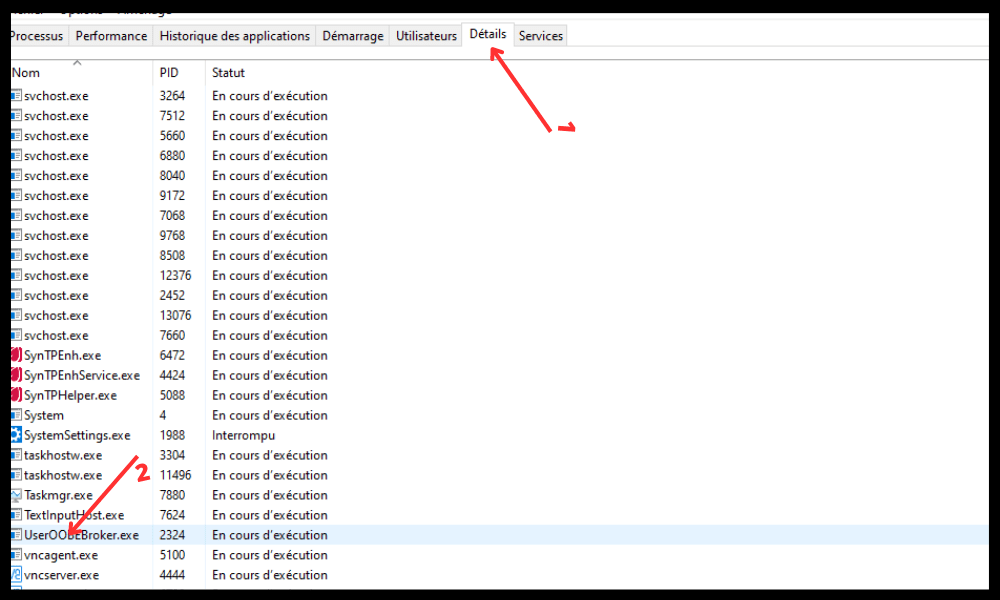
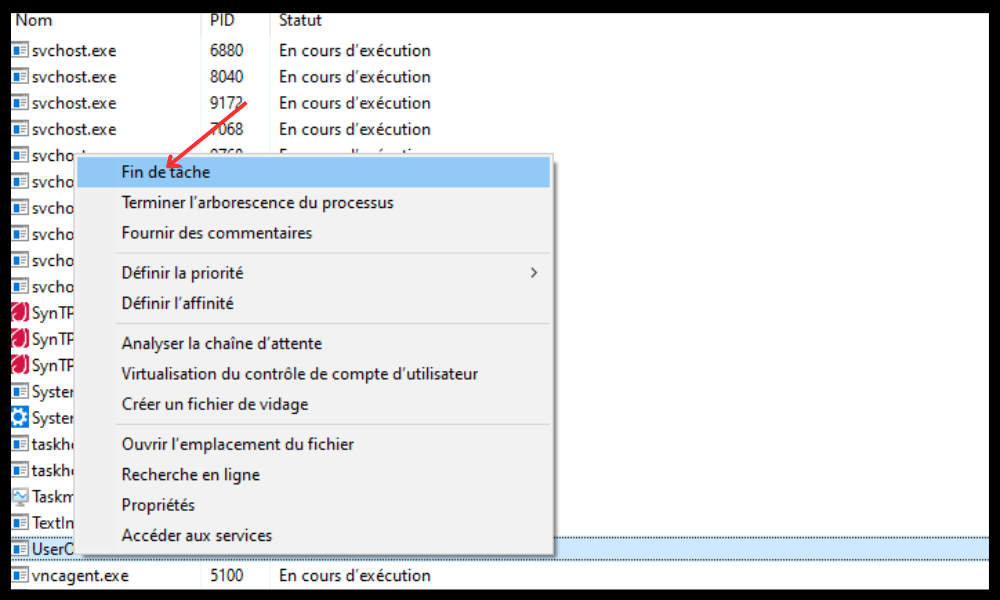
- You then need to select the process and click on End task.
The second method involves using the WindowsRegistry.
For that :
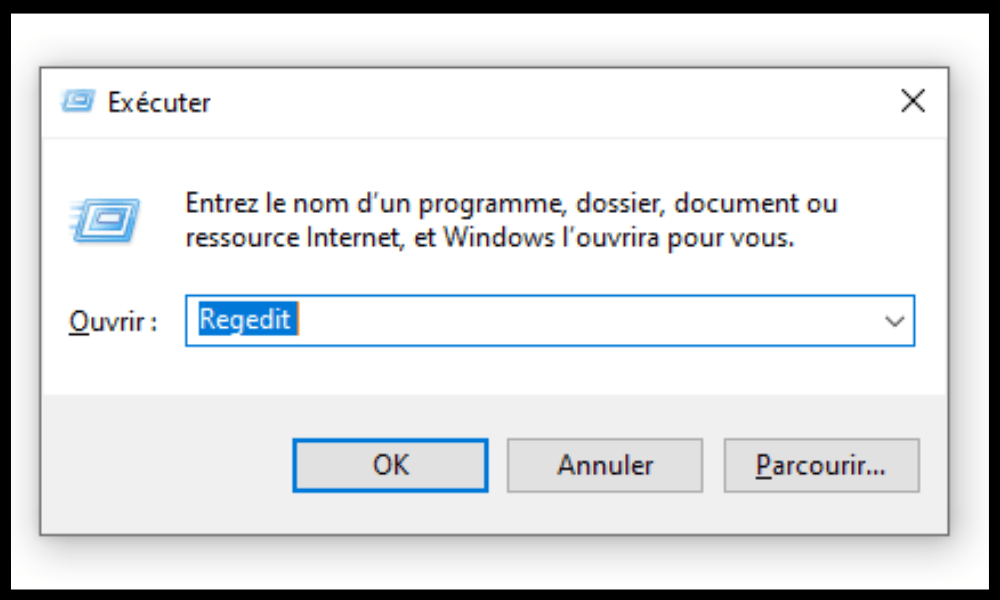
- You need to press the Windows + R Run dialog box .
- Next, type regedit and click OK to open the Registry Editor.
- You must then navigate to the following key:
HKEY_LOCAL_MACHINE\SOFTWARE\Microsoft\Windows\CurrentVersion\OOBE\UserOOBEBroker.
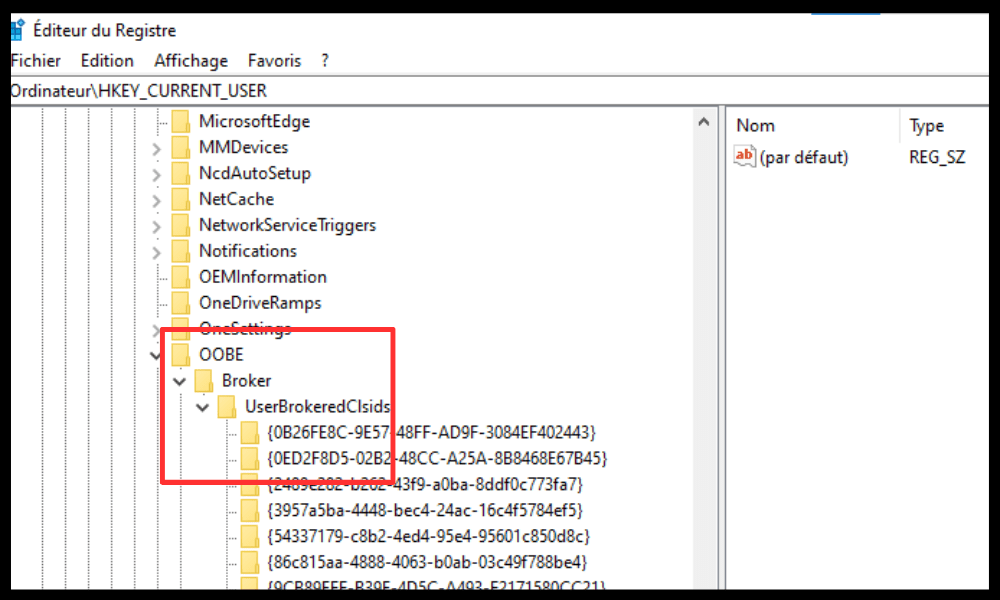
- Next, you need to double-click on the EnableUserOOBEBroker value and change its data to 0 to disable it.
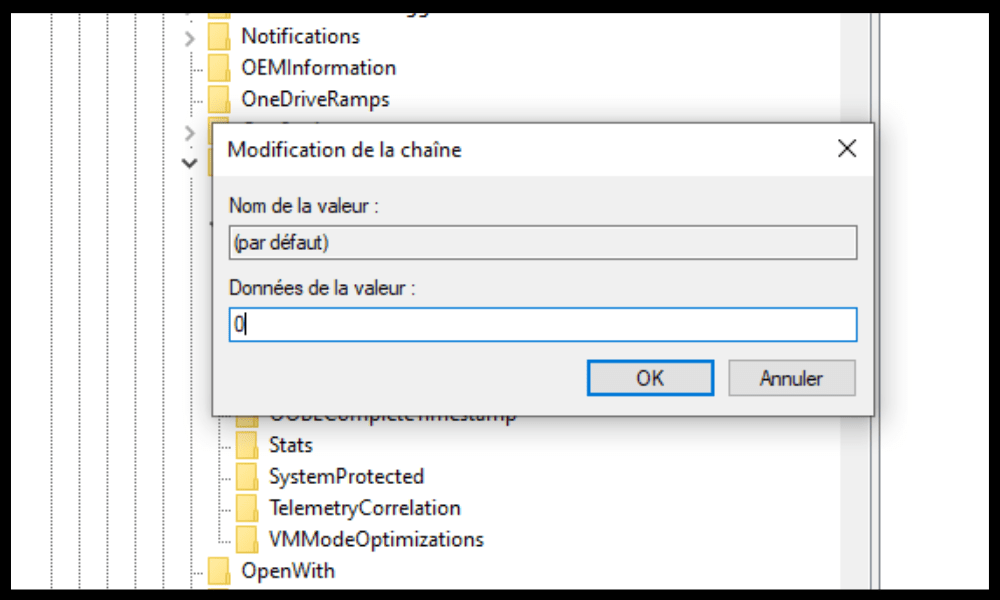
It is important to note that disabling User OOBE Broker may prevent the user from modifying certain OOBE settings after installation. Therefore, it is advisable to re-enable User OOBE Broker if you wish to access these options.
Is using OOBE Broker dangerous?
User OOBE Broker is not a virus or malware. It is an executable file (.exe) developed by Microsoft and located in a subdirectory of C:\ Windows \System32. It is 44,032 bytes in size and has an invisible window. It is a Windows and a Microsoft trusted file.
User OOBE Broker generally doesn't cause problems unless it's corrupted or damaged by an infection or error. In that case, it can cause OOBE malfunctions, such as freezes, slowdowns, or error messages.
FAQ
Here are some frequently asked questions about User OOBE Broker:
What is the difference between User OOBE Broker and OOBE Broker?
User OOBE Broker and OOBE Broker are two similar, but not identical, processes. User OOBE Broker handles interactions between the user and the OOBE, while OOBE Broker handles interactions between the system and the OOBE.
How can I tell if User OOBE Broker is running?
To check if User OOBE Broker is running , simply open Task Manager and look for UserOOBEBroker.exe in the list of processes. If the process is present, it means it is running.
How to repair User OOBE Broker if it is corrupted or damaged?
If User OOBE Broker is corrupted or damaged Windows Repair Tool . This tool can detect and fix problems related to Windows .
How to remove User OOBE Broker?
User OOBE Broker is not a process that can be deleted Windows operating system . It can only be disabled, as explained previously.
What are the risks of disabling User OOBE Broker?
The risks of disabling User OOBE Broker are minimal , unless the user wishes to modify certain OOBE settings after installation. In that case, it may be necessary to re-enable User OOBE Broker to access those options.
Conclusion
Windows 10/11 operating system . It facilitates the Out-of- Box Experience (OOBE) initial Windows installation and setup process . User OOBE Broker is not a virus or malware. It is a Windows and a trusted Microsoft file. User OOBE Broker is associated with the Ntoskrnl.exe executable file, which is the Windows system kernel . User OOBE Broker can be disabled if the user wishes or if they encounter problems with OOBE. There are two methods to disable User OOBE Broker: using Task Manager or using the Windows .


