
Removable Storage Devices is a folder that sometimes appears on the Windows 10 desktop after an update or the use of an external storage device such as a USB drive or SD card. It contains the devices and drives available on your computer, and you may find it difficult to remove. In this article, we'll explain what it is, why it appears, and how to get rid of it.
What are Removable Storage Devices?
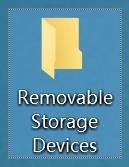 Removable Storage Devices is a system folder that is part of the Windows Windowsto manage removable storage manager . It allows removable storage devices such as USB flash drives, SD cards, external hard drives, and optical drives. It is normally hidden in File Explorer, but it may appear on the desktop due to a bug or misconfiguration of the Windows. registry
Why does Removable Storage Devices appear on the desktop?
There is no definitive answer to this question, but several possible causes have been identified:
- A update Windows that modified the registry or created faulty entries.
- The use of an external storage device that has left traces in the registry or that was improperly ejected.
- A virus or malware that infected your computer and created or modified the folder.
- A conflict with another software or driver that interferes with the removable storage manager.
How do I remove Removable Storage Devices from the desktop?
There are several methods to get rid of the Removable Storage Devices folder from the desktop. Here are the most common:
Method 1: Run the DISM command
The DISM (Deployment Image Servicing and Management) command can repair Windows and restore system health. It can resolve the issue if the Removable Storage Devices folder is linked to corrupted registry entries. Here's how to use it: images
- Step 1 : Open a command prompt as an administrator. To do this, right-click on the Start menu and choose Command Prompt (admin) or Windows PowerShell (admin).

- Step 2 : Type the following command and press Enter:
DISM.exe /Online /Cleanup-image /Restorehealth
- Step 3: Wait for the process to finish (this may take 15 to 20 minutes) and restart your computer. Check if the Removable Storage Devices folder has disappeared from the desktop.
Method 2: Refresh your office
The easiest method is to refresh your desktop. To do this, right-click on an empty area of the desktop and choose Refresh. The Removable Storage Devices folder should disappear.
Method 3: Run an antivirus scan
 The Removable Storage Devices folder may be caused by a virus or malware that has infected your computer. In this case, you should run an antivirus scan to detect and remove the threat. You can use the antivirus software built into Windows 10, Windows Defender, or another antivirus program of your choice.
Method 4: Perform a clean start
A clean boot starts Windows with a minimal number of drivers and programs. This can help you identify if the problem stems from a conflict with software or a driver that's interfering with the removable storage manager. Here's how to perform a clean boot:
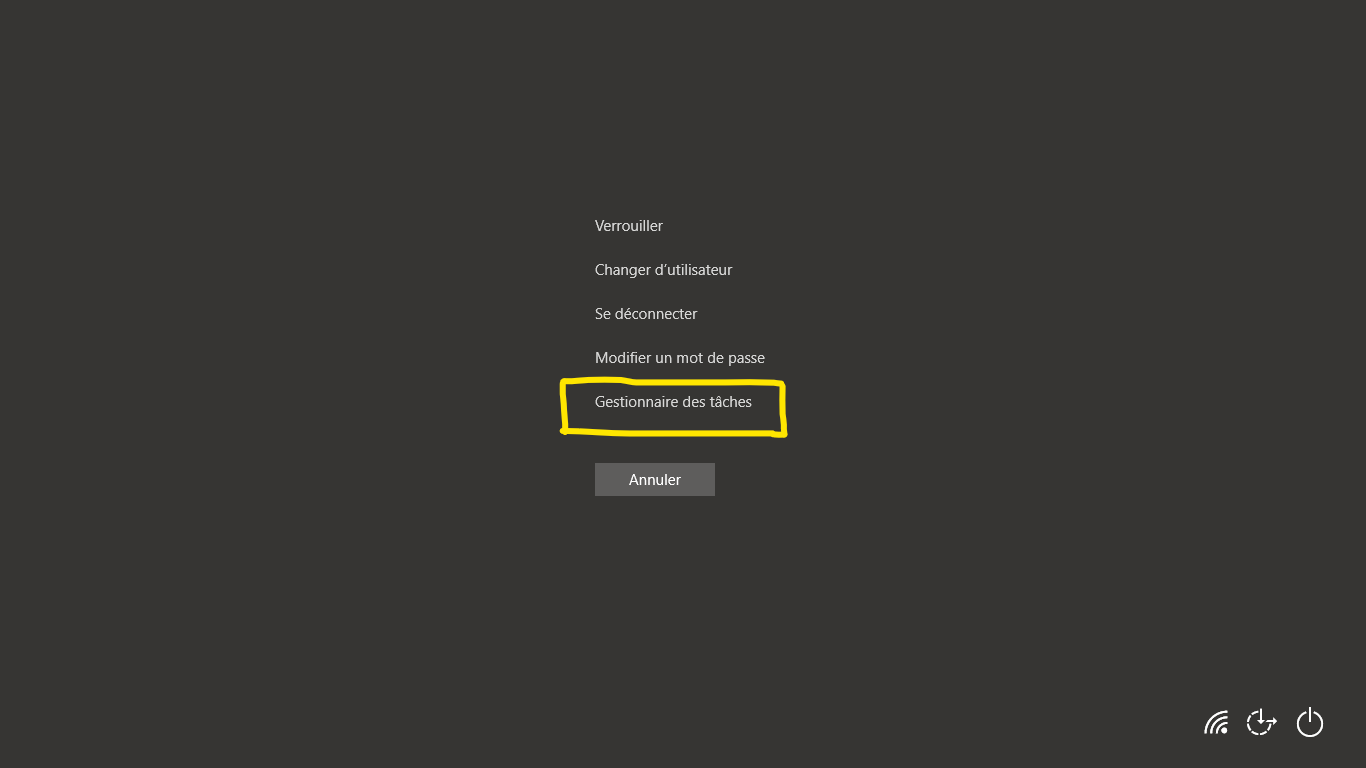
- Step 1 : Open Task Manager by right-clicking on the taskbar and choosing Task Manager or by pressing Ctrl + Alt + Delete and clicking on Task Manager.
- Step 2 : Click the Startup tab and disable all items by right-clicking and selecting Disable. You can leave essential items like your antivirus or graphics driver enabled.

- Step 3 : Restart your computer and check if the Removable Storage Devices folder is still present on the desktop. If it isn't, this means that one of the items you disabled is causing the problem. You can then re-enable them one by one until you find the culprit and uninstall or update it.
This article might interest you: How to repair an undetected internal hard drive on windows 10?
Method 5: Uninstall the latest Windows update
The Removable Storage Devices folder may have appeared after a update Windows that modified the registry or created faulty entries. In this case, you can try update Windows and see if the problem disappears. Here's how:
- Step 1: Open Windows Settings by right-clicking on the Start menu and choosing Settings or by pressing the Windows + I keys.
- Step 2: Click on Update & Security, then on View update history.

- Step 3: Click Uninstall updates and choose the latest installed update from the list. Click Uninstall and follow the on-screen instructions.
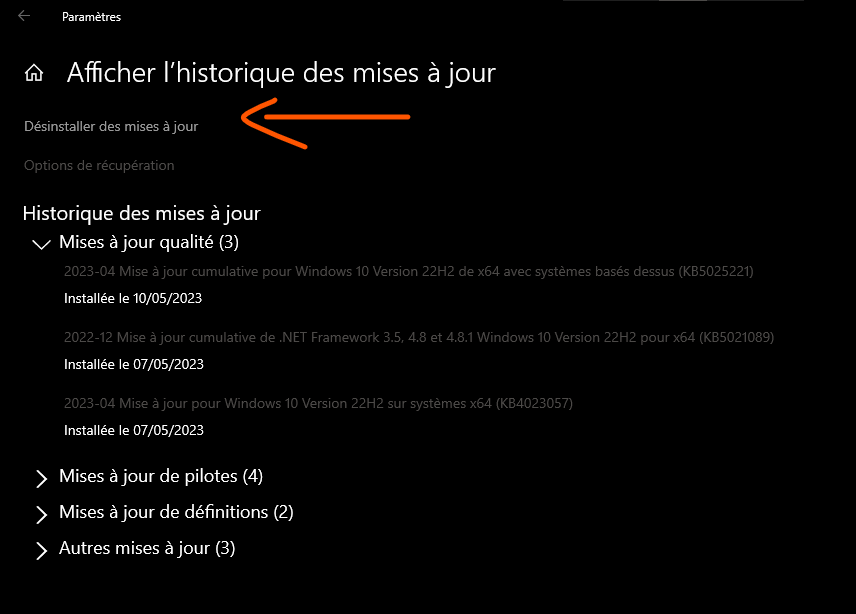
- Step 4: Restart your computer and check if the Removable Storage Devices folder has disappeared from the desktop.
Method 6: Hide protected operating system files
If none of the previous methods work, you can try hiding protected operating system files, which include the Removable Storage Devices. This won't delete the folder, but it will no longer be visible on the desktop. Here's how:
- Step 1 : Open File Explorer by right-clicking on the Start menu and choosing File Explorer or by pressing Windows + E.
- Step 2 : Click on the View tab and check the Hidden items box in the Show/hide section.
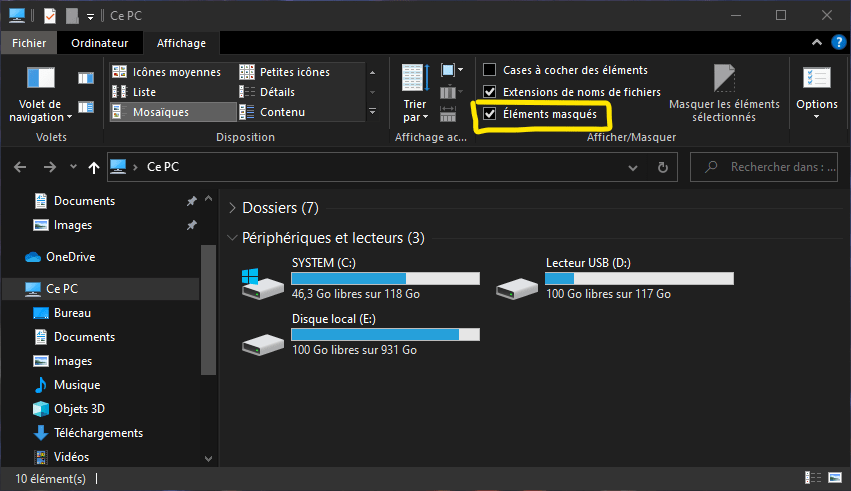
- Step 3 : Click on Options in the same section and choose Modify folder and search options.
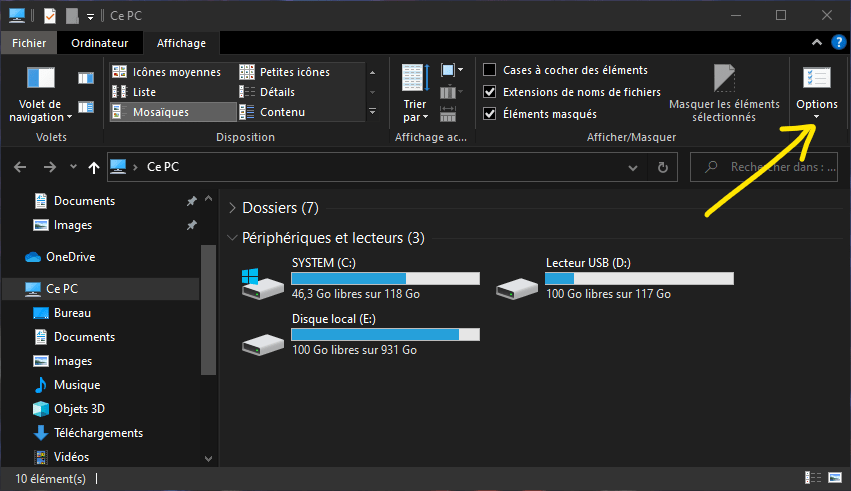
- Step 4 : Click on the View tab and uncheck the box "Show hidden files, folders and drives in the Advanced settings section".
- Step 5 : Check the box "Hide protected operating system files (recommended)" in the same section and click OK.

- Step 6 : Close File Explorer and check if the Removable Storage Devices folder is still visible on the desktop.
Also read: How to use the frame-by-frame function of VLC Media Player?
FAQ:
How can I prevent the Removable Storage Devices folder from reappearing after deleting it?
There is no guarantee that the Removable Storage Devices folder will not reappear after it has been deleted. This depends on the cause of the problem and the method used to delete it. It is possible that the folder may reappear after a new Windows update or the use of a new external storage device. To prevent this, ensure that the Windows registry is clean and up to date, that external storage devices are properly ejected, and that the computer is protected against viruses and malware.
Is the Removable Storage Devices folder dangerous or harmful to my computer?
No, the Removable Storage Devices folder is not dangerous or harmful to your computer. It's a system folder that's part of the Windowsremovable storage manager. It doesn't affect your computer's operation or the security of your data. It's simply annoying and unsightly to see on the desktop.
Can I use the Removable Storage Devices folder to access my external storage devices?
Yes, you can use the Removable Storage Devices folder to access your external storage devices such as USB flash drives, SD cards, or external hard drives. Simply double-click the folder to open it and see the devices and drives available on your computer. You can then open, copy, move, or delete the files located on these devices.
Can I rename or move the Removable Storage Devices folder?
No, you cannot rename or move the Removable Storage Devices folder. It is a system folder with a name and location predefined by Windows. Attempting to rename or move it may cause system errors or malfunctions.
Can I hide the Removable Storage Devices folder without deleting it?
Yes, you can hide the Removable Storage Devices folder without deleting it. To do this, you need to change the file and folder display options in File Explorer. You must check the "Hide protected operating system files (recommended)" box and uncheck the "Show hidden files, folders, and drives" box. The Removable Storage Devices folder will then be invisible on the desktop, but it will still be visible in File Explorer if you check the "Hidden items" box.
Conclusion: Removable Storage Devices
Removable Storage Devices is a system folder that manages removable storage devices such as USB drives or SD cards. It may appear on the Windows 10 desktop due to a bug or a registry misconfiguration. There are several ways to remove or hide it, such as running the DISM command, refreshing your desktop, running an antivirus scan, performing a clean boot, or uninstalling the latest Windowsupdate.


