

Ntoskrnl.exe is an executable file that is part of the Windows NT operating system kernel . It is responsible for many vital functions, such as hardware virtualization , memory and process management , and system protection . Without it, Windows could not start or function correctly. But what if this file encounters problems or becomes corrupted? How can you repair it and avoid the dreaded Blue Screen of Death? In this article, we will explain everything you need to know about Ntoskrnl.exe and how to keep it healthy.
What exactly is Ntoskrnl.exe?

Ntoskrnl.exe is short for Windows NT operating system kernel , meaning the kernel of the Windows NT operating system. The kernel is the lowest and most important part of the system, providing the link between hardware and software. It manages system resources, such as memory, the processor, peripherals, files, and so on. It also ensures system security by preventing malicious programs or unauthorized users from accessing sensitive data or modifying the system's operation.
Ntoskrnl.exe is one of the first files to be loaded when Windowsstarts. It is usually located in the C:\Windows\System32 folder. It contains the kernel's executable code, as well as other essential components, such as the memory manager, the process manager, the executive subsystem, the security subsystem, and the hypervisor.
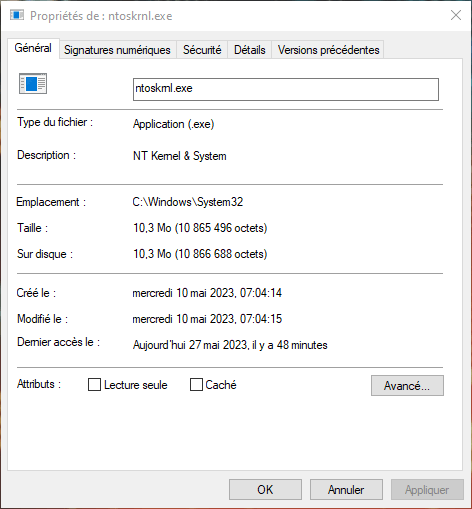
These components allow the kernel to perform complex tasks, such as hardware virtualization, which allows multiple operating systems to run on the same machine, or process management, which allows the distribution of processor resources between different running programs.
Ntoskrnl.exe is therefore an essential file for the proper functioning of Windows. If this file is missing, damaged, or infected by a virus, it can cause serious errors, such as Blue Screens of Death (BSODs), which are sudden system crashes with an error message displayed on the screen. These errors can have several causes, such as hardware failure, software conflicts, incorrect system configuration, or registry corruption.
How to repair Ntoskrnl.exe if there's a problem?
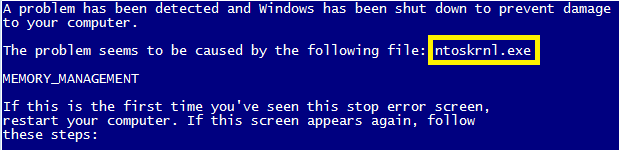
If you are experiencing problems with Ntoskrnl.exe, there are several possible solutions. Here are some steps to try to repair this file:
Scan your computer with an antivirus program
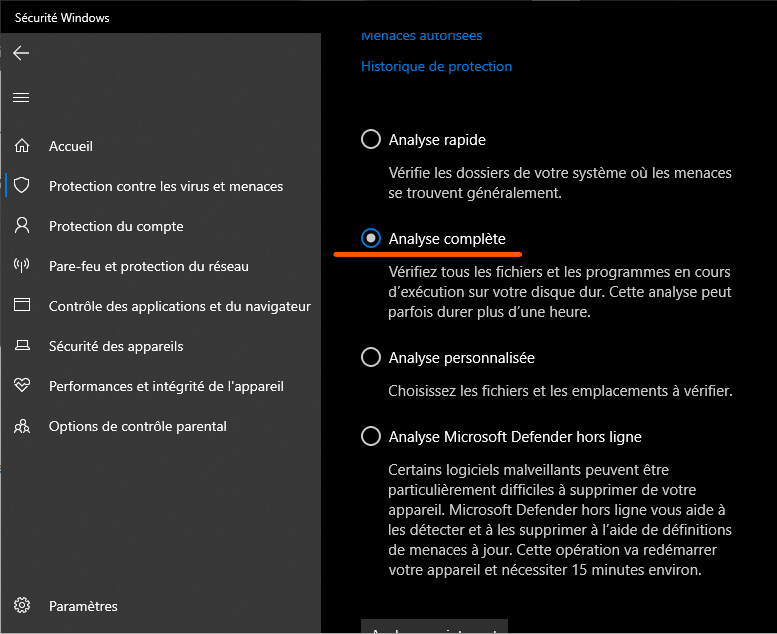
Ntoskrnl.exe may be infected with a virus or malware, which could alter its behavior or prevent it from functioning correctly. To check if this is the case, you can use a reliable and up-to-date antivirus program, such as Windows Defender or Malwarebytes Anti-Malware (MBAM), and perform a full system scan. If a virus is detected, follow the instructions to remove it and restart your computer.
Clean your hard drive and registry

Ntoskrnl.exe may be corrupted by temporary files or invalid registry entries, which can accumulate over time and cause errors. To clean your hard drive and registry, you can use built-in Windowstools, such as Disk Cleanup (cleanmgr) or System File Checker (sfc /scannow), which will remove unnecessary files and repair corrupted system files. You can also use third-party software, such as CCleaner or Glary Utilities, which will optimize your system and fix registry errors.
Uninstall programs that are no longer needed

Ntoskrnl.exe may be conflicting with other programs installed on your computer, which could interfere with its operation or consume excessive resources. To avoid these problems, you can uninstall programs you no longer use or need, using the Windows uninstallation utility (appwiz.cpl) or third-party software such as Revo Uninstaller or IObit Uninstaller.
Check the automatic startup programs
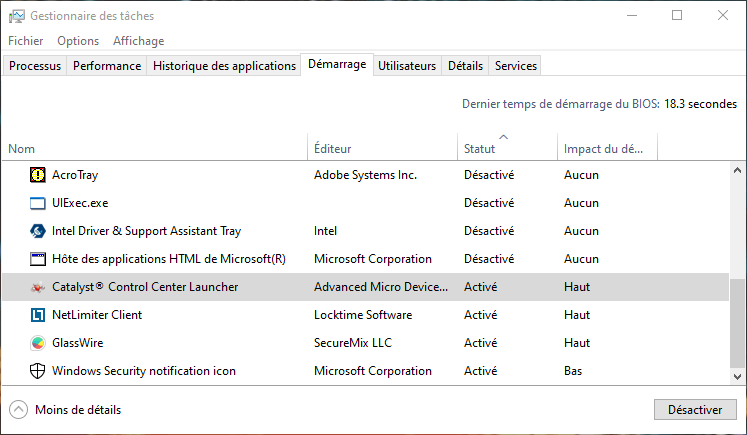
Ntoskrnl.exe may be slowed down by certain programs that launch automatically when Windows , which can affect its performance or stability. To control these programs, you can use the system configuration utility (msconfig) or third-party software, such as Autoruns or Startup Delayer, which will allow you to manage the programs that launch at startup and disable those that are not necessary.
Install Windows updates automatically
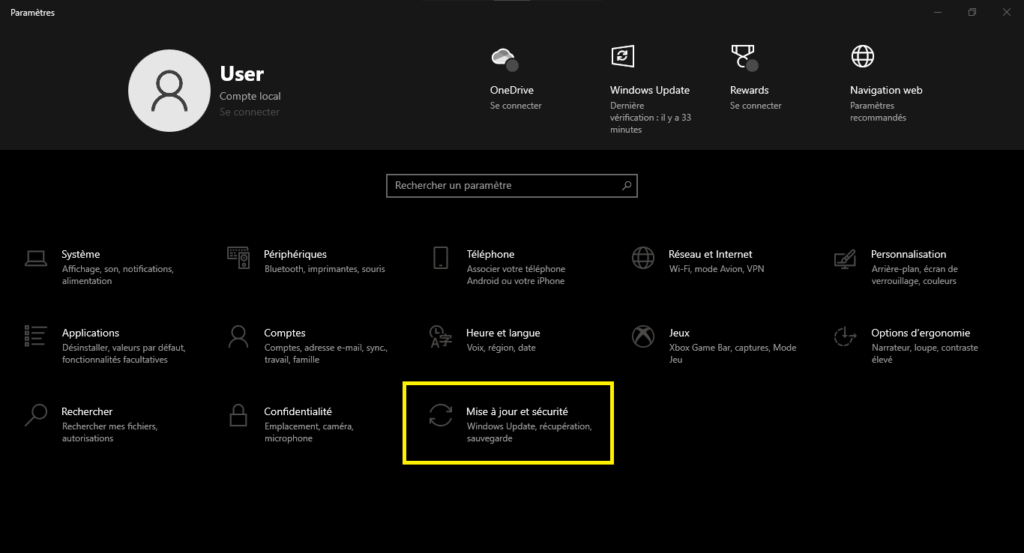
Ntoskrnl.exe may be outdated or incompatible with certain versions of Windows , which can lead to errors or malfunctions. To avoid these problems, you should keep your system up to date with the latest available Windows . You can do this by enabling automatic updates in Windows Update settings (wuaclt), or by manually downloading updates from the official Microsoft website. This can help you Windows Update error 0x80244022 , which is an error code indicating that the update service could not connect to the server.
Create a backup or restore point

Ntoskrnl.exe may become irreparably damaged or lost due to a serious error or virus attack. To prevent these critical situations, you should create a complete backup of your system on external media (external hard drive, USB flash drive, DVD), or a restore point on your internal hard drive (rstrui), which will allow you to restore your system to a previous state in case of a major problem.
Use a repair instead of a reinstallation

If none of the previous solutions work and Ntoskrnl.exe remains missing or corrupted despite all your efforts, you can attempt a system repair without data loss. To do this, you will need a Windows installation medium (bootable USB drive or DVD) corresponding to the version installed on your computer. You must then boot your computer from the installation media and choose the “Repair your computer” option instead of “Install now.” This will take you to the advanced system recovery options (WinRE), where you can choose the “Startup Repair” option to attempt to automatically repair Ntoskrnl.exe and other files necessary for startup. If this is not sufficient, you can also choose the “Command Prompt” option to run manual commands to repair Ntoskrnl.exe.
FAQ
Here are some frequently asked questions from users regarding Ntoskrnl.exe:
What is the normal size of Ntoskrnl.exe?
The typical size of Ntoskrnl.exe varies depending on the version and edition of Windows installed on your computer. Generally, it is between 5 MB and 10 MB.
How can I tell if Ntoskrnl.exe is running?
You can check if Ntoskrnl.exe is running using the Windows Task Manager (taskmgr), which displays the active processes on your computer. To access it, you can right-click on the taskbar and select "Task Manager," or press Ctrl + Alt + Delete simultaneously and select "Task Manager." In the "Processes" tab, you can look for the process named "NT Kernel & System," which corresponds to Ntoskrnl.exe. You can also see the amount of memory and CPU used by this process.
How to reduce the consumption of Ntoskrnl.exe?
It's normal for Ntoskrnl.exe to use some memory and CPU, as it's an essential process for Windowsto function. However, if you notice that Ntoskrnl.exe is using too many resources and slowing down your computer, there might be a problem. To reduce Ntoskrnl.exe's resource usage, you can try the following solutions:
- Update your drivers: Ntoskrnl.exe may conflict with outdated or incompatible drivers, which can cause memory leaks or CPU overload. To avoid these problems, you should update your drivers to the latest versions available for your hardware. You can do this using the Windows Device Manager (devmgmt.msc), which allows you to check the status of your devices and search for updates online. You can also use third-party software, such as Driver Booster or Driver Easy, which will scan your computer and automatically install the necessary drivers.
- Disable unnecessary services: Ntoskrnl.exe may be accessed by unnecessary or unwanted services that can consume resources unnecessarily. To avoid these problems, you can disable services that are not essential for Windows or your programs to function. You can do this using the services.msc utility, which allows you to manage Windowsservices. You can also use third-party software, such as Autoruns or Services+, which will help you identify and disable superfluous services.
- Optimize your virtual memory: Ntoskrnl.exe may be limited by the amount of virtual memory available on your computer, which is the disk space used as additional memory when physical memory (RAM) is insufficient. To avoid these problems, you can optimize your virtual memory by increasing its size or moving it to another disk. You can do this using the sysdm.cpl utility, which allows you to access system properties. You can also use third-party software, such as RAMDisk or PrimoCache, which will create a virtual disk in memory to speed up the system.
How do I remove Ntoskrnl.exe?
You should not delete Ntoskrnl.exe, as it is a file essential for Windowsto function. Deleting this file could render your system unusable or unstable. If you suspect that Ntoskrnl.exe is infected with a virus or malware, you should use antivirus software to clean and restore it.
Conclusion
Ntoskrnl.exe is an executable file that is part of the Windows NT operating system kernel. It is responsible for many vital functions, such as hardware virtualization, memory and process management, and system protection. Without it, Windows could not start or function correctly.
If you are experiencing problems with Ntoskrnl.exe, there are several possible solutions. You can scan your computer with an antivirus program, clean your hard drive and registry, uninstall programs that are no longer needed, check startup programs, install Windows updates automatically, create a backup or restore point, or use a repair instead of reinstalling.


