

Have you noticed that a process called msmpeng.exe is consuming a lot of your computer's resources? Are you wondering what it is and how to manage it? In this article, we'll explain what msmpeng.exe is, why it's important for your system's security , and how to configure it so it doesn't slow down your PC .
What is msmpeng.exe?

Msmpeng.exe stands for Microsoft Malware Protection Engine . It is the antivirus scanning engine built into Windows 10 , and is part of the Antimalware Service Executable . This service is responsible for providing real-time protection for your computer against malware, viruses, worms, and other threats.
Msmpeng.exe runs in the background and scans the files you download, open, or modify, as well as the programs you run. It also updates virus definitions and malware signatures to detect new threats. If msmpeng.exe detects anything suspicious, it quarantines or removes it.
Why is msmpeng.exe important?
 Msmpeng.exe is an essential component of your Windows malware attacks that can damage your files, steal your personal data, spy on your activity, or take control of your PC. Without msmpeng.exe, your computer would be vulnerable to infections and intrusions.
You might like this article: Windows 10: How to disable Windows Defender?
How do I configure msmpeng.exe?

Msmpeng.exe is usually a and unobtrusive process that shouldn't affect your PC's performance. However, there are times when msmpeng.exe might consume a lot of CPU or disk space , which can slow down your computer or cause it to freeze. This can happen for several reasons, such as:
- A complete analysis of the system is underway.
- An update to virus definitions
- A conflict with another antivirus program
- A malware infection
- A technical problem or file corruption
To avoid these problems, here are some solutions you can try:
Solution 1: Check your PC for malware

It's possible that msmpeng.exe is infected with malware that is impersonating it or attempting to disable . To check this, you can start your PC in Safe Mode with Networking and run a full system scan with Windows Defender or another antivirus tool.
Solution 2: Uninstall and reinstall Microsoft Security Essentials
 If you are using Windows 7 , Vista , or XP , you may have installed Microsoft Security Essentials (MSE) as your antivirus program. MSE also uses msmpeng.exe as its scanning engine. However, MSE is no longer supported by Microsoft Windows updates . To resolve this issue, you can uninstall MSE and replace it with a newer antivirus program.
Good to know: Why choose a paid antivirus?
Solution 3: Exclude msmpeng.exe from the scan
It's possible that msmpeng.exe might scan itself or files related to its operation, creating an infinite loop and increasing CPU or disk usage . To prevent this, you can exclude msmpeng.exe and its installation folder from scanning by Windows Defender or your other antivirus program . To do this, follow these steps:
- Open Windows Defender Security Center by clicking the shield icon in the taskbar or by searching for “ Windowssecurity” in the Start menu.
- Click on “Virus and threat protection” then on “Virus and threat protection settings”.

- Scroll down and click on “Add or remove exclusions”.

- Click on “Add an exclusion” then on “Folder”.
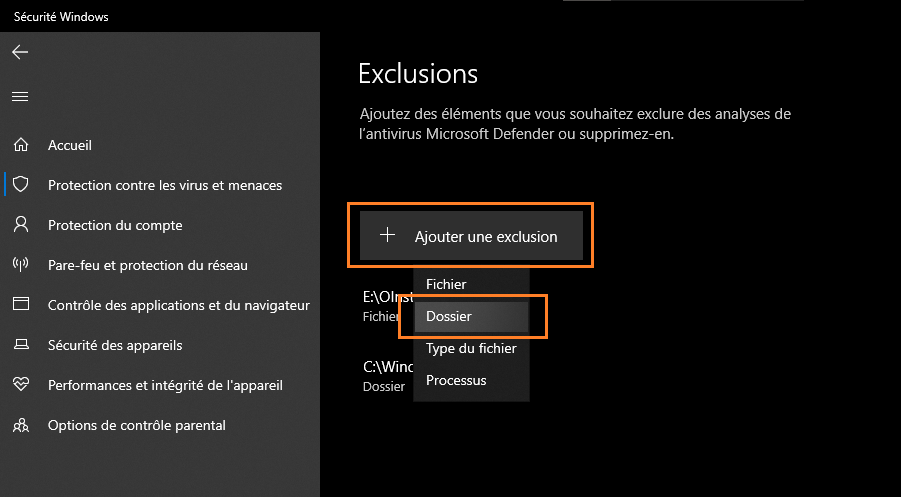
- Select the folder where msmpeng.exe is located. By default, it is located in C:\Program Files\Windows Defender or C:\Program Files\Microsoft Security Client.
- Click on “Select a folder” and then on “Yes” to confirm the exclusion.
- Repeat the same steps to exclude the msmpeng.exe file itself, choosing “File” instead of “Folder” in step 4.

Solution 4: Schedule MSE scan times or disable real-time protection
If you use MSE as your antivirus program , you can reduce the impact of msmpeng.exe on your PC's performance by scheduling scans for a time when you are not using your computer, such as at night or while you are at work. To do this, you must follow these steps:
- Open MSE by clicking on its icon in the taskbar or by searching for “Microsoft Security Essentials” in the Start menu.
- Click on the “Settings” tab and then on “Scheduled Analysis”.
- Check the box “Run a scheduled scan on my computer”.

- Choose the type of analysis (quick or full), the frequency (daily or weekly), and the day and time you want the analysis to take place.
- Click on “Save changes”.
You can also temporarily disable MSE's real-time protection if you need to free up resources for a specific task. To do this, you must follow these steps:
- Open MSE as shown above.
- Click on the “Home” tab and then on the “Enable/disable real-time protection” button.
- Uncheck the box “Enable real-time protection”.
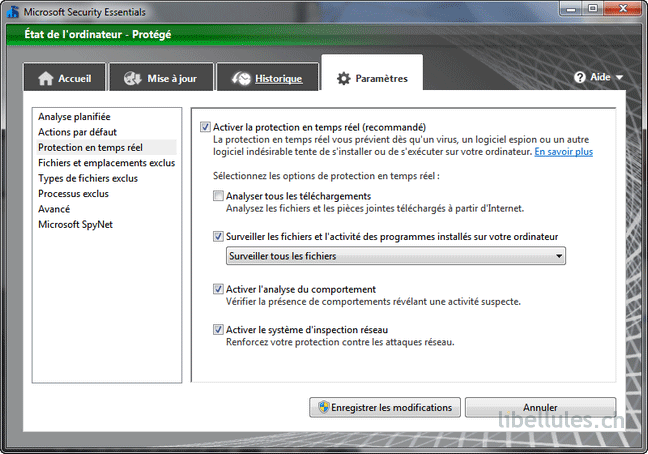
- Click on “Save changes”.
Warning: If you disable real-time protection, your computer will be less protected against malware. Remember to re-enable it as soon as possible.
Solution 5: Install another antivirus program
If none of the above solutions resolve the msmpeng.exe problem, you might consider installing a different antivirus program that is lighter and more efficient than MSE or Windows Defender. There are many free and paid antivirus programs that offer good protection without consuming too many resources. For example, you could try Avast, AVG, Bitdefender, Kaspersky, Malwarebytes, or Norton.

Before installing a new antivirus program, be sure to completely uninstall MSE or Windows Defender to avoid conflicts. To do this, you must follow these steps:
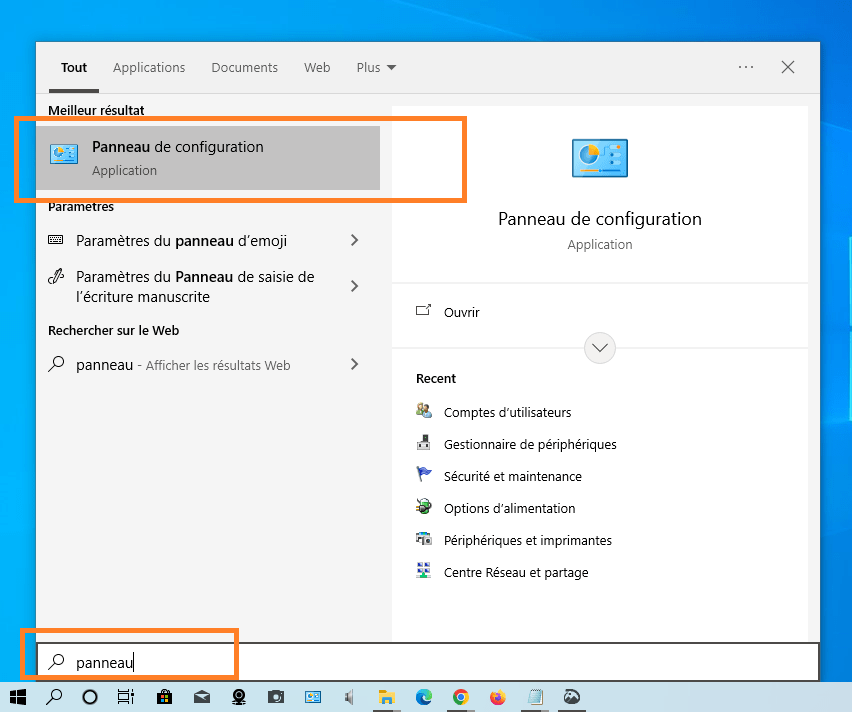
- Open the Control Panel by clicking its icon in the Start menu or by searching for “Control Panel” in the Windowssearch bar.
- Click on “Uninstall a program” under the “Programs” heading.

- Look for Microsoft Security Essentials or Windows Defender in the list of installed programs and click on it.
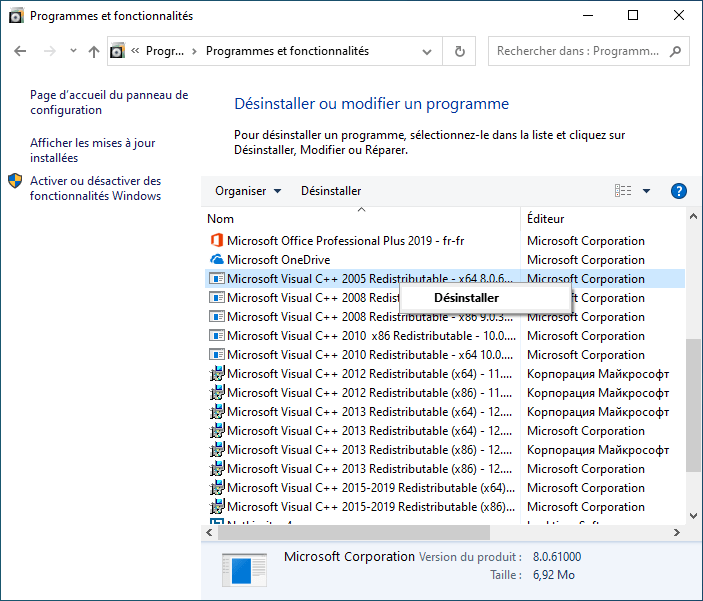
- Click on “Uninstall” and then follow the on-screen instructions to complete the uninstallation process.
- Restart your computer to apply the changes.
- Download and install the antivirus program of your choice by following the instructions of the provider.
Comparison of the main antivirus programs for Windows
If you are not satisfied with the performance or effectiveness of msmpeng.exe, you might consider installing a different antivirus program that better suits your needs and budget. Many antivirus programs on the market offer comprehensive and advanced malware protection, with additional features such as a VPN, parental controls, online backup, and more. However, you should also consider cost, ease of use, compatibility, and the impact on your PC's resources.
To help you choose the best antivirus program for your Windowscomputer, we've compared the main antivirus programs available in terms of their advantages and disadvantages. You can consult the table below for an overview of the different options and make your choice based on your personal criteria.
| Antivirus program | Benefits | Disadvantages |
|---|---|---|
| Windows Defender | Free, integrated with Windows 10, easy to use, offers basic protection | May consume a lot of resources, may be less effective than other antivirus programs, may be incompatible with some Windows updates |
| Microsoft Security Essentials | Free, compatible with Windows 7, Vista and XP, easy to use, offers basic protection | No longer supported by Microsoft, can consume a lot of resources, may be less effective than other antivirus programs, may be incompatible with some Windows updates |
| Avast | Free or paid depending on the options chosen, it offers complete and advanced protection, and has many additional features (VPN, PC cleaner, etc.) | May display intrusive advertisements or notifications, may slow down PC startup, may collect personal data |
| AVG | Free or paid depending on the options chosen, it offers complete and advanced protection, and has many additional features (VPN, PC cleaner, etc.) | May display intrusive advertisements or notifications, may slow down PC startup, may collect personal data |
| Bitdefender | Paid, offers comprehensive and advanced protection, has many additional features (VPN, parental controls, etc.), and has a low footprint on PC resources | It can be expensive depending on the plan chosen, and it can be difficult to uninstall completely |
| Kaspersky | Paid, offers comprehensive and advanced protection, has many additional features (VPN, parental controls, etc.), and has a low footprint on PC resources | It can be expensive depending on the plan chosen, and it can be difficult to uninstall completely |
| Malwarebytes | Free or paid depending on the options chosen, it offers complete and advanced protection against the latest and most dangerous malware | May be incompatible with some antivirus programs; may require an annual subscription for real-time protection |
| Norton | Paid, it offers comprehensive and advanced protection, has many additional features (VPN, online backup, etc.), and has a low footprint on PC resources | It can be expensive depending on the plan chosen, and it can be difficult to uninstall completely |
FAQ
Why does msmpeng.exe consume so much CPU or disk space?
Msmpeng.exe consumes a significant amount of CPU or disk space while scanning your computer for malware. This can occur during a full system scan, virus definition updates, a conflict with another antivirus program, a malware infection, or a technical issue.
How to reduce CPU or disk usage by msmpeng.exe?
You can reduce CPU or disk usage by msmpeng.exe by checking your PC for malware, uninstalling and reinstalling Microsoft Security Essentials, excluding msmpeng.exe from scanning, scheduling MSE scan times or disabling real-time protection, or installing a different antivirus program.
Is Msmpeng.exe a virus?
No, msmpeng.exe is not a virus. It's a legitimate Windows process that helps protect your computer from malware. However, it's possible for malware to impersonate msmpeng.exe or try to disable it. To check for this, you can start your PC in Safe Mode with Networking and run a full system scan with Windows Defender or another antivirus tool.
Can I delete msmpeng.exe?
No, you should not delete msmpeng.exe. It is an essential process for the security of your Windowssystem. Deleting it could expose your computer to infections and intrusions. If you want to replace Windows Defender or Microsoft Security Essentials with another antivirus program, you must completely uninstall these programs first before installing the new one.
How do I lower the priority of msmpeng.exe?
You can lower the priority of msmpeng.exe using the Task Manager. To do this, you must follow these steps:
- Press Ctrl + Alt + Delete to open the task manager.
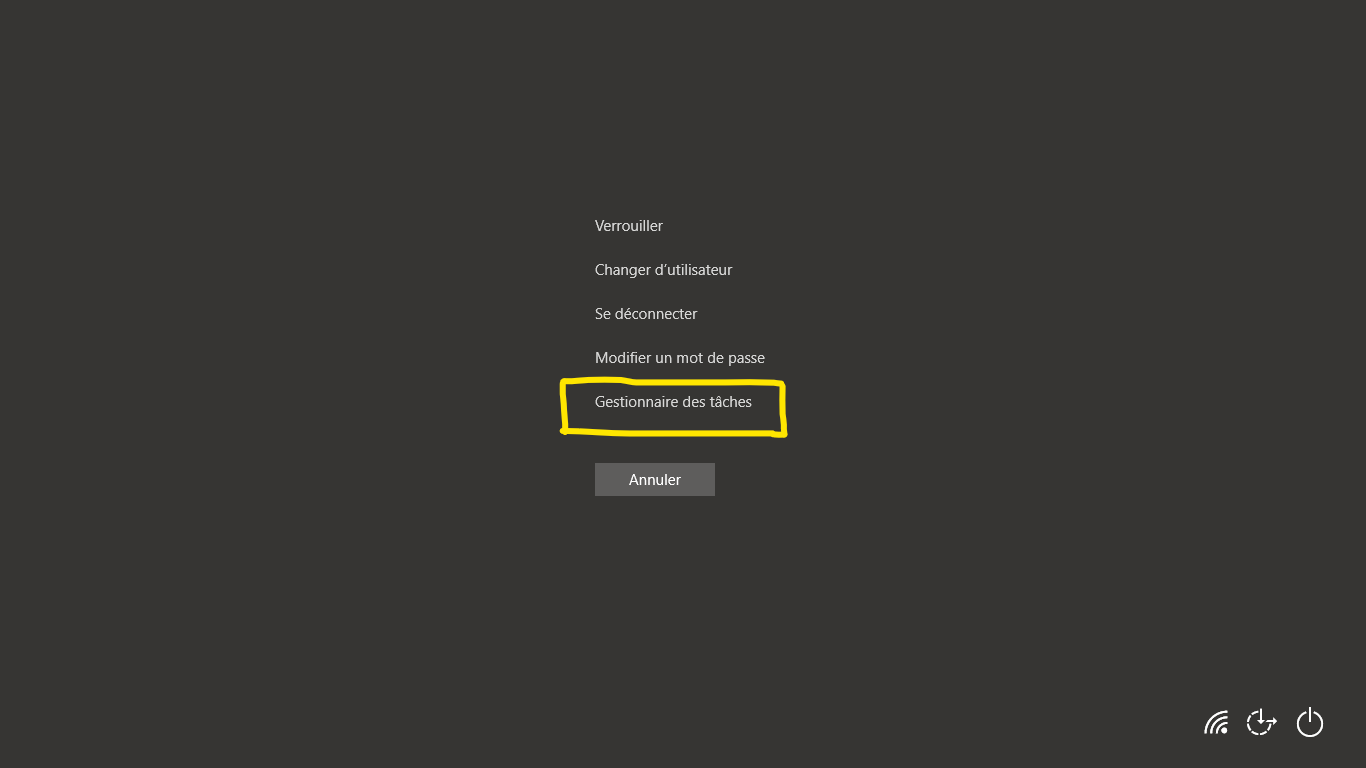
- Click on the Details tab and look for msmpeng.exe in the list of processes.
- Right-click on msmpeng.exe and choose Set priority.

- Choose a lower priority than the current one, for example Low or Below Normal.
- Click on Edit priority to confirm the change.
This should reduce the impact of msmpeng.exe on your PC's performance, but also reduce its effectiveness in detecting malware.
How to prevent msmpeng.exe from running at startup?
You can prevent msmpeng.exe from running at startup using the system configuration utility. To do this, you must follow these steps:
- Press the Windows + R keys to open the Run dialog box.
- Type msconfig and click OK to open the system configuration utility.
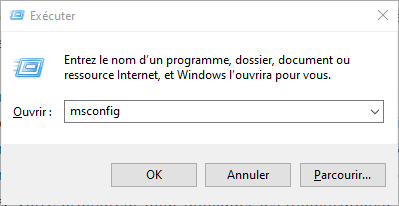
- Click on the Services tab and uncheck the Antimalware Service Executable box.

- Click Apply and then OK to save the changes.
- Restart your computer to apply the changes.
This should prevent msmpeng.exe from running at startup, but also disable Windows Defender or Microsoft Security Essentials, making your computer less protected against malware.
How do I update msmpeng.exe?
You can update msmpeng.exe by updating Windows Defender or Microsoft Security Essentials. To do this, you must follow these steps:
- Open Windows Defender or Microsoft Security Essentials by clicking on its icon in the taskbar or by searching for its name in the Start menu.
- Click on the Update tab and check if any updates are available.
- If updates are available, click Update to download and install them.
- If no updates are available, click Check for updates to see if new updates are available.
- If new updates are available, click Update to download and install them.
This should update msmpeng.exe and improve its performance and efficiency in detecting malware.
Conclusion
Msmpeng.exe is a Windows process that protects your computer from malware. It's part of the Antimalware Service Executable, which is linked to Windows Defender or Microsoft Security Essentials, depending on your version of Windows. Msmpeng.exe is usually a silent and unobtrusive process, but it can sometimes consume a lot of CPU or disk space and slow down your PC. To resolve this issue, you can try the following solutions:
- Check if your PC contains malware
- Uninstall and reinstall Microsoft Security Essentials
- Exclude msmpeng.exe from the scan
- Schedule MSE scan times or disable real-time protection
- Install a different antivirus program
We hope this article has helped you understand what msmpeng.exe is and how to manage it. If you have any questions or comments, please feel free to let us know.


