

Does GPSVC ring a bell? Maybe yes, maybe no. But what's certain is that this Windows service plays a crucial role in the functioning of your computer. And if it ever starts acting up, you risk encountering connection problems, update issues, errors, or application problems.
So, what exactly is GPSVC? And how do you fix it if it's causing you problems? That's what we'll reveal in this article. We'll unveil everything you need to know about GPSVC, a mysterious but essential Windows service. We'll also show you the best solutions for resolving GPSVC-related errors.
Are you ready to discover the secrets of GPSVC and repair it like a pro? Then follow the guide!

What is GPSVC?
GPSVC stands for Group Policy Client , a Windows service that manages group policy settings . Group policies are rules that apply to users and computers on a domain or local network, and that allow you to control access rights, preferences, security, etc.
The GPSVC service is essential for the proper functioning of Windows , as it ensures communication between the system and Group Policy. If this service is stopped or corrupted, it can cause problems such as:
- The inability to connect to a domain or local network
- The lack of updates to group policy settings
- The appearance of error messages related to gpsvc.dll
- The malfunction of certain applications or programs
For example, if you try to run a command that requires administrative privileges, you might encounter system error 5, which indicates that you do not have sufficient rights to perform the operation. This error can be caused by a problem with the GPSVC service or system security settings.
Fortunately, there are solutions to fix the GPSVC service if it is causing a problem.
How do I repair the GPSVC service?
Depending on the cause of the problem, you can try the following solutions:
1. Restart the GPSVC service
The first thing to do is check if the GPSVC service is running and restart it if necessary. To do this, follow these steps:
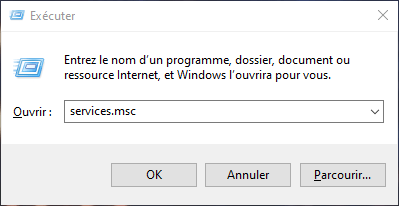
- Press the Windows key + R to open the Run dialog box
- Type services.msc and click OK
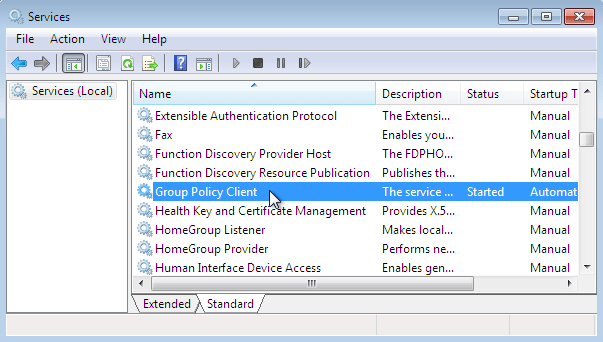
- In the services window, locate Group Policy Client and double-click on it
- In the General tab, verify that the startup type is set to Automatic
- If the service is stopped, click Start
- If the service is running, click Stop and then Start
- Click Apply and then OK
- Restart your computer and check if the problem is resolved
2. Repair the gpsvc.dll files
The gpsvc.dll file is a dynamic library that contains the functions for the GPSVC service. If this file is missing or corrupted, it can cause GPSVC-related errors. To repair gpsvc.dll files, you can use the System File Checker (SFC) tool or the Deployment Image Servicing and Management (DISM) tool. Here's how:
With the SFC tool
- Press the Windows key + X and select Command Prompt (admin) or PowerShell (admin)

- Type sfc /scannow and press Enter

- Please wait for the analysis and repair to complete (this may take several minutes)
- Restart your computer and check if the problem is resolved
With the DISM tool
- Press the Windows key + X and select Command Prompt (admin) or PowerShell (admin)
- Type DISM /Online /Cleanup-Image /RestoreHealth and press Enter

- Please wait for the analysis and repair to complete (this may take several minutes)
- Restart your computer and check if the problem is resolved
3. Repair applications and programs
If the problem is caused by an application or program that is not working correctly with the GPSVC service, you can try to fix it from Windows settings or the Control Panel. Here's how:
With Windows settings
- Select Start > Settings > Apps > Apps & features

- Select the Plus icon next to the application you want to fix
- Select the Advanced options link under the application name (some applications do not have this option)

- On the page that opens, select Repair if this option is available. If it is not available, or if this does not resolve the issue, select Reset

With the control panel
- In the search box on the taskbar, type Control Panel, and then select Control Panel from the list of results
- Select Programs > Programs and Features

- Right-click on the program you want to fix and select Repair or, if this option is not visible, Modify
- Then follow the instructions that appear on the screen
4. Disable your proxy server
Another reason why GPSVC might not be working is a conflicting proxy web server. If this is the case, disabling this setting will likely allow the GPSVC service to run. To do this, follow these steps:
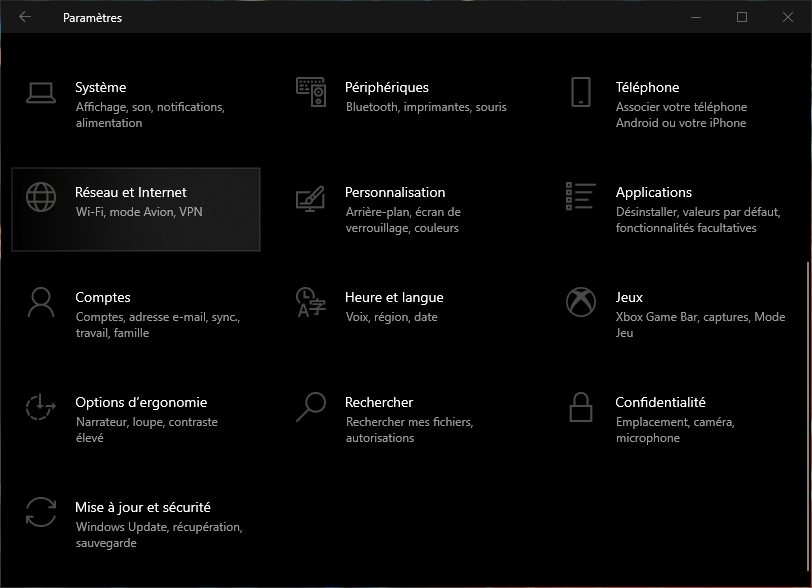
- Press the Windows key + I to open Windows settings
- Select Network and Internet
- Select Proxy from the left-hand menu
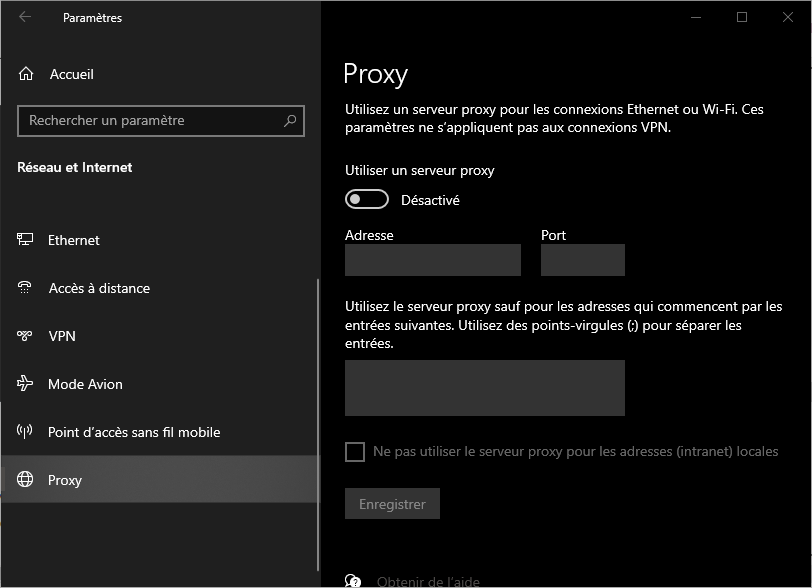
- Disable the "Use a proxy server" option under Manual proxy configuration
- Restart your computer and check if the problem is resolved
If the problem persists, the server's IP address may not have been found . In this case, you may need to contact your internet service provider or check your router settings.
Summary table of solutions
| Solution | Description |
| Restart the GPSVC service | Check and restart the Group Policy Client service |
| Repair the gpsvc.dll files | Use the SFC or DISM tool to repair corrupted system files |
| Repair applications and programs | Use Windows settings or the Control Panel to repair applications that interfere with GPSVC |
| Disable your proxy server | Disable the proxy web server that prevents GPSVC from communicating with group policies |
FAQ
How do I delete a locked gpsvc.dll file?
To remove a locked gpsvc.dll file, you can use the Force Deleter tool from Asmwsoft PC Optimizer. Here's how:
- Launch the Asmwsoft PC Optimizer application
- On the main window, select the Force Deleter tool
- Next, from Force Deleter, click Choose File and locate the gpsvc.dll file, then click Open
- Click Delete Now to remove the locked file
How do I reset group policies?
To reset Group Policies, you can use the Local Group Policy Editor (gpedit.msc) or the Command Prompt. Here's how:
With the local group policy editor
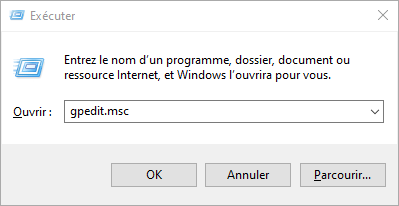
- Press the Windows key + R to open the Run dialog box
- Type gpedit.msc and click OK
- In the window that opens, expand Computer Configuration > Administrative Templates > System > Group Policy
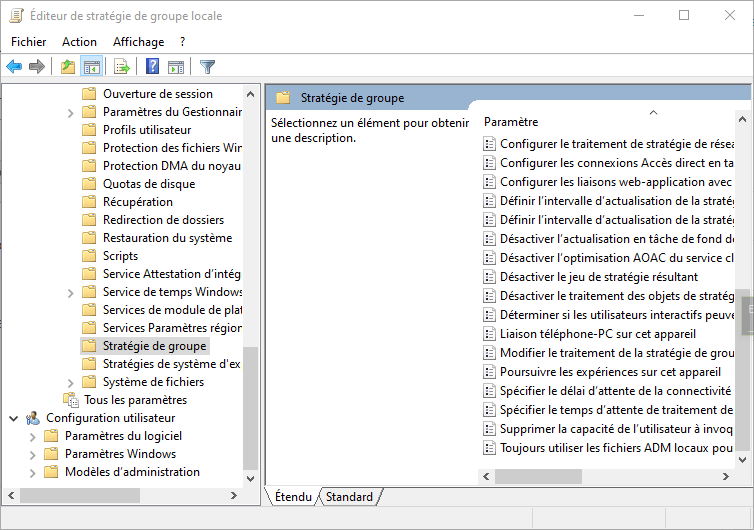
- Double-click on Restore Local Policy Defaults
- Select Enabled and then click OK
- Restart your computer to apply the changes
Using the command prompt
- Press the Windows key + X and select Command Prompt (admin) or PowerShell (admin)
- Type gpupdate /force and press Enter
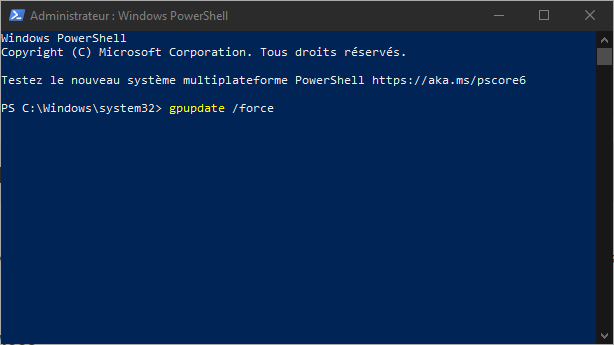
- Wait until the message “Group policy update complete” appears
- Restart your computer to apply the changes
How do I activate or deactivate the GPSVC service?
To enable or disable the GPSVC service, you can use the Services Manager or the Registry Editor. Here's how:
With the service manager
- Press the Windows key + R to open the Run dialog box
- Type services.msc and click OK
- In the services window, locate Group Policy Client and double-click on it
- In the General tab, change the startup type according to your preference: Automatic, Manual, or Disabled
- Click Apply and then OK
With the registry editor
- Press the Windows key + R to open the Run dialog box
- Type regedit and click OK

- In the Registry Editor window, navigate to the following key: HKEY_LOCAL_MACHINE\SYSTEM\CurrentControlSet\Services\gpsvc
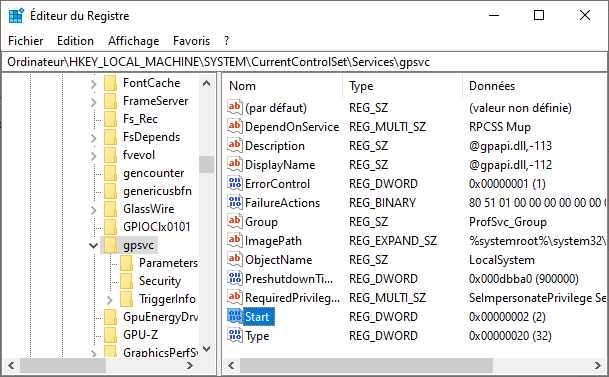
- Double-click the Start value in the right pane
- Change the value data according to your choice: 2 for Automatic, 3 for Manual, or 4 for Disabled
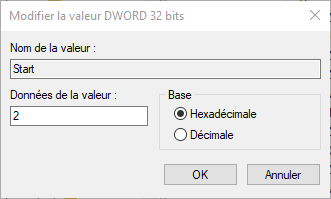
- Click OK and close the registry editor
Why am I getting the message “Connection failed by the gpsvc service”?
This message may appear if the GPSVC service is stopped or corrupted, or if the gpsvc.dll file is missing or corrupted. To resolve this issue, you can try restarting the GPSVC service, repairing the gpsvc.dll files, repairing applications and programs, or disabling your proxy server.
How do I remove the GPSVC service?
It is not recommended to remove the GPSVC service, as it is essential for Windowsto function correctly. If you still wish to remove it, you can use the Registry Editor and delete the key HKEY_LOCAL_MACHINE\SYSTEM\CurrentControlSet\Services\gpsvc. However, be aware that this operation may cause stability and security problems.
How do I enable or disable the automatic startup of the GPSVC service?
To enable or disable the automatic startup of the GPSVC service, you can use the Services Manager or the Registry Editor. With the Services Manager, you must change the GPSVC service startup type to Automatic, Manual, or Disabled. With the Registry Editor, you must change the Start value in the HKEY_LOCAL_MACHINE\SYSTEM\CurrentControlSet\Services\gpsvc key to 2 for Automatic, 3 for Manual, or 4 for Disabled.


