

The CTF loader, or Collaborative Translation Framework Loader , is an essential Windows process that allows certain Windows to stay connected and communicate with each other. Windows uses the CTF loader to manage message support for users' alternative input programs. It also helps enable different input languages in Microsoft Office, known as the language bar .
The CTF loader is a perfectly legitimate and useful process, but it can sometimes consume a lot of CPU resources for extended periods without any apparent reason. If you've noticed it using too much CPU on your system, don't worry. There are effective solutions to this problem. In this article, we'll explain how to verify the authenticity of the CTF loader, how to disable it temporarily or permanently, and how to repair it if it malfunctions.
Verify the authenticity of the CTF charger
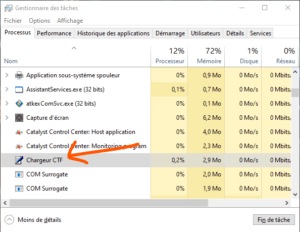
Before attempting any technical solutions, ensure that the CTF loader process is genuine and not a virus disguised as such. Cybercriminals sometimes code their malware Windows processes , making it harder to detect. You can verify the legitimacy of the executable file by following the steps below:
- Open the task manager using the shortcut keys Ctrl + Shift + Esc.
- Locate and right-click on CTF loader .
- Select Properties from the context menu.

- Copy the path next to Location .
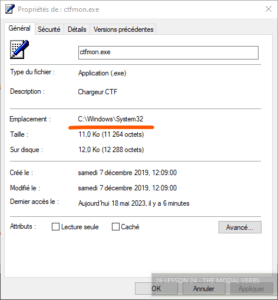
- Open File Explorer, paste the copied portion into the search bar and press Enter.
- Locate and right-click on ctfmon.exe .
- Select Properties from the context menu.

- In the properties window, switch to the Details .
- Make sure that “© Microsoft Corporation. All rights reserved” is written next to Copyright .
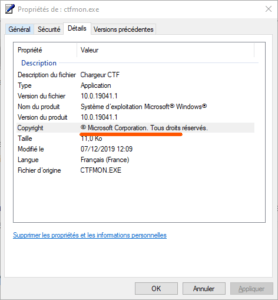
If anything else is written next to the copyright notice, there's a good chance the executable file comes from an unauthorized source and is malware. In this case, you should scan your system with a reliable paid antivirus program and remove any detected threats.
Disable the CTF loader temporarily or permanently
If you're sure the CTF loader is a legitimate process, but it's still consuming too much CPU, you can try disabling it temporarily or permanently. Here's how:
Temporarily disable the CTF loader
To temporarily disable the CTF loader, you can simply stop the process in Task Manager. Here's how: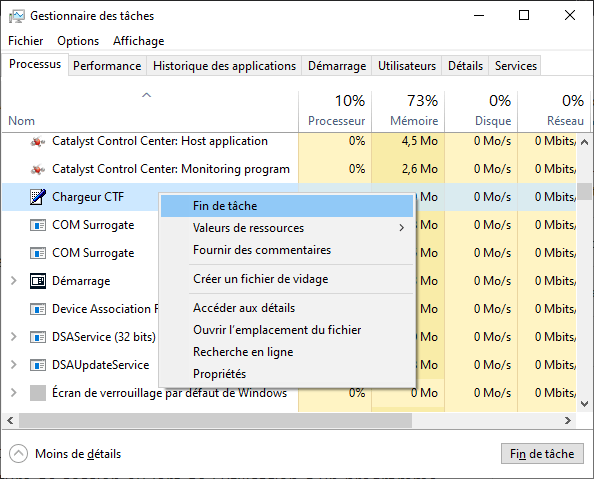
- Open the task manager using the shortcut keys Ctrl + Shift + Esc.
- Locate and right-click on CTF loader .
- Select End Task from the context menu.
CPU resources it was using. However, this method is not permanent, and the CTF loader may restart automatically the next time you log in or use a program that depends on it. If you want to disable the CTF loader permanently, you must follow the next method.
Disable the CTF loader permanently
To permanently disable the CTF loader, you need to modify the settings of the Windows services that are related to the CTF loader. Here's how:
- Press the Windows + R keys to open the Run dialog box.
- Type services.msc and press Enter.
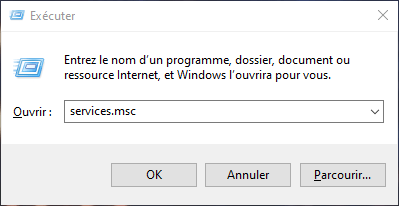
- In the services window, locate and double-click on Advanced Text Service .
- In the service properties window, change the startup type to Disabled .
- Click Stop to stop the service if it is running.
- Click OK to save the changes.
- Restart your computer for the changes to take effect.
Disabling the Advanced Text Service prevents the CTF loader from launching automatically at startup or when using a program that relies on it. However, this can also affect certain Windows , such as speech recognition or the language bar. If you need these features, you can re-enable the service by following the same steps and changing the startup type to Automatic .
Repair the CTF charger if there is an error
If you encounter CTF loader errors, such as startup error messages or system crashes, you can try repairing the CTF loader using Windows' built-in tools. Here's how:
Use the Windows troubleshooter
Windows has a troubleshooter that can automatically detect and fix some common system problems. You can use this utility to repair the CTF loader by following the steps below:
- Press the Windows + I keys to open Windowssettings.
- Click on Update and Security .
- Click on Troubleshooting in the left menu.
- Click on Compatible Programs in the list of problems to solve.
- Click on Run the troubleshooter .
- Follow the on-screen instructions to detect and repair CTF charger problems.
The troubleshooter can fix some corrupted settings or files that are causing errors with the CTF loader. If that doesn't work, you can try the following method.
Use the System File Checker tool
Windows also has a tool called System File Checker that can scan for and repair corrupted or missing system files. You can use this tool to repair the CTF loader by following the steps below:
- Press the Windows + X keys to open the Start button context menu.
- Choose Command Prompt (admin) or Windows PowerShell (admin) from the menu.
- Type sfc /scannow and press Enter.

- Wait until the analysis and repair are complete. This may take some time; do not close the window during the process.
The System File Checker tool can restore original system files that have been accidentally modified or deleted. If this does not resolve the errors with the CTF loader, you can try the following method.
Use the DISM tool
Windows also has a tool called DISM (Deployment Image Servicing and Management) that can repair damaged or corrupted operating system images. You can use this tool to repair the CTF loader by following the steps below:
- Press the Windows + X keys to open the Start button context menu.
- Choose Command Prompt (admin) or Windows PowerShell (admin) from the menu.
- Type DISM /Online /Cleanup-Image /RestoreHealth and press Enter.

- Wait until the repair is complete. This may take some time; do not close the window during the process.
The DISM tool can restore the operating system image to its original state and repair damaged components that cause errors with the CTF loader. If that doesn't work either, you can try the last method.
Reinstall Windows
If none of the previous methods succeed in repairing the CTF loader, your system may be too damaged or infected with a virus. In this case, the only solution may be to reinstall Windows. This will erase all your files and programs, so be sure to back up your important data before proceeding. Here's how:
- Press the Windows + I keys to open Windowssettings.
- Click on Update and Security .
- Click on Recovery in the left menu.
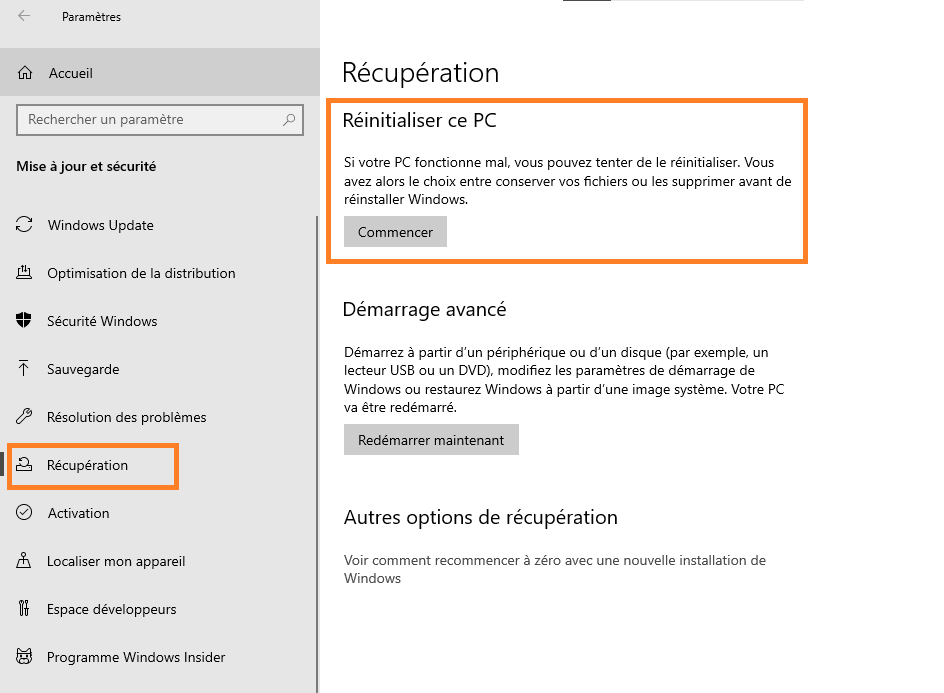
- Under Reset this PC , click Get Started .
- Choose Remove everything and follow the on-screen instructions to reinstall Windows .
Reinstalling Windows should resolve all CTF loader issues and make your system faster and more stable. However, you will need to reinstall all your programs and restore your files after the reinstallation.
FAQ
Is the CTF charger a virus?
The CTF loader is not a virus, but a legitimate Windows process that handles message support for users' alternative input programs. However, it's possible for a virus to disguise itself as the CTF loader to deceive users. You can verify the authenticity of the executable file by following the steps outlined in this article.
Is the CTF charger necessary?
The CTF loader is required for certain Windowsfeatures, such as speech recognition and the language bar. If you don't use these features, you can safely disable the CTF loader. If you need it, you can re-enable the CTF loader by following the steps in reverse.
How do I disable the CTF loader at startup?
To disable the CTF loader at startup, you can locate the Touch Keyboard and Handwriting Pane service in the Services window and set its startup type to Disabled. You can also stop the service if it is running.
Why does the CTF charger consume so much CPU?
The CTF loader normally uses little CPU, but it can sometimes experience spikes in usage for no apparent reason. This could be due to a bug, a virus infection, or a conflict with another program. One possible cause is the .NET Runtime Optimization Service Windows tools if nothing else works, reinstalling Windows
How do I reinstall Windows to fix the CTF loader?
To reinstall Windows to repair the CTF loader, you must first back up your important data, as the reinstallation will erase all your files and programs. Then, you must follow the steps described in the article to reset your PC and choose the "Remove everything" option. After the reinstallation, you will need to reinstall your programs and restore your files.


