
Are you frustrated by sound problems on your Windows 10 ? Don't worry, we're here to help! In this guide, we'll explain how to reset your audio settings and resolve the most common sound issues in just a few simple steps. Ready to get back to optimal sound? Follow the guide!
Step 1: Check the connections and hardware
Before resetting your audio settings, it's important to check that your speakers or headphones are properly connected and that the equipment is working. Here are a few tips to ensure everything is in order:
- Check that the cables are properly connected and in good condition
- Make sure the volume is not muted or set to minimum
- Test your speakers or headphones on another device to confirm they are working properly
Step 2: Access the audio settings
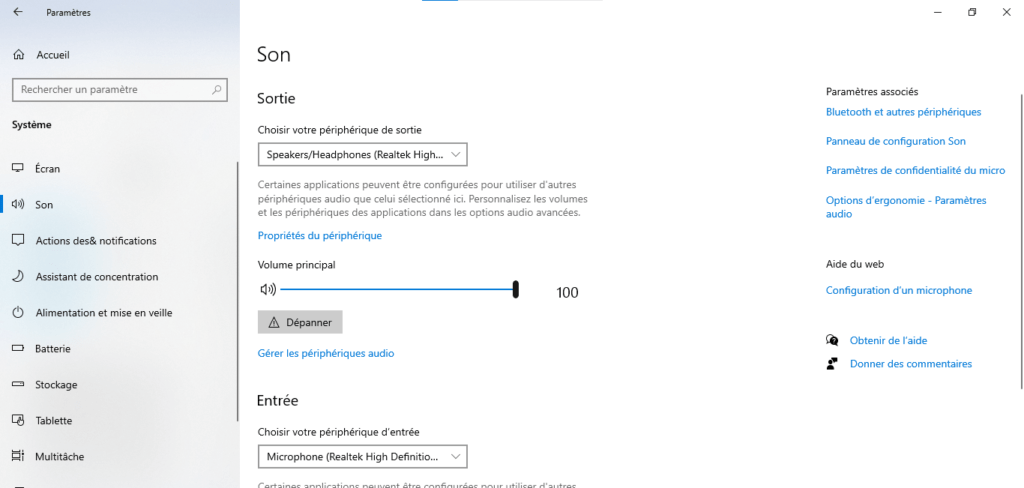
If you've verified that your hardware is working correctly, it's time to look at your computer's audio settings. To access audio settings on Windows 10, follow these steps:
1. Click on the speaker icon in the taskbar, at the bottom right of the screen
2. Press the "Sound" button to open the audio settings
Step 3: Reset audio settings
Now that you have access to the audio settings, it's time to reset them. Here's how:
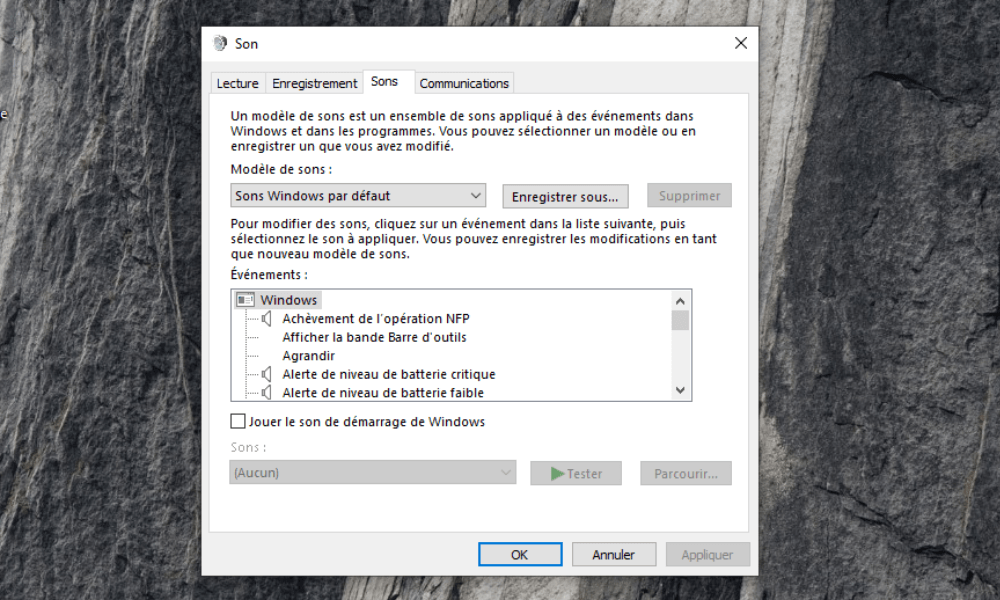
1: In the "Playback" tab, locate the audio device you want to reset (speakers or headphones) and right-click on it.
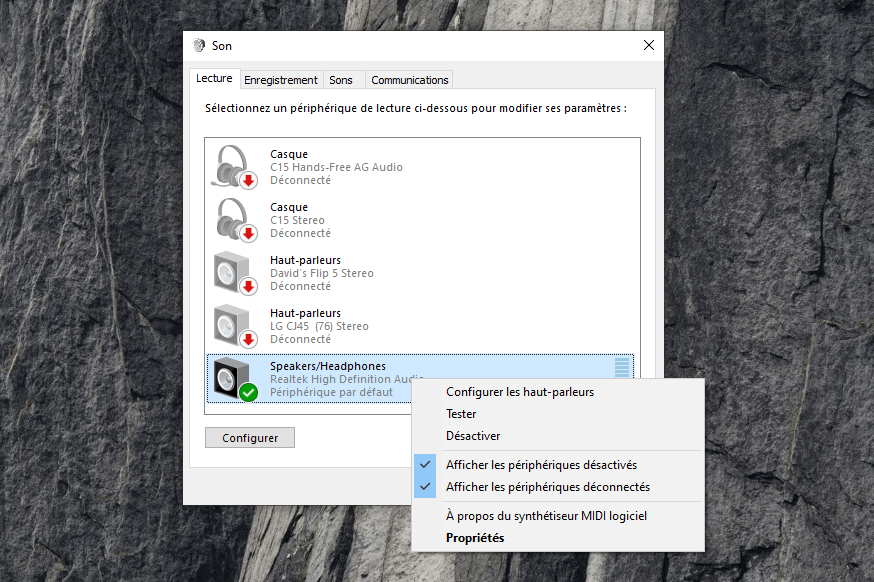
2: Select "Properties"
3: Go to the "Levels" tab and make sure the volume is set correctly

4: Go to the "Enhancements" tab and check the box "Disable all sound enhancements" (this option may be named differently depending on the manufacturer)
Click "Apply" and then "OK" to confirm the changes
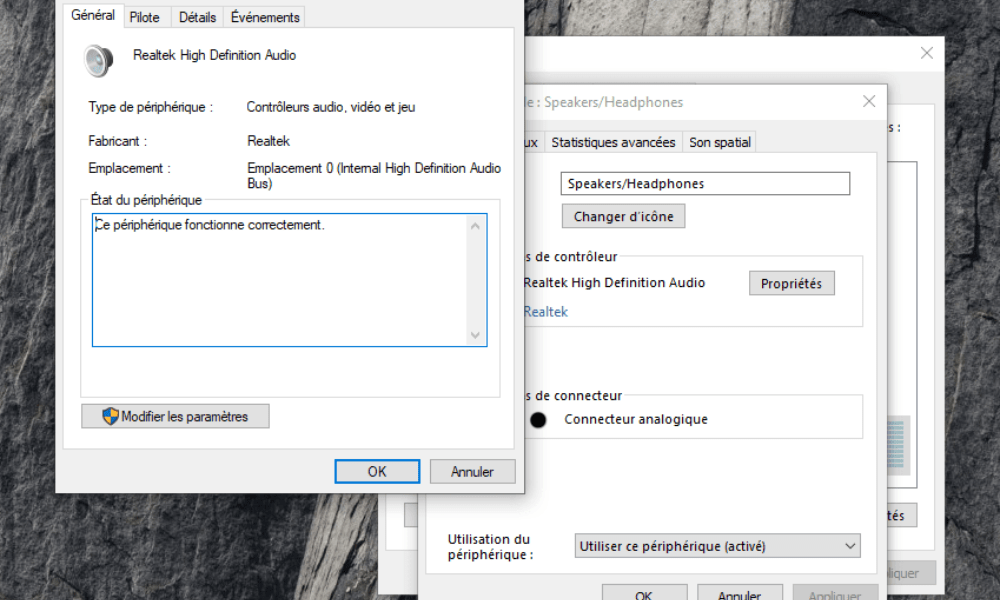
If you don't see this tab, it may mean that your audio driver doesn't support this feature or that it's already disabled by default, as in this case:
You might also like this article: How to block the use of USB drives in Windows ?
Step 4: Update the audio drivers
If resetting your audio settings doesn't solve your problem, your audio drivers may be outdated or corrupted. Here's how to update them:
1. Right-click on the "This PC" icon on your desktop or in File Explorer and select "Manage"
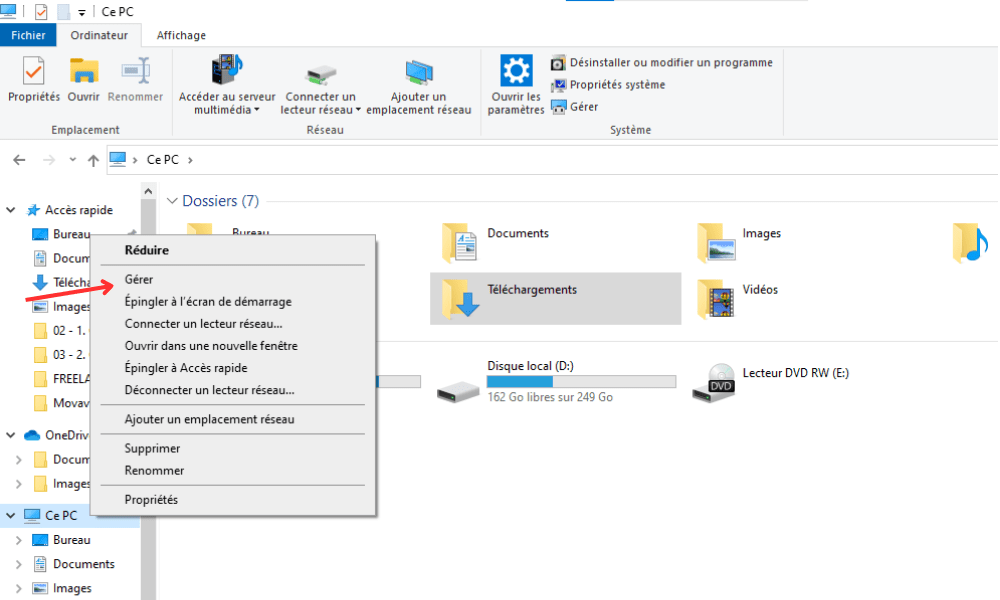
In the "Computer Management" window, click on "Device Manager"
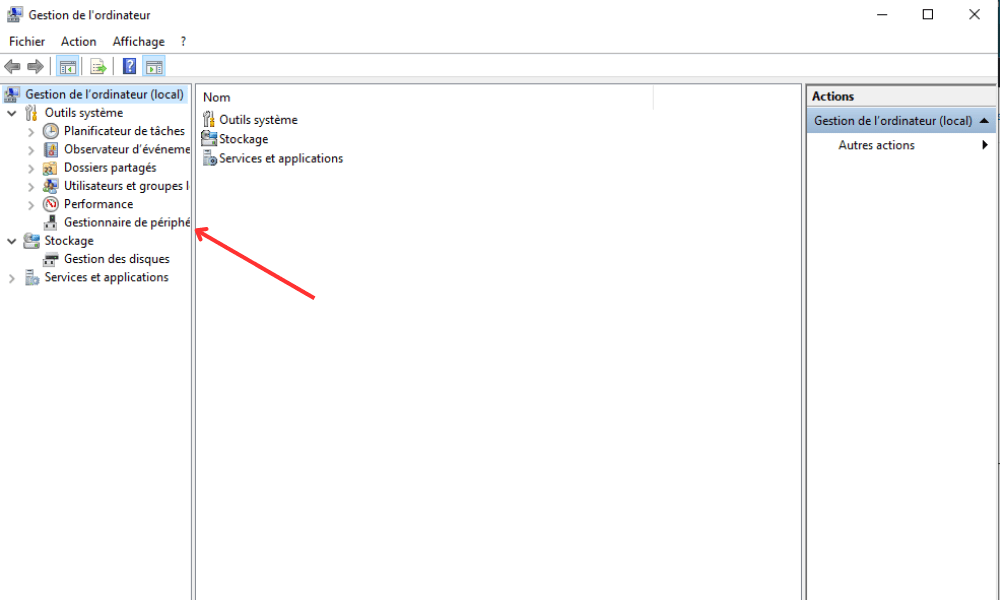
Search for "Sound, video and game controllers" and click the small triangle to expand the list
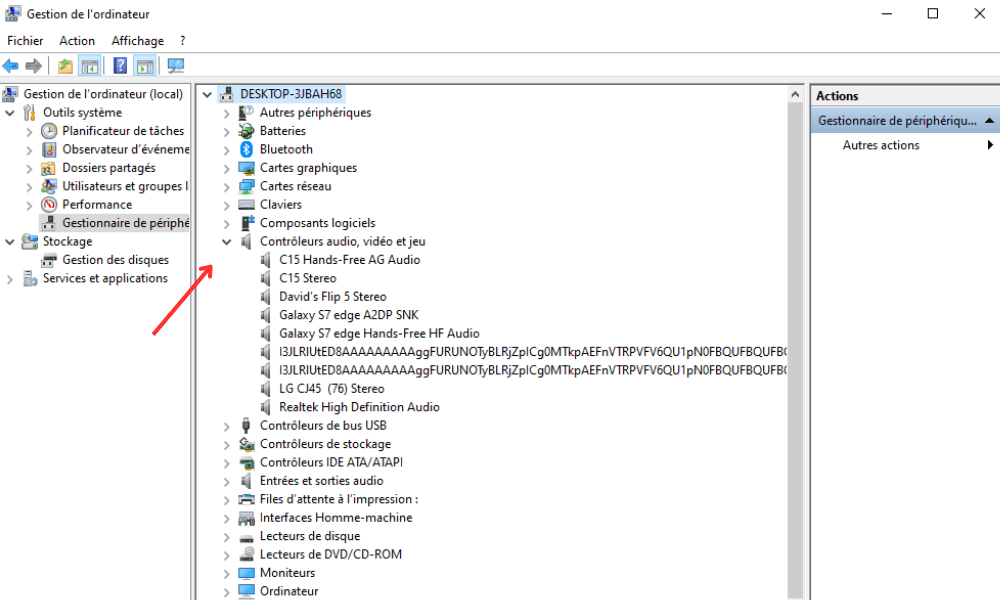
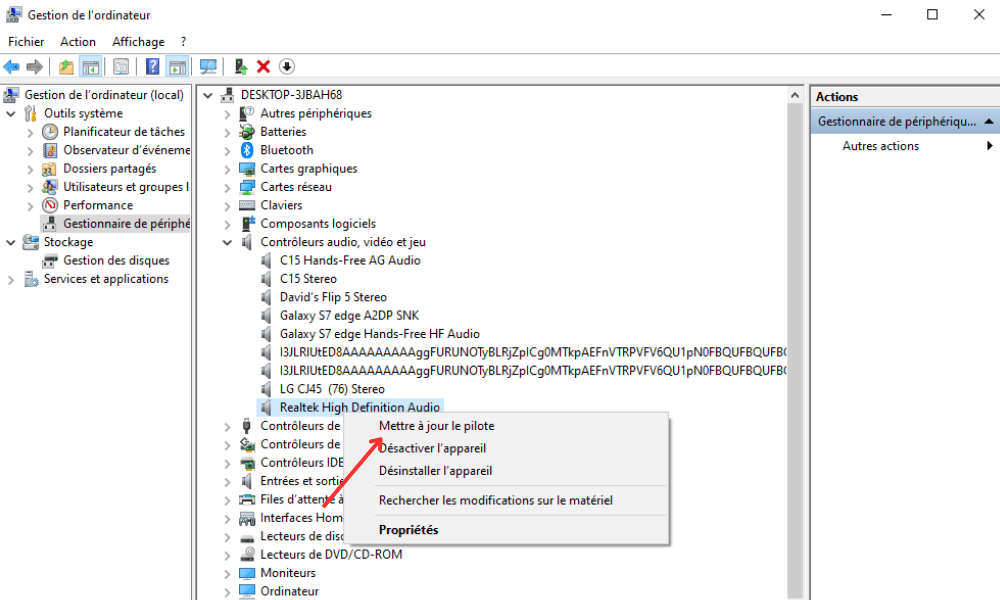
Right-click on your preferred audio driver (for example, Realtek High Definition Audio) and select "Update driver".
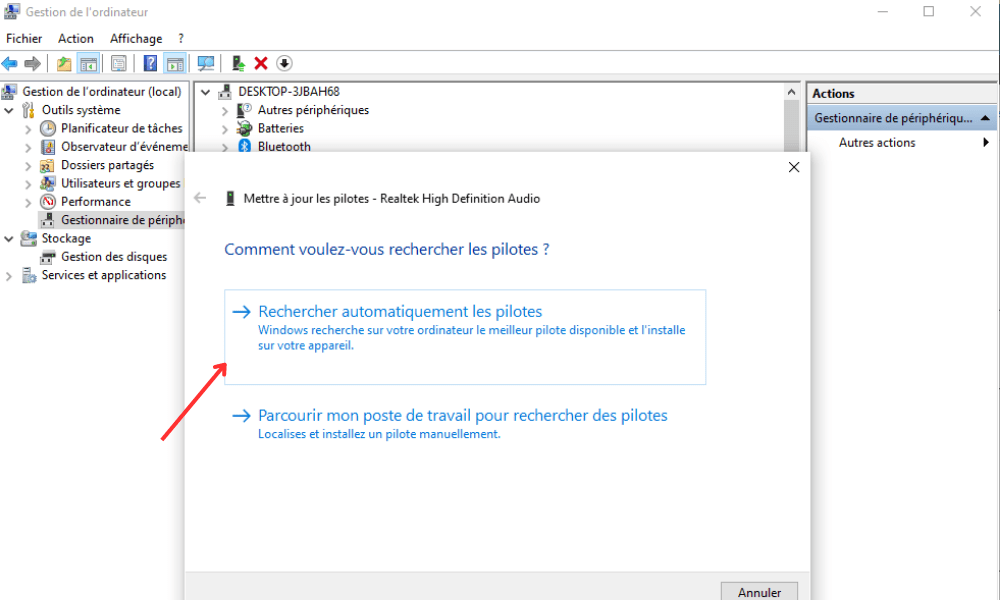
Choose the "Search automatically for drivers" option and then let Windows find and install the update
Once the drivers are updated, restart your computer for the changes to take effect.
Step 5: Reinstall the audio drivers
If updating the audio drivers still doesn't solve the problem, you can try reinstalling them:
- Go back to the "Device Manager" as explained previously
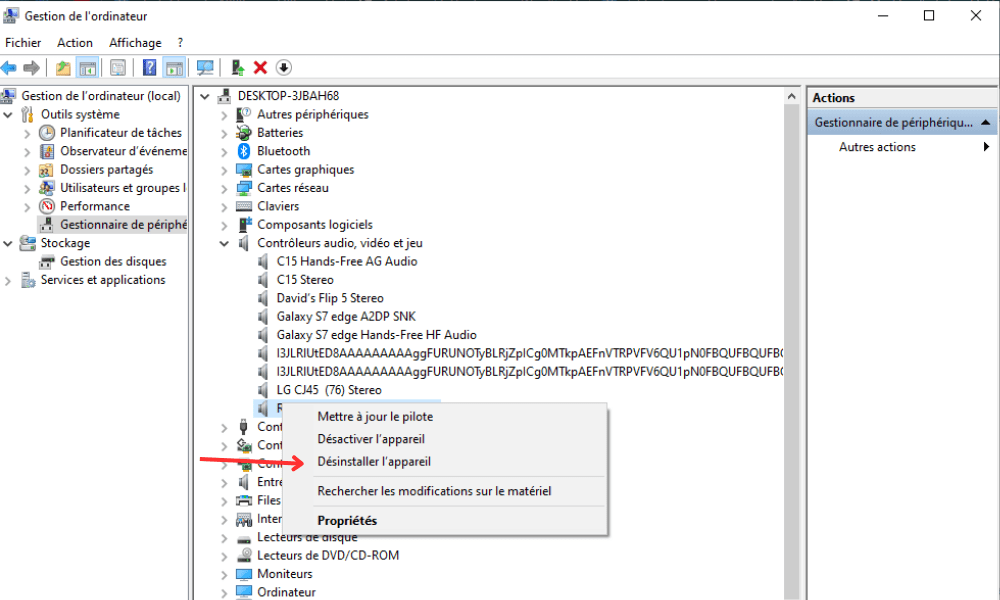
- Right-click on the audio driver and select "Uninstall device"
- Restart your computer. Windows should automatically reinstall the audio drivers upon restart
After following these steps, the sound problems on your Windows 10 should be resolved. If the problem persists, it's possible that it stems from a hardware defect or a conflict with other software. In this case, don't hesitate to contact your computer manufacturer's technical support or consult an IT professional.
Comparative table of solutions for resolving audio problems
| Solution | Benefits | Disadvantages |
|---|---|---|
| Equipment check | Simple and quick | Does not solve software problems |
| Resetting audio settings | Can solve many common problems | Does not work if the drivers are outdated |
| Audio driver update | Ensures optimal equipment operation | May require an internet connection |
| Reinstalling audio drivers | Can resolve corrupted driver issues | May take longer than other solutions |
FAQ
What are the best applications for managing audio settings on Windows 10?

There are many third-party applications that can help you manage and optimize audio settings on Windows 10. Here are some of the best:
- Equalizer APO: an open source parametric and graphic equalizer that offers many customization options.
- FxSound Enhancer: a paid application that improves sound quality by adding effects and enhancements.
- Boom 3D: a paid application that offers 3D surround sound and customizable equalization effects.
- Voicemeeter: a free application that allows you to mix and manage different audio devices in real time.
Don't forget to check the compatibility of these applications with your hardware and audio drivers before installing them.
How do I reset the audio settings on a Windows 10 laptop?
Resetting audio settings laptop Windows is similar to the procedure described in the article for a desktop computer. Here is a summary of the steps to follow:
- Access audio settings by clicking the speaker icon in the taskbar.
- In the "Playback" tab, select the audio device (built-in speakers or headphones) that you want to reset, then right-click and select "Properties".
- Go to the "Enhancements" tab and check the "Disable all sound effects" box. Click "Apply" and then "OK" to save the changes.
- If the problem persists, try updating or reinstalling the audio drivers as explained in the article.
By following these steps, you should be able to reset the audio settings on your Windows 10 laptop.
Can Windows 10 diagnostic tools be used to resolve sound problems?
Yes, Windows 10 has built-in diagnostic tools that can help you troubleshoot sound problems. Here's how to use the audio troubleshooter:
- Right-click the speaker icon in the taskbar and select "Troubleshoot sound problems".
- The troubleshooting utility will run and automatically detect sound problems on your computer.
- Follow the on-screen instructions to resolve any detected problems.
Note that this tool may not solve all sound problems and it may be necessary to follow the steps described in the article to resolve certain specific issues.
Conclusion
Sound problems on Windows can Windows be frustrating, but they are often easy to resolve by following the tips and steps outlined in this FAQ. Feel free to consult the other sections of this article for additional information on resetting audio settings , updating drivers , and using third-party applications . If the problems persist, contact your computer manufacturer's technical support or consult an IT professional for assistance.


