

The Shell Infrastructure Host Windows process that manages several visual aspects related to the Start menu, Action Center, desktop background slideshows, and more. It runs in the background and is called sihost.exe (or Shell Infrastructure Host) in Task Manager.
Sometimes, this process can consume abnormal amounts of CPU and memory resources, which can slow down your PC and affect its performance. This problem can occur for various reasons, such as corrupted or missing system files, a virus or malware, a faulty photo viewing application, or incorrect settings.
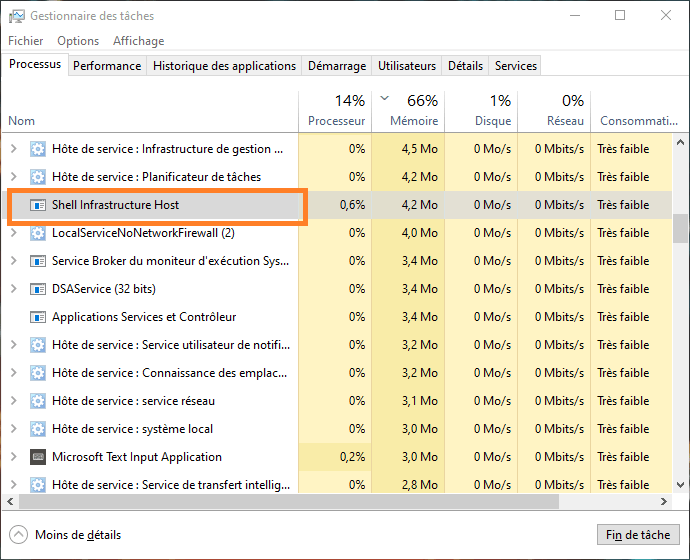
Fortunately, there are several possible solutions to resolve this issue and restore your PC to normal operation. In this article, we will show you how to fix the Shell Infrastructure Host high CPU usage in Windows by following these steps:
Solution 1: Scan your PC with an antivirus program
The first thing to do is check if the sihost.exe process is a virus or malware in disguise. To do this, you need to scan your PC with a reliable and up-to-date antivirus program. You can use the built-in Windows , called Windows Security , or any other paid antivirus of your choice.
To scan your PC with WindowsSecurity, follow these instructions:
- Go to Start > Settings > Update & Security > Windows Security > Virus & threat protection.
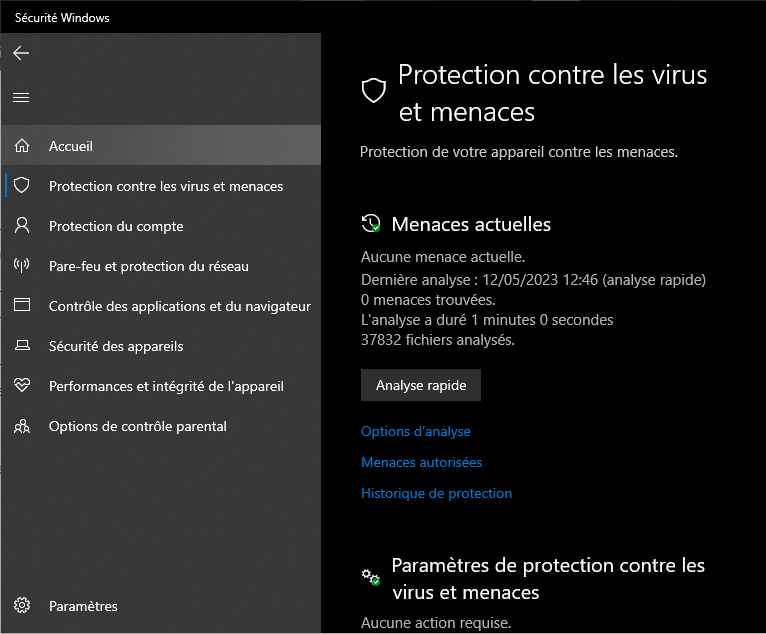
- Click on Analyze options and choose Full analysis.
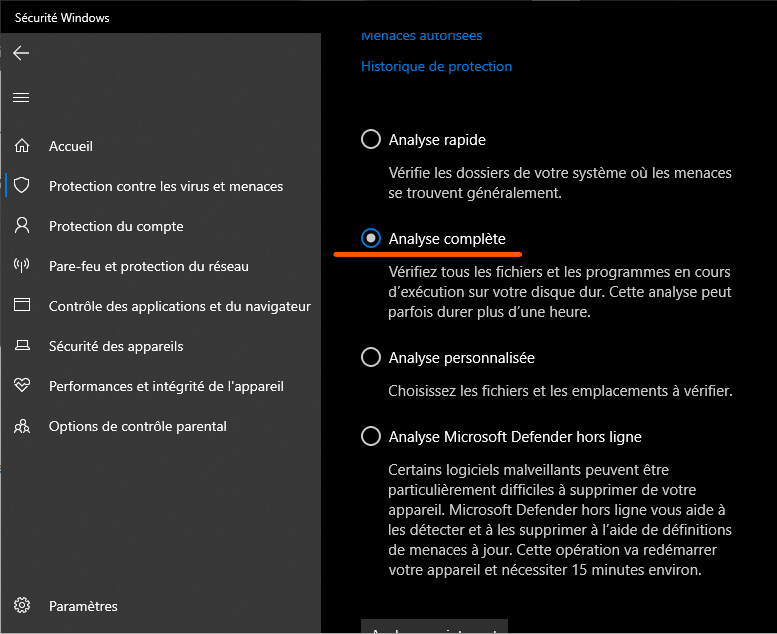
- Click on Analyze now and wait for the process to complete.
- If the scan detects threats, follow the on-screen instructions to remove them.
If the analysis does not detect any threats, proceed to the next step.
Solution 2: Change the default photo viewing application
A common cause of the problem is the Windows photo viewer application , called Photos . This application can trigger the sihost.exe process and cause it to consume a lot of resources when you browse your photo gallery.
A simple solution is to change your default photo viewer app to a lighter and more efficient one. You can choose from the many apps available on the Microsoft Store or online, such as IrfanView, XnView, or FastStone Image Viewer.
To change your default photo viewing application, follow these instructions:
- Go to Start > Settings > Apps > Default apps.
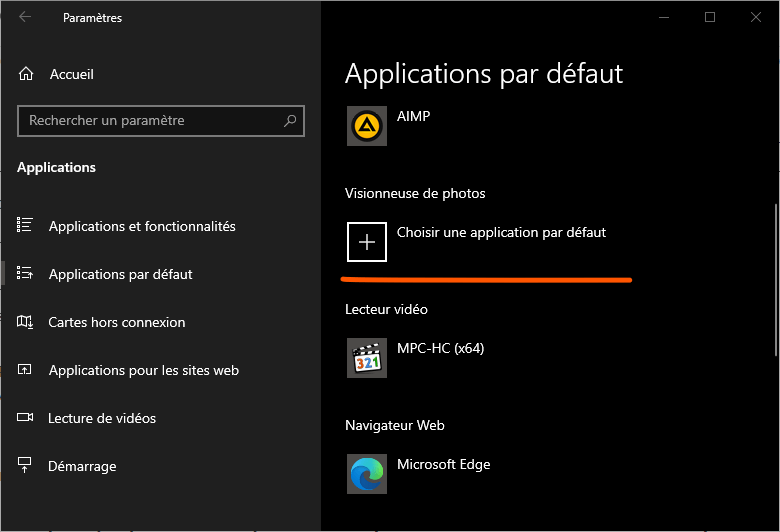
- Scroll down and click on Photo Viewer.
- Select the application you want to use as your default photo viewer.
- Close the settings and restart your PC.
Next, try browsing through your photos and check if the problem persists.
Solution 3: Repair damaged or missing system files
Another possible cause of the problem is the presence of corrupted or missing system files that prevent the sihost.exe process from functioning correctly. To resolve this issue, you can use the built-in Windows called System File Checker (SFC) , which scans for and repairs corrupted system files.
To use the SFC tool, follow these instructions:
- Type CMD in the taskbar, search for and open the appropriate application.
- Right-click on Command Prompt and choose Run as administrator.
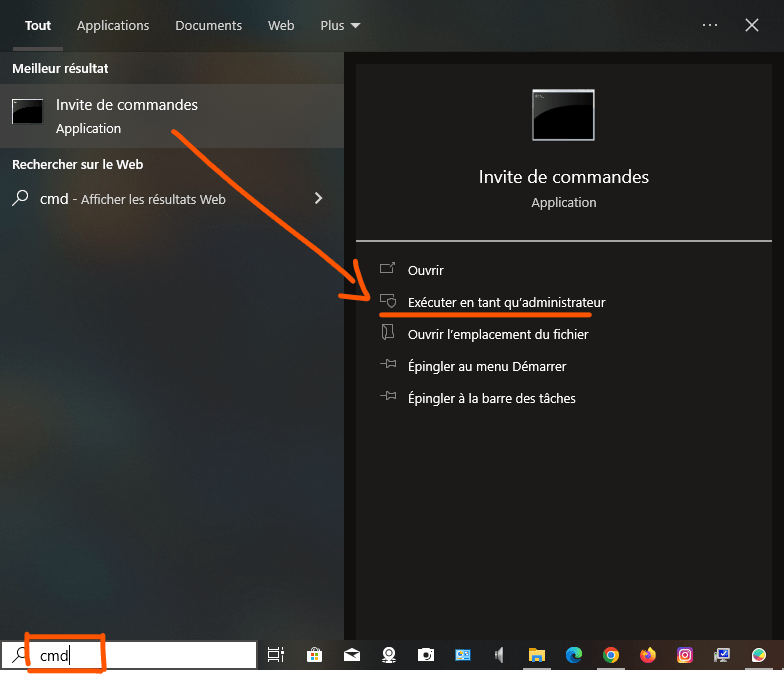
- Type the following command and press Enter: sfc /scannow

- Wait for the process to finish and restart your PC.
If the SFC tool fails to repair system files, you can try another built-in Windowstool called DISM (Deployment Image Servicing and Management), which repairs the system image from an online source.
To use the DISM tool, follow these instructions:
- Open a command prompt with administrator privileges as described above.
- Type the following command and press Enter: DISM /Online /Cleanup-Image /RestoreHealth
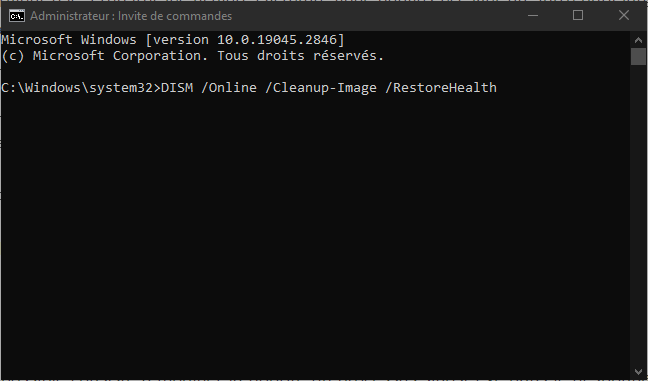
- Wait for the process to finish and restart your PC.
Next, check if the problem is resolved.
Solution 4: Change the priority of the sihost.exe process
Another possible solution is to change the priority of the sihost.exe process in the Task Manager. By lowering the process priority, you can limit the amount of resources it can use and prevent it from interfering with other, more important processes.
To change the priority of the sihost.exe process, follow these instructions:
- Open the task manager by pressing Ctrl + Alt + Delete and choosing Task Manager.
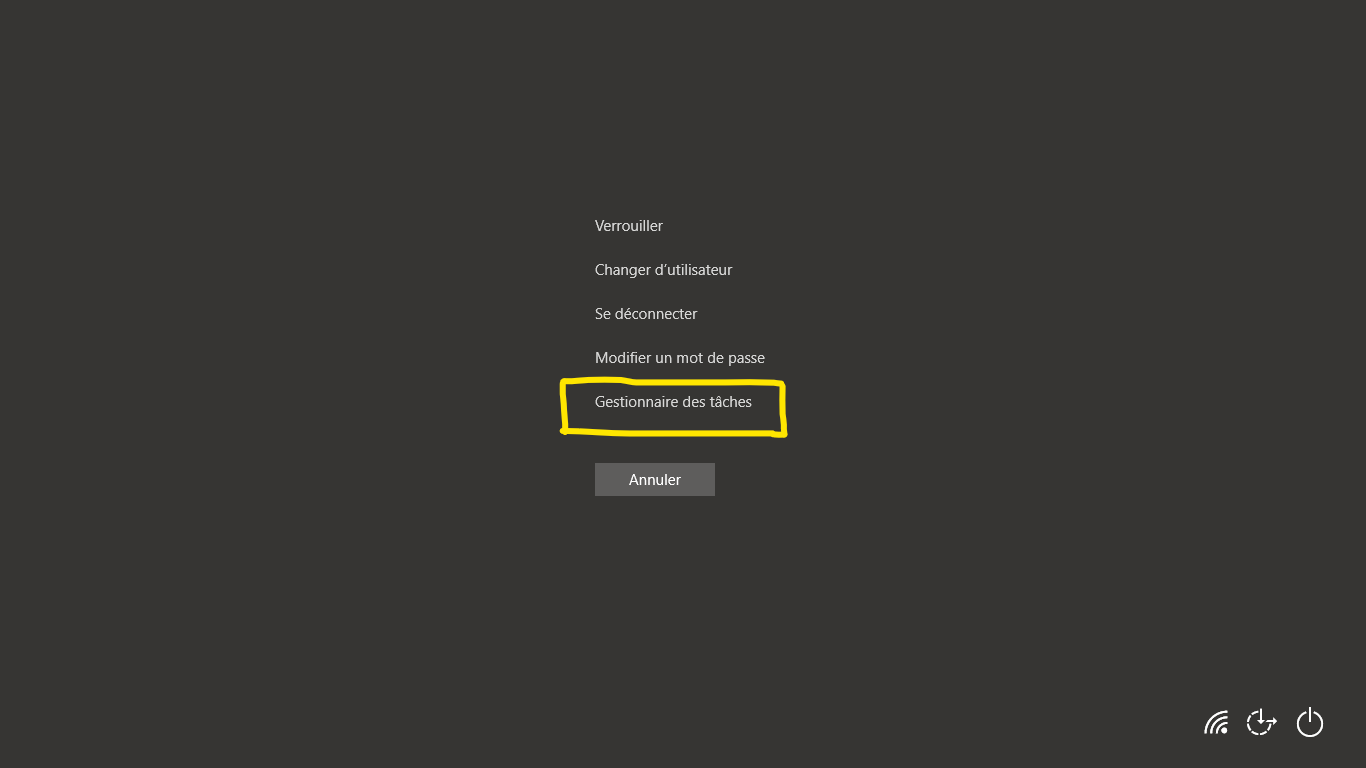
- Locate the sihost.exe process in the Processes tab, right-click on it and choose Go to Details.
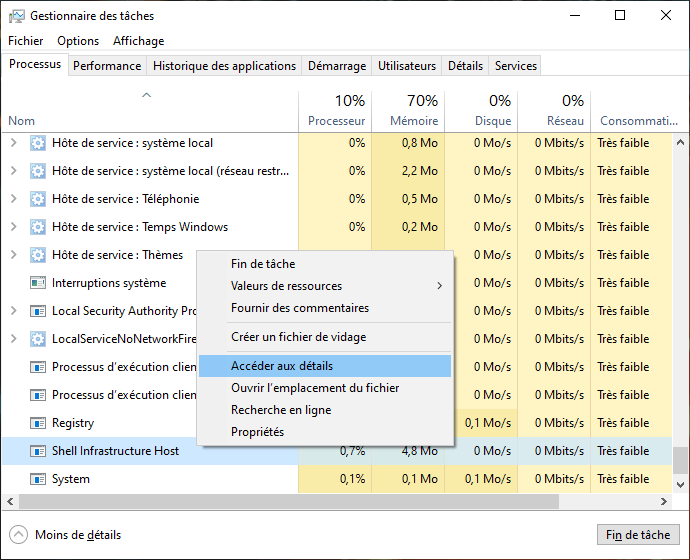
- This will highlight the sihost.exe process in the Details tab. Right-click on it and choose Set Priority.
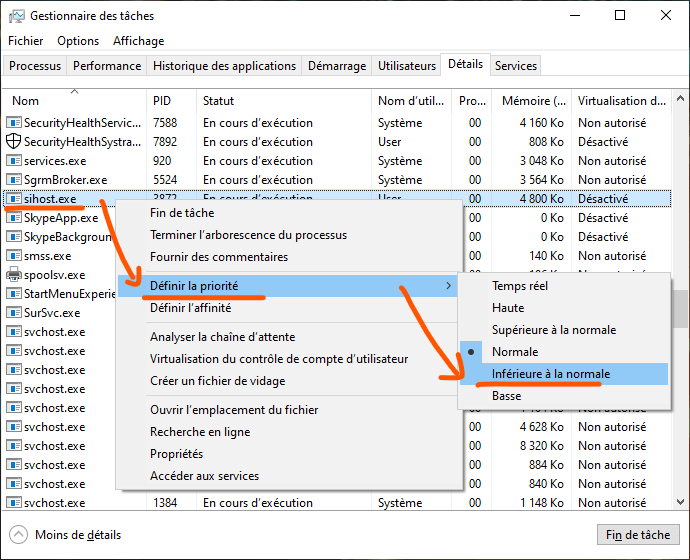
- Choose a lower priority than the current one, for example Low or Below Normal.
- Confirm your choice by clicking on Change priority.
Note: This solution is not permanent and you will need to repeat these steps each time you restart your PC.
Solution 5: Disable desktop background slideshows
Another possible cause of the problem is the Windowsdesktop background slideshow feature, which automatically changes your desktop image at regular intervals. This feature can trigger the sihost.exe process and cause it to consume a lot of resources.
A simple solution is to disable desktop background slideshows and choose a static image as your background. To do this, follow these instructions:
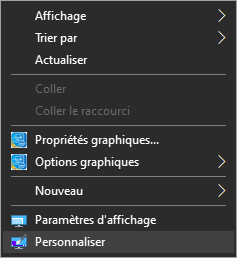
- Right-click on an empty space on your desktop and choose Personalize.
- Click on Background in the left pane.
- In the dropdown menu under Choose your background image, choose Image instead of Slideshow.
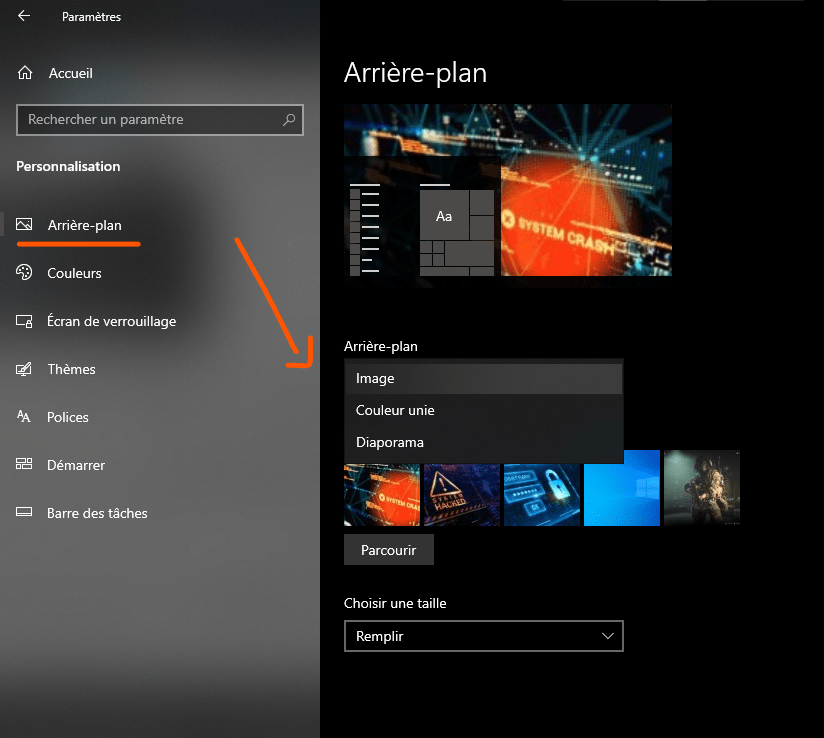
- Select the image you want to use as a background or click Browse to choose an image from your computer.
- Close the settings and restart your PC.
Next, check if the problem persists.
Solution 6: Reset Windows
If none of the above solutions work for you, you can try resetting Windows to its factory settings. This will remove any corrupted or missing system files that might be causing the problem. However, it will also remove all your apps and personalized settings. You can choose whether or not to keep your personal files during the reset.
To reset Windows, follow these instructions:
- Go to Start > Settings > Update & Security > Recovery.
- Click Start under Reset this PC.
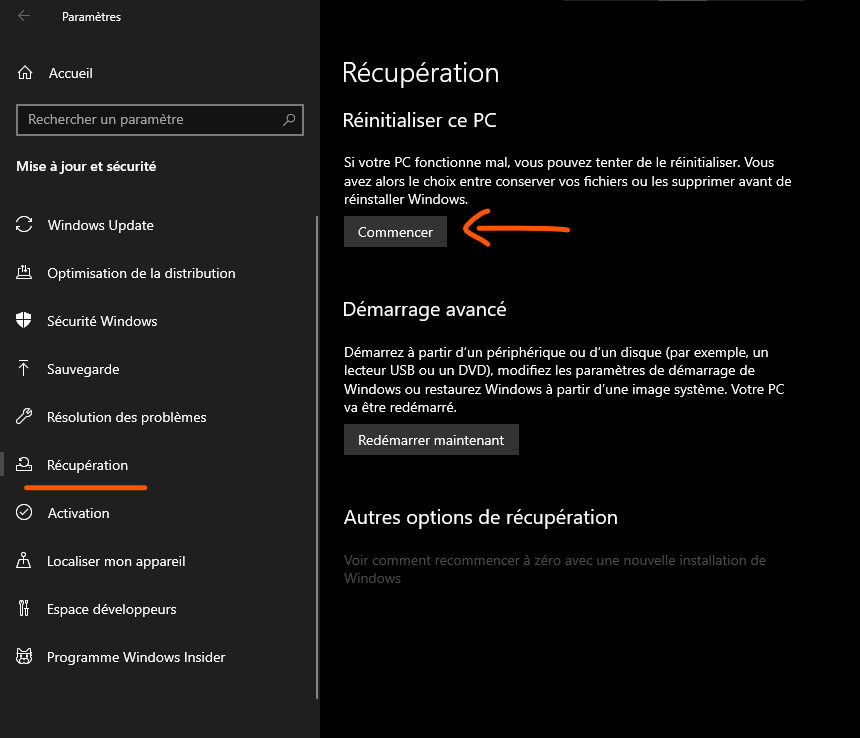
- Choose whether to keep or delete your personal files, then click Next.
- Follow the on-screen instructions to complete the reset process.
Note: This is the most drastic solution and should be used as a last resort. Be sure to back up all your important data before resetting Windows.
FAQ
What is the Shell infrastructure host?
The Shell Infrastructure Host is a Windows process that manages several visual aspects related to the Start menu, Action Center, desktop background slideshows, and more. It runs in the background and is called sihost.exe in the Task Manager.
Why does the Shell infrastructure host use so many resources?
There is no definitive answer to this question, but there could be several possible causes, such as damaged or missing system files, a virus or malware, a faulty photo viewing application, or incorrect settings.
How to reduce CPU and memory usage on the Shell infrastructure host?
There are several possible solutions to reduce the CPU and memory usage of the Shell infrastructure host, such as:
- Scan your PC with an antivirus program
- Change the default photo viewing application
- Repair damaged or missing system files
- Change the priority of the sihost.exe process
- Disable desktop background slideshows
- Reset Windows
How do I disable the Shell infrastructure host?
Disabling the Shell Infrastructure Host is not recommended, as it is an essential Windows process and can affect normal system operation. If you are experiencing problems with this process, try repairing it using the solutions mentioned above.
Is the Shell infrastructure host a virus?
No, the Shell Infrastructure Host is not a virus, but a legitimate Windowsprocess. However, it is possible for a virus or malware to disguise itself as sihost.exe to deceive users. To verify whether the sihost.exe process is a virus or not, you should scan your PC with a reliable and up-to-date antivirus program.
Conclusion
The Shell Infrastructure Host is an important Windows process that can sometimes cause high CPU and memory usage. In this article, we've shown you how to fix high CPU usage in the Shell Infrastructure Host in Windows using six possible solutions:
- Scan your PC with an antivirus program
- Change the default photo viewing application
- Repair damaged or missing system files
- Change the priority of the sihost.exe process
- Disable desktop background slideshows
- Reset Windows
We hope this article was helpful and that you were able to resolve the issue. If you have any questions or comments, please feel free to let us know.


