

Are you frustrated by your computer's inability to detect fingerprint scanners compatible with Windows Hello ? You're not alone! Discover how to resolve this issue step by step and enjoy the fast and secure authentication offered by Windows Hello.
Understanding the problem
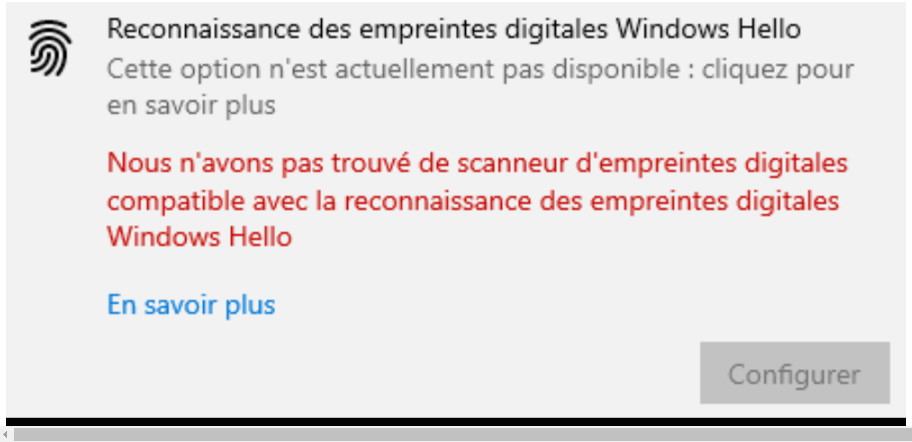
Windows Hello security feature Windows that allows users to log in to their computers using biometrics, such as fingerprints or facial recognition. However, some users encounter difficulties setting up and using this feature, particularly with fingerprint scanner detection.
Checking the prerequisites for using Windows Hello

Before attempting to resolve the issue, it's important to verify that your hardware and operating system meet the minimum requirements for using Windows Hello. Here are the elements to check:
- A computer equipped with a fingerprint sensor compatible with Windows Hello.
- The Windows 10 operating system or later.
- Windows updates are up to date.
- The fingerprint sensor drivers are up to date.
Methods for solving the problem
Method 1: Resetting Windows Hello components
If the previous methods haven't worked, you can try resetting the Windows Hello components. To do this, follow these steps:
Step 1: Press the " Windows + I" keys to open Windowssettings.
Step 2: Click on "Accounts" then on "Login options" in the left menu.
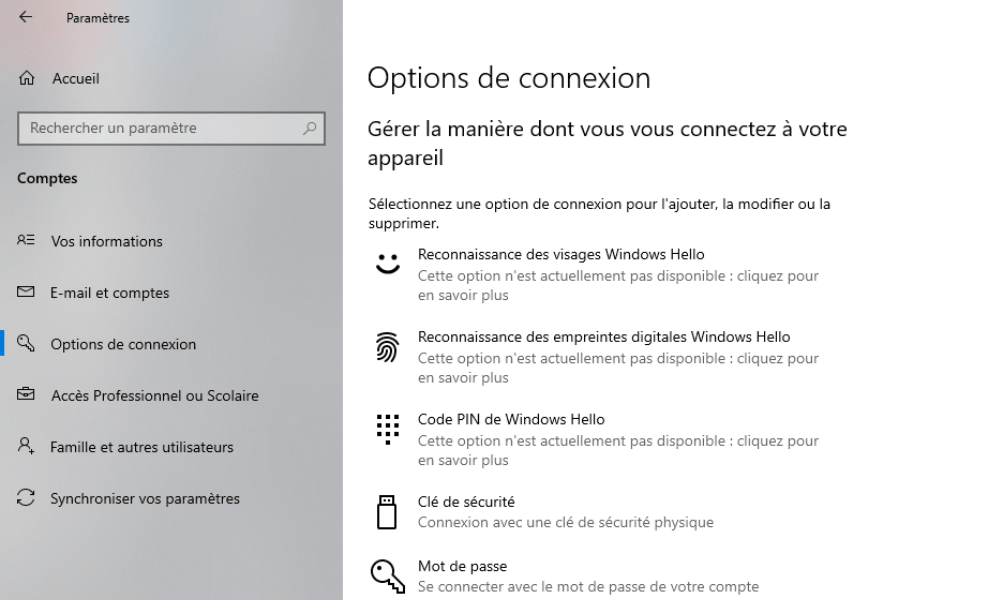
Step 3: Locate the " Windows Hello" section and click "Delete" to remove existing biometric data.
Step 4: Restart your computer.
Step 5: Go back to "Sign-in options" and configure Windows Hello again.
Method 2: Updating the fingerprint sensor drivers
One possible cause of the problem is the presence of outdated or incompatible drivers. To update your drivers, follow the steps below:
Step 1: Press the " Windows + X" keys and select "Device Manager" from the context menu.
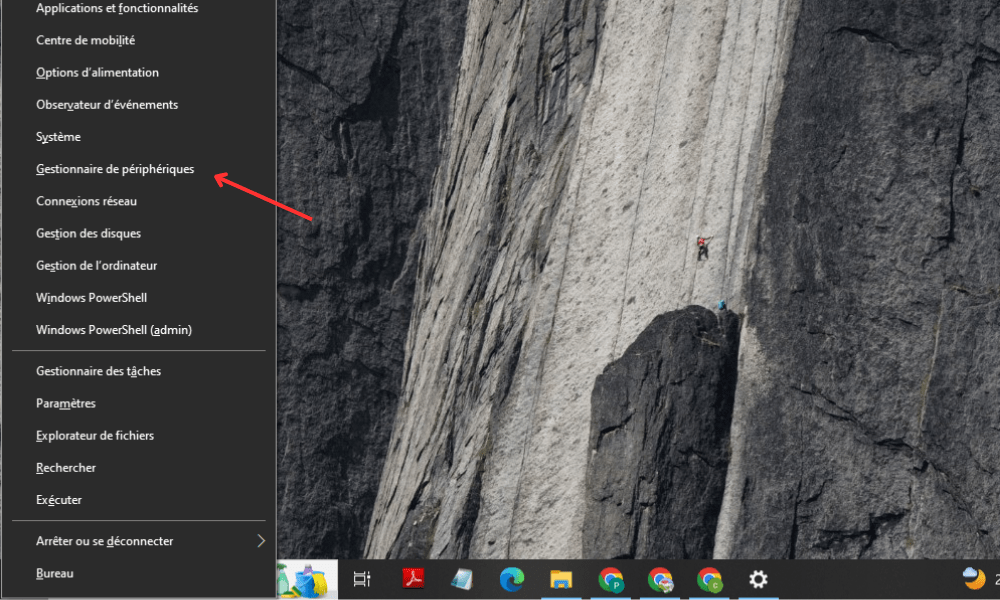
Step 2: Locate the fingerprint sensor in the list of devices and click on it to expand it.
Step 3: Right-click on the fingerprint sensor and choose "Update driver".
Step 4: Follow the on-screen instructions to install the updated drivers.
Step 5: Restart your computer and check if the problem is resolved.

Method 3: Enabling the Windows Biometric Service
The Windows Biometric service must be enabled for Windows Hello to function correctly. To enable it:
Step 1: Press the " Windows + R" keys, type "services.msc" and press Enter.
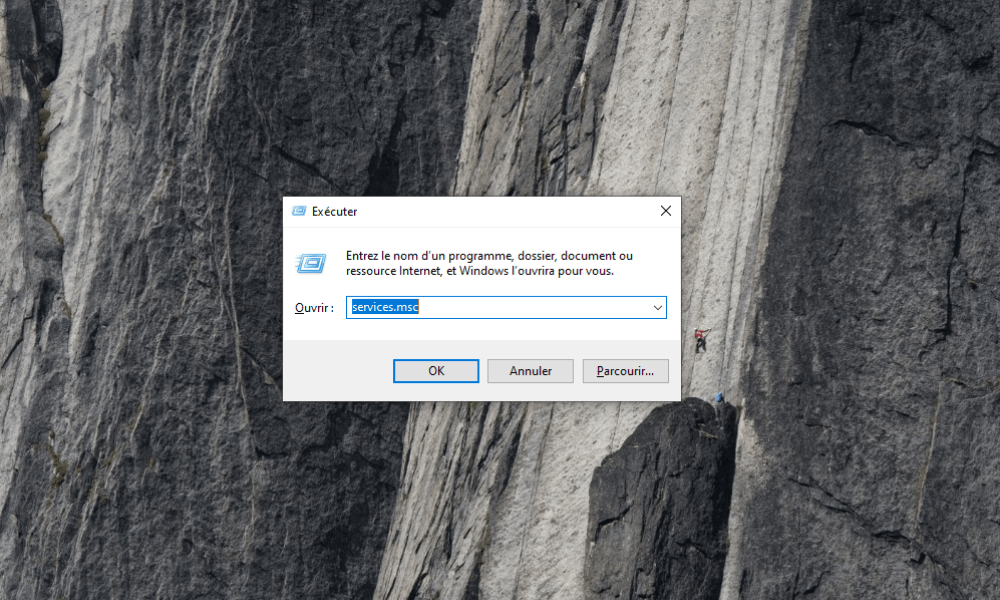
Step 2: Locate the " Windows Biometric" service in the list, right-click on it and select "Properties".
Step 3: Ensure that the "Startup type" is set to "Automatic" and that the service is running. If it is not, click "Start" to launch the service.
Step 4: Click "Apply" and "OK" to save the changes, then restart your computer.
Check if the fingerprint scanner detection problem is resolved.
Comparative table of solution methods
| Method | Description | Benefits | Disadvantages |
|---|---|---|---|
| Driver update | Installing the latest drivers for the fingerprint sensor. | This can solve the problem if the drivers are outdated or incompatible. | It won't work if the drivers are not the cause of the problem. |
| Enabling Windows Biometric Service | Ensures that the Windows Biometric service is enabled and functioning correctly. | This can resolve the issue if the service was disabled or not functioning correctly. | It won't work if the service isn't the cause of the problem. |
| Resetting Windows Hello components | Deletes existing biometric data and reconfigures Windows Hello. | It can resolve the issue if the biometric data was corrupted. | Does not work if the Windows Hello components are not the cause of the problem. |
By following the methods described above, you should be able to resolve the issue with the Windows Hello-compatible fingerprint scanner and fully enjoy this convenient and effective security feature. Remember to keep your system and drivers up to date to prevent similar problems in the future.
FAQ
What other types of biometrics are supported by Windows Hello?
Windows Hello supports several types of biometrics for user authentication. In addition to fingerprints, other biometric methods include:
- Facial recognition : Windows Hello uses an infrared camera to analyze the unique characteristics of a user's face. This method requires a computer equipped with a compatible camera.
- Iris recognition : This method works by analyzing the unique patterns of the iris in the user's eye. This requires a specialized device with a suitable infrared camera.
It is important to note that not all biometric methods are available on all devices. The available features will depend on your computer's hardware.
How can I tell if my fingerprint sensor is compatible with Windows Hello?
To find out if your fingerprint sensor is compatible with Windows Hello, you can check your computer's specifications or consult the manufacturer's documentation. Generally, modern computers with an integrated fingerprint sensor are compatible with Windows Hello. You can also check compatibility by going to WindowsSettings, then clicking on Accounts and Sign-in options. If your sensor is compatible, you should see an option to set up Windows Hello with your fingerprint.
Are there any external fingerprint scanners compatible with Windows Hello that I can use on my computer?
Yes, there are external fingerprint scanners compatible with Windows Hello that you can connect to your computer via a USB port. These scanners are usually plug-and-play, meaning they work without the need to install any additional software. Just make sure the scanner you choose is specifically compatible with Windows Hello.
How do I set up facial recognition with Windows Hello if my computer does not have a fingerprint sensor?
To set up facial recognition with Windows Hello, follow the steps below:
- Make sure your computer has a Windows Hello compatible camera (infrared camera).
- Open Windows“Settings”, click on “Accounts” and then on “Sign-in options”.
- Find the " Windows Hello" section and click "Configure" under "Facial Recognition".
- Follow the on-screen instructions to register your face.
Once the setup is complete, you will be able to use facial recognition to log in to your computer.
Is it possible to use Windows Hello with multiple user accounts on the same computer?
Yes, it is possible touse Windows Hello with multiple user accounts on the same computer. Each user must configure Windows Hello individually for their account. To do this, each user must follow the setup steps described in the previous answers.
What is the difference between Windows Hello and other biometric authentication methods available on the market?
Windows Hello is a biometric authentication solution developed specifically for Windows. The main difference between Windows Hello and other biometric authentication methods is its native integration into the Windows. Otherbiometric authentication may require third-party software or applications to function, whereas Windows hardware and software Windows without any additional installation.
How can I improve my computer's security by using Windows Hello in combination with other authentication methods?

To improve your computer's security, you can combine Windows Hello with other authentication methods, such as:
- Password: You can configure Windows Hello to also require a password in addition to biometric authentication.
- PIN: You can set a PIN for two-factor authentication, where the user must provide both a fingerprint and a PIN.
- Two-factor authentication (2FA): You can also use third-party authentication apps, such as Google Authenticator, to add an extra layer of security.
Combining multiple authentication methods can help strengthen the security of your account and computer.
Is Windows Hello available on earlier versions of Windows, such as Windows 7 or Windows 8?
Windows Hello is a feature introduced with Windows 10 and is not available on earlier versions of Windows, such as Windows 7 or Windows 8. To take advantage of Windows Hello, you must upgrade your operating system to Windows 10 or later.
My fingerprint sensor works, but Windows Hello won't let me use it. How can I fix this?
If your fingerprint sensor works, but Windows Hello won't let you use it, your sensor may not be compatible with Windows Hello or the drivers may be outdated. Make sure your sensor is compatible with Windows Hello and update the drivers, as described in the answer to the second question in this FAQ.
Does using Windows Hello affect my computer's performance or my laptop's battery life?
Using Windows Hello generally doesn't have a significant impact on computer performance or battery life. However, like any feature, Windows Hello consumes system resources when in use. Resource consumption depends on the type of biometrics used (fingerprint, facial recognition, or iris recognition) and how often Windows Hello is used. In most cases, the impact on performance and battery life is minimal and shouldn't cause any noticeable problems for users.
Want to extend the life of your PC? You'll love this article: 5 tips to maximize the lifespan of your laptop !
Conclusion
Windows Hello is a biometric authentication method computers and devices Windows. This FAQ addresses some of the most common questions about Windows Hello and how to use it. By understanding the various options and features of Windows Hello, you can get the most out of this technology and improve your computer's security.


