

Have you ever encountered an error message telling you that a program has stopped working due to an Appcrash problem? Are you wondering what this term means and how to fix it? Don't worry, in this article, we'll explain what an Appcrash is and give you 7 possible solutions to fix it.
What is an Appcrash?
 An Appcrash is an error message that appears when Windows detects that a program cannot run correctly and crashes. This can be due to several reasons, such as a corrupted file, a virus, a compatibility issue, a conflict with other software, etc. For example, if you try to install your NVIDIA graphics card drivers and encounter the error message “ The NVIDIA installer cannot continue ,” it means there is an Appcrash problem with the installer.
The Appcrash error message typically includes the name of the program that crashed, the name of the faulty module, the operating system version, and the exception code. This information can be helpful in identifying the cause of the problem and finding a suitable solution.
How to fix Appcrash?
There is no universal solution to fix an Appcrash, as it can have various causes. However, here are 7 solutions you can try to resolve the Appcrash problem:
Solution 1: Empty your Windows Recycle Bin
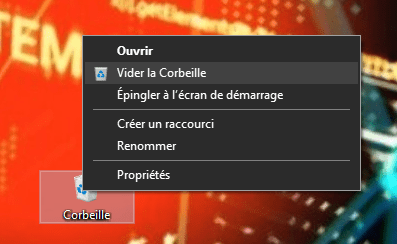
The first thing to do is empty your WindowsRecycle Bin, as it can contain unwanted, temporary, or outdated files that can slow down your computer or cause errors. You can use the Disk Cleanup tool built into Windows or third-party software like CCleaner for this.
To use the WindowsDisk Cleanup tool, follow these steps:
- Open File Explorer and right-click on the hard drive where Windows is installed (usually C:).
- Select Properties and click the Disk Cleanup button.

- Check the boxes for the files you want to delete and click OK.

- Restart your computer and check if the Appcrash problem is resolved.
Solution 2: Free your computer from viruses
A virus can cause an Appcrash, as it can damage or modify system or program files. Therefore, it's important to protect your computer with up-to-date antivirus software and perform regular scans.
To scan your computer with the antivirus built into Windows 10 ( Windows Defender ), follow these steps:
- Open Windows settings and click on Update & Security.
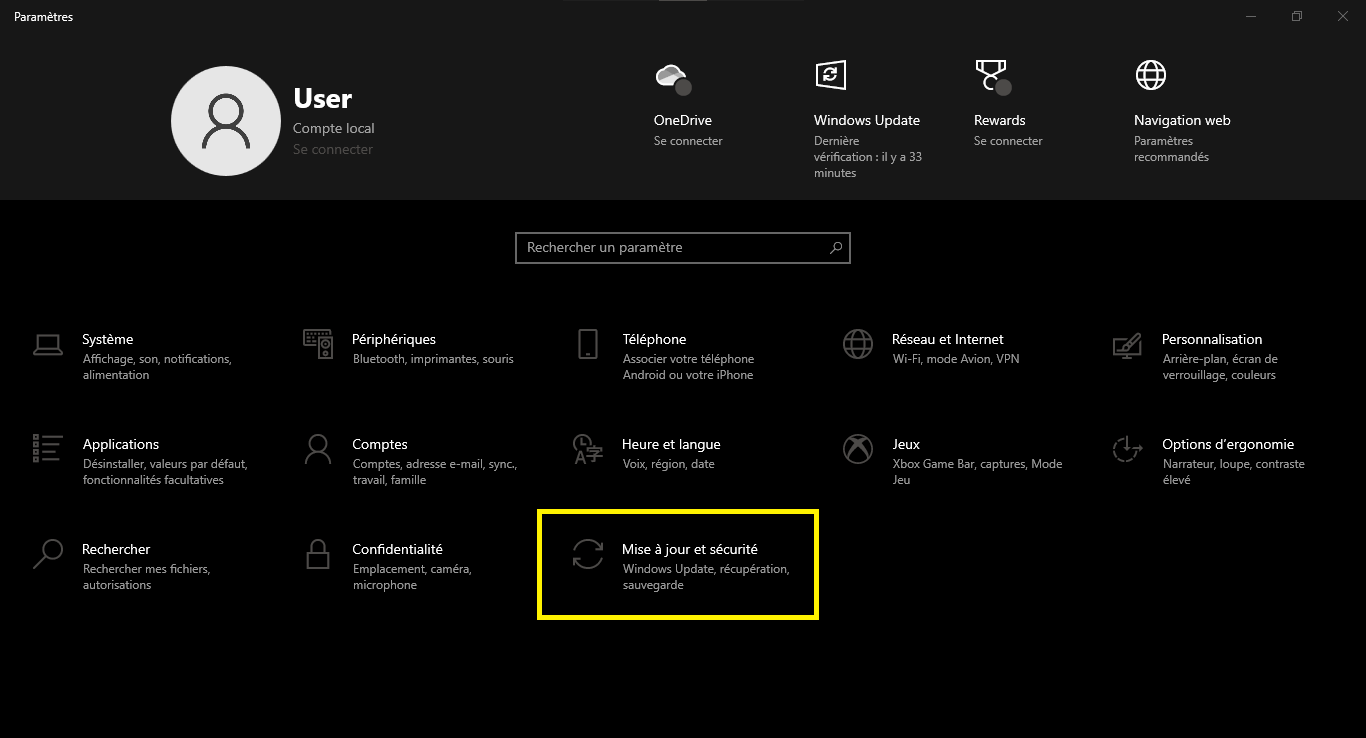
- Click on Windows Security and select Virus & threat protection.
- Click on Analyze options and choose a full or custom analysis.
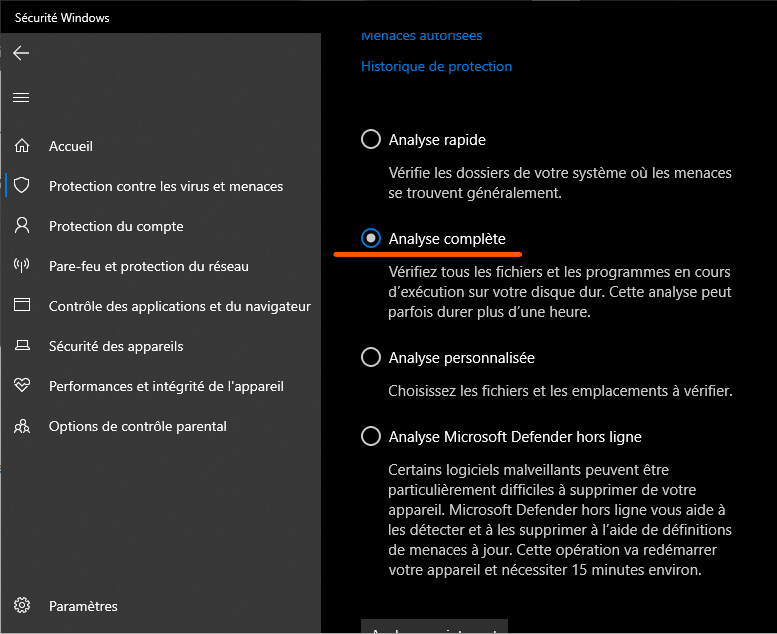
- Click on Analyze Now and wait for the analysis to complete.
- If the antivirus detects threats, follow the instructions to remove or quarantine them.
- Restart your computer and check if the Appcrash problem is resolved.
Solution 3: Repair your system files
A corrupted or missing system file can cause an Appcrash, as it prevents the program or operating system from functioning correctly. To repair your system files, you can use the System File Checker (SFC) tool built into Windows.
To use the System File Checker (SFC) tool, follow these steps:
- Open the command prompt as an administrator. To do this, you can type cmd in the taskbar search box, then right-click on Command Prompt and choose Run as administrator.
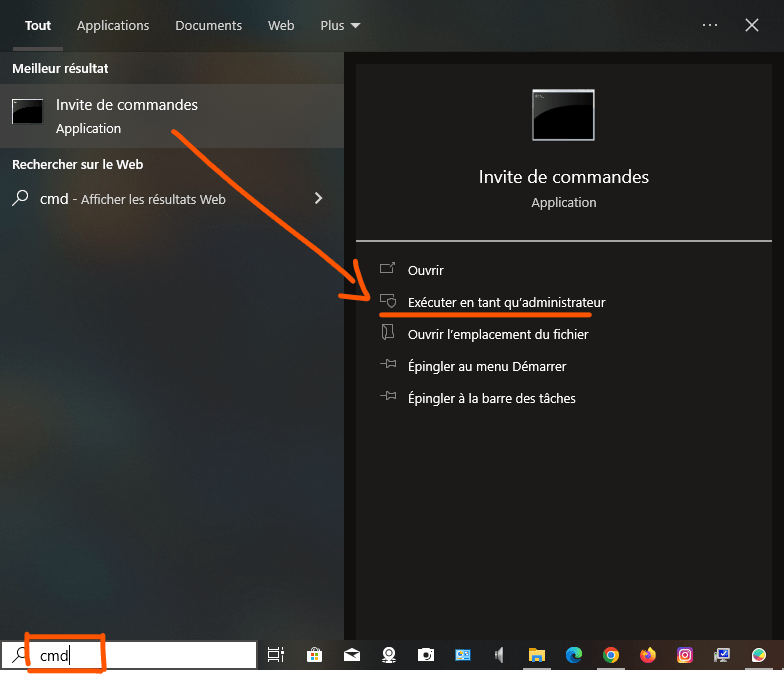
- In the Command Prompt window, type the command sfc /scannow and press Enter. This command will scan all protected system files and replace any corrupted or missing files with a hidden copy in a compressed folder located at %WinDir%\System32\dllcache. The %WinDir% symbol represents the folder where Windows is installed, for example, C:\Windows.
- Do not close the Command Prompt window until the scan is complete. The scan results will be displayed once the process is finished.

- When the analysis is complete, you may see one of the following messages:
- Windows Resource Protection did not find any integrity violations. This means that no system files are missing or corrupted, and you do not need to take any further action.
- Windows Resource Protection found corrupted files and successfully repaired them. This means that some system files have been fixed, and you need to restart your computer for the changes to take effect.
- Windows Resource Protection found corrupted files but was unable to repair all of them. This means that some system files could not be repaired, and you should check the CBS.log file for more details. You can access this file by typing the command `findstr /c:“[SR]” %windir%\Logs\CBS\CBS.log >“%userprofile%\Desktop\sfcdetails.txt”` in the command prompt, and then opening the sfcdetails.txt file located on your desktop.
Solution 4: Use compatibility mode
If the Appcrash problem occurs with a program designed for an earlier version of Windows, there may be a compatibility issue between the program and your current version of Windows. To resolve this, you can try running the program in compatibility mode, which allows Windows to simulate an older environment for the program.

To use compatibility mode, follow these steps:
- Right-click on the icon of the program that caused the Appcrash problem and choose Properties.
- Click on the Compatibility tab and check the box Run this program in compatibility mode for.
- Select the version of Windows for which the program was designed from the drop-down list. For example, if the program was created for Windows XP, choose Windows XP Service Pack 3.
- Click OK and try running the program again.
If the problem persists, you can also check the "Run this program as an administrator" box in the Compatibility tab, which may resolve some access rights issues.
Solution 5: Reinstall the problematic application
If none of the previous solutions work, the application causing the Appcrash problem may be damaged or incorrectly installed. In this case, you can try uninstalling and then reinstalling the application to fix any corrupted or missing files.
To uninstall an application in Windows 10, you have two options:
- You can uninstall an application from the Start menu. To do this, click the Start button and find the application in the list of applications. Right-click the application and choose Uninstall. Confirm your choice by clicking Uninstall again.

- You can also uninstall an app from WindowsSettings. To do this, click the Start button and choose Settings. Click Apps & features. Find the app you want to remove in the list and click it. Click the Uninstall button and confirm your choice.

In both cases, the application will be removed from your computer. If you want to reinstall it later, you will need to download it again from the Microsoft Store or the developer's website.
Solution 6: Check application permissions
Sometimes, the Appcrash problem can be caused by an application lacking permissions to access certain system resources, such as the network, webcam, microphone, etc. To resolve this issue, you can check and modify the application's permissions in WindowsSettings.
To check the application's permissions, follow these steps:
- Click the Start button and choose Settings.
- Click on Privacy and select the category of permissions you want to check in the left pane. For example, Camera, Microphone, Location, etc.

- In the right pane, you will see a list of applications that have access to this category of permissions. You can enable or disable access for each application using the switches.
- If you do not see the application that caused the Appcrash problem in the list, you can click on the Choose which applications can use your [category] link at the bottom of the right pane and add the application manually.
After checking and modifying the application permissions, try restarting it and see if the Appcrash problem is resolved.
Solution 7: Disable the antivirus
Depending on the application experiencing the problem, the issue may be related to your antivirus software. Sometimes, antivirus programs can block or interfere with certain programs, preventing them from functioning correctly. To resolve this, you can try temporarily disabling your antivirus software and restarting the application that caused the Appcrash problem.
To disable your antivirus software, you need to access your antivirus settings and look for the option to disable or pause it. The process may vary depending on the antivirus program you're using, but it's usually accessible from the taskbar or Start menu. You can also consult your antivirus provider's website or support for further instructions.

After disabling your antivirus software, try running the application that caused the Appcrash problem again and see if the issue is resolved. If it is, you can re-enable your antivirus software and check for an update or an exception for the application in your antivirus settings.
FAQ
Here are some frequently asked questions about the Appcrash problem:
What causes an Appcrash?
An app crash can be caused by several factors, such as a corrupted file, a virus, a compatibility issue, a conflict with other software, etc. There is no single cause for this problem.
What is the difference between an Appcrash and a BSoD?
An Appcrash is an error message that appears when Windows detects that a program cannot run correctly and crashes. A BSoD (Blue Screen of Death) is a blue screen that appears when Windows encounters a serious problem that prevents it from functioning and requires a restart. An Appcrash typically affects a single program, while a BSoD affects the entire system.
How can I determine which module is faulty and causing an Appcrash?
The Appcrash error message typically includes the name of the faulty module, which is the file or component that caused the problem. For example, if the error message indicates that the faulty module is explorer.exe, this means the problem originates from WindowsFile Explorer. You can also check the CBS.log file for more details about the faulty module.
How do I update my graphics card drivers to avoid an Appcrash?
Graphics card drivers are software that allows Windows to communicate with the graphics card and display images on the screen. If the drivers are outdated or incompatible, they can cause display problems or errors such as an Appcrash. To update your graphics card drivers, you can use the Device Manager tool built into Windows or download the drivers from your graphics card manufacturer's website.
To use Device Manager, follow these steps:
- Right-click the Start button and choose Device Manager.
- Expand the Graphics cards category and right-click on your graphics card.
- Select Update driver and follow the on-screen instructions.
How do I disable extensions or plugins that might cause an Appcrash?
Extensions or plugins are add-ons that enhance the functionality of certain programs, such as web browsers. Sometimes, they can conflict with the program or other extensions and cause errors like an Appcrash. To disable extensions or plugins that might be causing an Appcrash, you need to access the program's settings and find the option to manage extensions or plugins. For example, to disable extensions in Google Chrome, click the menu in the top right corner, select More tools, and then Extensions. You can then enable or disable extensions using the toggles.
How do I restore my system to a previous date to resolve an Appcrash?
System Restore is a Windows feature that allows you to revert your system to a previous state, when everything was working correctly. This can be useful for resolving an AppCrash caused by a recent system change, such as an update or software installation. To restore your system to a previous date, you must use the System Restore tool built into Windows.
To use the System Restore tool, follow these steps:
- Right-click the Start button and choose System.
- Click on System Protection in the left pane.
- Click on System Restore in the System Protection tab.
- Click Next and choose a restore point from the list. A restore point is a system backup from a specific date. You can see the date and time of each restore point, as well as a description of the event that created it. Choose a restore point that predates the Appcrash issue.
- Click Next and confirm your choice by clicking Finish. The system will restart and restore your system to the state of the selected restore point.
- After restarting, check if the Appcrash problem is resolved.
Conclusion
The Appcrash error message indicates that a program has stopped working due to an internal or external problem. It can have several possible causes, such as a corrupted file, a virus, a compatibility issue, a conflict with other software, etc.
To resolve the Appcrash problem, you can try the following 7 solutions:
- Clean out your Windows Recycle Bin
- Free your computer from viruses
- Repair your system files
- Use compatibility mode
- Reinstall the problematic application
- Check the application permissions
- Disable your antivirus software, whether it's paid or not.
We hope this article has helped you understand what an Appcrash is and how to fix it. If you still have any questions or comments, please let us know in the section below.


